
Table of Contents
Method 1: Traditional Fast Cutout in Photoshop — Quick Selection Tool + Select and Mask
Ideal for simple backgrounds and clear character outlines. Convenient operation without complex settings.
Step 1: Open Photoshop, import your image. Press Ctrl+J (or Cmd+J on Mac) to duplicate the background layer to protect the original.
Step 2: Select the “Quick Selection Tool” (shortcut W) from the left toolbar. Brush over the main subject to generate a selection automatically. Hold the Alt key to subtract unwanted areas.
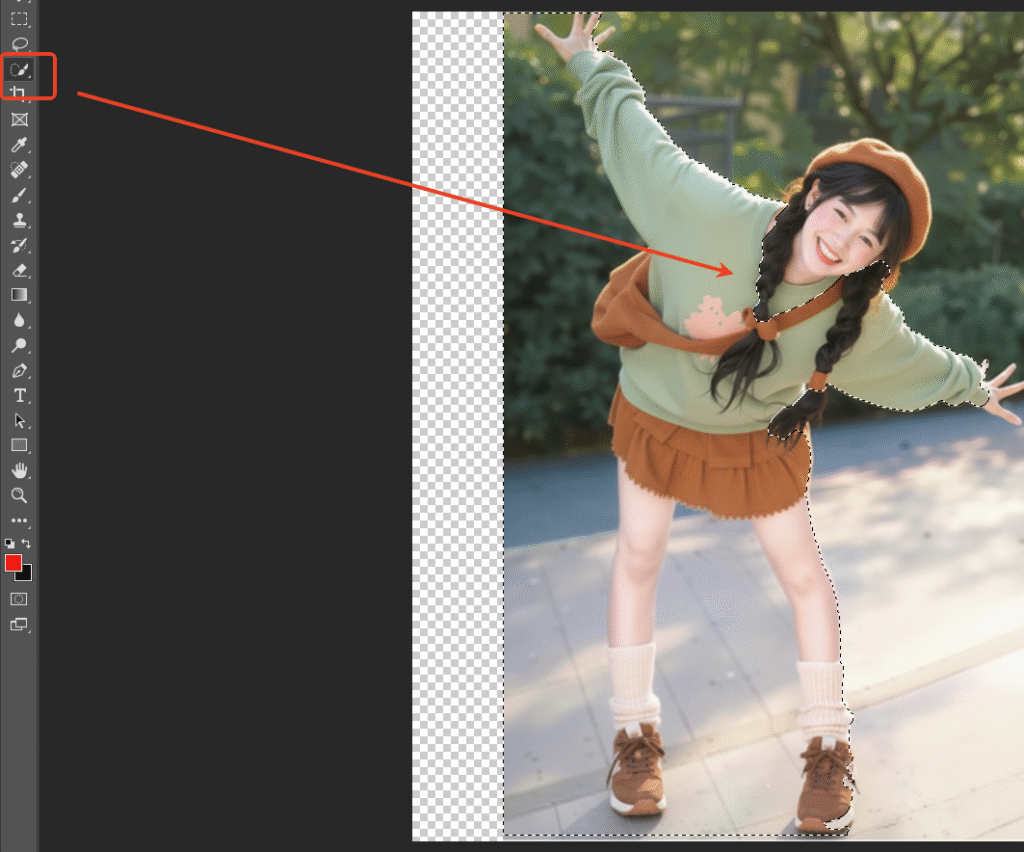
Step 3: Right-click on the selection and choose “Select and Mask”. Use the “Refine Edge Brush Tool” on the left to gently paint over hair edges for optimization.
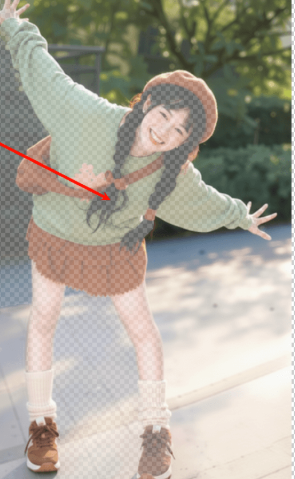
Step 4: Output as “Layer Mask”. Hide the original background layer to complete the cutout.
Method 2: PsAide Background Remover — AI Cutout Function
Adapts to all scenes, completes in just 3 steps. Efficiency far surpasses traditional methods, accurately identifying even complex hair strands.
Step 1: Install the PsAide plugin (compatible with Photoshop CC 2015+). Open Photoshop and find the plugin panel. Launch the Background Remover module.
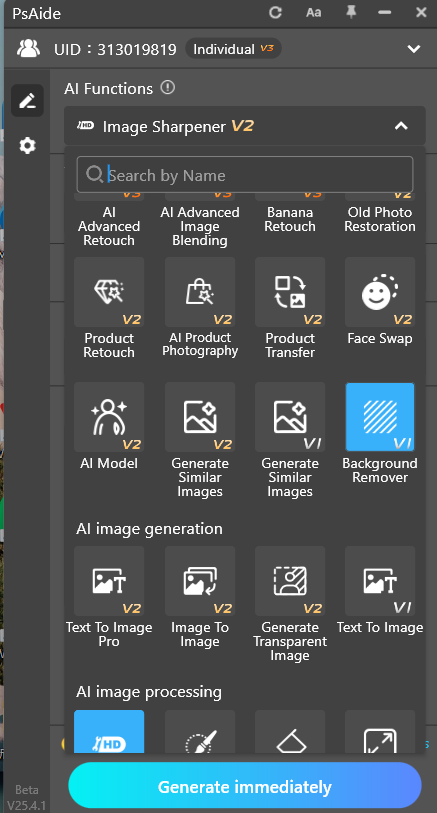
Step 2: Import the picture of the person you need to remove the background from. Press Ctrl+A to select the entire picture (or directly click the “Import Picture” button of the plugin), and then click the “Remove Background” button.
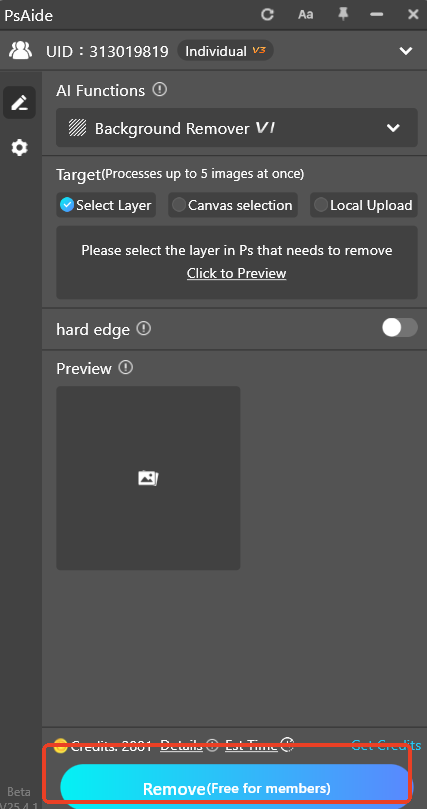
Step 3: Wait 3-5 seconds. The AI will automatically separate the person from the background, outputting a clean cutout on a transparent layer.
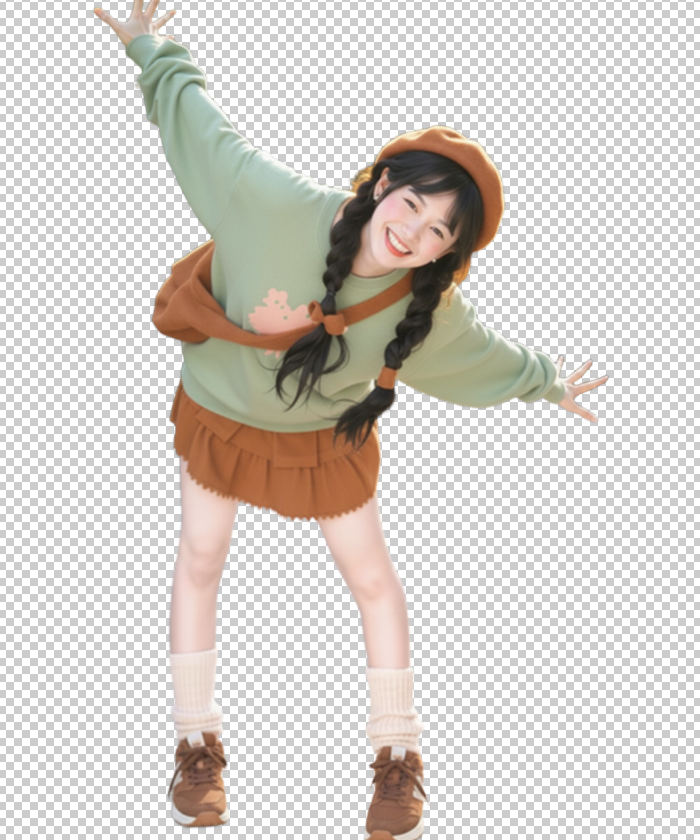
Comparison of the Two Methods
| Feature | Quick Selection + Select and Mask | PsAide AI Cutout |
|---|---|---|
| Speed | 3-5 minutes | 3-5 seconds |
| Difficulty | Simple | Extremely Simple |
| Scenario | Simple background portraits | All scenarios (complex bg, fine hair) |
| Learning Curve | Low | 0 (Prompt-based) |
| Best For | Learning PS basics, simple edits | Efficiency, complex images, batch work |
Essential Tips for Perfect Cutouts
- Use High-Resolution Images: Always start with the highest quality original for better detail recognition.
- Work Non-Destructively: Duplicate your background layer (
Ctrl+J) before starting any cutout method. - Choose the Right Tool: For efficiency and complex edges, choose PsAide Background Remover. To understand Photoshop fundamentals, practice the traditional method.
- Refine with Soft Brushes: When touching up layer masks, use a soft-edged brush for more natural transitions.
- Check Edges at 100% Zoom: Always inspect your cutout edges at full size to ensure quality.
Try both methods and effortlessly solve your people cutout challenges!
Download link
https://psaide.com/?sfrom=A86R4u
Invitation Code: A86R4u
Click here to discover more usage tips and in-depth information on Nano Banana Pro!

