
Table of Contents
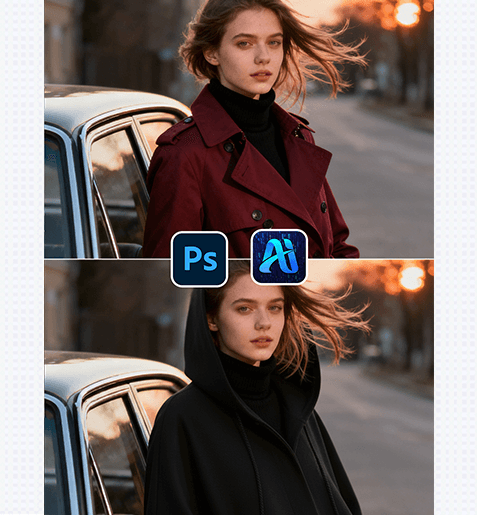
Nano Banana delivers polished results for model outfit replacement, perfect for fashion shoots, product imagery, or marketing materials. It eliminates the hassle of re-shooting and manual editing, letting you refresh looks in minutes.
1. PS Tutorial Quick Tip
To optimize outfit swap accuracy: First, duplicate the original layer (Ctrl+J) to protect the source file.
Use the Lasso Tool or Quick Selection Tool to roughly outline the model’s current clothing
—this helps Nano Banana focus on the target garment while keeping the model’s pose, hair, and surrounding scene intact.Zoom in to 100% to check for precise edge selection before processing.
2. Key Advantages of Nano Banana’s Outfit Swap Function
① Saves Studio Shooting Time:
Skip arranging new clothing, adjusting styling, or re-setting lighting in the studio! Nano Banana replaces the need for physical outfit changes, turning a 1-2 hour re-shoot process into a 2-3 minute edit—ideal for quickly testing multiple looks without extra effort.
② Maintains Visual Cohesion:
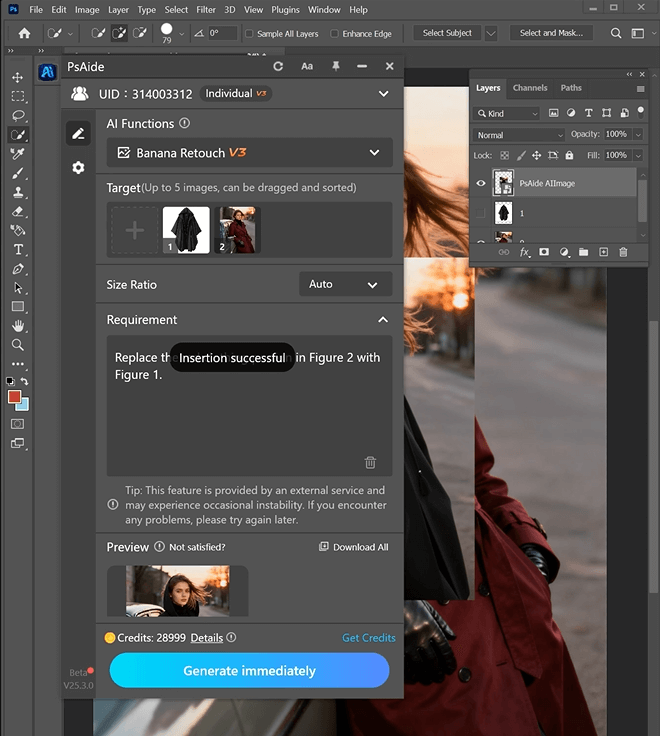
Nano Banana’s algorithm analyzes the original image’s lighting, color tone, and scene context to generate a seamless new outfit. It preserves the model’s posture and matches the garment to the environment, avoiding disjointed edges or unrealistic fabric textures.
3. PSAide + Nano Banana: 3-Step Workflow for Outfit Replacement
① Import the Image: Import your fashion/image file into Photoshop. Navigate to the Plugins menu, launch PSAide, and upload the target image (supports up to 5 images, which can be dragged and sorted).
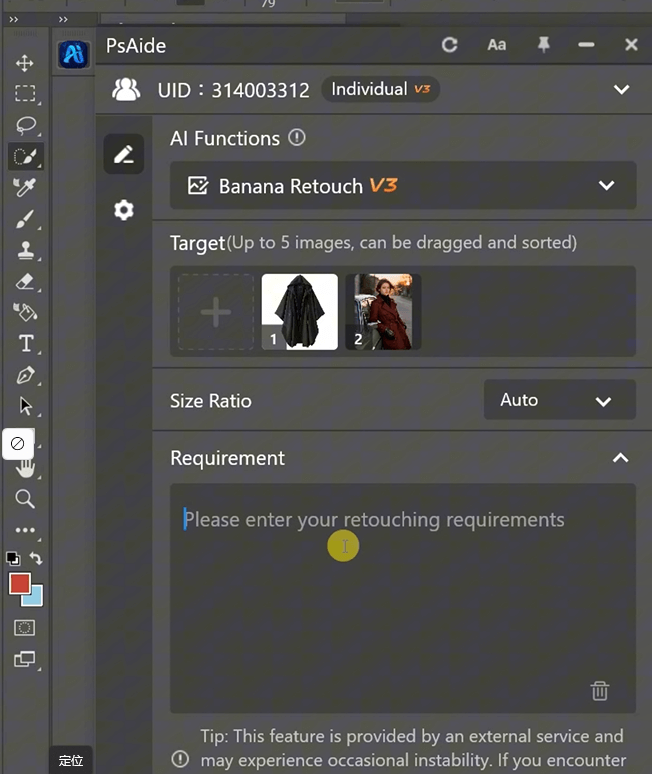
② Input Precise Prompts: In the PSAide Plugin panel, enter clear instructions for the outfit swap.
Replace the red clothing portion in Figure 2 with Figure 1.
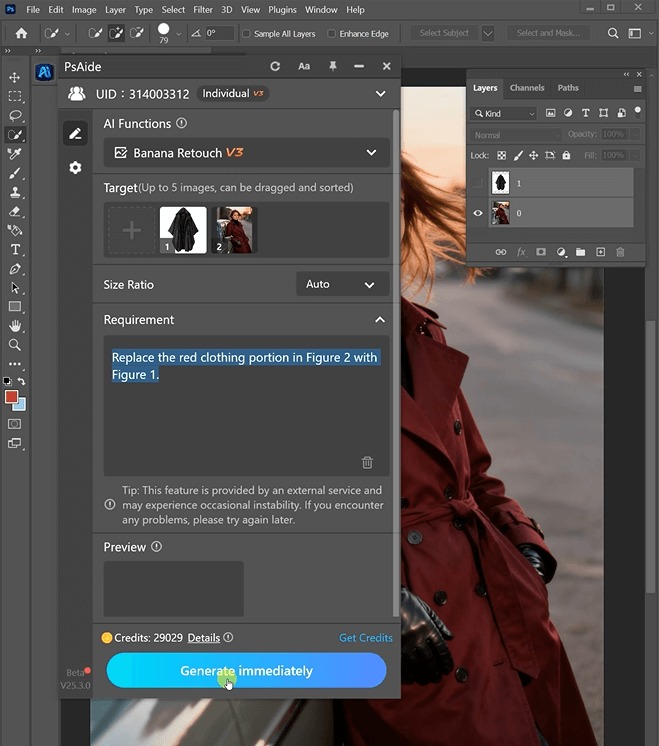
③ Generate and Refine: Click “Generate immediately” in the PSAide Plugin. Nano Banana will process the request and render the new outfit.
4. Plugin Download Information
Nano Banana + PSAide solves the pain points of manual outfit edits: inconsistency, time-consuming adjustments, and artificial-looking results. No advanced design skills are needed—achieve studio-quality outfit swaps in 3 simple steps, with seamless integration, balanced lighting, and realistic garment details.
Download Link: https://psaide.com/?sfrom=ZfhxUK
Invitation Code: ZfhxUK

