Table of Contents
A box of old photographs. Yellowed edges. Deep scratches. Faded colors. Maybe some water damage.
You want to preserve these memories. But the photos are falling apart.
Traditional restoration means hours in Photoshop. Cloning dust spots. Healing scratches. Painting in missing details. Colorizing by hand.
Most people give up before they start.
They shouldn’t have to.
1、Why Manual Restoration Is So Hard
Let me show you what you’re up against.
Scratches and dust. Every white speck needs to be removed individually. A single photo can have hundreds.
Tears and missing sections. You need to reconstruct what was lost. Guess what should be there. Paint it in.
Fading. Colors shift unevenly. Some areas fade faster than others. Fixing this requires channel-by-channel adjustment.
Stains. Chemical stains don’t just sit on top. They change the emulsion. Fixing them is complex.
Scratches and dust
Tears and missing sections
Fading
Stains
A professional restorer might spend 2-4 hours on one photo.
Nano Banana Pro does it in 60 seconds.
2、What Makes Nano Banana Pro Different
Most photo editors can remove dust. Some can fix scratches.
Few can do both while also colorizing and preserving the subject’s identity.
Nano Banana Pro’s AI was trained on thousands of before-and-after restoration examples. It understands:
- What is damage (scratches, stains, tears) that needs removal
- What is character (grain, tone, texture) that should stay
- What colors make sense for skin, clothing, and backgrounds
- Who the subject is so facial features remain consistent
This last point is critical. The AI doesn’t just add random colors. It preserves the person’s identity.
3、What You Need
- Adobe Photoshop with PsAide plugin
- A scanned old photo (300 DPI or higher recommended)
- 60 seconds
That’s it.
4、The 3-Step Restoration Process
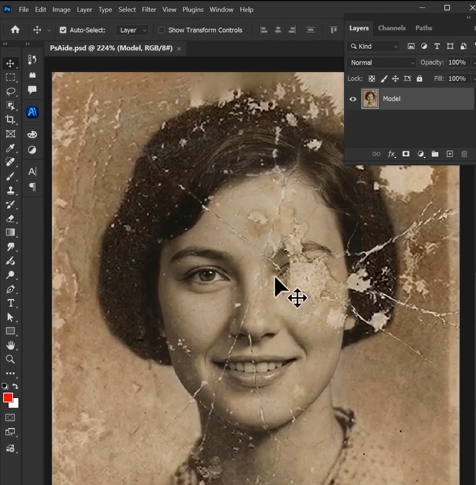
Step 1: Open Your Photo
Launch Photoshop. Open your scanned vintage photograph.
Don’t crop it. Don’t adjust the levels. Don’t try to “help” by cleaning it up first.
The AI works best with the original, unedited scan.
Step 2: Write Your Prompt
Open the PsAide panel. Launch Nano Banana. Select the Pro version.
Upload your single image.
In the prompt box, type:
“Repair damage and scratches on the photo and add color, maintaining consistency in the subject.”
That’s the entire instruction.
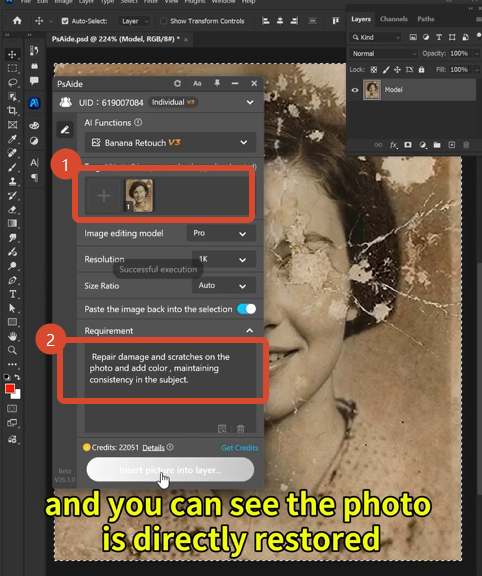
Step 3: Generate
Click Generate.
Wait 45-60 seconds.
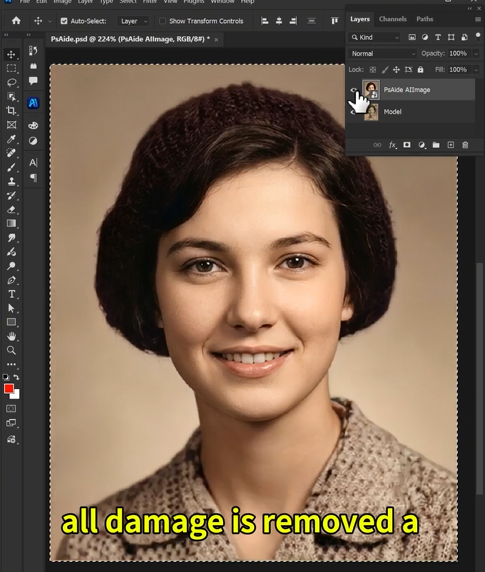
The AI processes your photo. It removes scratches. It repairs tears. It adds natural color. It keeps the person’s face consistent.
The result appears on your screen.
5、What Happens During Those 60 Seconds
| Task | What the AI Does |
|---|---|
| Damage detection | Finds every scratch, spot, and stain across the entire image |
| Scratch removal | Removes surface damage without blurring important details |
| Tear repair | Reconstructs missing sections using surrounding context |
| Fading correction | Restores original contrast and brightness levels |
| Colorization | Adds natural, period-appropriate colors to skin, clothing, and backgrounds |
| Identity preservation | Keeps facial features consistent and recognizable |
| Texture maintenance | Preserves original film grain and photo character |
All of this happens automatically.
6、Download link

https://psaide.com/?sfrom=A86R4u
Invitation Code: A86R4u