
Table of Contents
Dear photographers, e-commerce sellers, and content creators—have you ever captured a perfect shot, only to find distracting clutter ruining the frame? A random car parked in the background of a landscape, stray items on a product display, or unwanted objects in a portrait—these nuisances turn potential great photos into lackluster ones. Traditional background cleanup in Photoshop is a tedious battle: using the Lasso Tool to trace clutter, the Clone Stamp to fill gaps, and spending 20+ minutes per image—all while risking uneven textures or obvious editing traces. For those asking how to remove background clutter without professional skills, NanoBanana is the game-changing solution.
Embedded in the PsAide plugin, NanoBanana leverages advanced AI to redefine background cleanup. It doesn’t just erase objects blindly; it intelligently analyzes the photo’s context—including lighting, texture, and surrounding elements—to reconstruct the background seamlessly. Whether it’s a car in a scenic shot, a backpack on a cafe table, or a stray branch in a portrait, NanoBanana removes clutter while preserving the photo’s natural look, outperforming manual editing by miles.
Why NanoBanana Stands Out for Clutter Removal
What makes NanoBanana different from basic editing tools? Its AI engine deeply understands image semantics:
- It identifies the clutter (e.g., a car) and distinguishes it from the main subject and background.
- It analyzes the surrounding pixels—like grass, pavement, or sky—to fill the erased area with matching texture.
- It adapts to lighting and shadows, ensuring the cleaned background blends perfectly with the rest of the photo.
Tutorial materials that can be used for practice
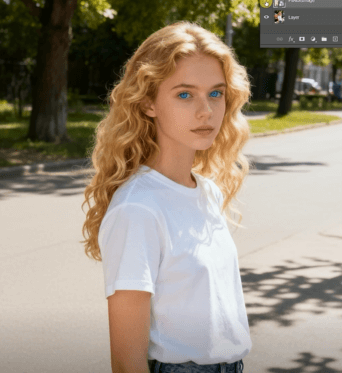
Before:
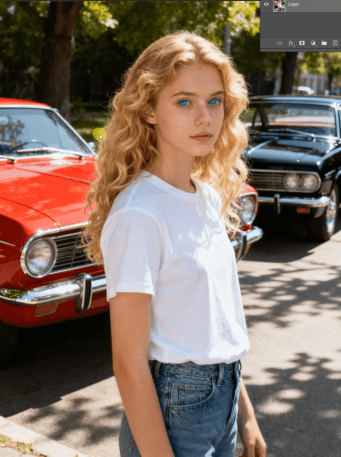
After:
3 Simple Steps to Remove Background Clutter with NanoBanana
NanoBanana simplifies the process into three straightforward steps, no advanced Photoshop skills required:
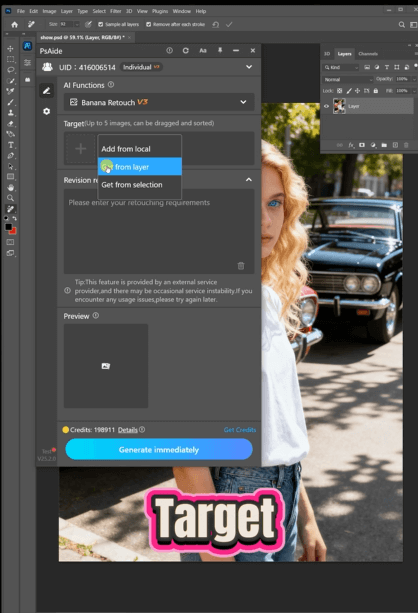
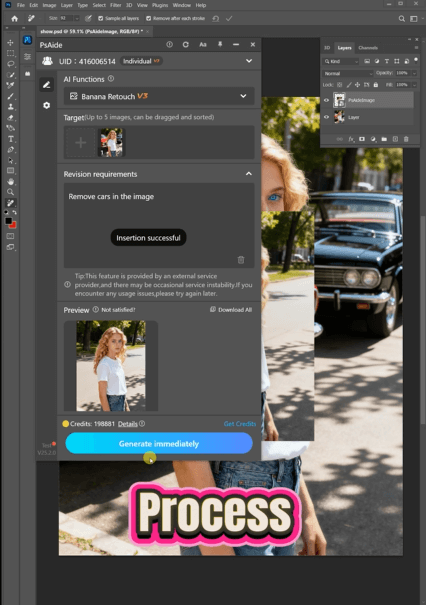
Step 1: Open Image and Launch NanoBananaOpen your cluttered photo in Photoshop (compatible with 2015+ versions). Install the PsAide plugin, then access NanoBanana from the plugin menu. Upload the photo directly to the NanoBanana workspace—no extra prep needed.
Step 2: Enter Targeted PromptLocate the prompt box and type the clear instruction: “Remove the car from the picture.” This specific prompt guides NanoBanana to focus on the exact clutter, avoiding accidental edits to the main subject or background.
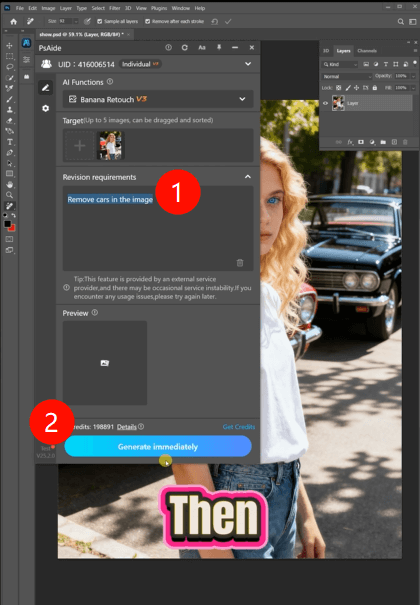
Step 3: Preview and FinalizeClick the “Clean Now” button. NanoBanana processes the image in 3–5 seconds, removing the car and reconstructing the background. Preview the result—you’ll see a clutter-free photo with natural textures and consistent lighting. Save the edited image directly to your Photoshop project.
Core Advantages of NanoBanana
- Time-Saving: Cuts editing time from minutes to seconds, ideal for bulk photo processing.
- Precision: Targets specific clutter without damaging the main subject or background.
- Natural Results: AI-powered reconstruction ensures no blurring, texture mismatches, or editing traces.
- User-Friendly: Simple prompts and one-click operation make it accessible to beginners and pros alike.
Who Benefits from NanoBanana?
- Photographers: Clean up scenic shots, portraits, or event photos without tedious retouching.
- E-commerce Sellers: Remove distracting items from product images to highlight merchandise.
- Content Creators: Polish social media or blog photos for a professional, clutter-free look.
- Marketers: Streamline visual production workflows and maintain consistent brand imagery.
FAQ
Q: Can NanoBanana remove other clutter besides cars?
A: Absolutely—adjust the prompt (e.g., “Remove the backpack from the picture”) to target any object, from small items to large structures.
Q: Does it work for complex backgrounds like forests or city streets?
A: Yes—NanoBanana’s AI handles intricate textures (leaves, pavement, brick) with ease, ensuring seamless reconstruction.
Q: Can I edit the result further?
A: The cleaned image returns as a separate Photoshop layer, allowing you to tweak lighting, colors, or details as needed.
If you’ve been wondering how to remove background clutter efficiently and professionally, NanoBanana is your answer. It eliminates the frustration of manual editing, delivers natural-looking results, and saves valuable time. Download PsAide today to unlock NanoBanana—and turn cluttered photos into polished masterpieces!

