
Table of Contents
Revolutionizing Fashion Design with AI
For fashion designers and photo editors, applying patterns to clothing in Photoshop has always been a technical challenge. Traditional methods require complex masking, tedious warping, and careful blending adjustments – processes that can take hours and often result in unrealistic-looking patterns that fail to follow fabric contours naturally. This pain point slows down creative workflows and makes rapid prototyping nearly impossible for e-commerce and design presentations.
What if you could achieve photorealistic pattern application in minutes instead of hours? The solution lies in AI-powered editing tools. This tutorial demonstrates how to use Nano Banana in Photoshop, an innovative AI feature within the PsAide plugin, to seamlessly apply any pattern to clothing with automatic fabric-aware adjustments. This technique uses artificial intelligence to understand fabric draping and lighting conditions, transforming a complex manual process into a simple three-step workflow that delivers professional fashion mockups in under a minute.
Why Traditional Pattern Application Methods Fall Short
Standard Photoshop techniques for pattern application – including displacement maps, the warp tool, and blending modes – require significant technical expertise and often produce suboptimal results. These methods struggle to account for the complex interplay of light, shadow, and fabric movement, typically resulting in patterns that appear flat and artificially pasted onto garments. This limitation becomes particularly problematic when creating multiple design variations, as each iteration can consume 30-60 minutes of meticulous manual work.
Nano Banana addresses these challenges by serving as an intelligent fabric simulation engine. Rather than manipulating individual pixels, you provide clear visual instructions to the AI, which then analyzes clothing contours, folds, and lighting to apply patterns in three-dimensionally accurate ways. This represents a paradigm shift from manual digital painting to AI-assisted creative execution.
Preparation: What You Need Before Starting
- Software Requirements: Adobe Photoshop with the PsAide plugin installed
- Image Assets:
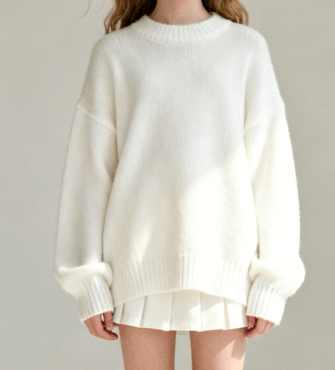
- High-quality photograph of a model wearing the target garment
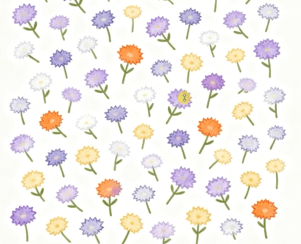
- High-resolution pattern or texture file (seamless patterns work best)
- Technical Level: Beginner to intermediate Photoshop users
- Time Estimate: 2-3 minutes for setup and generation
Step-by-Step Pattern Application Tutorial
Step 1: Prepare Your Images and Launch the AI Tool
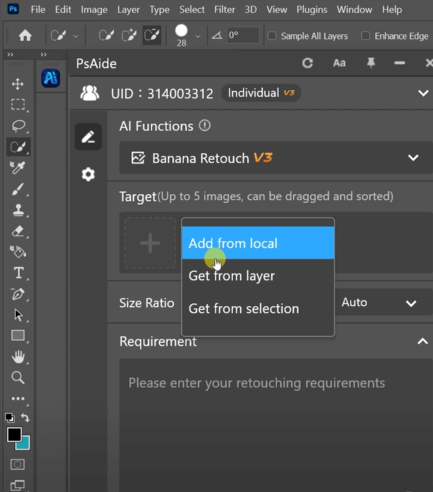
Begin by opening both your pattern image and model photograph in Photoshop. Ensure your photos are high-resolution for optimal AI analysis – clear lighting and visible fabric texture will yield the best results. No preliminary masking or complex selections are necessary. Navigate to the PsAide panel within Photoshop’s interface and launch the Nano Banana module to access the AI-powered editing workspace.
Step 2: Upload Assets and Provide Clear Instructions
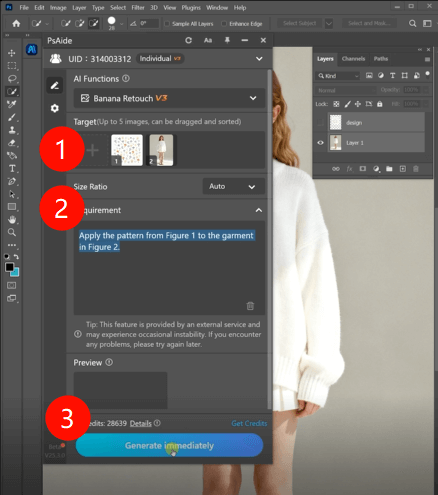
Within the Nano Banana interface, you’ll find straightforward upload options. Follow this sequence:
- Upload Figure 1: Your pattern or texture file
- Upload Figure 2: Your model photograph
The crucial component for success is your text prompt. For pattern application, use this clear, direct command:
“Apply the pattern from Figure 1 to the garment in Figure 2.”
This concise instruction provides the AI with all necessary information: the action required, the source element, and the target location. The AI’s advanced contextual understanding handles the complex geometric calculations automatically.
Step 3: Generate and Refine Your Results
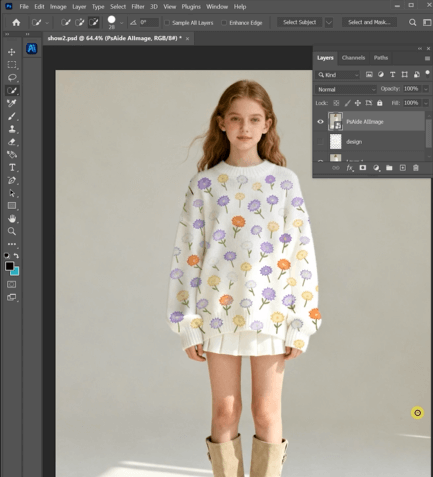
Click the “Generate” button and wait approximately 15-30 seconds for processing. Nano Banana will analyze the clothing in your model photo, identify its structural contours and folds, then intelligently map your selected pattern onto the garment with appropriate perspective and lighting adjustments. The output will be a professionally integrated composite where the pattern appears naturally woven into the fabric, complete with realistic shading that follows every contour and fold.
Advanced Applications and Creative Variations
Once you’ve mastered this basic Nano Banana Photoshop technique, you can expand your creative applications:
- Product Customization: Apply branding elements to athletic wear or uniforms
- Textile Visualization: Test how different fabrics would look on various garment styles
- Seasonal Collections: Rapidly create multiple pattern variations for fashion lines
- Costume Design: Visualize historical or fantasy clothing patterns on reference photos
The fundamental workflow remains consistent across applications: Prepare → Upload → Command → Generate.
Frequently Asked Questions (FAQ)
Q1: The pattern applied correctly but appears too bright/dark compared to the original photo. How do I fix this?
A: Use Photoshop’s adjustment layers to fine-tune the results. Add a “Curves” or “Levels” adjustment layer clipped specifically to your pattern layer, then adjust to match the original photo’s contrast and brightness. You can also experiment with blend mode options like “Multiply” for darker patterns or “Overlay” for more subtle integrations.
Q2: Can I apply patterns to specific clothing items when the model wears multiple layers?
A: Yes, through more detailed prompting. Instead of using “garment,” specify the exact clothing item: “Apply the floral pattern from Figure 1 only to the jeans in Figure 2, not the t-shirt.” For even better results, you can first create a rough selection of the target garment before uploading to provide additional visual context to the AI.
Q3: Does the PsAide plugin work with older versions of Photoshop?
A: PsAide typically supports recent versions of Photoshop (CC 2019 and later). For optimal performance and access to the latest Nano Banana features, developers recommend using the most current version of both Photoshop and the PsAide plugin. Always check the official PsAide website for specific version compatibility before installation.
Q4: What’s the best pattern format for optimal results?
A: Use high-resolution PNG files with transparent backgrounds when possible. Seamless tileable patterns generally produce the most realistic and continuous results across garments. Avoid patterns with obvious directional elements unless you specifically want directional application, as the AI will naturally follow fabric contours which may distort directional patterns.
Download link
https://psaide.com/?sfrom=A86R4u
Invitation Code: A86R4u

