
Table of Contents
The Universal ID Photo Problem
Every year, millions of professionals, students, and travelers face the same frustrating challenge: preparing proper ID photos from existing documents or casual snapshots. Whether you’re an HR manager processing employee badges, a student applying for university admissions, or someone preparing visa documentation, the requirement for standardized, front-facing ID photos creates a persistent bottleneck. Traditional methods involve either expensive photo studio visits or painstaking manual editing in Photoshop—requiring precise extraction, perspective correction, and background replacement that demands technical skills most people don’t possess.
What if you could transform any photo containing a portrait into a perfectly formatted ID shot in seconds? This guide demonstrates how to use Nano Banana in Photoshop, the revolutionary AI feature within the PsAide plugin, to automatically extract portraits and convert them to professional front-view perspectives. This single AI tool eliminates the complexity of manual photo preparation, providing a one-click solution that saves time, reduces costs, and ensures compliance with ID photo standards across various applications.
Who Needs This Solution and Why It Matters
Target Users & Their Pain Points:
- HR Professionals & Office Administrators: Need to create employee badges from submitted photos that are often taken at angles or contain background clutter. Manually editing dozens of photos wastes valuable administrative time.
- Students & Job Seekers: Frequently required to submit passport-style photos for applications, but professional studio sessions are expensive, and self-taken photos rarely meet strict formatting requirements.
- Immigration Applicants & Travelers: Must provide specific visa/passport photos but struggle with technical specifications regarding size, background, and head position. Rejections due to photo issues cause costly delays.
- Real Estate Agents & Service Professionals: Need professional headshots for profiles and marketing materials but lack photography budgets and editing skills.
Traditional Photoshop methods for this task require multiple advanced techniques—precise selection with the Pen Tool, perspective correction using Transform tools, and manual alignment—a process that can take 15-20 minutes per image even for experienced users. The learning curve is steep, and inconsistent results can lead to rejected applications or unprofessional appearances.
The AI Advantage: Why Nano Banana Changes Everything
Unlike conventional Photoshop workflows that treat extraction and perspective correction as separate challenges, Nano Banana approaches ID photo preparation as an integrated intelligent task. The AI doesn’t just cut out the subject—it understands facial geometry, analyzes angular distortion, and reconstructs the portrait from a frontal perspective while maintaining natural proportions. This means even photos taken at 30-45 degree angles can be transformed into compliant front-view portraits without the distortion that typically occurs with manual perspective tools.
The Nano Banana Photoshop method represents a fundamental shift from procedural editing to result-oriented AI processing. Instead of executing a series of technical steps, you describe the desired outcome, and the intelligent system handles the complex geometrical calculations and pixel-level adjustments automatically.
One-Tool Solution: Complete ID Photo Transformation
Step 1: Upload Your Source Image
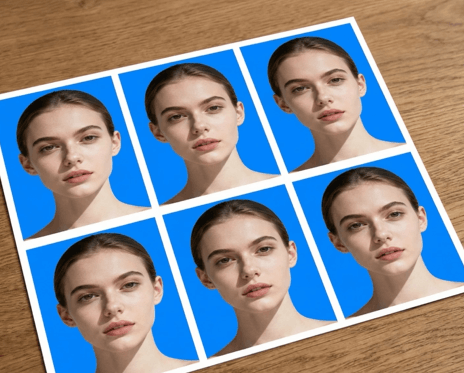
Begin by opening your source document in Photoshop. This could be a scanned ID card, a group photo, or any image containing the portrait you need. No preliminary editing is required—the AI works with images as they are. Navigate to the PsAide panel and launch the Nano Banana module to access the AI processing interface.
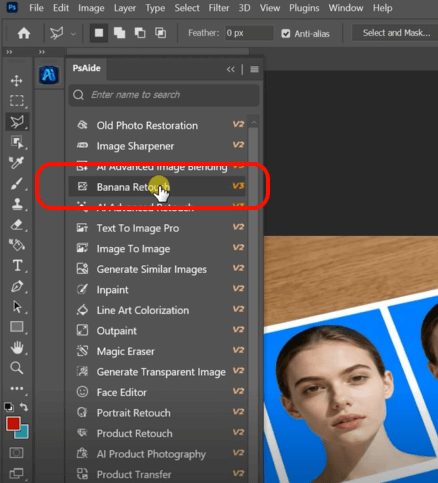
Step 2: Input Your Transformation Command
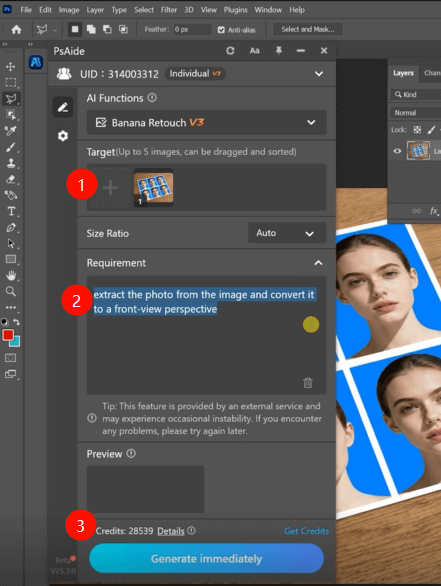
Within the Nano Banana interface, upload your single image file. In the command prompt, use this precise instruction:
“Extract the photo from the image and convert it to a front-view perspective.”
This concise command directs the AI to perform two critical operations simultaneously: first, intelligently identify and isolate the portrait from its surroundings, and second, apply perspective correction to transform it into a standardized front-facing orientation. The AI’s facial recognition capabilities ensure natural proportions are maintained throughout this transformation.
Step 3: Generate Your Ready-to-Use ID Photo
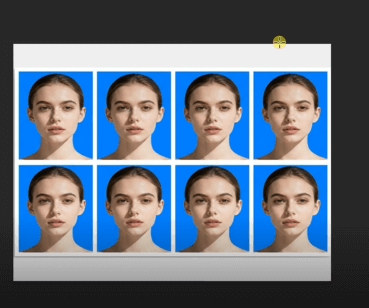
Execute the generation command. Within 20-40 seconds, Nano Banana will deliver a fully processed portrait extracted from the original image and converted to a perfect front-view perspective. The result includes automatic edge refinement, perspective normalization, and optimal cropping—essentially creating a studio-quality ID photo foundation ready for final sizing and background adjustment according to specific requirements.
Practical Applications and Time Savings
The efficiency gains from this Nano Banana technique are substantial:
- HR Departments: Process 50 employee photos in the time previously needed for 5
- Educational Institutions: Standardize student ID photos from diverse submissions
- Photography Services: Offer ID photo correction as an add-on service without additional editing time
- Individuals: Prepare visa applications without last-minute studio visits
The workflow simplifies to: Upload → Command → Use, eliminating the traditional multi-step Photoshop process that typically involves: Select Subject → Refine Edge → Copy to New Layer → Free Transform → Perspective Warp → Manual Alignment → Final Cropping.
Technical Considerations and Best Practices
Q1: What types of source photos work best with this method?
A: For optimal results, use source photos where the face occupies at least 30% of the image area and is reasonably visible. The AI performs remarkably well with angled shots up to 45 degrees. Extremely low-resolution images or faces in deep shadow may require additional editing, but most standard photos yield excellent transformations.
Q2: Can I control the final size and background color?
A: While the current command focuses on extraction and perspective correction, you can extend your prompt for complete ID photo preparation: “Extract the portrait, convert to front-view perspective, place on white background, and size to 2×2 inches at 300 DPI.” For precise specifications, post-process the AI result using Photoshop’s Image Size and Fill tools for exact dimensional control.
Q3: How does this compare to online ID photo croppers?
A: Most online tools simply crop and resize existing photos without intelligent perspective correction. The Nano Banana Photoshop method uniquely understands facial geometry and can actually transform angled portraits into front-facing views—a capability most automated services lack. Additionally, your photos remain within Photoshop, ensuring privacy and professional-grade output quality.
Q4: What if the AI doesn’t perfectly align the eyes?
A: For applications requiring millimeter precision (like passport photos), use the AI result as your foundation, then apply minor adjustments using Photoshop’s ruler and rotation tools. The AI typically achieves 90-95% perfect alignment, reducing manual correction time from minutes to seconds.
Download link
https://psaide.com/?sfrom=A86R4u
Invitation Code: A86R4u

