
Table of Contents
For e-commerce sellers, creating eye-catching product visuals is crucial, but swapping items in model photos can be time-consuming and technically tricky. Manual editing tools often require design skills, slowing down workflow. Enter the PsAide plugin’s Banana Retouch function, powered by Nano Banana—a tool designed to make image replacement a breeze. This guide shows how to quickly replace a model’s bag using simple steps, perfect for busy e-commerce teams wanting to streamline their image editing process without hassle.
E-Commerce Image Editing Pain Points
- Manual editing takes hours. Masking, blending, color matching—who has time?
- Results are inconsistent. Mismatched colors or awkward positions hurt your brand.
- You need design skills. Hiring designers costs money and delays work.
How to Swap Bags with Nano Banana (3 Simple Steps)
1. Prep Your Image in Photoshop
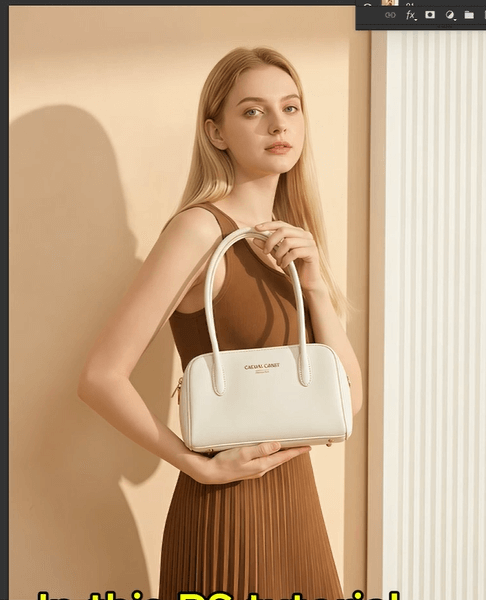
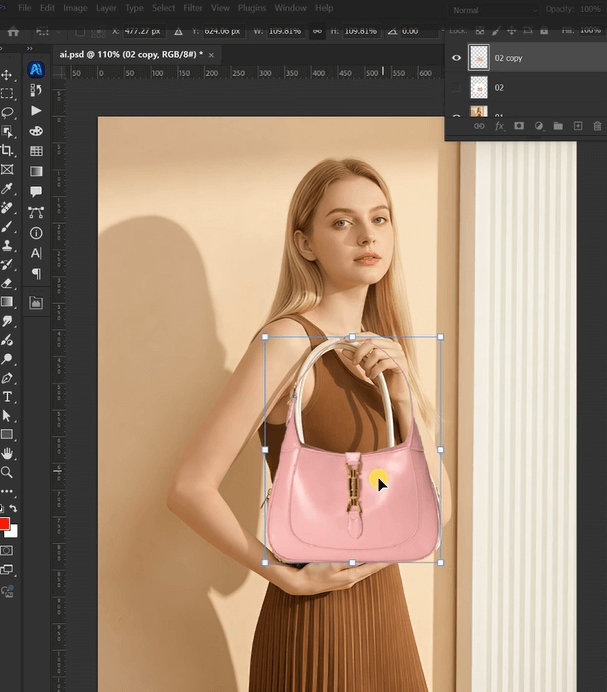
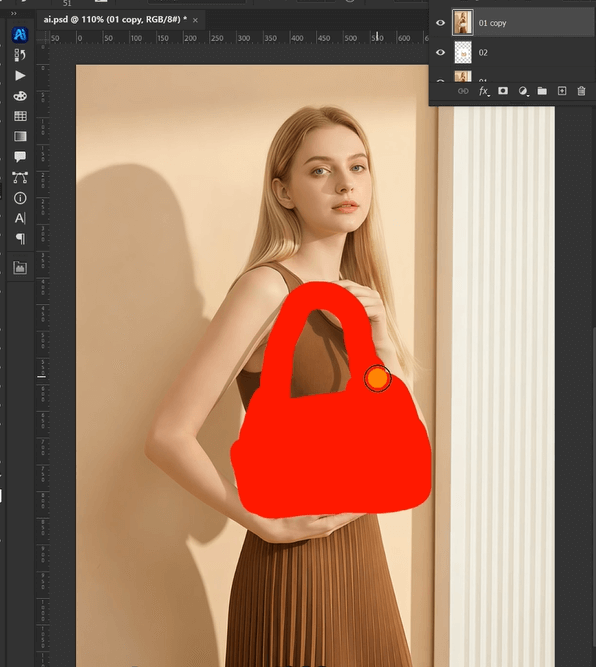
Upload your model’s photo to Photoshop. Grab the Paint Bucket or Brush Tool. Fill the old bag with red. That’s it.
2. Open Banana Retouch in PsAide
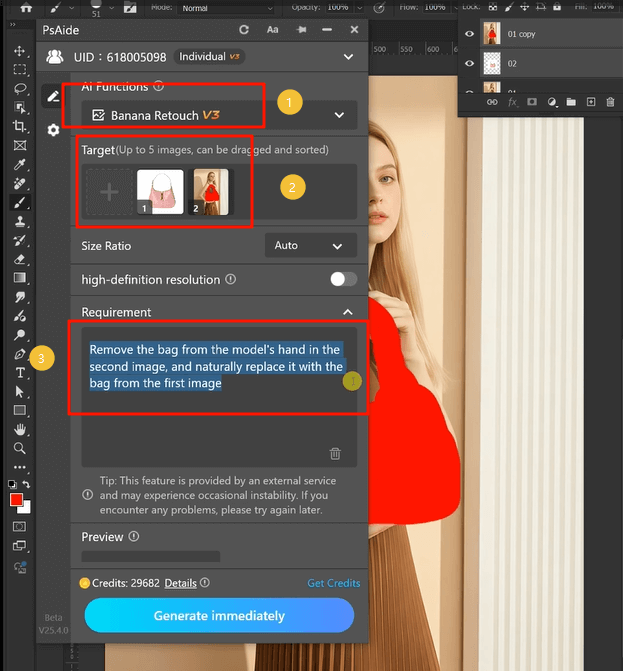
Launch the PsAide plugin. Click on “Banana Retouch.” No complex settings—just a user-friendly screen.
3. Upload Images & Type Your Prompt
Upload two photos:
- First: Your product bag (the one you want to use).
- Second: The model photo with the red-filled bag.
Type this prompt: “Remove the bag from the model’s hand in the second image, and naturally replace it with the bag from the first image.”
4. Generate & Export
Hit “Generate.” Nano Banana’s AI works fast. In seconds, you get a natural-looking image. Export and use it—no extra edits needed.
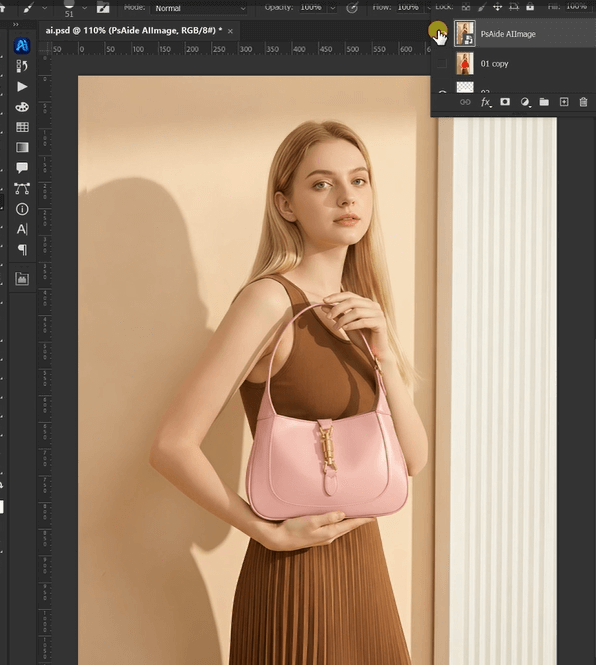
Why Nano Banana Is Perfect for E-Commerce
- No design skills required. Anyone on your team can use it.
- Saves time. Edit multiple images in minutes, not hours.
- Consistent results. AI matches lighting, colors, and angles perfectly.

