
Table of Contents
For photographers, e-commerce sellers, content creators, and everyday users, unwanted items in photos can ruin the perfect shot—whether it’s a stray trash can in a landscape, a distracting phone in a portrait, or a damaged product label in a listing. Traditional methods to remove specified items are frustrating and time-consuming: manual Photoshop editing requires precise use of the Clone Stamp, Healing Brush, or Content-Aware Fill tools, often taking 30+ minutes per image. Even with skill, results can be uneven—blurred edges, mismatched textures, or obvious editing traces—especially when the unwanted item overlaps with complex backgrounds like grass, brick, or fabric. This is where Nano Banana, the AI-powered feature in the PsAide plugin, transforms AI Photo Editing for targeted item removal, making the process fast, precise, and beginner-friendly.
Nano Banana solves the core pain points of manual item removal by combining user-guided precision with advanced AI reconstruction. Unlike generic removal tools that guess which area to erase, Nano Banana uses a simple “red markup” technique to identify the exact item to remove—eliminating the risk of accidental edits to the main subject or background. Its AI engine then analyzes the surrounding pixels, texture, and lighting to seamlessly fill the erased area, ensuring the background looks natural and unaltered. Whether the unwanted item is small (a scratch) or large (a backpack), Nano Banana preserves the photo’s original aesthetic while removing distractions—all powered by AI Photo Editing that outperforms manual methods in speed and quality.
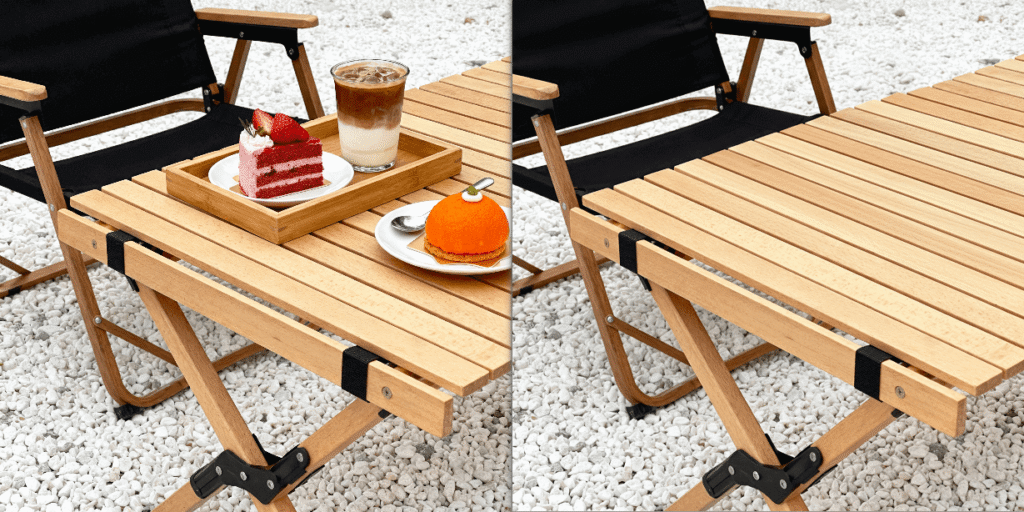
3 Simple Steps to Remove Specified Items with Nano Banana
Even users with basic Photoshop skills can master targeted item removal in minutes using Nano Banana, thanks to the “red markup” trick for precise AI recognition. Follow these three straightforward steps:
Step 1: Mark the Target Item and Launch Nano Banana
Open your photo in Photoshop (compatible with versions 2015 and above). Use the Brush Tool (set to red, opacity 100%) to paint over the specified item you want to remove—this red markup acts as a clear guide for Nano Banana’s AI to identify the exact area. Once marked, install the PsAide plugin, launch the Nano Banana feature from the plugin menu, and upload the marked image to the Nano Banana workspace.
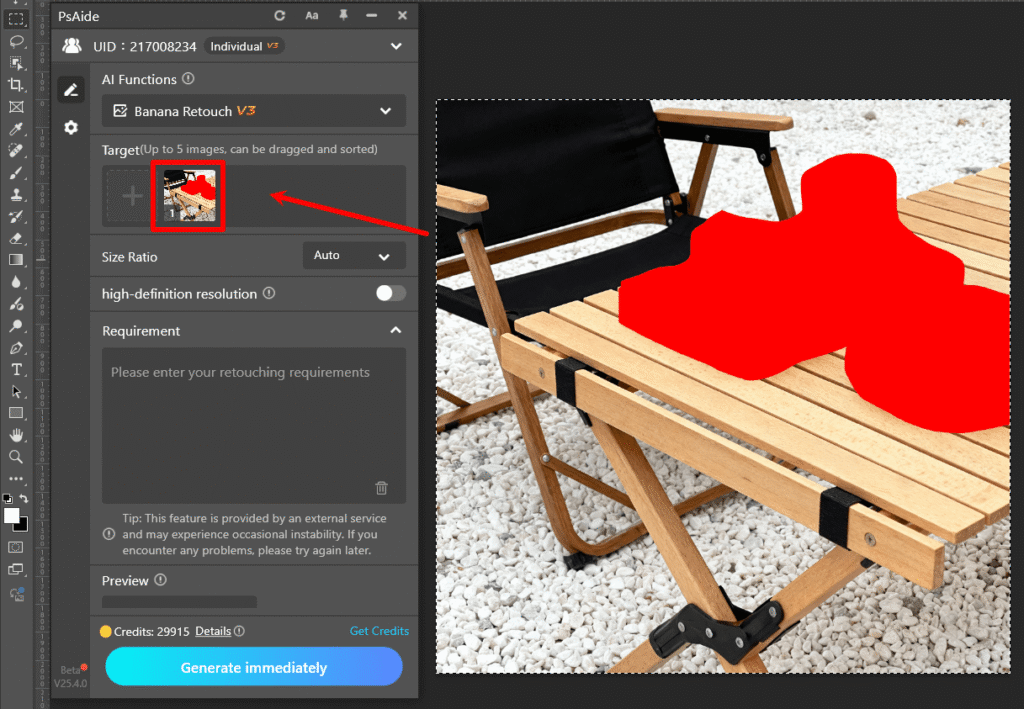
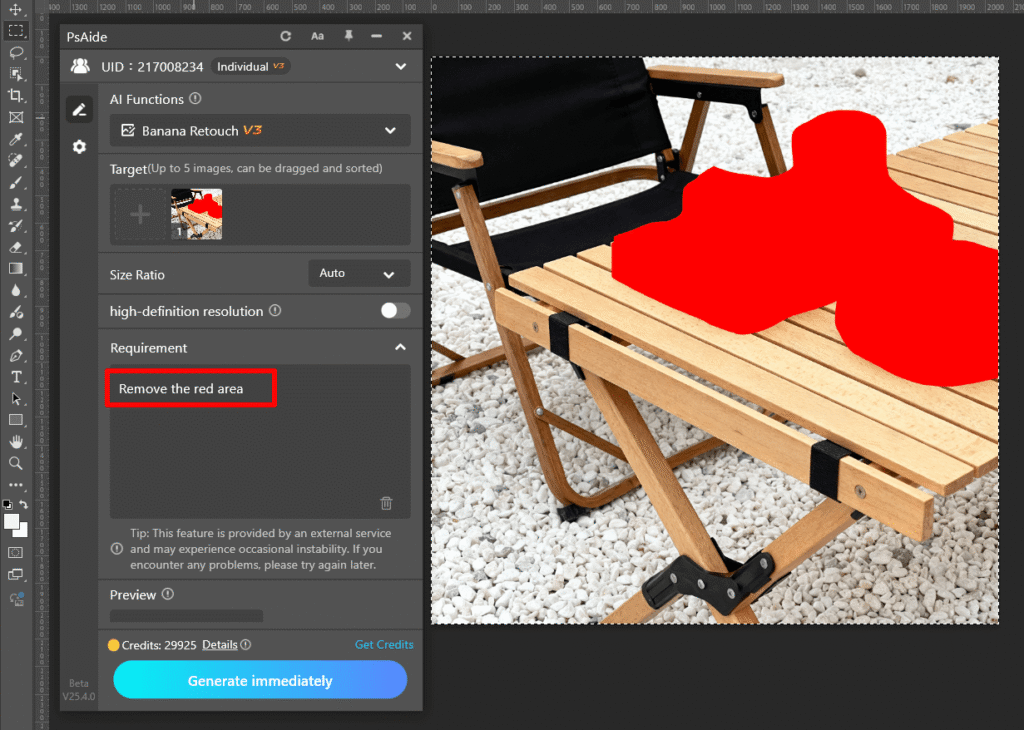
Step 2: Enter the Precise AI Photo Editing Prompt
Locate the prompt box in the Nano Banana interface and type the concise instruction: “Remove the red area.” This prompt directly tells the AI Photo Editing engine to focus on the marked item, ensuring no other parts of the photo are altered while preserving the background’s integrity.
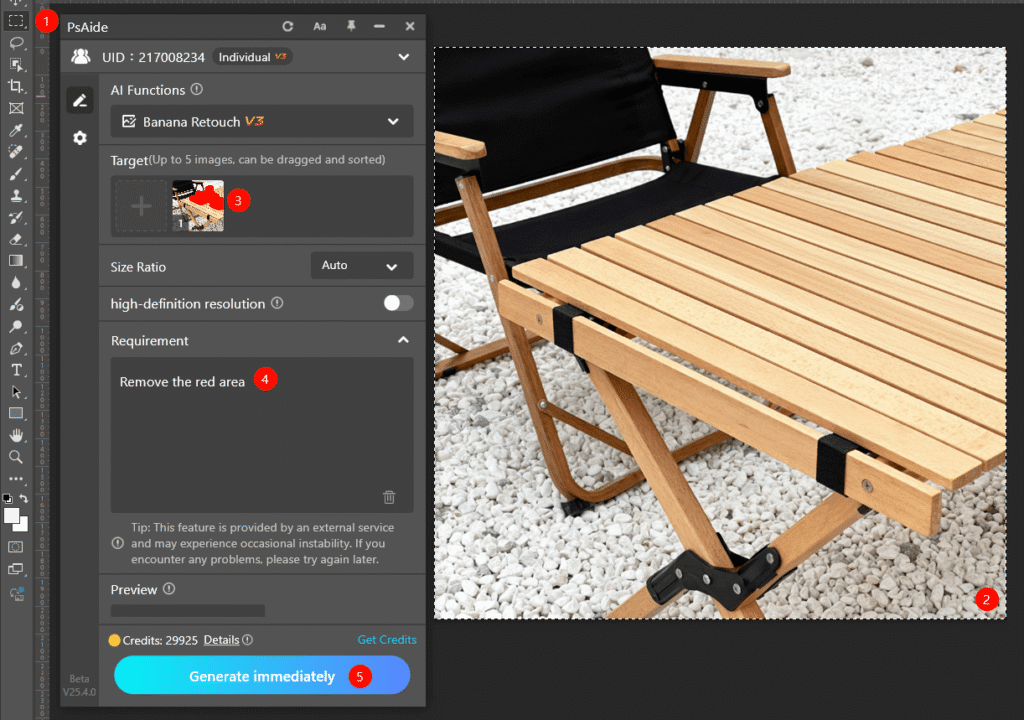
Step 3: Preview and Finalize the Edited Photo
Click the “Generate immediately” button. Nano Banana processes the request in 3–5 seconds, generating a preview where the red-marked item is completely removed, and the background is reconstructed seamlessly. You’ll notice no blurred edges or texture mismatches— the AI matches the surrounding pixels perfectly. Save the edited image directly to your Photoshop project; minor adjustments (e.g., brightness, contrast) are optional for further refinement.
Core Advantages of Nano Banana for Targeted Item Removal
Compared to traditional editing methods, Nano Banana offers unmatched benefits for all users. First, it saves time: cutting editing from minutes to seconds, ideal for bulk photo processing (e.g., e-commerce listings or event photos). Second, it ensures precision: the red markup eliminates guesswork, letting you target exactly what to remove without damaging the main subject. Third, it delivers natural results: AI-powered background reconstruction preserves texture, lighting, and perspective, avoiding the “fake” look of manual edits. Finally, it’s user-friendly—no advanced AI Photo Editing or Photoshop skills are needed, making it accessible to beginners and pros alike.
Industry Application Value
Nano Banana is a game-changer across multiple use cases. Photographers can clean up event or landscape photos without tedious retouching. E-commerce sellers can remove damaged labels, price tags, or distracting items from product images to highlight merchandise. Content creators can polish social media or blog photos for a professional, clutter-free look. Marketers can streamline visual production workflows, ensuring brand imagery is consistent and distraction-free. All these use cases leverage Nano Banana’s ability to deliver high-quality, efficient item removal with minimal effort.
If you’ve wondered how to edit photo on Nano Banana to remove specified items seamlessly, Nano Banana is the solution. It harnesses the power of AI Photo Editing to eliminate traditional frustrations, simplify the process, and turn imperfect photos into polished masterpieces. Download PsAide today to unlock Nano Banana—experience effortless, precise item removal for all your photo editing needs!

