
Table of Contents
The Holiday Pet Photo Challenge
As Christmas approaches, pet owners, photographers, and pet businesses face a seasonal dilemma: how to create charming holiday-themed pet photos without the logistical nightmare of actual Christmas photoshoots. Traditional methods require either building or purchasing elaborate Christmas-themed props, then hoping pets cooperate long enough for the perfect shot—a process that’s expensive, time-consuming, and often stressful for animals. Even with existing photos, manually replacing a doghouse with a festive version in Photoshop demands complex selections, perspective matching, and lighting adjustments that can take hours of technical work for results that still look artificial.
What if you could transform your pet’s ordinary doghouse into a Christmas wonderland with just a simple AI command? This guide demonstrates how to use Nano Banana in Photoshop, the advanced AI feature within the PsAide plugin, to seamlessly swap doghouses and create perfect holiday pet portraits. This technique eliminates the need for physical props and complex manual editing, allowing anyone to create professional-looking Christmas pet photos in minutes—perfect for holiday cards, social media, or pet business marketing.
Why Manual Doghouse Replacement is Problematic
Replacing objects like doghouses in Photoshop presents unique challenges that differ from human portrait editing. The irregular shapes of doghouses, combined with natural outdoor lighting variations and common background elements like grass, fences, or shadows, make clean selections difficult. Traditional methods require precise masking around complex edges, careful perspective warping to match angles, and sophisticated shadow recreation that must account for both the original light source and the new object’s shape. Even experienced editors struggle to make replacement doghouses look naturally integrated rather than obviously pasted onto the scene.
The Nano Banana Photoshop approach revolutionizes this process through contextual AI understanding. Instead of treating object replacement as separate technical tasks (selection + insertion + adjustment), the AI analyzes the entire scene holistically. It recognizes the doghouse as a distinct element, understands its spatial relationship to the dog and environment, then intelligently replaces it while automatically adjusting perspective, scale, lighting, and shadows to create a perfectly integrated result. This represents a fundamental advancement from manual technical execution to AI-assisted scene transformation.
Preparing for Your Holiday Pet Transformation
- Software: Adobe Photoshop with the PsAide plugin installed
- Original Photo: A clear image of your pet with their current doghouse visible
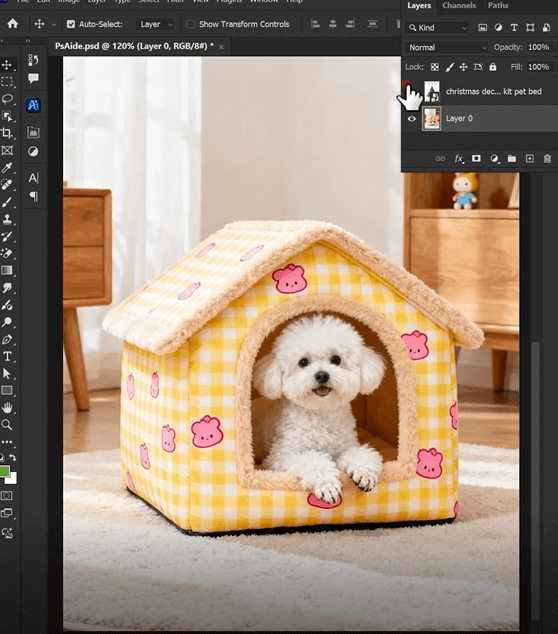
- Target Doghouse: A high-quality image of a Christmas-themed doghouse
- Preparation Time: 2-3 minutes for marking and processing
- Skill Level: Beginner-friendly, no advanced Photoshop skills required
The 3-Step Christmas Transformation Process
Step 1: Prepare Your Images with Simple Marking
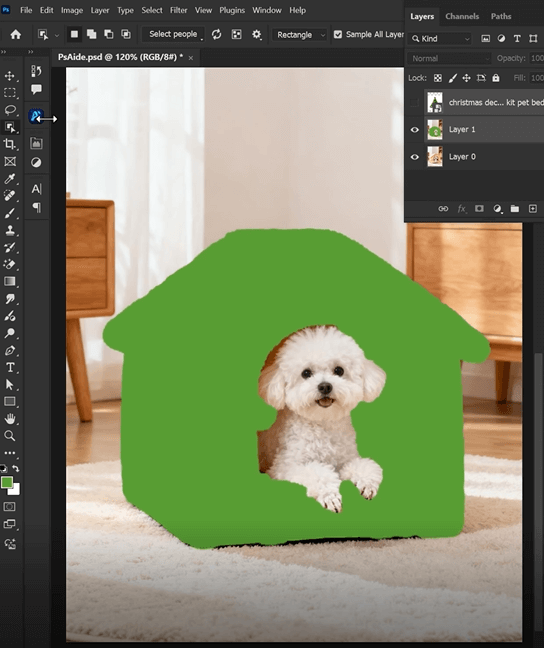
Begin by opening both your original pet photo and your Christmas doghouse image in Photoshop. Create a duplicate layer of your original photo to preserve the untouched version. Using a bright, unnatural color like neon green or electric blue (colors not typically found in natural pet photos), use the Brush Tool to paint over the existing doghouse in your photo. This color marking serves as a clear visual guide for the AI, indicating exactly what needs to be replaced. The marking doesn’t need to be perfectly precise—focus on covering the main structure while avoiding painting over your pet or important background elements. This simple preparation step dramatically improves the AI’s accuracy in identifying what to replace.
Step 2: Upload and Command for Precise Replacement
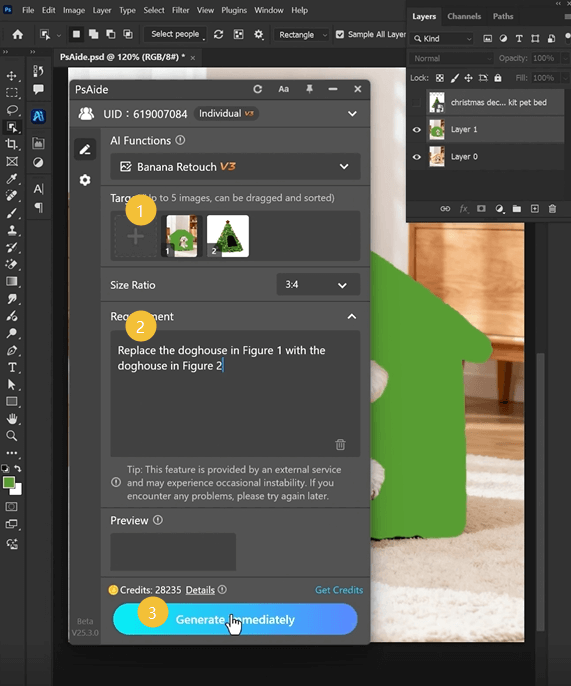
Open the PsAide panel and launch Nano Banana. Upload your two prepared images in this specific order:
- Figure 1: Your original pet photo with the color-marked doghouse
- Figure 2: Your Christmas doghouse image
In the text prompt box, use this clear, direct instruction:
“Replace the marked doghouse in Figure 1 with the doghouse in Figure 2, maintaining natural lighting and perspective.”
This enhanced prompt provides crucial additional guidance. By specifying “marked doghouse,” you help the AI identify exactly what to replace (particularly useful in complex scenes). Adding “maintaining natural lighting and perspective” ensures the Christmas doghouse integrates realistically with your original photo’s environment rather than looking artificially inserted.
Step 3: Generate and Enjoy Your Festive Scene
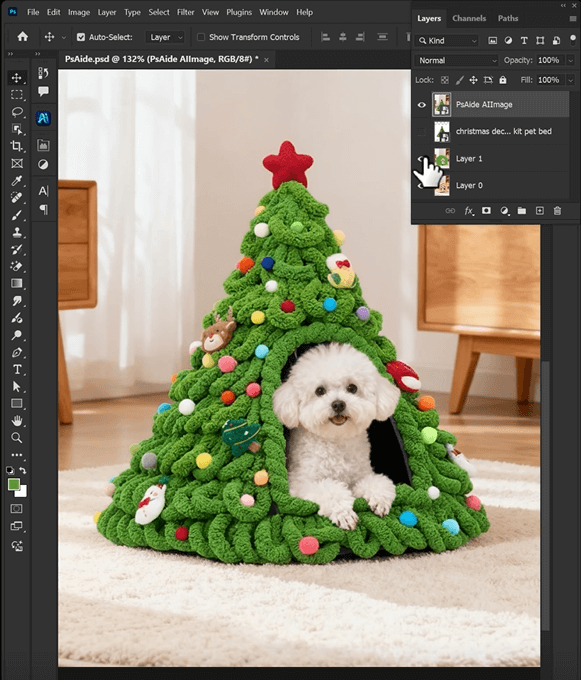
Click “Generate” and wait approximately 30-45 seconds for processing. Nano Banana will analyze both images, recognize the marked area as the replacement target, extract the Christmas doghouse from your second image, then integrate it into your original photo with appropriate scaling, perspective adjustment, lighting matching, and shadow generation. The result is a naturally festive scene where the new Christmas doghouse appears as if it was photographed with your pet in the original session—complete with realistic environmental integration that maintains the photo’s authentic feel while adding perfect holiday cheer.
Creative Applications for Pet Businesses and Owners
Master this technique for various holiday applications:
- Pet Business Marketing: Create festive promotional images for pet stores, shelters, or services
- Holiday Cards: Design personalized Christmas cards featuring pets in seasonal settings
- Social Media Content: Build engaging holiday content series for pet-focused accounts
- Product Visualization: Show customers how Christmas doghouses would look in their settings
- Shelter Promotion: Create appealing holiday images for adoption campaigns
The same method works for other pet-related objects like beds, bowls, or toys.
Pet Photo Editing Guide: Common Questions
Q1: What if my original photo has multiple doghouses or complex background elements?
A: For scenes with multiple similar elements, make your color marking more specific by adding a simple text label or arrow in the marking color pointing to the exact doghouse you want to replace. You can also refine your prompt: “Replace only the red-marked doghouse in the foreground of Figure 1 with the doghouse in Figure 2, leave other structures unchanged.”
Q2: How can I ensure the Christmas doghouse looks seasonally appropriate in my photo?
A: Choose Christmas doghouse images with traditional holiday elements (red/green colors, snow effects, Christmas lights, or seasonal decorations). The AI will transfer these characteristics while adapting them to your photo’s specific lighting conditions. For extra festivity, select source images with visible holiday decorations that will translate naturally into your scene.
Q3: What if the replaced doghouse doesn’t match my photo’s lighting conditions?
A: The AI generally handles lighting matching well, but for challenging lighting situations (like strong sunset or dramatic shadows), you can enhance your prompt: “Replace the marked doghouse in Figure 1 with the doghouse in Figure 2, matching the warm afternoon lighting and long shadows of the original scene.” For minor adjustments post-generation, use Photoshop’s Color Balance or Photo Filter adjustment layers clipped to the new doghouse layer.
Q4: Can I use this technique with indoor pet photos or different types of pet houses?
A: Absolutely. The method works equally well for indoor cat trees, rabbit hutches, bird cages, or aquarium decorations. The key is clear marking of what you want to replace and choosing replacement images with similar angles and lighting characteristics to your original photo. For indoor scenes, pay particular attention to matching artificial lighting temperatures between images.
Download link
https://psaide.com/?sfrom=A86R4u
Invitation Code: A86R4u

