
Table of Contents
1.The High-Resolution Holiday Editing Challenge
As the Christmas season approaches, content creators, photographers, and marketers face increased demand for high-quality, festive imagery. The gap between quick edits and professional-quality results often forces creators to choose between time efficiency and image quality, particularly during the busy holiday period when both are at a premium.
What if you could achieve studio-quality integrations with the simplicity of a basic edit? This guide demonstrates how to use Nano Banana Pro in Photoshop, the advanced version of PsAide’s revolutionary AI tool specifically designed for professional workflows. This upgraded solution combines enhanced semantic understanding with high-resolution output options, allowing you to create perfectly integrated Christmas scarf additions that look professionally styled while maintaining the image quality needed for any application—from social media to large-format printing.
2.Why Standard AI Tools Struggle with Professional Requirements
Most AI editing tools, while convenient for quick social media edits, fail to meet professional standards in several critical areas. They often misinterpret complex instructions, struggle with detailed fabric interactions, produce inconsistent results with specific styling requests, and most importantly, output images at resolutions too low for professional use. When adding elements like scarves, standard tools might create awkward fabric placements, unnatural folds, or mismatched lighting that reveals the edit upon closer inspection. These limitations become particularly problematic for Christmas content creation, where images often serve multiple purposes: they might appear simultaneously on social media feeds, e-commerce sites, email campaigns, and sometimes even printed materials—each requiring different quality standards that basic tools cannot satisfy.
Nano Banana Pro addresses these professional gaps through two key advancements. First, its enhanced semantic understanding allows it to interpret prompts more intelligently—recognizing that “wearing a scarf” involves proper draping around the neck, natural fabric flow, and appropriate interaction with existing clothing. Second, its high-resolution output options (1K, 2K, 4K) ensure the final integration maintains crisp detail even when enlarged or inspected closely, something impossible with standard AI tools that typically output low-resolution results. This combination makes it uniquely suited for holiday content creation where both quality and efficiency matter.
3.Preparing for Professional Holiday Editing
- Software: Adobe Photoshop with PsAide plugin (Pro version access)
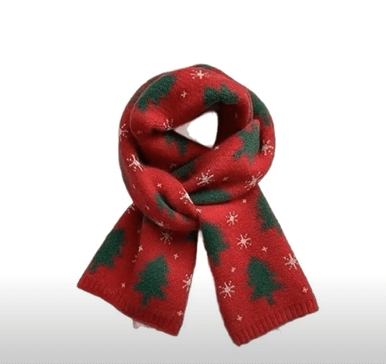
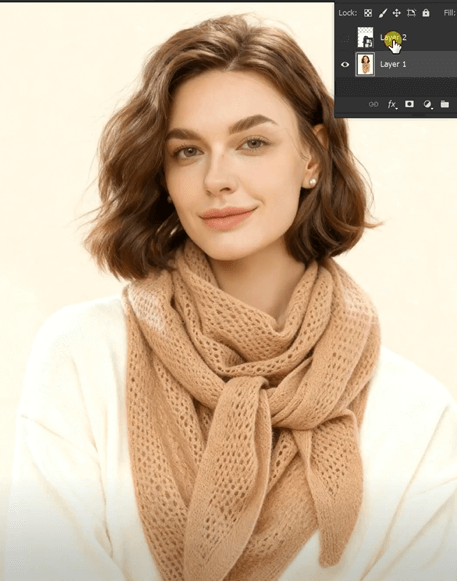
- Source Images: High-resolution portrait + quality scarf photograph
- Output Planning: Decide required resolution based on final use case
- Time Investment: 3-4 minutes for complete professional transformation
- Skill Level: Accessible to all users with professional aspirations
4.The Professional 3-Step Workflow
Step 1: Select High-Quality Source Images
Begin by opening both your portrait and scarf image in Photoshop. For optimal results with the Pro version, use high-resolution source images—this provides the AI with maximum detail to work with. Your portrait should clearly show the neck and shoulder area where the scarf will be added, with lighting that highlights the subject naturally. Your scarf image should show the item clearly laid out or photographed against a contrasting background. The quality of your source images directly impacts the Pro version’s ability to deliver exceptional results, as it has more visual information to analyze and integrate.
Step 2: Configure Pro Settings and Provide Clear Direction
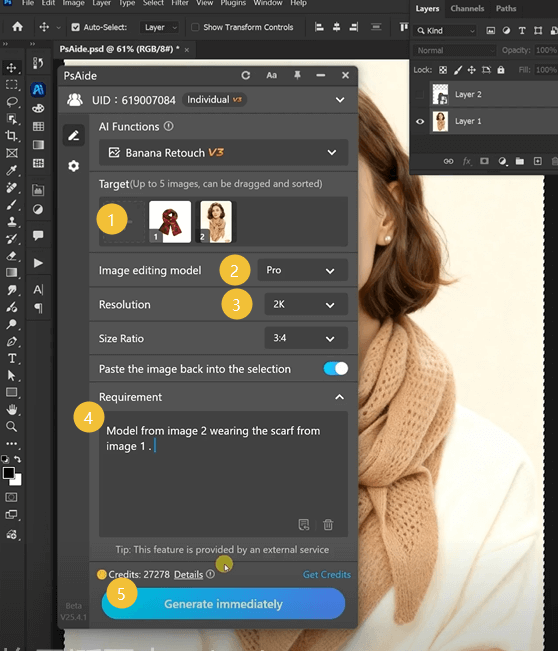
Navigate to the PsAide panel and launch Nano Banana. Select the Pro version from the interface options. This activates the enhanced understanding engine and unlocks resolution settings. Before uploading, set your desired output resolution: choose 1K for web and social media, 2K for high-definition displays and standard printing, or 4K for large-format prints and maximum detail preservation. Upload your two images:
- Image 1: Your scarf photograph
- Image 2: Your portrait
In the prompt box, enter this clear, professional instruction:
“Model from image 2 wearing the scarf from image 1 with natural draping and seasonal styling.”
This enhanced prompt leverages the Pro version’s superior semantic understanding. The addition of “natural draping” guides the AI to create realistic fabric flow, while “seasonal styling” subtly encourages holiday-appropriate presentation without needing to specify Christmas explicitly. The Pro version interprets these nuanced instructions to deliver more sophisticated results than the standard version would from the same prompt.
Step 3: Generate and Appraise High-Resolution Results
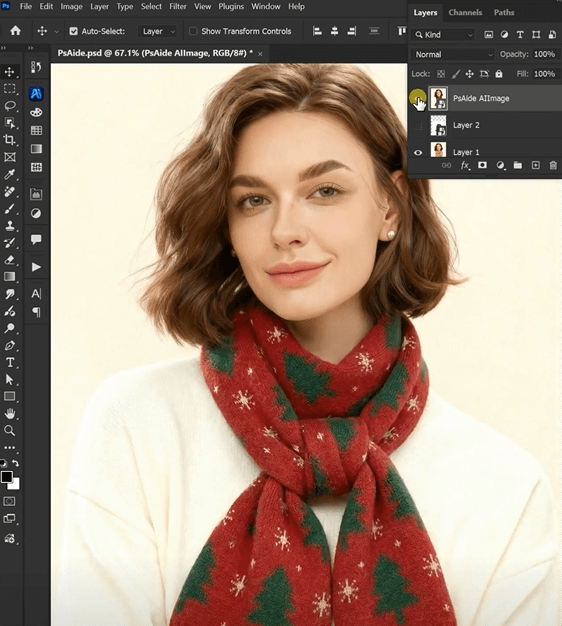
Click “Generate” and allow 45-90 seconds for processing (slightly longer than standard version due to enhanced processing). The Pro version performs multiple advanced operations: it analyzes body posture and clothing in your portrait, understands the scarf’s material and pattern characteristics, calculates how the fabric would naturally drape around the specific body position, adjusts colors and lighting for perfect integration, and renders everything at your chosen high resolution. The result is a studio-quality image where the scarf appears professionally styled during the original photoshoot, with detail preservation that allows close inspection or large-format use without quality degradation.
5.Professional Applications for Holiday Campaigns
Master this Pro workflow for various high-stakes applications:
- Holiday Marketing Campaigns: Create consistent, high-quality Christmas imagery across all platforms
- E-commerce Luxury Products: Showcase premium scarves with impeccable visual presentation
- Print Materials: Develop Christmas catalog and brochure images ready for professional printing
- Social Media Excellence: Stand out with higher-quality festive content than competitors
- Brand Consistency: Maintain visual quality across all holiday touchpoints
6.Professional Workflow Optimization
Q1: When should I choose 1K, 2K, or 4K output resolution?
A: Follow this professional guideline: Use 1K (1024px) for social media and web thumbnails where fast loading matters most. Choose 2K (2048px) for standard website display, email marketing, and prints up to 8×10 inches. Select 4K (4096px) for large website hero images, high-quality prints, or any situation where viewers might zoom in closely. The Pro version maintains quality across resolutions, but higher settings require slightly longer processing times.
Q2: How does the Pro version’s semantic understanding differ from standard?
A: The Pro version utilizes a more advanced language-image model that better understands relationships between objects, styling context, and natural physical interactions. Where standard might simply place a scarf near the neck, Pro understands how scarves actually wrap, drape, and interact with different clothing types. It also interprets more subtle instructions—understanding “seasonal styling” might mean richer colors, cozier presentation, or holiday-appropriate fabric arrangements without explicit direction.
Download link
https://psaide.com/?sfrom=A86R4u
Invitation Code: A86R4u

