
Table of Contents
1.The Line Art Extraction Challenge
What if you could bypass all these technical steps and achieve perfect line art extraction with a single AI command? This guide demonstrates how to use AI in Photoshop through the Nano Banana feature to instantly transform any image into clean black and white line drawings. This one-tool solution eliminates the complexity of traditional methods, delivering professional-quality line art in seconds rather than hours—revolutionizing how artists and designers prepare artwork for animation, coloring, or vector conversion.
2.What You’ll Need for Instant Line Art
- Adobe Photoshop(2015+) with PsAide plugin installed
- Source image (photo or illustration)
- No additional tools or filters required
3.Steps to Perfect Line Art Extraction
Step 1: Prepare Your Source Image
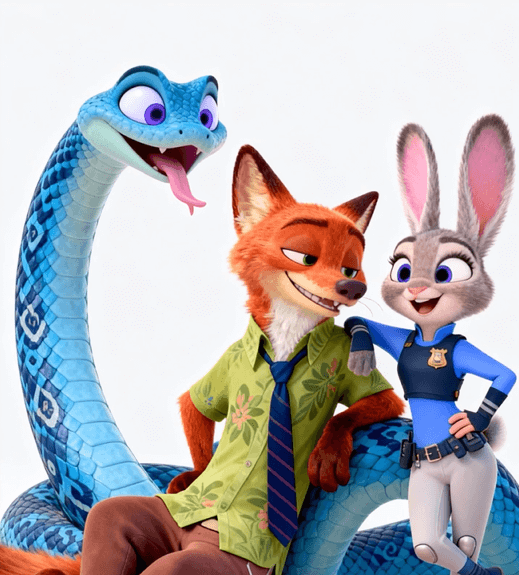
Open your chosen image in Photoshop. For optimal results with characters like those from Zootopia or similar detailed illustrations, ensure your source image has clear contrasts and defined edges. The AI works best with images where the subject is distinct from the background, though it can handle various complexities. No preliminary adjustments like contrast enhancement or noise reduction are necessary—the AI will analyze and process your image as provided.
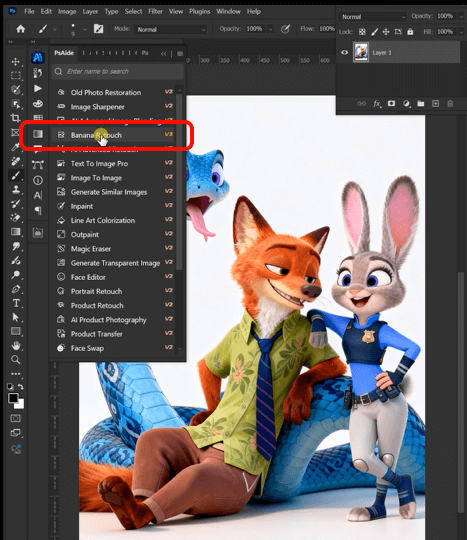
Step 2: Upload and Command with AI
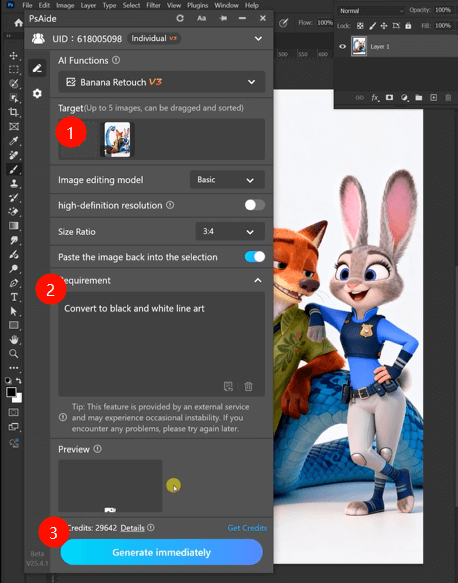
Launch Nano Banana from the PsAide panel. Upload your single image file to the interface. In the prompt box, enter this straightforward command:
“Convert to black and white line art with clean outlines and consistent line weight.”
This enhanced prompt provides specific parameters that guide the AI toward optimal results. “Black and white” ensures pure monochrome output without grayscale gradients, “clean outlines” directs the AI to prioritize defined edges over texture details, and “consistent line weight” helps maintain uniform stroke thickness throughout the drawing—crucial for professional-looking line art.
Step 3: Generate Your Clean Line Art
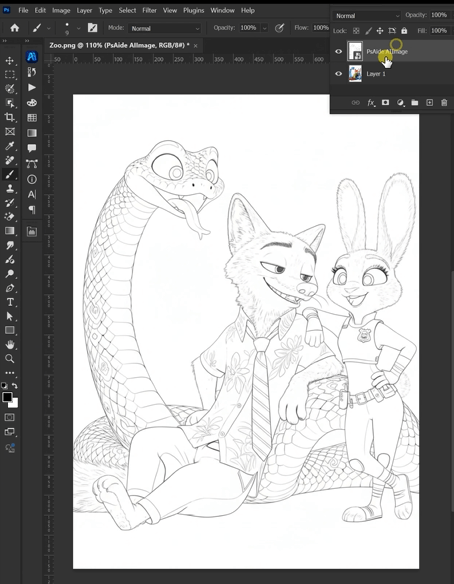
Click “Generate” and wait approximately 20-40 seconds. The AI analyzes your image, identifying edges, forms, and essential details while filtering out textures, shadows, and color variations. It then reconstructs the image as clean line art, maintaining the original composition’s integrity while converting all elements to crisp black lines on white background. The result is ready-to-use line art suitable for digital coloring, animation preparation, or vector conversion.
4.Frequently Asked Questions
Q1: Can this technique extract line art from complex scenes with multiple characters?
A: Yes, the AI handles complex scenes effectively. For best results with multiple elements like Zootopia group shots, ensure your source image has reasonable contrast between characters and background. The system will identify all major elements and convert them to cohesive line art.
Q2: How do I adjust line thickness or darkness after generation?
A: The AI-generated line art typically appears as a new layer. Use Photoshop’s Levels adjustment (Ctrl+L) to darken lines by moving the black point slider rightward, or lighten them by adjusting the white point. To adjust thickness, apply a Minimum Filter (Filter > Other > Minimum) with 1-2 pixel radius to thicken lines, or Maximum Filter to thin them. These non-destructive adjustments take seconds but provide fine control over the final appearance.
Download link
https://psaide.com/?sfrom=A86R4u
Invitation Code: A86R4u

