
Table of Contents
1. The Challenge of Changing Small Accessories in Photos
Have you ever tried to change earrings in a portrait? Whether you’re a photographer updating a client’s look, an e-commerce manager showcasing different jewelry options, or simply creating festive holiday content, manually replacing earrings in Photoshop is notoriously difficult.
Q: Can AI really handle such precise edits?
A: Yes—modern AI tools like Nano Banana Pro are specifically trained to understand jewelry placement and human anatomy, making earring replacement both possible and surprisingly simple.
2. Why Nano Banana Pro is Different
Unlike basic online photo editors or standard Photoshop filters, Nano Banana Pro uses advanced AI that understands spatial relationships and material properties. It doesn’t just paste new earrings onto an image—it analyzes how earrings naturally interact with ears, hair, and lighting, then integrates them accordingly.
Q: Do I need professional Photoshop skills to use this?
A: No—the entire process is designed to be accessible. You provide the images and a simple instruction; the AI handles the complex technical work.
3. What You Need to Get Started
- Adobe Photoshop(2015+)
- PsAide plugin installed(click here)
- A portrait with visible earrings (or earlobes)
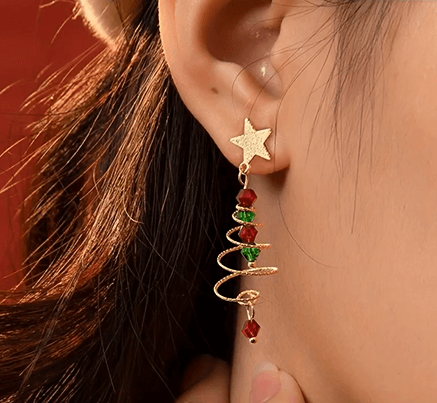
- An image of your replacement earrings
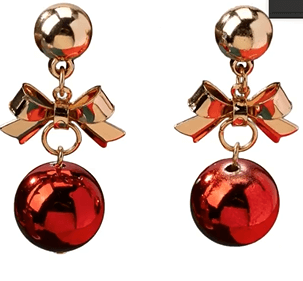
- 2-3 minutes of time
4. The 3-Step Earring Replacement Process
Step 1: Prepare Your Images
Open both your model photo and earring image in Photoshop. Ensure your model photo clearly shows the ears and existing earrings (if any). Your replacement earring image should ideally show the jewelry against a plain background for easier AI recognition. No preliminary selections or masking is needed—the Pro version’s enhanced detection handles everything automatically.
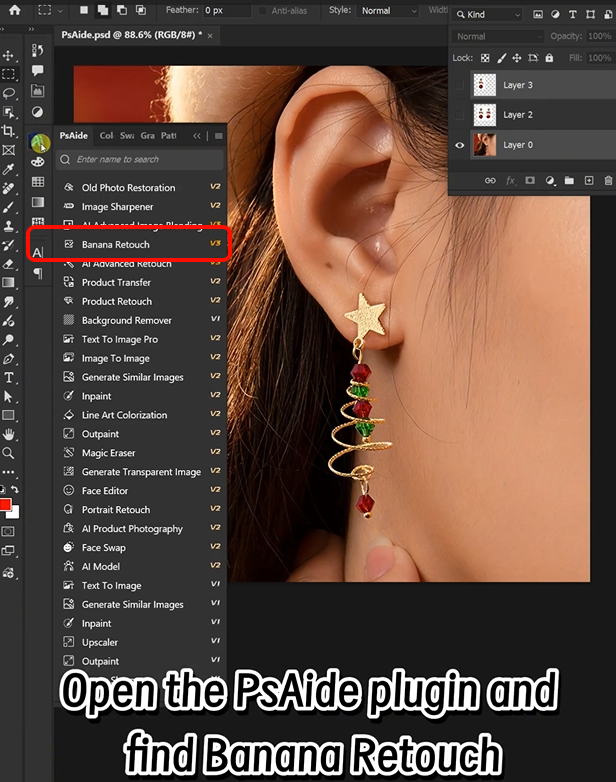
Step 2: Upload and Instruct the AI
Launch Nano Banana from the PsAide panel and select the Pro version from the options menu. This activates enhanced understanding capabilities crucial for small, detailed objects like earrings. Upload your two images:
- Image 1: Your model photograph
- Image 2: Your replacement earrings
In the prompt box, enter this precise instruction:
“Replace the earrings in image 1 with the ones from image 2, maintaining natural positioning and lighting.”
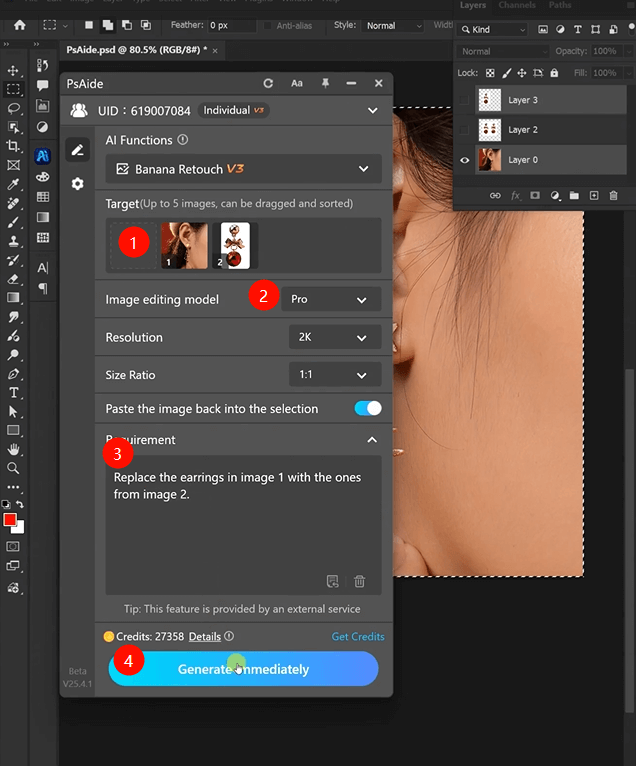
Step 3: Generate Perfect Results
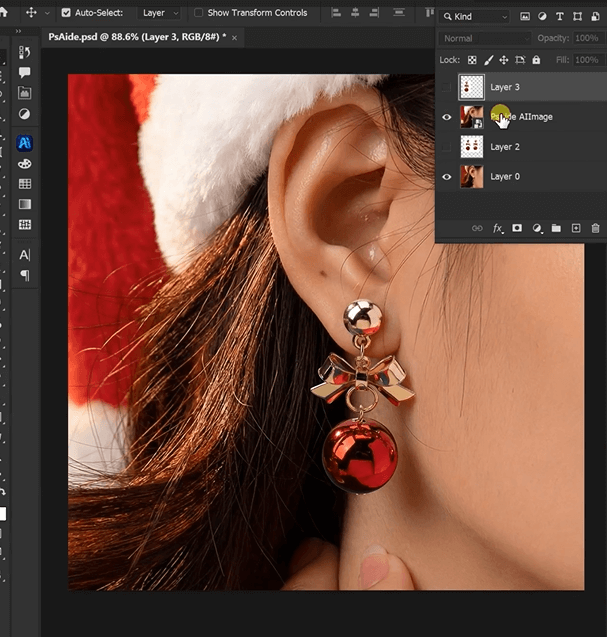
Click “Generate.” Within 30-45 seconds, the AI will analyze both images, identify the existing earrings’ location and how they interact with the ears, remove them cleanly, position the new earrings with correct perspective and hanging angle, match lighting and shadows to the original photo, and blend everything seamlessly. The result appears as if the model wore the new earrings during the original photoshoot.
5. Practical Applications and Tips
This technique is perfect for:
- Holiday Content: Add Christmas earrings to portraits for seasonal social media
- E-commerce: Show customers how different earrings look when worn
- Photography: Offer clients multiple jewelry options from a single shoot
- Personal Projects: Experiment with different styles on your photos
Pro Tip: For best results with festive Christmas earrings, choose replacement images that show the jewelry clearly with appropriate holiday colors and details. The AI will preserve these seasonal characteristics while integrating them naturally into your portrait.ne control over the final appearance.
Download link
https://psaide.com/?sfrom=A86R4u
Invitation Code: A86R4u

