
Table of Contents
1. The Pattern Replacement Challenge & Quick Solutions
Q: Is it really possible to change tablecloth patterns without complex selections and manual adjustments?
A: Absolutely! Traditional methods for replacing patterns on draped fabrics like tablecloths require meticulous selection, perspective warping, and texture matching that can take 20-30 minutes. The challenge lies in maintaining the fabric’s natural folds and shadows while seamlessly integrating new patterns.
Q: Can AI handle the complexity of fabric draping and lighting?
A: Yes—Nano Banana Pro specifically understands how patterns behave on three-dimensional surfaces, automatically adjusting for folds, shadows, and perspective variations.
2. Why Nano Banana Pro Excels at Fabric Pattern Replacement
Unlike basic pattern overlay techniques, Nano Banana Pro analyzes the structural properties of your tablecloth—how it drapes, where shadows naturally fall, how light interacts with the fabric—and applies your new pattern accordingly. The AI doesn’t simply place a flat pattern; it warps and distorts the design to follow the cloth’s contours realistically. This means patterns will appear to naturally curve around folds and maintain proper perspective, something extremely difficult to achieve manually without 3D modeling software.
3. What You Need to Get Started
- Adobe Photoshop (2015+)
- PsAide plugin installed(click here)
- Photo with clear tablecloth/tablemat visibility
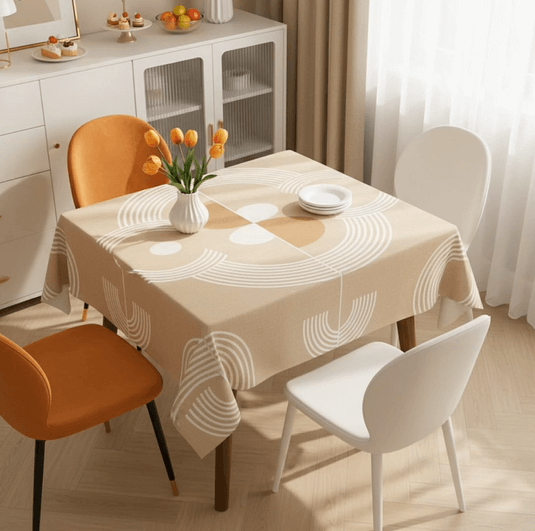
- Pattern image for replacement (seamless patterns work best)

- 60-90 seconds of processing time
4. The 60-Second Pattern Transformation Process
Step 1: Prepare Your Images
Open both your table setting photo and pattern image in Photoshop. Ensure your tablecloth photo clearly shows the existing pattern and fabric texture. Your replacement pattern image should ideally be a seamless tile or design that can repeat naturally. No need to pre-select or mask the tablecloth area—the AI will identify it automatically.
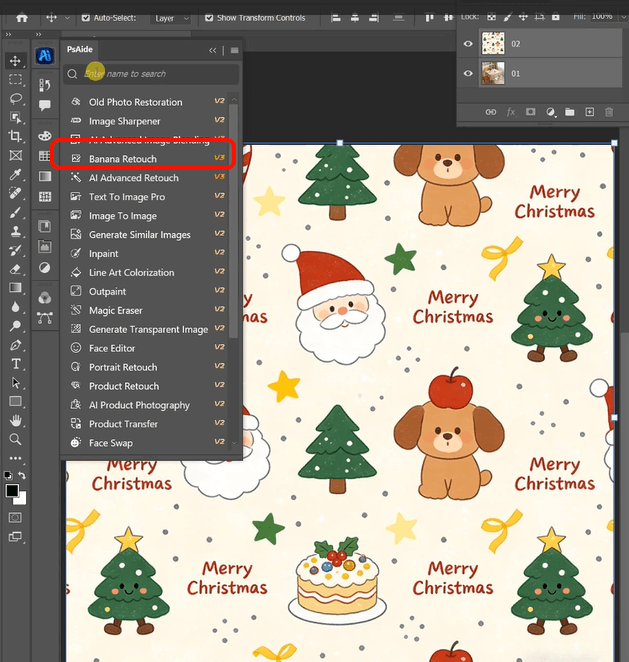
Step 2: Upload and Command with Precision
Launch Nano Banana and select Pro version from the options. Upload your two images:
- Image 1: Your table setting photograph
- Image 2: Your new pattern design
Enter this comprehensive prompt in the command box:
“Remove the pattern from the tablecloth in Image 1 and naturally replace it with the pattern from Image 2, maintaining original folds and lighting.”
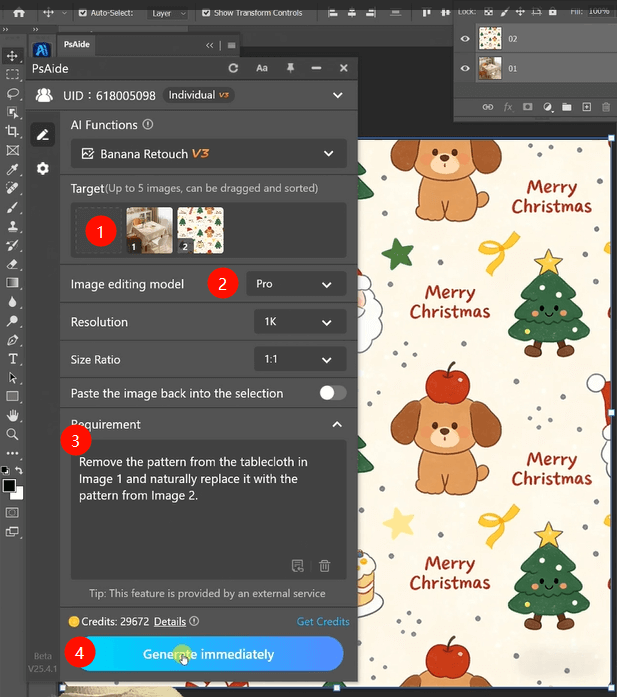
Step 3: Generate Realistic Results
Click “Generate.” Within 45-60 seconds, the AI will: identify the tablecloth boundaries, remove the existing pattern while preserving fabric texture and shadows, apply your new pattern with proper perspective distortion to follow fabric folds, match lighting conditions from the original photo, and blend everything seamlessly. The transformed image maintains the tablecloth’s natural appearance while showcasing your new design perfectly.
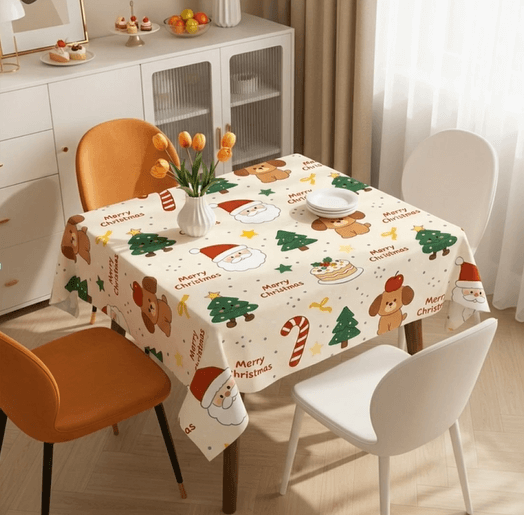
5. Practical Applications & Pro Tips
This technique is invaluable for:
- Product Photography: Showcase tableware with different table setting options
- Interior Design: Visualize how patterns look in real environments
- Event Planning: Preview table settings for weddings or special occasions
- E-commerce: Create multiple product variations from single photos
Pro Tips: For best results, use high-resolution pattern images and ensure your tablecloth photo has clear lighting that defines fabric folds. The AI works particularly well with geometric and repeating patterns that can naturally adapt to fabric contours. For complex organic patterns, consider how the design might naturally distort across folds for the most realistic outcome.
Download link

https://psaide.com/?sfrom=A86R4u
Invitation Code: A86R4u

