
Table of Contents
1. The Footwear Replacement Challenge & Instant Solutions
Q: Can I really change slippers in a photo without complex manual editing?
A: Absolutely! Traditional slipper replacement in Photoshop requires careful selection around feet, perspective matching, and lighting adjustments that typically take 15-20 minutes. The challenges include matching the floor surface, maintaining natural foot angles, and creating realistic shadows.
Q: Will the slippers look naturally placed or obviously edited?
A: Nano Banana Pro’s advanced AI understands foot anatomy and spatial relationships. It doesn’t just paste slippers—it analyzes how footwear naturally interacts with feet, floor surfaces, and lighting conditions, then integrates them realistically with proper perspective and shadows.
2. Why Nano Banana Pro is Perfect for Footwear Editing
Unlike basic Photoshop tools that treat object replacement as simple layering, Nano Banana Pro comprehends the three-dimensional relationship between feet and footwear. The AI recognizes foot positioning, understands how slippers conform to foot shapes, calculates appropriate floor shadows based on the original lighting, and maintains consistency with the surrounding environment. This sophisticated understanding allows for natural-looking results that would require expert manual editing skills to achieve conventionally.
3. What You’ll Need
- Adobe Photoshop with PsAide plugin installed
- Full-body or lower-body portrait showing feet clearly

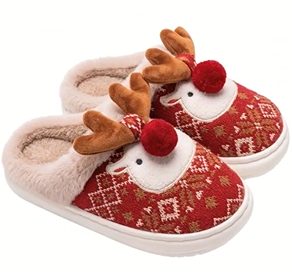
- High-quality slipper image (preferably on neutral background)
- 60-90 seconds total processing time
4. The 60-Second Slipper Swap Process
Step 1: Prepare Your Images
Open both your model photo and slipper image in Photoshop. Ensure your model photo clearly shows the feet and existing footwear (if any). Good lighting that defines foot contours and floor surface will yield the best results. Your replacement slipper image should show the footwear clearly, ideally from an angle similar to your model’s foot position.
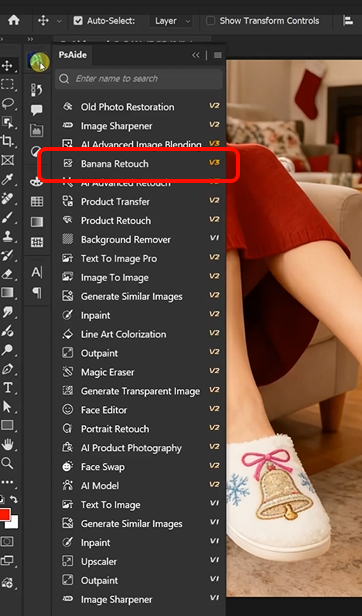
Step 2: Upload and Command the AI
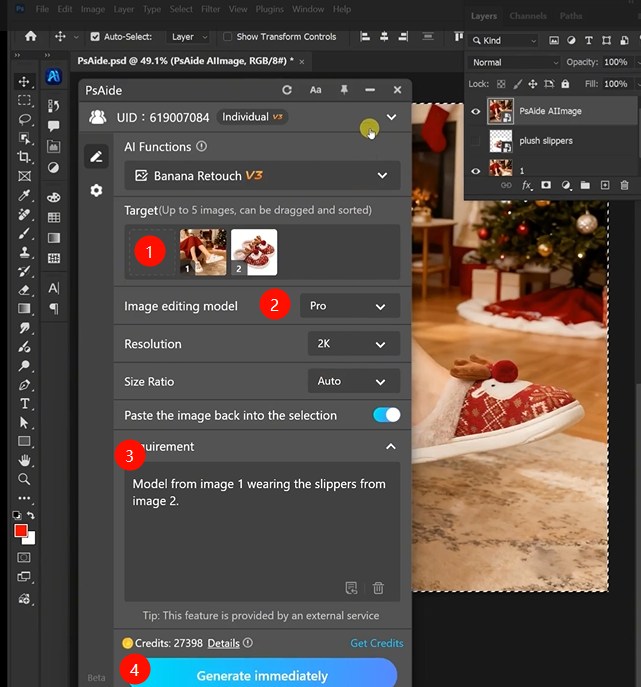
Launch Nano Banana from the PsAide panel and select the Pro version. Upload your two images:
- Image 1: Your model photograph
- Image 2: Your Christmas slippers image
In the prompt box, enter this enhanced instruction:
“Model from image 1 wearing the slippers from image 2 with natural fit and festive styling.”
Step 3: Generate Perfectly Integrated Results
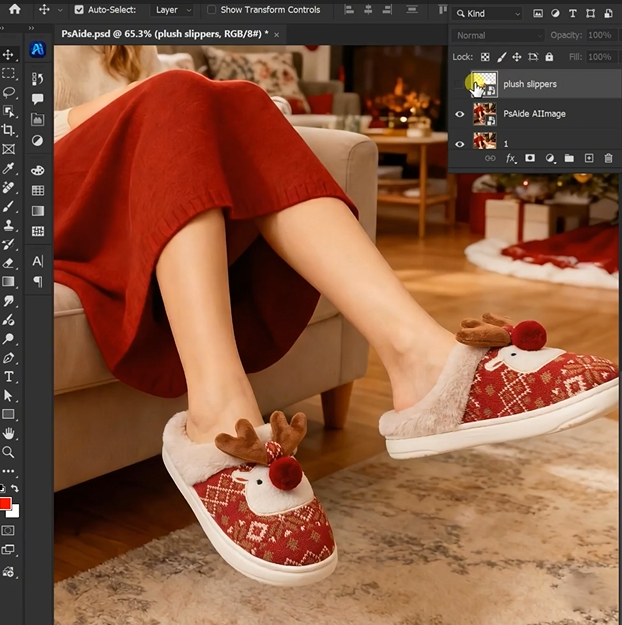
Click “Generate” and wait approximately 30-45 seconds. The AI performs multiple sophisticated operations: identifies existing footwear (or bare feet), removes it cleanly, positions the Christmas slippers with correct perspective and foot angle, adjusts size for natural fit, matches lighting and shadows to the original environment, and blends everything seamlessly. The resulting image appears as if the model wore the festive slippers during the original photoshoot.
5. Practical Applications & Holiday Tips
This technique is particularly useful for:
- Holiday Marketing: Create festive content for Christmas campaigns
- E-commerce: Showcase slipper styles on different models
- Lifestyle Photography: Experiment with different footwear options
- Social Media: Create engaging holiday-themed content
Pro Tips: For Christmas slippers with festive details (like patterns, pom-poms, or seasonal colors), ensure your replacement image clearly shows these features. The AI will preserve these holiday elements while integrating them naturally. If your model’s feet are at an unusual angle, the Pro version’s perspective understanding will adjust the slippers accordingly for realistic placement.
Download link

https://psaide.com/?sfrom=A86R4u
Invitation Code: A86R4u

