
Table of Contents
1. The Watermark Removal Dilemma
Watermarks protect intellectual property but often interfere with legitimate image use. Traditional Photoshop methods require technical skill and time, while AI offers intelligent solutions. Let’s compare two approaches for watermark removal.
2. Method 1: AI Advanced Retouch
Invitation Code: A86R4u
Step 1: Prepare Your Image
Open your watermarked photo in Photoshop. No pre-processing needed—the AI works directly with your image.

Step 2: Select and Process
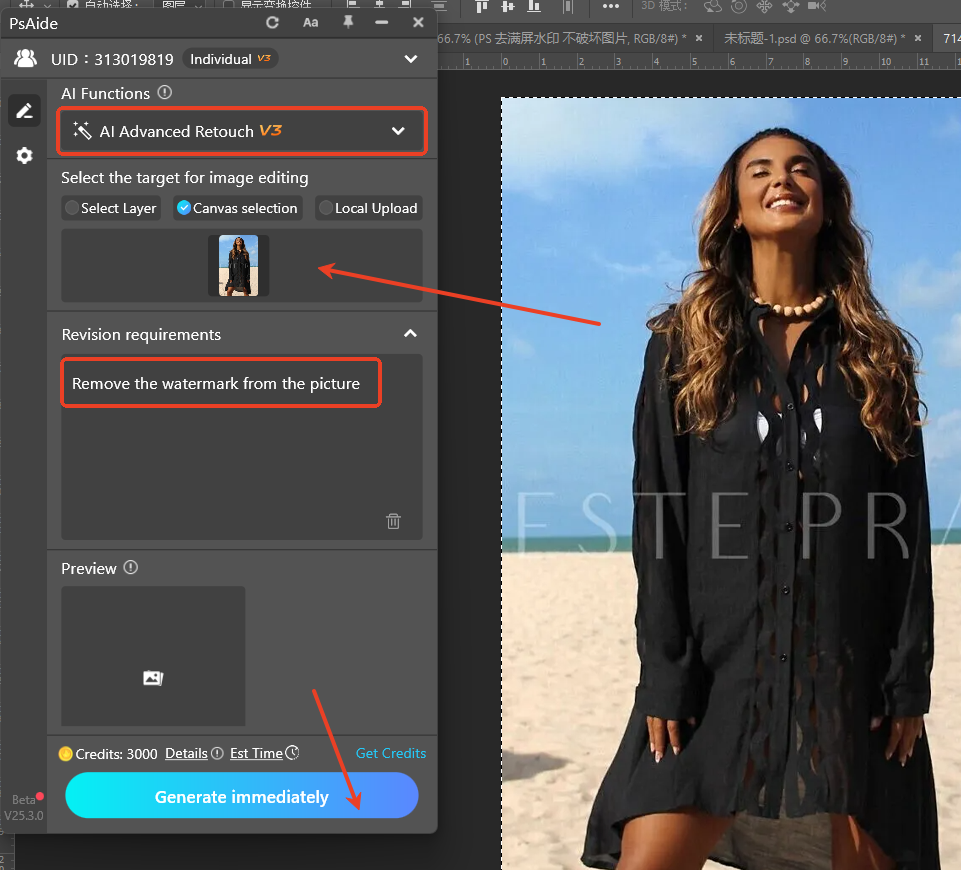
Use any selection tool (Lasso, Marquee) to roughly select the watermark area. Launch AI Advanced Retouch from the PsAide panel and upload your image. The AI automatically analyzes surrounding textures and patterns.
Step 3: Generate Clean Results
Click “Retouch” and wait 15-30 seconds. The AI intelligently removes the watermark while preserving original textures, colors, and details. The result appears as if the watermark never existed, with seamless background integration.

3. Method 2: Traditional Photoshop Approach
① Layer Duplication + Quick Mask
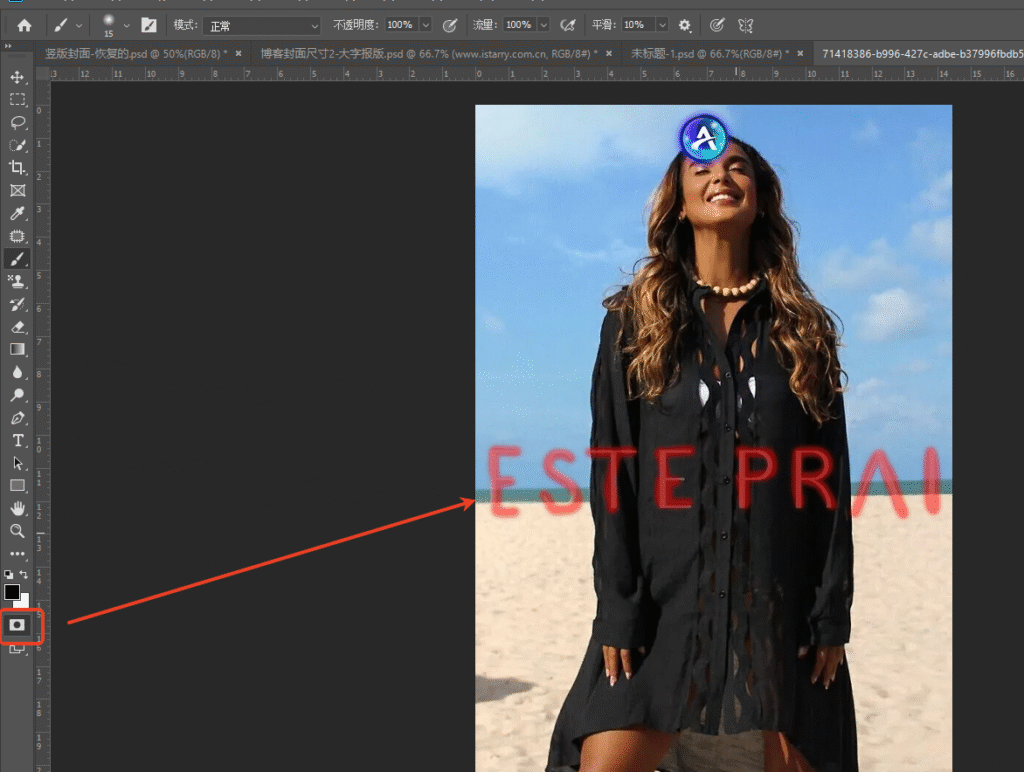
Press Ctrl+J to duplicate your layer. Press Q to enter Quick Mask mode. Select the Brush Tool (B) and paint over watermark areas in red.
② Selection Refinement
Press Q again to exit Quick Mask mode, creating a selection. Press 【Ctrl+Shift+I】 to inverse the selection, targeting watermark areas specifically.

③ Content-Aware Removal
Select the Remove Tool (J) and carefully brush over selected watermark areas. Photoshop attempts to match surrounding textures, but often requires multiple passes and manual touch-ups.
4. Comparison: Speed vs. Quality
AI Advanced Retouch Advantages:
- Time: 60 seconds vs. 10-15 minutes
- Accuracy: Intelligent pattern recognition
- Consistency: Uniform results across different backgrounds
- Ease: No manual refinement needed
Traditional Method Considerations:
- Control: Manual adjustment at each step
- Learning curve: Requires Photoshop expertise
- Variable results: Depends on background complexity
- Time investment: Significant for multiple watermarks
5. Professional Tips
For best results with either method:
- Always work on duplicate layers
- Save original files before editing
- Use high-resolution source images
- Zoom in for detail inspection
- Consider ethical implications of watermark removal
Both methods have their place in professional workflows. AI Advanced Retouch offers speed and consistency for most common scenarios, while traditional methods provide ultimate control for complex cases. The choice depends on your specific needs, timeline, and skill level.
Download link
https://psaide.com/?sfrom=A86R4u
Invitation Code: A86R4u

