
Table of Contents
1.The Low-Res Artwork Dilemma & The AI Upscaling Solution
Q: Can AI truly add detail to a blurry or pixelated artwork, or does it just make a bigger blurry version?
A: It can genuinely reconstruct detail. Traditional upscaling in Photoshop (Image > Image Size) simply stretches existing pixels, leading to a soft, blocky result. Nano Banana Pro uses a process called super-resolution. It analyzes the low-res image, identifies patterns and shapes (like a sketch line or a color block), and intelligently predicts and generates the high-frequency details that should be there, creating a sharper, more defined image at a higher resolution.
Q: Why does the Pro version only need the prompt “Upscale”?
A: The Pro version’s enhanced semantic model is pre-trained for this specific task. The single word “Upscale” triggers its optimized super-resolution algorithm, which is fine-tuned to understand the difference between noise and intentional detail in artwork, applying context-aware sharpening and detail generation.
2.Why “Upscale” is a Power Command in Pro Version
In the Pro version, the prompt “Upscale.” is not a vague suggestion; it’s a direct command to a specialized AI module. This module goes beyond simple interpolation. It performs a context-aware reconstruction: for a sketch, it will clean up and sharpen lines; for a pixel art piece, it will smooth edges while preserving the stylized look; for a faded painting scan, it will enhance contrast and color vibrancy. The Pro version’s advanced understanding allows it to deliver a tailored result from this minimal instruction.
3.What You Need
- Adobe Photoshop with the PsAide plugin.
- Click to get
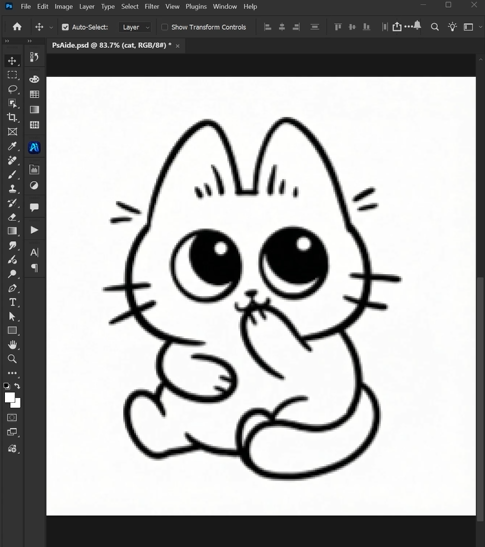
- Your low-resolution, blurry, or pixelated artwork file.
- Less than a minute of processing time.
4.The One-Word Upscaling Process
Step 1: Open Your Artwork in Photoshop
Launch Photoshop and open the artwork you wish to enhance. This could be a scanned pencil sketch, a low-res digital painting, or an old pixel-based graphic. Start with the best quality file you have, even if it looks poor on screen.
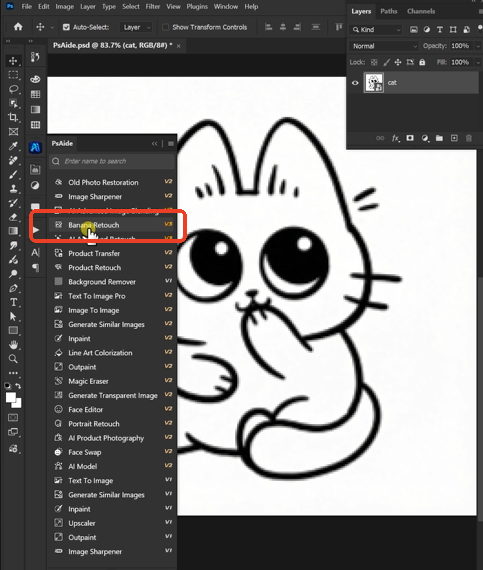
Step 2: Command the Pro AI with a Single Word
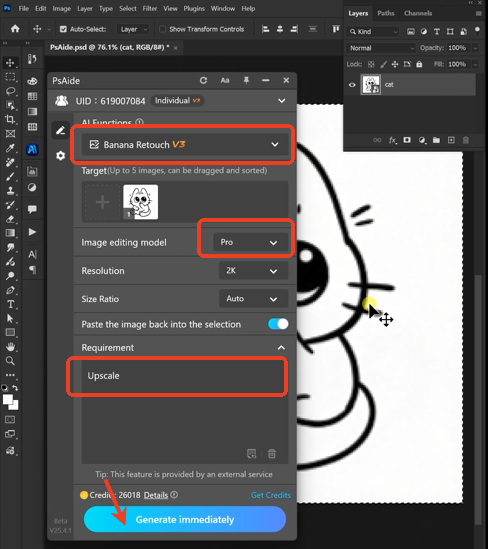
In the PsAide panel, open Nano Banana and select the Pro version. Upload your single image. In the text prompt box, you only need to write one powerful command:
“Upscale.”
The Pro version’s sophisticated language-vision model interprets this as a request for high-definition, detail-aware super-resolution, applying its most advanced algorithms to your image.
Step 3: Generate the HD Version
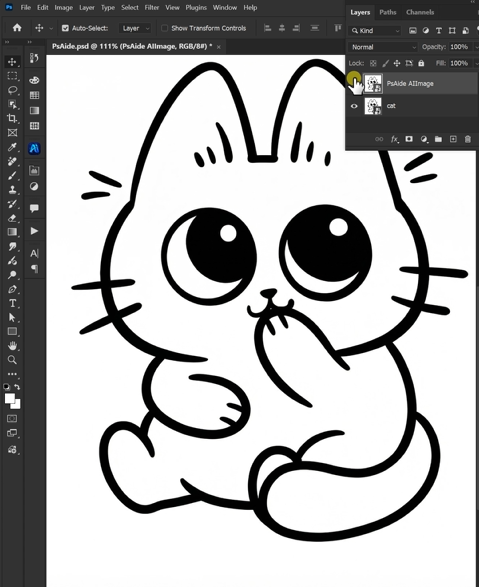
Click “Generate.” The AI will process the image, typically taking 45-90 seconds. It doesn’t just enlarge the image; it increases the resolution while analyzing and reconstructing shapes, defining blurred edges, reducing compression artifacts, and enhancing overall clarity. The result is a new, high-resolution version of your artwork with significantly improved sharpness and detail.
5.Professional Applications & Tips
Iterate for Perfection: If the first “Upscale.” result is good but not perfect, you can guide it further. Try a follow-up prompt like “Upscale and enhance line clarity” for sketches or “Upscale with smooth gradients” for paintings to direct the AI’s focus.n enhancing facial details and skin texture in the HD restoration.”
Use Case: Perfect for revitalizing old digital art, preparing sketches for client presentation, enlarging assets for print, or improving the quality of found reference images.
Pro Tip:
For the best results, the AI needs some structure to work with. A completely unrecognizable, extremely tiny thumbnail may not upscale well. It works best on images that are simply low-resolution but where the core shapes and intent are still somewhat visible.
Download link
https://psaide.com/?sfrom=A86R4u
Invitation Code: A86R4u
Click here to discover more usage tips and in-depth information on Nano Banana Pro!

