
Table of Contents
1.The Portrait Restoration Challenge: From Fuzzy to Focused
Q: Can AI actually restore detail to a blurry face in a photo, or does it just create a guess?
A: It performs intelligent reconstruction. Unlike basic sharpening filters that amplify noise, Nano Banana Pro’s AI is trained to understand human facial features. It analyzes the blurred image, identifies probable structures (eyes, nose, mouth), and reconstructs plausible high-frequency details, effectively creating a sharper, more defined version of the person.
Q: Why use the Pro version over the standard one for faces?
A: The Pro version’s superior algorithms are crucial for portraits. It better maintains likeness, handles skin texture naturally to avoid a plastic look, and preserves subtle expressions that are often lost in standard upscaling, making it far more reliable for sensitive tasks like restoring personal photos.
2.Two AI Paths to a Clearer Portrait
For portrait restoration, PsAide offers a tailored approach. Use Nano Banana Pro when the blur is complex, the photo is precious, or preserving the subject’s exact likeness is paramount. Its advanced processing respects facial geometry. For minor overall softness or simple noise, the standalone HD Repair function provides a excellent, faster alternative with a single click, perfect for quick fixes.
3.What You Need
- Adobe Photoshop with the PsAide plugin installed.
- Click to get
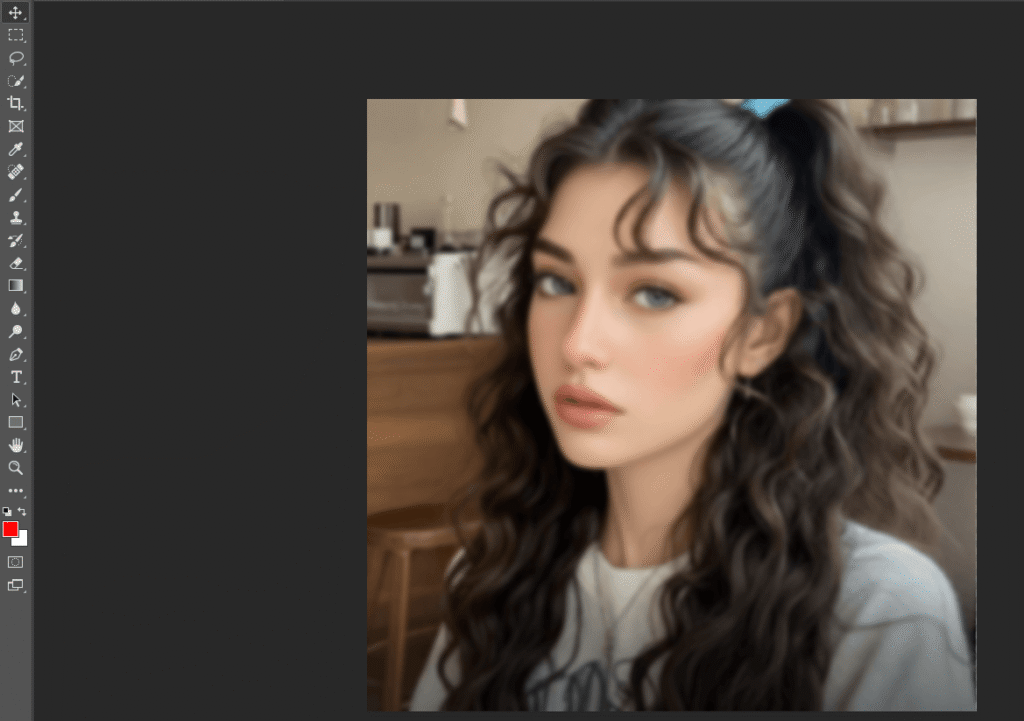
- Your blurry or low-resolution portrait photo.
- A minute of processing time.
4.Method 1: Precision Restoration with Nano Banana Pro
Step 1: Open Your Portrait
Open the blurry portrait photo in Photoshop. This method is ideal for cherished photos, images with motion blur, or any portrait where preserving the subject’s unique features is critical.

Step 2: Engage the Advanced AI
In the PsAide panel, launch Nano Banana and select the Pro version. Upload your single image. Use this definitive prompt to activate its high-priority restoration logic:
“The image in Figure 1 has been restored to high definition with enhanced facial details and natural skin texture.”

Step 3: Generate the HD Portrait
Click “Generate.” The Pro AI will process the image, performing tasks like reducing motion blur, reconstructing sharp eyelashes and hair strands, defining facial contours, and cleaning up noise while keeping skin texture realistic. The output is a significantly clearer, more detailed version of the original photo.

5.Method 2: Quick Fix with HD Repair
For portraits that are generally soft or slightly out-of-focus without major distortion:
- With your photo open in Photoshop, press Ctrl+A (Cmd+A on Mac) to select the entire canvas.
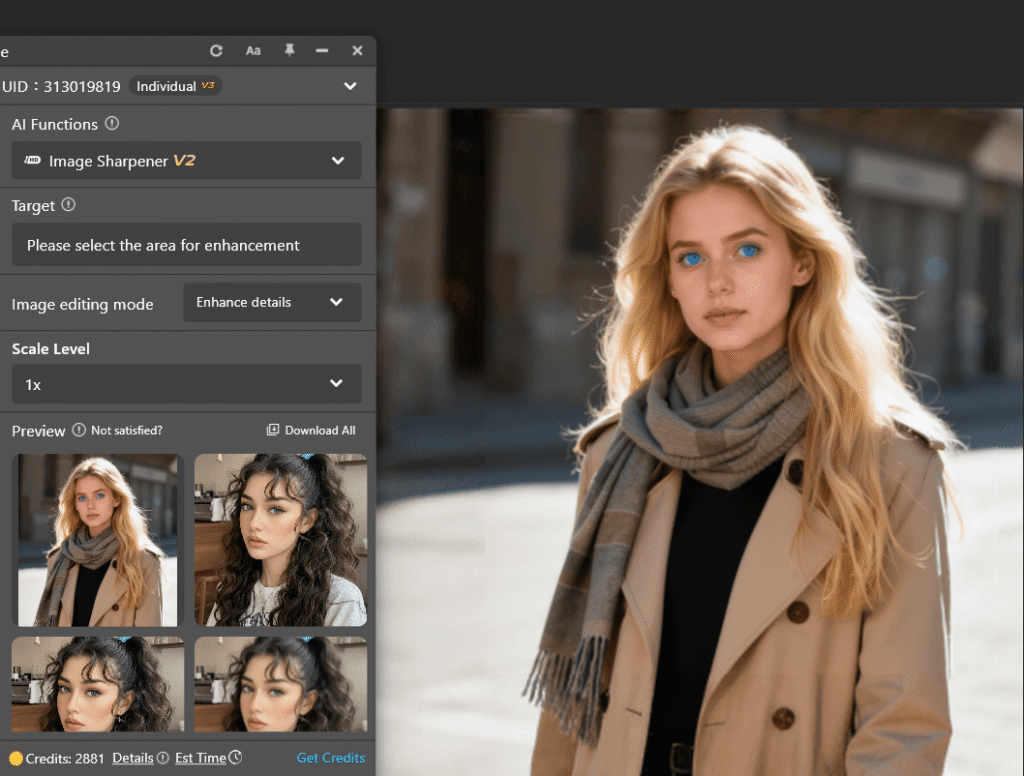
- Navigate to the PsAide panel and find the dedicated HD Repair or Upscale button.
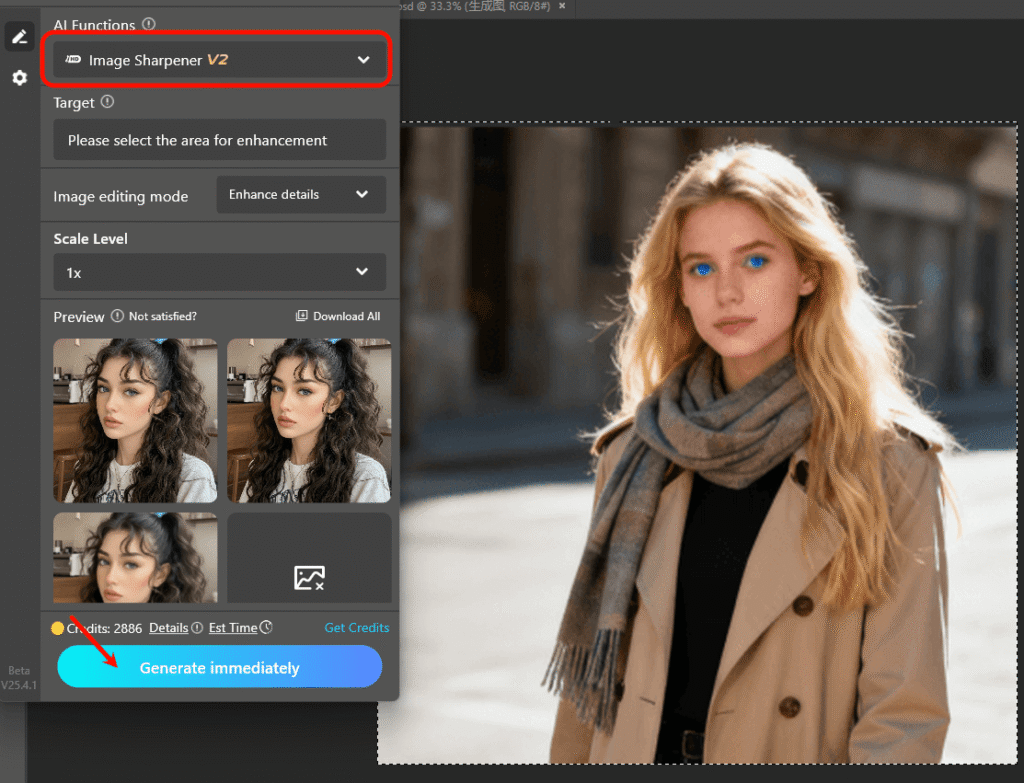
- Click “Generate Now.” The tool automatically applies optimized sharpening and noise reduction, often delivering a cleaner image in seconds.
6.Choosing Your Tool & Pro Tips
Pro Tip: Always start with the highest quality source file. For the Pro version, adding context to your prompt helps. Try: “Restored to HD, focusing on clarity of the eyes and mouth” to direct the AI’s attention to the most important facial features. View results at 100% zoom to truly appreciate the restored details.re shapes and intent are still somewhat visible.
Use Nano Banana Pro for: Old family photos, pictures with significant blur, or when the subject’s identity and expression must be perfectly maintained.
Use HD Repair for: Modern digital photos that are slightly soft, have minor compression artifacts, or when you need a rapid enhancement.
Download link
https://psaide.com/?sfrom=A86R4u
Invitation Code: A86R4u
Click here to discover more usage tips and in-depth information on Nano Banana Pro!

