
Table of Contents
If you’re looking to remove backgrounds quickly and effectively, the PsAide Background Remover tool is a game-changer for Photoshop users. With AI-powered technology, PsAide simplifies the tedious task of background removal, especially for images with similar-colored backgrounds, like a corn on a uniform background. Here’s how to use it:
Step 1: Open Your Image in Photoshop
Start by launching Adobe Photoshop on your computer and open the image you want to edit. Make sure the background is a single, solid color, as the PsAide Background Remover works best when there is a contrast between the subject and background. In this case, a corn with a uniform background would be ideal for the tool.
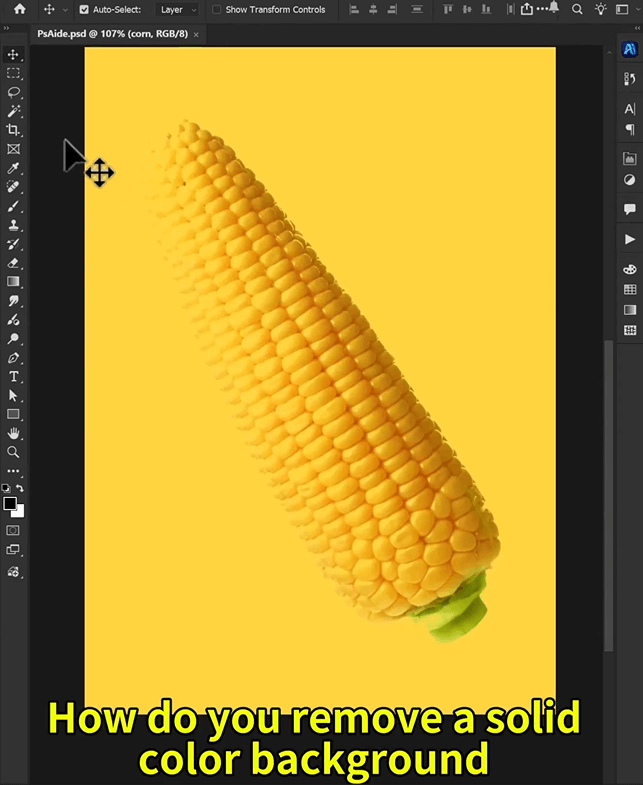
Step 2: Activate PsAide and Choose the Background Remover
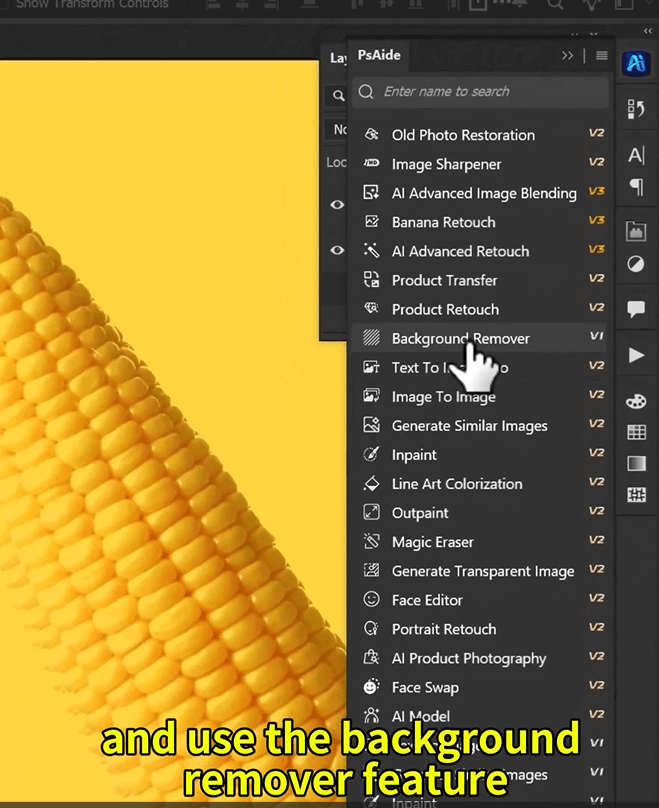
Next, open the PsAide plugin within Photoshop. If you haven’t installed PsAide yet, simply download and install it. Once the plugin is active, find the Background Remover tool within the PsAide panel. Select the image you opened in Step 1, and click the option to choose the entire picture.
After selecting your image, click the Generate button. The AI will automatically detect the edges of the corn and distinguish it from the background. It does this by analyzing color, texture, and contrast, ensuring a clean cutout without the need for manual masking or tracing.
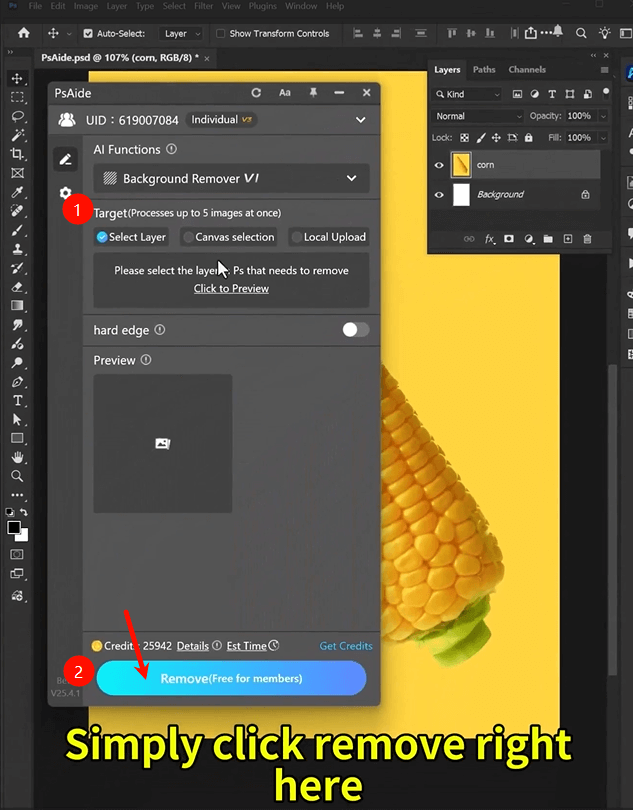
Step 3: Review and Finalize the Cutout
Once the Background Remover has finished processing, the background will be removed, leaving your corn subject isolated. You’ll now have a transparent background or, depending on your settings, the option to replace it with a new one.
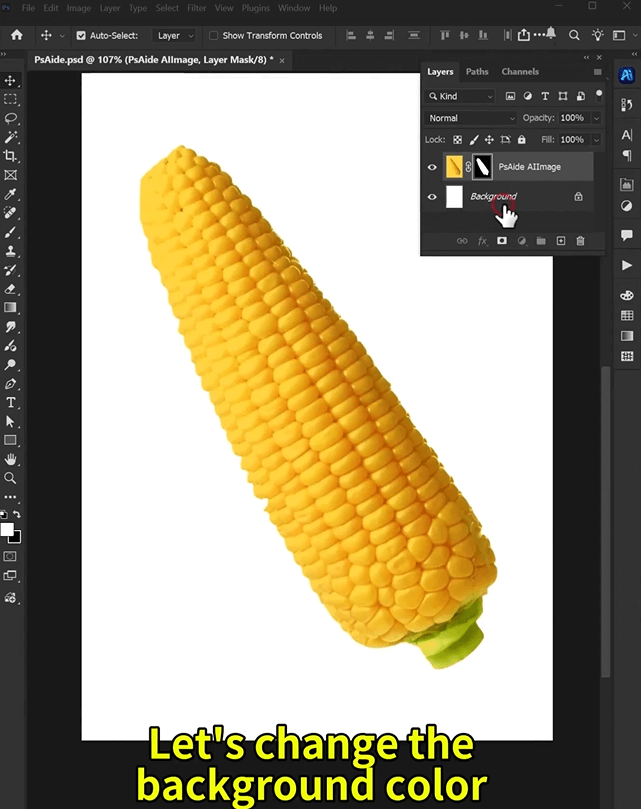
The beauty of using the PsAide Background Remover is its accuracy and speed. The AI adapts to the specific colors of the background and removes them without affecting the subject, making it perfect for quick edits or product photos that need to stand out.
With the PsAide Background Remover, Photoshop users can now remove backgrounds with just a few clicks, saving time and effort. This AI tool makes background removal easier than ever, especially for images with similar colors. Whether you’re working on product photography, social media content, or personal projects, PsAide simplifies complex tasks, allowing you to focus on creativity. The AI needs a foundational image structure. It works miracles on slightly soft or moderately blurred photos but cannot invent perfect detail from extreme motion blur or extremely low-resolution thumbnails.
Download link
https://psaide.com/?sfrom=A86R4u
Invitation Code: A86R4u
Click here to discover more usage tips and in-depth information on Nano Banana Pro!

