
Table of Contents
Portrait photos are widely used in resumes, profile images, marketing materials, and social media content. In many of these cases, the goal is simple:
Separate the person from the background cleanly and quickly.
However, portrait background removal in Photoshop can still feel slow when using manual tools—especially when working with large numbers of images.
This article focuses on practical portrait background removal workflows in Photoshop, without complex edge work, and introduces a faster approach using the psaide Background Remover.

1.Limitations of Traditional Photoshop Methods for Portraits
(1)Too Many Manual Steps
Using Quick Selection or Select Subject still requires refinement and multiple adjustments.
(2)Inconsistent Results
Different lighting, poses, and backgrounds often lead to uneven results across portrait images.
(3)Low Efficiency for Multiple Photos
When handling many portraits, manual background removal quickly becomes time-consuming.
These issues make traditional workflows less suitable for everyday portrait processing.
2.A More Efficient Approach: psaide Background Remover
The Background Remover feature in the psaide plugin offers a streamlined way to remove portrait backgrounds directly inside Photoshop.
Rather than relying on multiple manual steps, psaide focuses on:
- Fast subject detection
- Clean background separation
- Minimal user input
This makes it especially useful for standard portrait photos.
3.How to Remove Portrait Backgrounds with psaide (3 Steps)
(1)Add the Portrait Photo to Photoshop
Drag the image into Photoshop or open it normally.
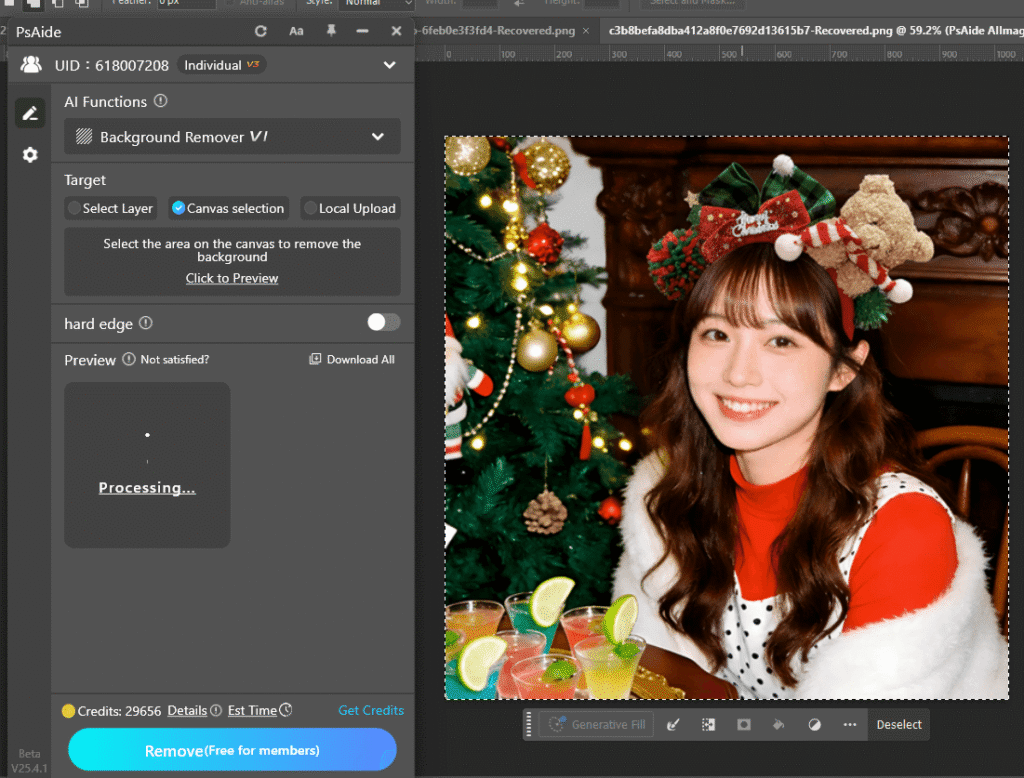
(2)Open the psaide Plugin and Select a Mode
Choose the mode that best fits your workflow:
①Layer Upload Mode Ideal for single portraits and quick edits
②Canvas Selection Mode Useful when the portrait is part of a larger composition
(3)Click Generate
Click Generate, and psaide will automatically: Remove the background
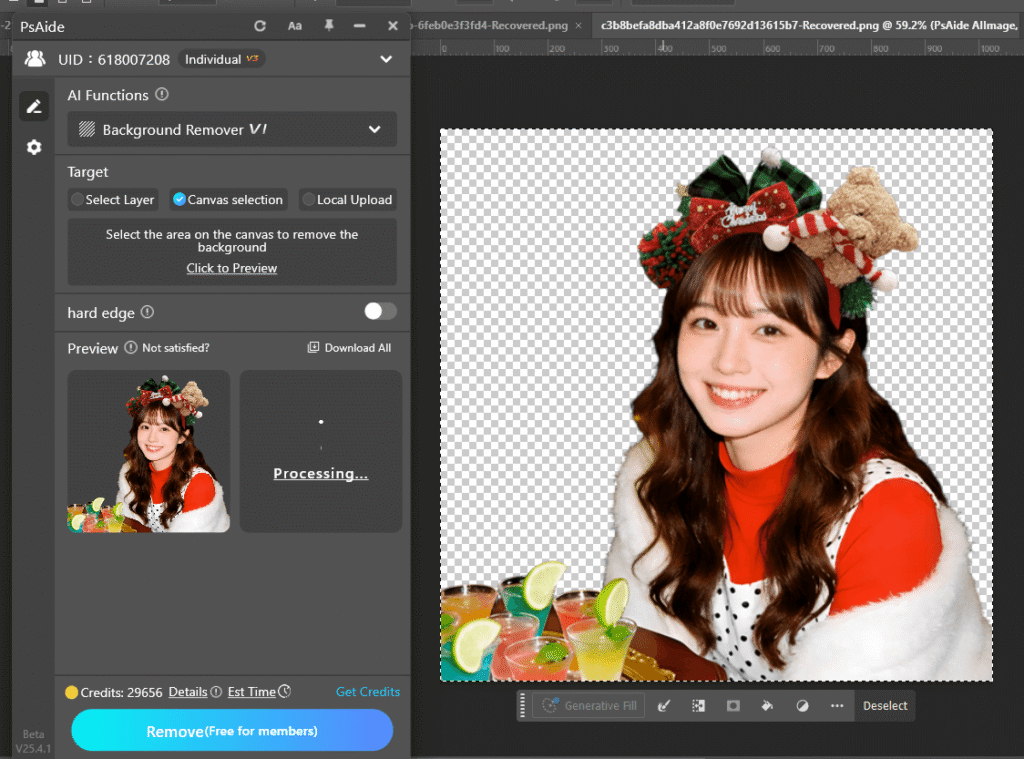
The process is simple and efficient, with no complex adjustments required.
4.Conclusion
For most portrait use cases, background removal does not need to be complicated. What matters most is speed, consistency, and a clean result.

By using the psaide Background Remover, you can remove portrait backgrounds efficiently inside Photoshop, reduce repetitive manual work, and maintain a smooth editing workflow.
Download Link: https://psaide.com/?sfrom=ZfhxUK
Invitation Code: ZfhxUK

