
Table of Contents
Unwanted text often spoils images used for design materials, old photo restoration, or e-commerce product shots. Manual removal easily leaves traces and damages background textures. This guide introduces two targeted AI solutions via Psaide plugin for Photoshop: Nano Banana for translucent watermarks and AI Advanced Retouch for inherent image text, enabling seamless one-click removal.
1.Key Distinction: Watermark vs. Inherent Image Text
Accurately identifying the text type is crucial for choosing the right method:
- Watermark: Usually translucent, overlaid on images for copyright declaration. Features single color (often white or gray), blendable with background but distinguishable.
- Inherent Image Text: An integral part of the image, such as poster titles, road sign information, or T-shirt prints. Boasts diverse colors and fonts, closely intertwined with background textures, and may have 3D effects.
2.Psaide: AI-Powered Seamless Removal
①Scenario A: Remove Translucent Watermarks – Use Nano Banana
The most efficient solution for typical translucent watermarks:
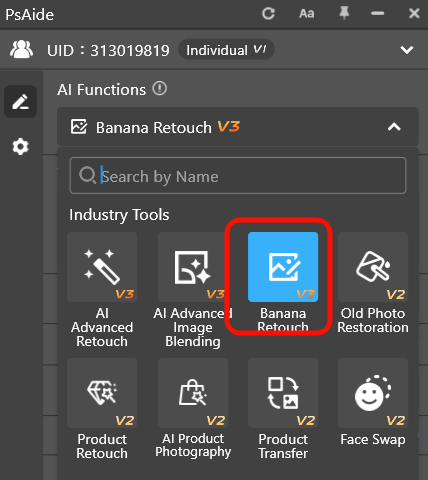
- Open the image in PS, launch Psaide plugin, and select the 【Nano Banana】 function.
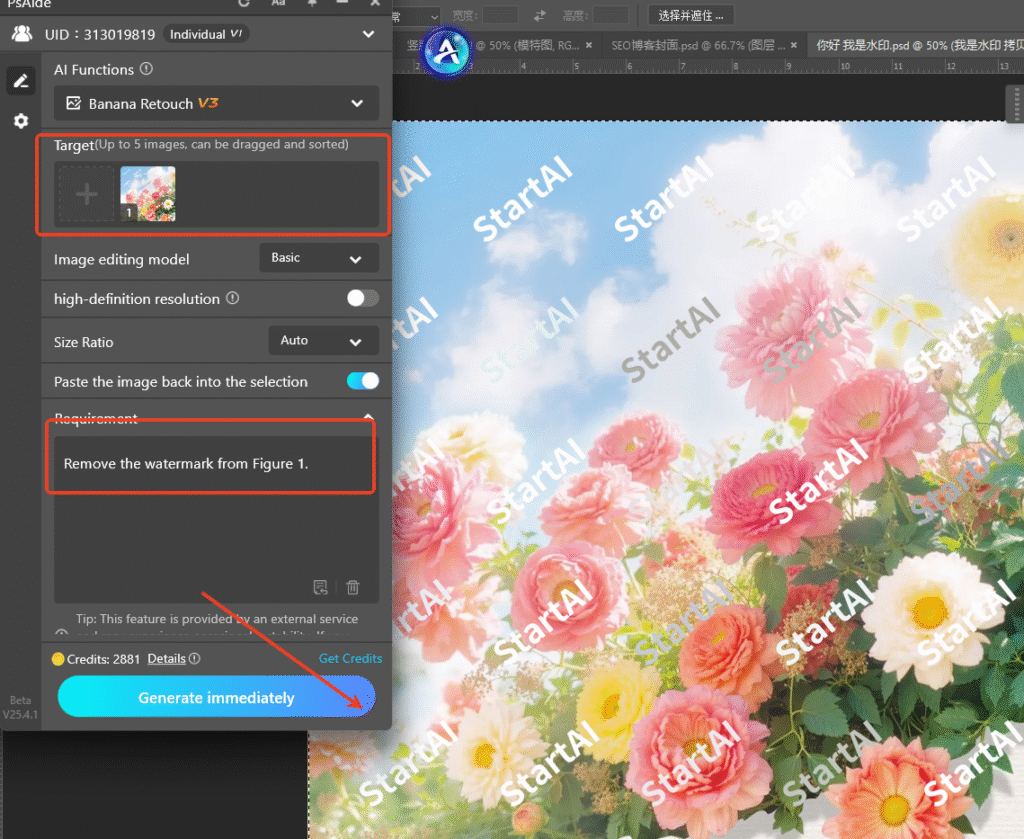
- Use PS selection tool to frame the watermark area. Enter prompt: 【Remove the watermark from Figure 1.】
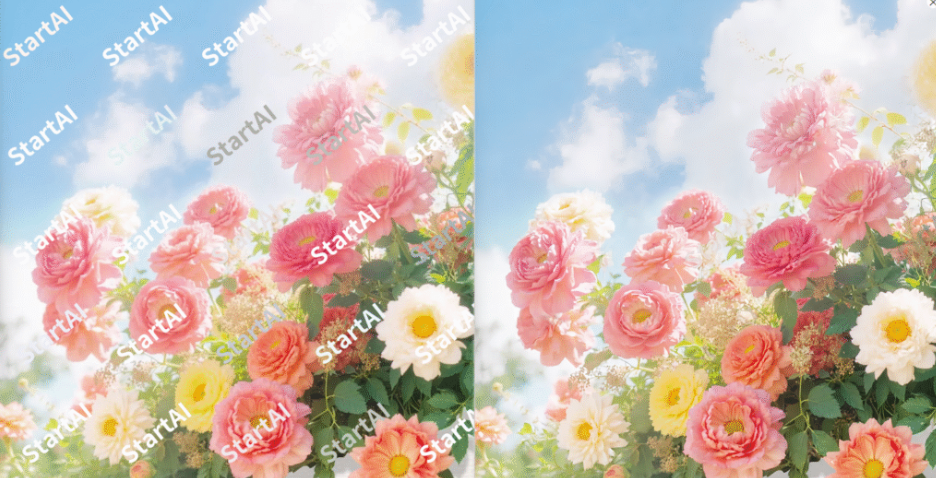
- Click “Generate”. AI automatically recognizes watermark transparency and color, intelligently matches and reconstructs the background for one-click removal, perfectly preserving the underlying image.
②Scenario B: Remove Complex Inherent Text – Use AI Advanced Retouch
A more powerful option when text is inherently integrated with the background:
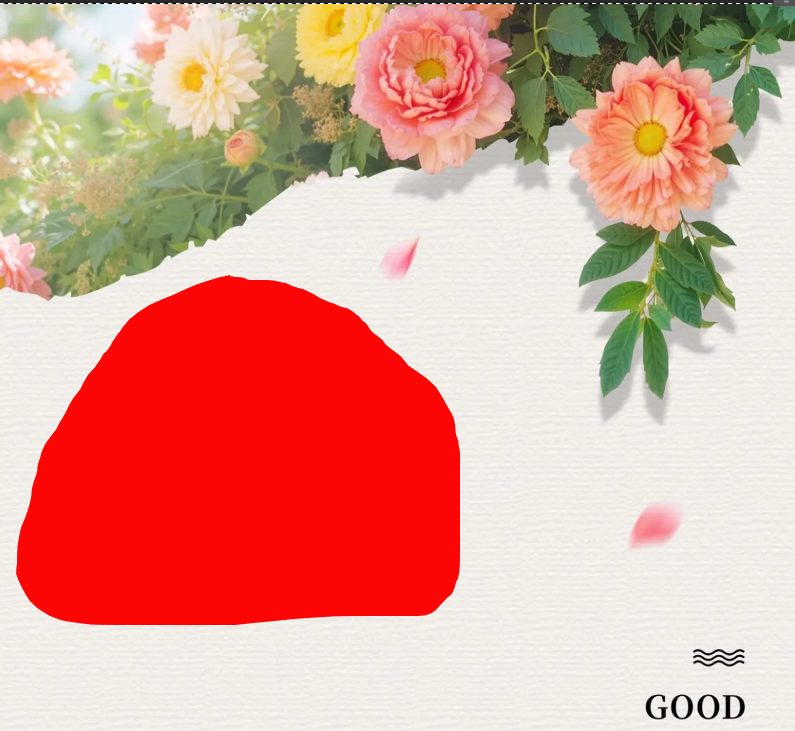
- Preparation & Marking: Open the image in PS, use selection tool to precisely select the text to be removed. Fill the selected area with a striking solid color (e.g., red) to provide clear target instructions for AI.
- AI Instruction-Driven Retouching: Launch Psaide plugin, find the 【AI Advanced Retouch】 function. Upload the marked image and enter prompt in the text box: 【Remove the red areas in the picture】
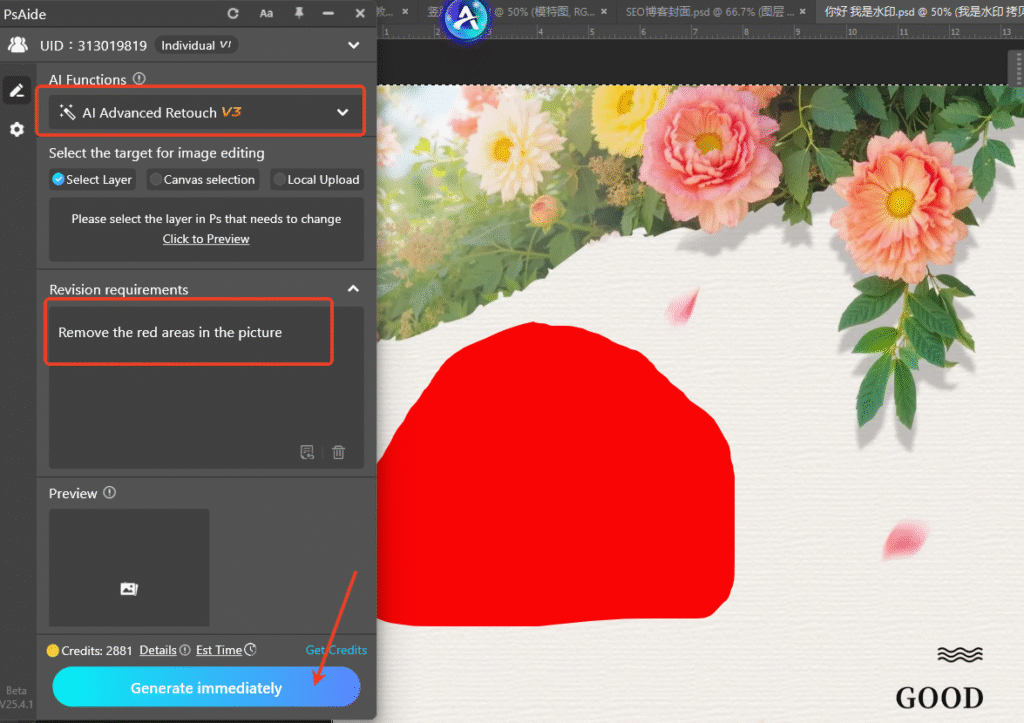
- Intelligent Generation & Preview: Click “Generate”. Instead of simple filling, AI analyzes the image content, texture, light, and color around the red area to reconstruct the text-covered region seamlessly. It generates highly matching content for complex backgrounds like wood grain, brick walls, or gradient skies, achieving true “trace-free” results.

3.Summary & Selection Recommendations
- For efficiency and translucent watermarks: Prioritize 【Nano Banana】 for one-step completion.
- For inherent text on complex backgrounds: Adopt 【AI Advanced Retouch】 + marking method – the most reliable intelligent solution currently.
- For ultimate control and special artistic needs: Combine traditional manual PS techniques for final adjustments.
Mastering these two AI tools allows you to tackle most text removal needs, transforming tedious professional work into efficient and precise intelligent operations.
Download link
https://psaide.com/?sfrom=A86R4u
Invitation Code: A86R4u

