
Table of Contents
Q&A: The Old Photo Restoration Challenge
Q: Why is restoring old photos so difficult with traditional Photoshop tools?
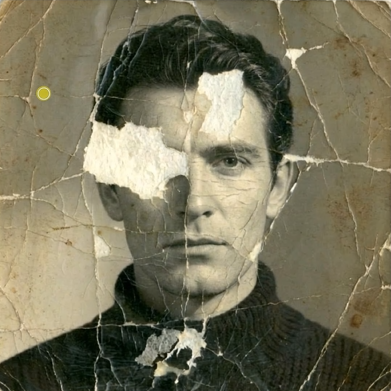
A: Manual restoration is a painstaking process that requires identifying different types of deterioration—scratches, fading, stains, tears—and applying separate corrections for each. Matching lost colors authentically and repairing complex patterns in period clothing without making them look modern is a task that demands both technical skill and historical knowledge.
Q: How does AI approach this complex task differently?
A: Nano Banana Pro treats restoration holistically. Instead of applying isolated filters, its AI is trained on datasets of historical photos. It understands the difference between damage (like a chemical stain) and authentic period detail (like original sepia tone or clothing texture).
1. What Makes Nano Banana Pro Different for Photo Restoration
Unlike standard photo editing filters that generically sharpen or colorize, Nano Banana Pro performs context-aware historical restoration. It recognizes material types (skin, fabric, wood) common in old photos and applies repairs appropriate to each. Crucially, it aims to restore the photo to its original, undamaged state while preserving its historical character, avoiding the “over-cleaned” digital look that strips away authenticity.
2. What You’ll Need
- Adobe Photoshop with the PsAide plugin installed.
- Click to Download
- Your Damaged Photo: A scanned image of your old photograph. A high-resolution scan (300-600 DPI) yields the best results.
- Patience: Approximately 60-90 seconds of AI processing time.
3. The Professional Restoration Process
Step 1: Prepare Your Source Image
Open your scanned photograph in Photoshop. Ensure you are working on the image layer. No pre-processing like dust removal or cropping is needed—the AI will analyze the image in its current state.

Step 2: Configure and Command the AI
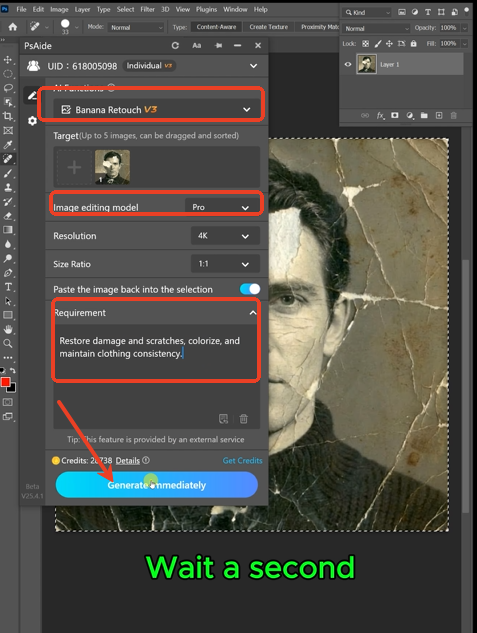
In the PsAide panel, launch Nano Banana and select the Pro version. Upload your single photo. In the prompt box, enter a detailed restoration command:
“Restore damage and scratches colorize and maintain clothing consistency.”
Step 3: Achieve Complete Restoration
Click “Generate.” Within 45-90 seconds, the AI executes a multi-faceted restoration:
- Damage Repair: Automatically detects and removes scratches, dust spots, water stains, and fills small tears.
- Intelligent Colorization: Analyzes the image to apply realistic colors to skin, clothing, and environments, based on historical references.
- Detail & Consistency Enhancement: Sharpens blurred facial features, evens out discolorations, and ensures colors on clothing items are consistent and plausible.
- Tone Preservation: Maintains the warm, authentic feel of a vintage photo without making it look like a modern digital snapshot.

The result is a single, revitalized image where damage is repaired and color is added naturally, all while keeping the timeless feel of your original photograph.
Pro Tips:
- Start with the highest quality scan possible. The AI needs good data to work with.
- The prompt is key. Specifying “maintain clothing consistency” helps the AI avoid giving a striped dress mismatched colors, for example.
- For photos with large missing sections, the AI will do its best, but severe damage may require multiple focused restoration steps.
- Always keep your original scanned file untouched and save the AI-restored version as a new file.
This one-click AI solution transforms a task that once required hours of expert manual work into a simple, accessible process, allowing anyone to preserve and celebrate their history with stunning results.
Download link
https://psaide.com/?sfrom=A86R4u
Invitation Code: A86R4u

