
Table of Contents
With AI Advanced Retouch, combined with a professional PS plugin, creating fluffy, high-quality “CAT” text effects is now fast, precise, and low-cost.
For graphic designers, product developers, and children’s brand visual specialists, turning plain text into textured fluffy effects enhances visual appeal and fits brand styles like cute or soft aesthetics. Traditional methods either require manual drawing — taking hours or even days to adjust fiber density, direction, and shading — or rely on simple fuzzy filters that often look flat, lose texture, or create rough edges, making the final design unsuitable for posters, packaging, or cultural products. AI Advanced Retouch with PsAide solves these issues efficiently.
1. PsAide Plugin Easily Generates Fluffy Text Effects
(1)AI Advanced Retouch Example Display
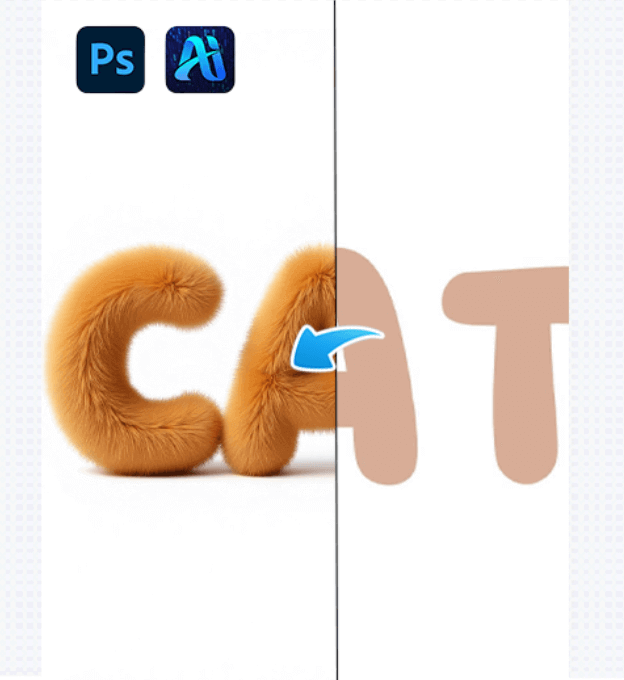
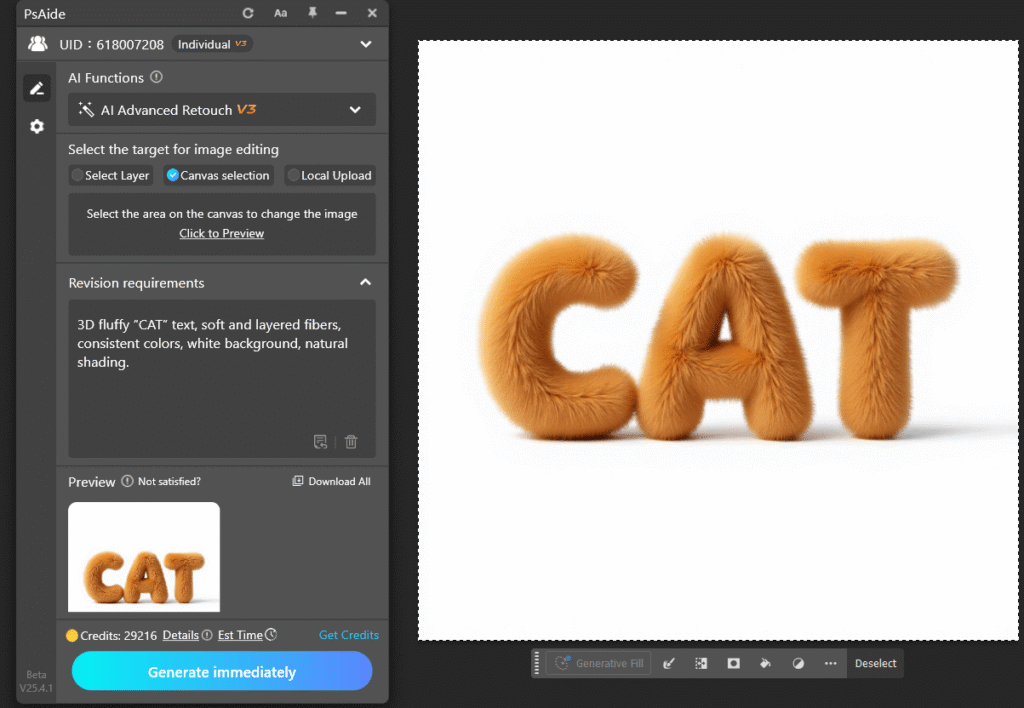
In practice, AI Advanced Retouch can transform plain “CAT” text into fluffy 3D effects while retaining font structure and proportion. Letter edges show natural fuzziness, fiber lengths vary with direction along contours, and shading simulates real fluff, creating layered textures that appear like actual plush material. The result is realistic, professional, and ready for packaging, posters, or merchandise applications.
(2)Advantages of Fluffy Text Generation
①Significant time and cost reduction
Manual drawing of fibers is no longer needed. AI Advanced Retouch completes the effect in seconds, replacing hours of traditional work.
②High realism
Different textures like short, long, or curly fibers are accurately simulated, with correct density, direction, and light distribution, avoiding flat or fake-looking results.
③Adaptive to styles and scenes
The system analyzes background and style (cute, minimal, retro), ensuring the fluffy text fits the overall visual environment and maintains color harmony.
④Flexible personalization
Users can customize fiber color, length, fluffiness, gloss, or tiny imperfections, generating multiple variations from the same text for posters, packaging, or merchandise.
(3)Operation Steps
①Import an image with “CAT” text into Photoshop, open the PsAide plugin, and select the text area (or the full text layer).
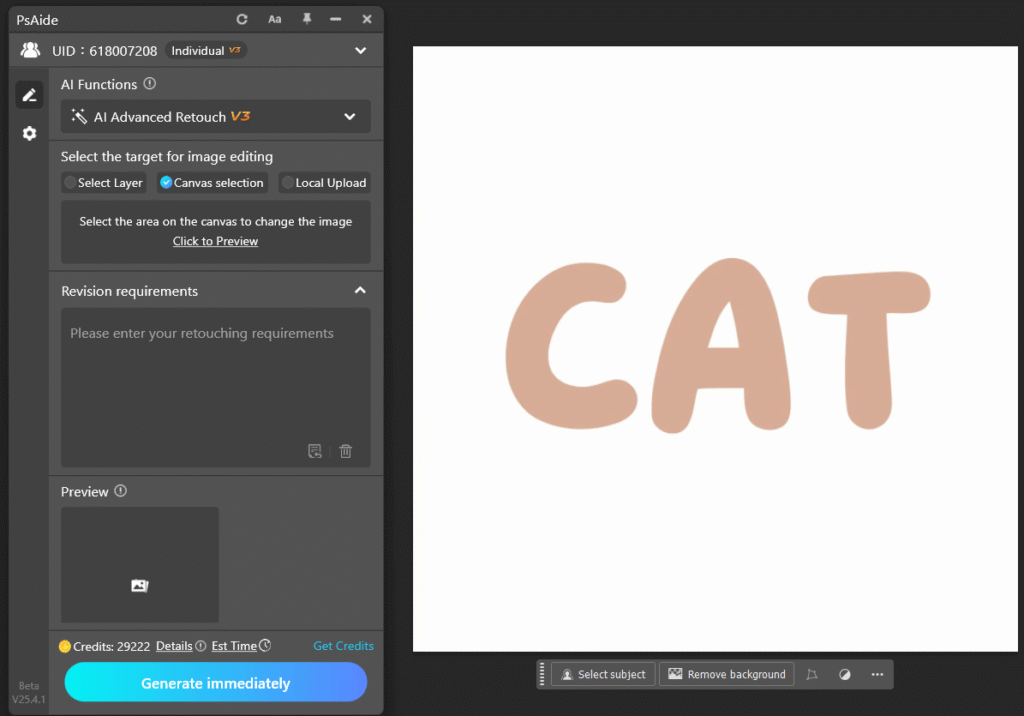
②Enter a prompt specifying fluffy effect requirements, e.g., “3D rendering, fluffy texture, soft fuzz, white background, maintain color consistency.”
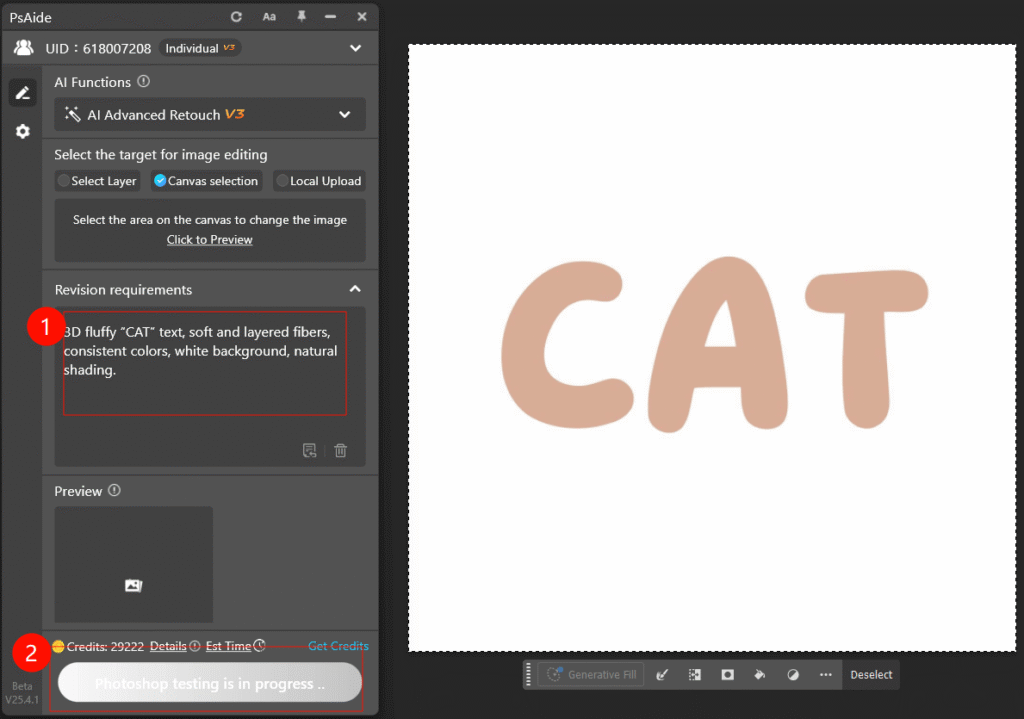
③Click Generate and wait 10–20 seconds to get the fluffy text effect image. Adjust and regenerate as needed.
2. Example Prompt
3D fluffy “CAT” text, soft and layered fibers, consistent colors, white background, natural shading.

Download Link: https://psaide.com/?sfrom=ZfhxUK
Invitation Code: ZfhxUK

