
Table of Contents
For resumes, exams, visas, and official documents, ID photos often require specific background colors such as white, blue, or red.
Manual background replacement in Photoshop can be slow, inaccurate, and frustrating.
Background Remover is an independent AI feature inside PsAide, built specifically to remove and replace backgrounds in Photoshop with high precision. It is especially effective for ID photos where edge quality matters.
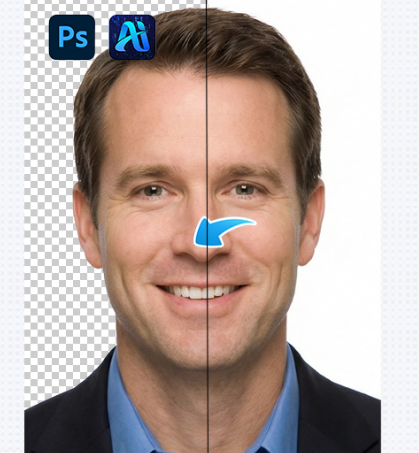
1. Common Ways to Change ID Photo Background Color in Photoshop
(1)Manual Selection and Masking in Photoshop
This is the traditional method many users start with.
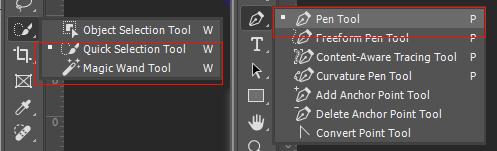
① Select the subject using Quick Selection or Pen Tool
② Refine edges using “Select and Mask”
③ Apply a layer mask and add a solid color background
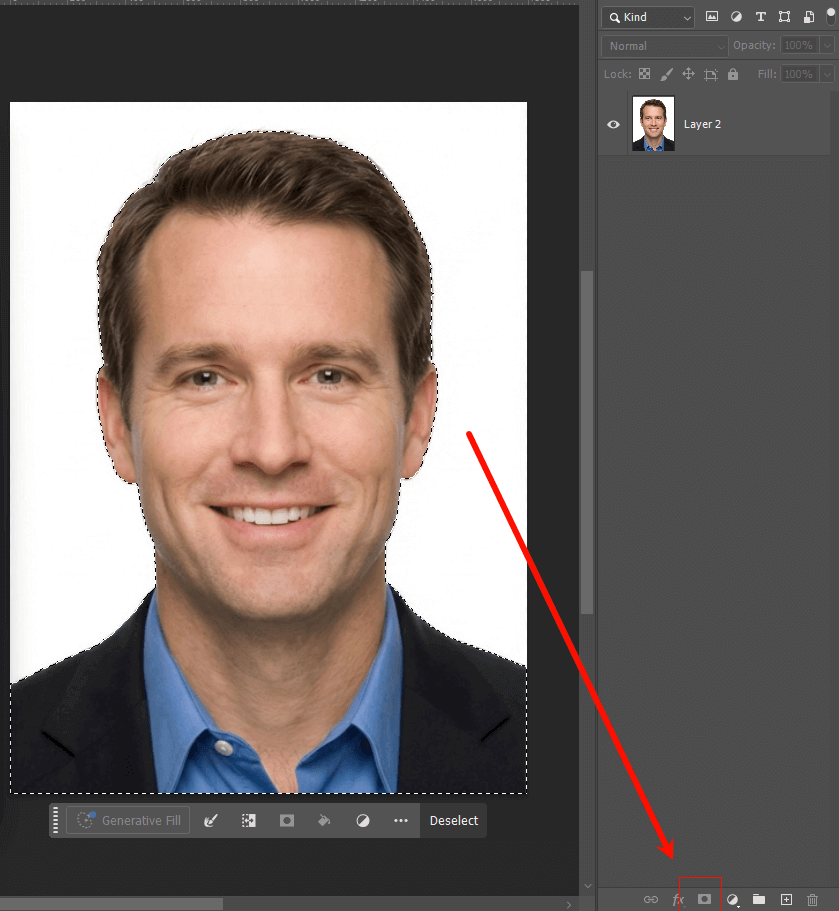
Disadvantages:
- Requires Photoshop experience
- Edge refinement takes time
- Easy to leave color halos
(2)Background Remover in PsAide (AI Method)
Background Remover simplifies the entire process into one click.
① Open the ID photo in Photoshop
② Launch PsAide and choose Background Remover
③ Click “Generate” to remove the background automatically
Within seconds, Background Remover produces a clean cutout with no manual adjustments required.
2. Step-by-Step Guide: Using Background Remover in Photoshop
(1)Import the ID Photo
① Open Photoshop
② Import a clear, front-facing ID photo
There is no need to create selections before using Background Remover.
(2)Activate Background Remover in PsAide
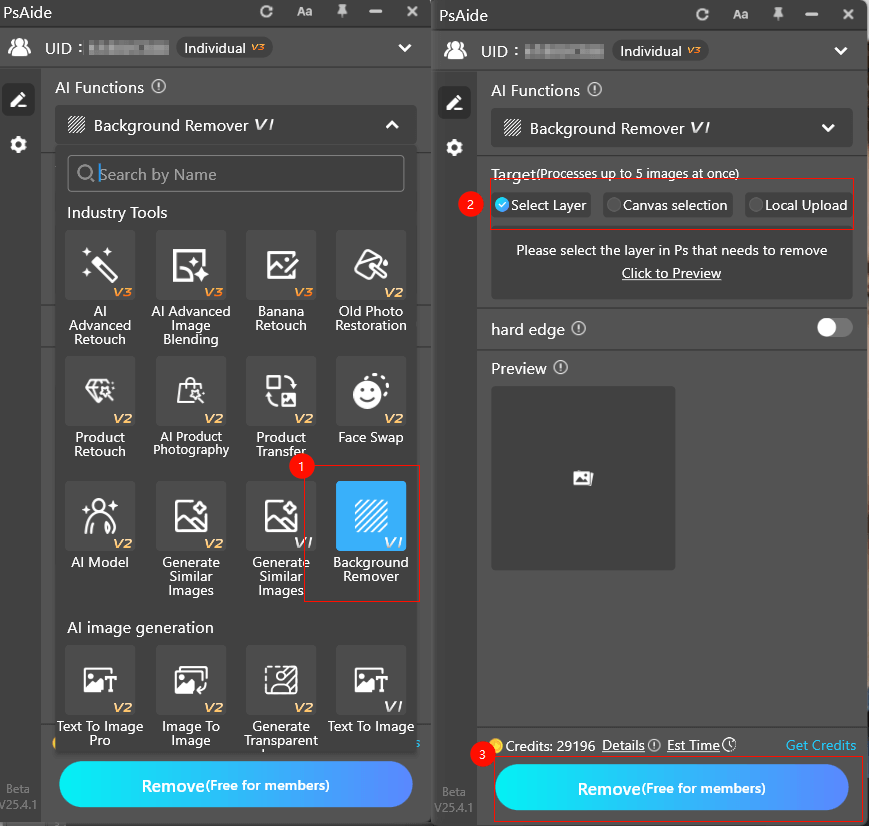
① Open the PsAide plugin panel
② Select Background Remover
③ Click “Generate”
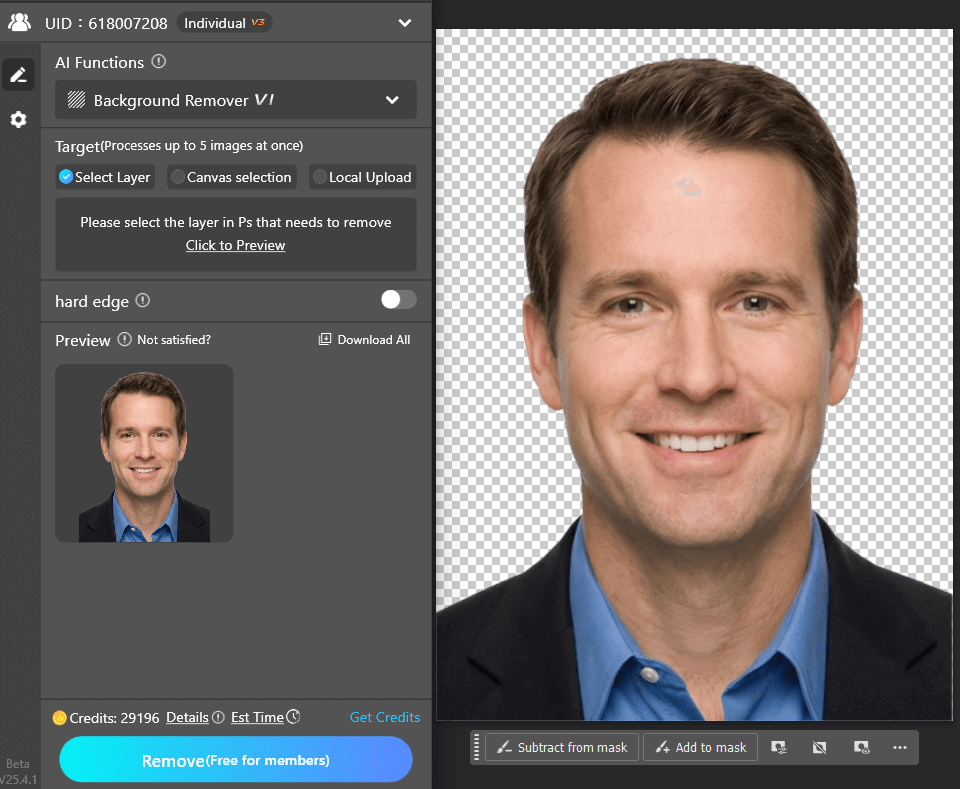
The AI processes the image and removes the background accurately.
(3)Apply the New Background Color
① Create a new layer below the subject
② Fill it with the required color (white, red, or blue)
③ Export the final ID photo
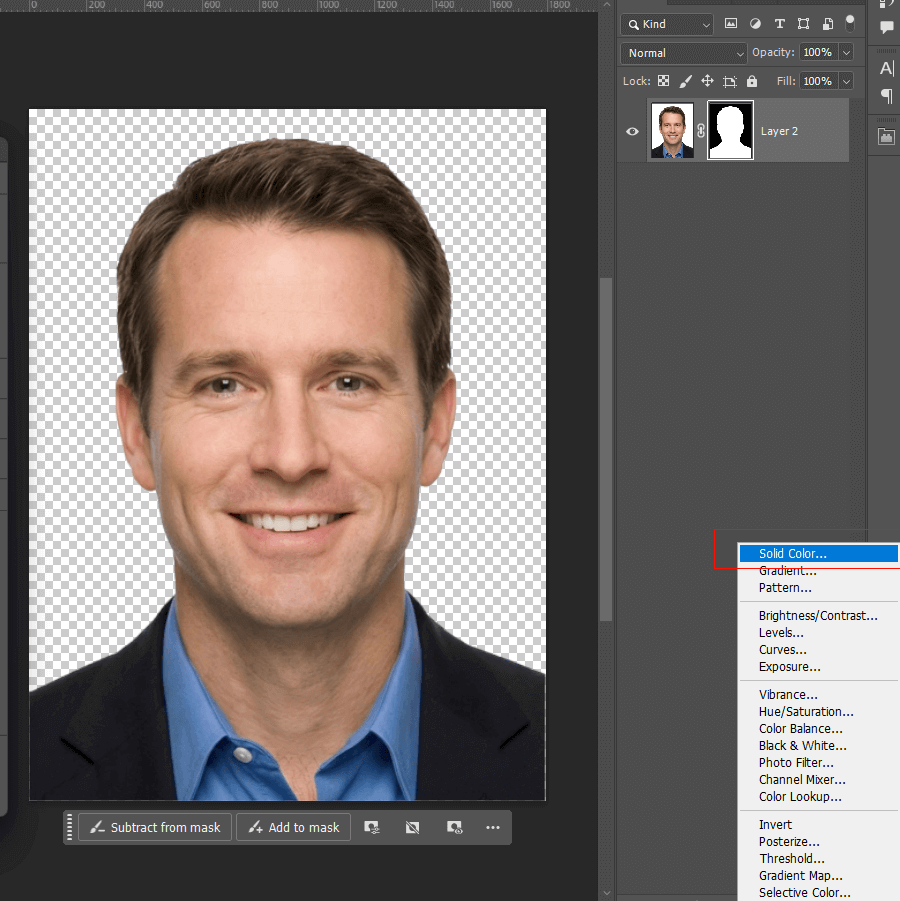
This ensures compliance with official ID photo standards.
3. Why Background Remover Is Ideal for ID Photos
(1)High Accuracy for Official Use
① Clean hair edges
② No leftover background pixels
③ Suitable for automated photo verification
(2)Easy for Beginners
① No Photoshop skills required
② No manual masking
③ One-click operation
(3)Fast and Efficient Workflow
① Manual editing: 10–30 minutes
② Background Remover: under 30 seconds
③ Ideal for bulk ID photo processing
4.Conclusion
If you want to replace ID photo background colors efficiently in Photoshop, Background Remover in PsAide is a reliable and professional solution.
By automating complex background removal tasks, Background Remover helps users create compliant ID photos quickly, accurately, and without technical difficulty.

Download Link: https://psaide.com/?sfrom=ZfhxUK
Invitation Code: ZfhxUK

