
Table of Contents
In modern fashion eCommerce, digital content production, and visual marketing, brands frequently need to present multiple clothing styles using the same model and scene. Traditionally, this requires repeated photoshoots or complex manual retouching—both costly and time-consuming. With nano banana technology in the PsAide plugin, creators can now swap outfits directly inside real-life images while maintaining natural lighting, body posture, and environmental consistency.
Unlike basic overlay techniques, nano banana understands body structure, fabric behavior, and spatial depth, allowing the new garment to integrate naturally into the original scene. This makes nano banana in PsAide particularly valuable for designers, photographers, and online sellers who need scalable, realistic, and efficient outfit replacements.
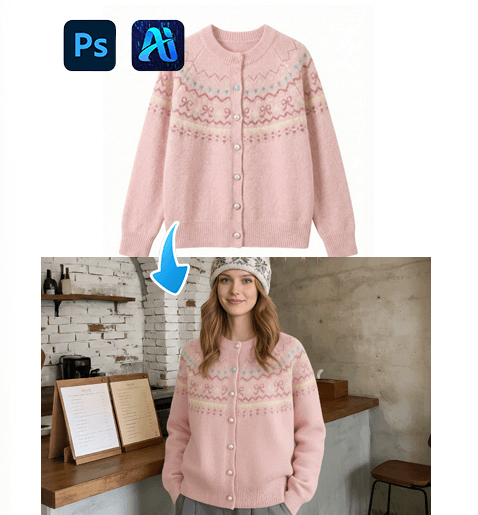
1. nano banana: A More Intelligent Way to Replace Outfits
Instead of relying on complex masking or layer compositing, nano banana in PsAide streamlines outfit replacement into a structured four-step workflow that is accessible even to beginners.
(1)Step 1 — Paint the Original Clothing Red
Before applying a new outfit, open the scene image in Photoshop and paint the model’s existing clothing red. This helps nano banana clearly identify the replacement area while reducing interference from the original fabric’s color, texture, and patterns.
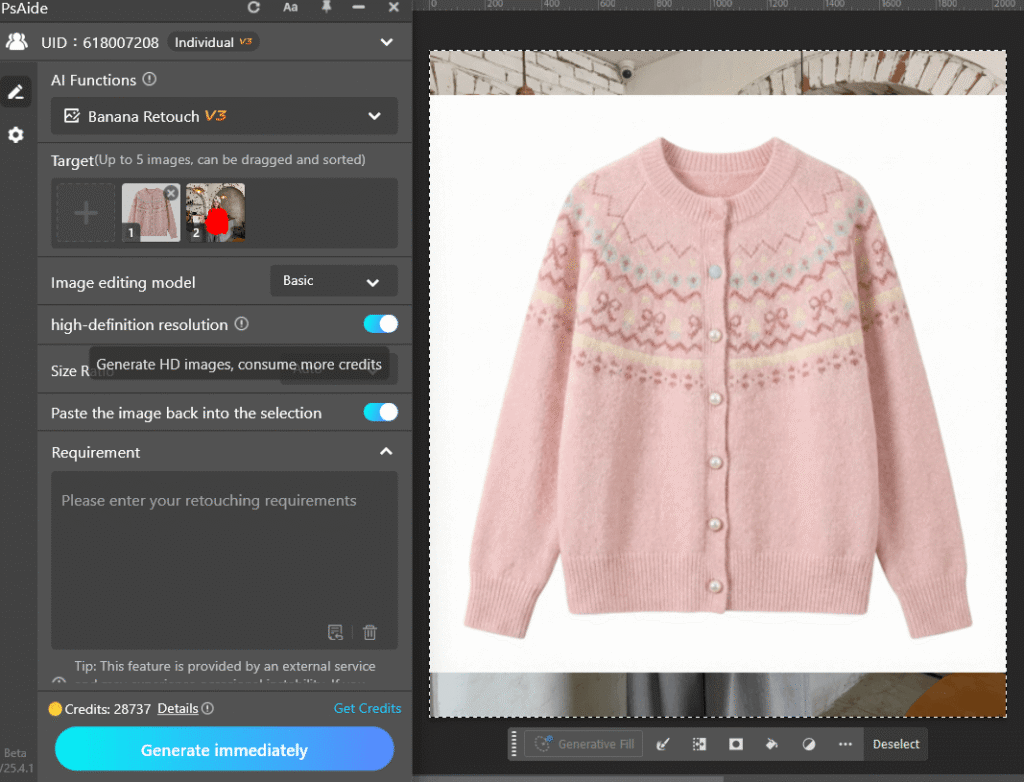
You do not need pixel-perfect precision—rough coverage is sufficient as long as all visible parts of the garment are marked.
(2)Step 2 — Upload Scene and Product Images
Upload both:
The edited scene image (with red-painted clothing)
The product image of the new garment
nano banana in PsAide analyzes the model’s pose, lighting, and proportions from the scene while extracting design details from the product image.
(3)Step 3 — Enter a Detailed Prompt
To guide nano banana, provide a clear and descriptive prompt, for example:
The model in Figure 2 is wearing the sweater from Figure 1.
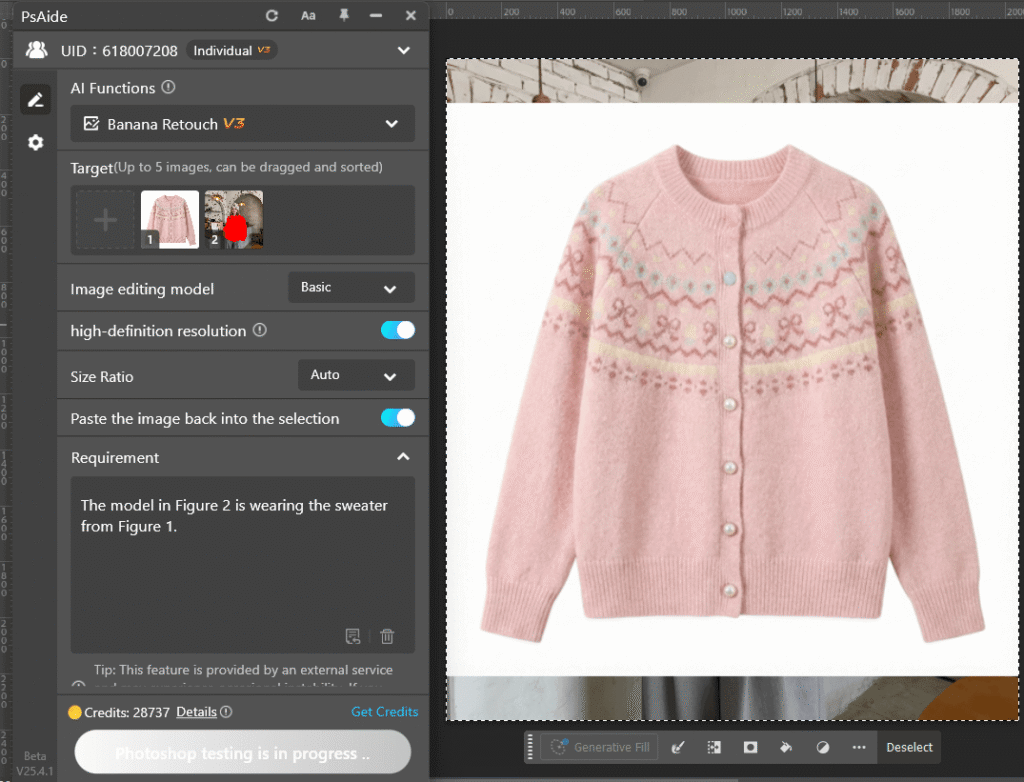
This helps nano banana better interpret your creative intent.
(4)Step 4 — Generate and Refine
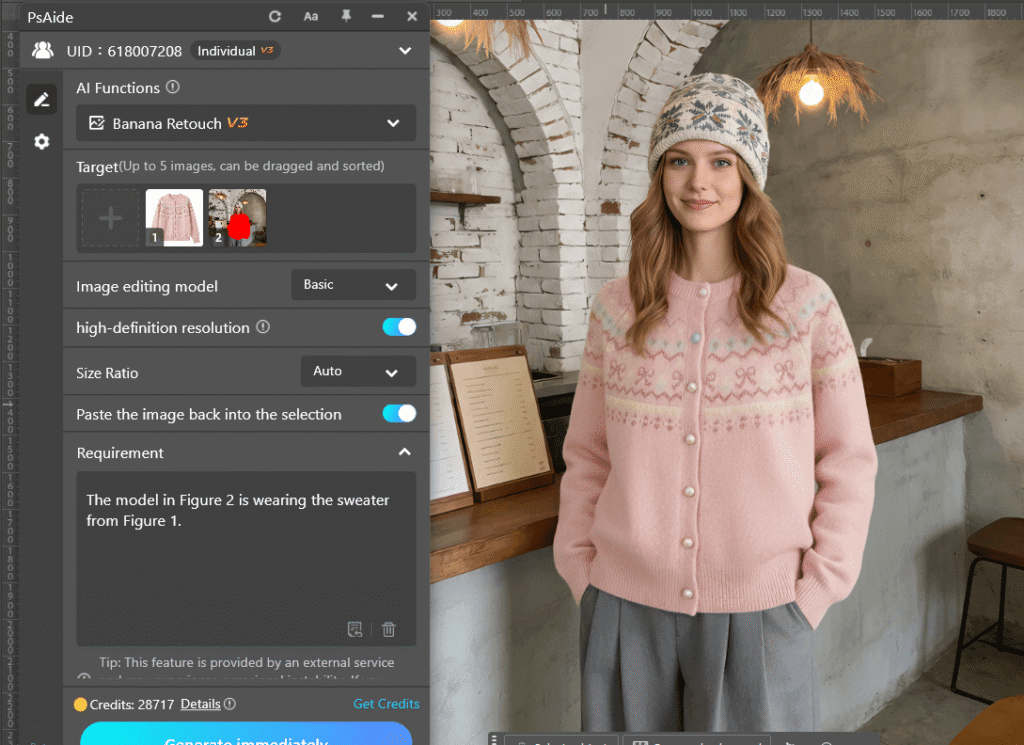
Click Generate, and nano banana in PsAide will automatically apply the new outfit within the original environment. If needed, refine the result by adjusting the prompt or regenerating variations.
2. Why nano banana Matters for Creators and Brands
With nano banana in PsAide, users can:
①Create multiple looks from a single photoshoot
②Reduce production and photography costs
③Accelerate content iteration
④Maintain visual consistency across campaigns
Instead of organizing new shoots for every product, brands can leverage nano banana to generate fresh, professional visuals efficiently.
3. Conclusion
nano banana in PsAide transforms the way designers and sellers approach outfit editing. By combining intelligent analysis with a simple workflow, it enables fast, natural, and high-quality clothing swaps—making professional visual production more accessible than ever.

Download Link: https://psaide.com/?sfrom=ZfhxUK
Invitation Code: ZfhxUK

