
Table of Contents
Unnatural facial shadows can spoil the overall aesthetic of portrait photography and commercial retouching. Traditional shadow removal in PS demands sophisticated light and shadow reconstruction skills, while Psaide’s Nano Banana Pro feature automates this professional process, enabling precise shadow optimization with simple prompts.
1. Traditional PS Techniques: Complex Challenges of Light & Shadow Reconstruction
Before exploring AI solutions, understanding manual retouching principles is key to grasping the technical essence of shadow removal.
Core Pain Points & Operational Difficulties
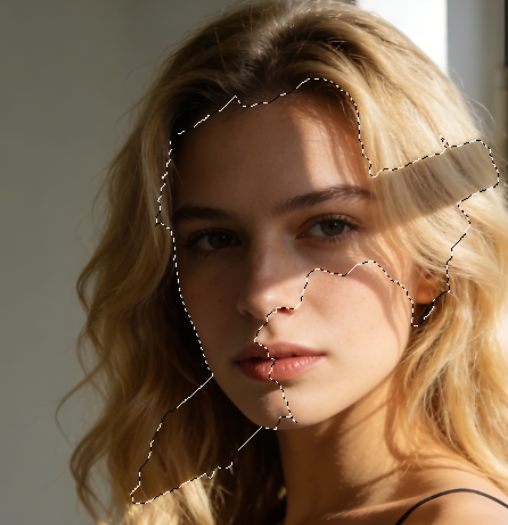
- Pain Point 1: Difficult Shadow Identification & Segmentation Facial shadows blend with natural skin tones, making boundary separation tricky. Forced edits often cause uneven skin color. Steps: Use the Quick Selection Tool or Color Range to select shadow areas initially, then refine edges for precision. Soft shadow transitions make selection a major technical hurdle.
- Pain Point 2: Controlling Natural Light & Shadow Transitions Simply brightening shadows leads to a “flat” look, losing facial dimensionality. Steps:
- Create a Curves adjustment layer to selectively brighten shadow areas.
- Add a 50% gray layer (set to Soft Light blend mode), then gently paint over shadows with a low-opacity (5–10%) white brush to rebuild natural transitions.
- Use layer masks to limit adjustments and avoid affecting normal skin areas.
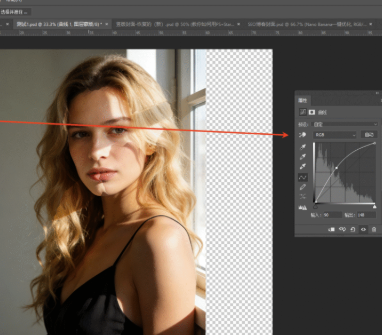
This process requires strong artistic skills and PS proficiency, taking 15–30 minutes to retouch a single portrait’s shadows professionally.
2. Nano Banana Pro: One-Click Intelligent Shadow Optimization
Psaide’s Nano Banana Pro integrates complex light analysis, region recognition and natural blending into an intuitive, AI-powered workflow.
3-Step Process
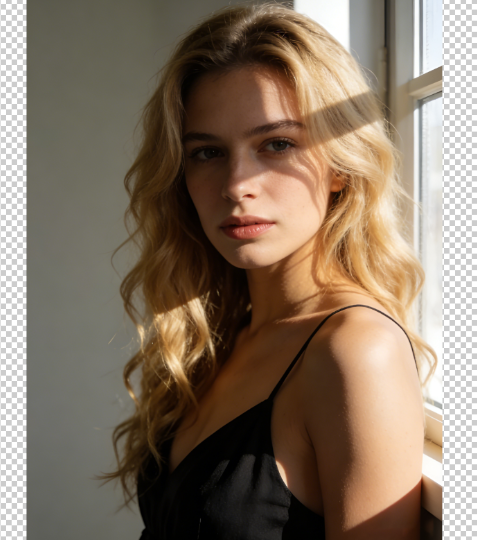
- Prepare Your Image Open the portrait photo in PS. Choose high-clarity images with obvious light issues to ensure shadow areas are easily recognizable.
- AI Recognition & Processing Launch the Psaide plugin panel, select the Nano Banana function and enable Pro mode for advanced image understanding. Enter the clear prompt in the text box: “Remove facial shadows in Figure 1”.
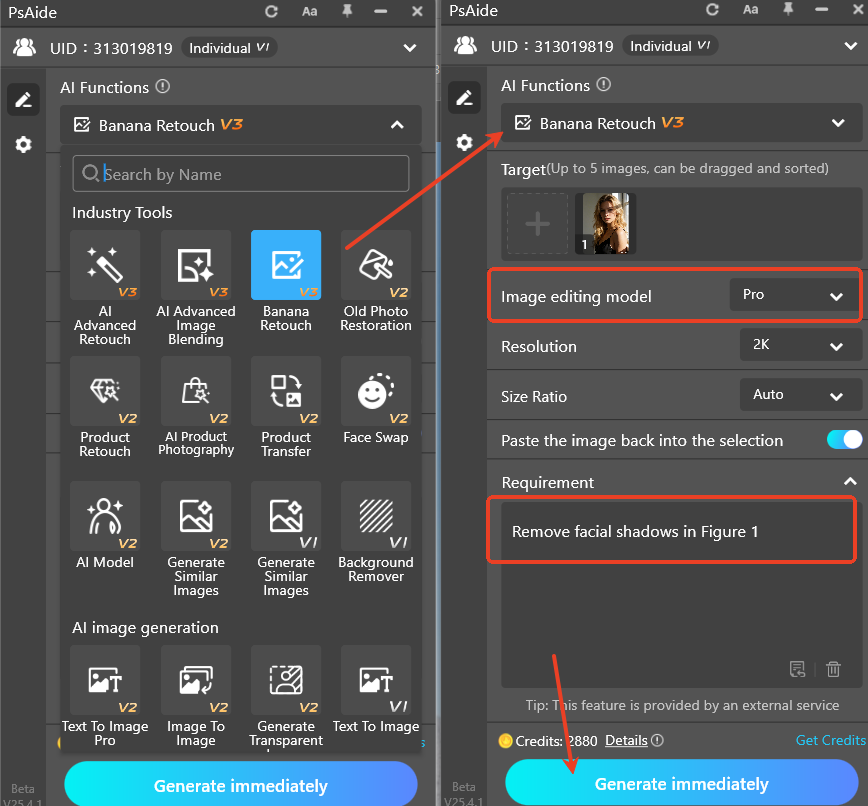
Beneath this simple command lies powerful AI capabilities:
- Intelligent Shadow Recognition: Automatically distinguishes between “unwanted distracting shadows” and “dimensional shadows that need retention”.
- 3D Facial Structure Analysis: Leverages facial anatomy knowledge to preserve essential dimensionality while eliminating unflattering shadows.
- Generate & Preview Results Click the “Generate” button. Nano Banana Pro executes these key actions in 10–20 seconds:
- Precise Shadow Detection: Identifies all facial shadow areas, including under-eye bags, nose-wing shadows and harsh lighting contrasts.
- Smart Light Reconstruction: Removes unnatural shadows while retaining natural dimensionality; rebuilds smooth light transitions aligned with the original image’s lighting direction; auto-balances skin tones to avoid patchiness.
- Detail Preservation: Maintains original skin texture, pores and texture; seamlessly blends retouched areas with surrounding skin.
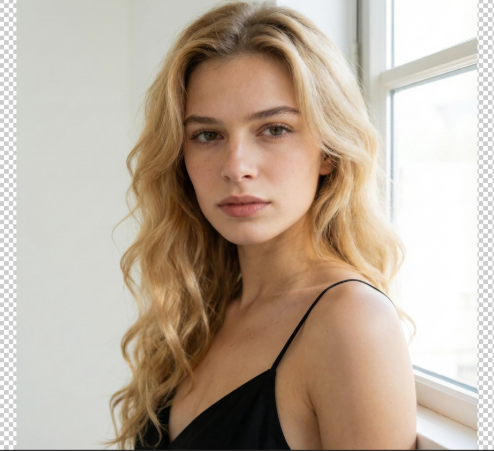
You’ll get a portrait with uniform skin tone, natural lighting and intact dimensionality—no further tweaks needed.
3. Technique Comparison & Application Scenarios
| Method | Advantages | Disadvantages | Ideal For |
|---|---|---|---|
| Manual PS Retouching | Full control over every adjustment | Time-consuming; high skill threshold; inconsistent results | High-end portrait art, creative projects, teaching demonstrations |
| Nano Banana Pro | Ultra-fast (seconds per image); natural results; zero learning curve; batch-processing capability | May need minor tweaks for extremely complex lighting | Commercial portrait batch editing, daily photo optimization, urgent retouching tasks, photography studio efficiency improvement |
Facial shadow removal is a critical step in portrait retouching. Traditional PS methods offer full control but at the cost of time and expertise. Nano Banana Pro strikes the perfect balance between efficiency and quality, ideal for commercial environments that require fast processing of large volumes of portraits.
Whether you’re a photography studio looking to boost retouching efficiency or a casual user optimizing daily photos, this 3-step AI solution delivers professional-grade shadow optimization. Master traditional principles and leverage intelligent tools to turn light and shadow retouching from a technical bottleneck into a creative catalyst.
Download link

https://psaide.com/?sfrom=A86R4u
Invitation Code: A86R4u

