Table of Contents
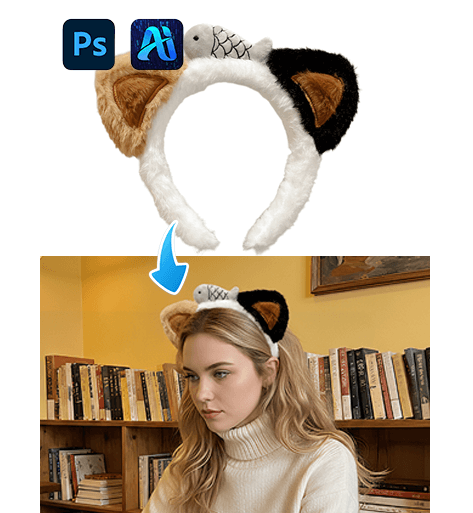
In the world of e-commerce, product photos are the key to attracting customers, but frequently changing accessories or clothing items on models requires costly and time-consuming photoshoots. nano banana in PsAide offers a game-changing solution—swap accessories like headbands directly within existing lifestyle images. Just upload your scene and product images, provide a simple prompt, and let nano banana handle the rest.
By using nano banana, you can quickly and naturally replace accessories like headbands, while preserving the original scene’s lighting, model pose, and other details. This is an ideal method for creating product variations or testing different accessory designs without needing new photoshoots.
1. nano banana: Simplified Headband Replacement
Rather than spending hours on manual cutouts and masking, nano banana streamlines the process into a straightforward four-step workflow that anyone can follow.
(1)Step 1 — Paint the Original Headband Red
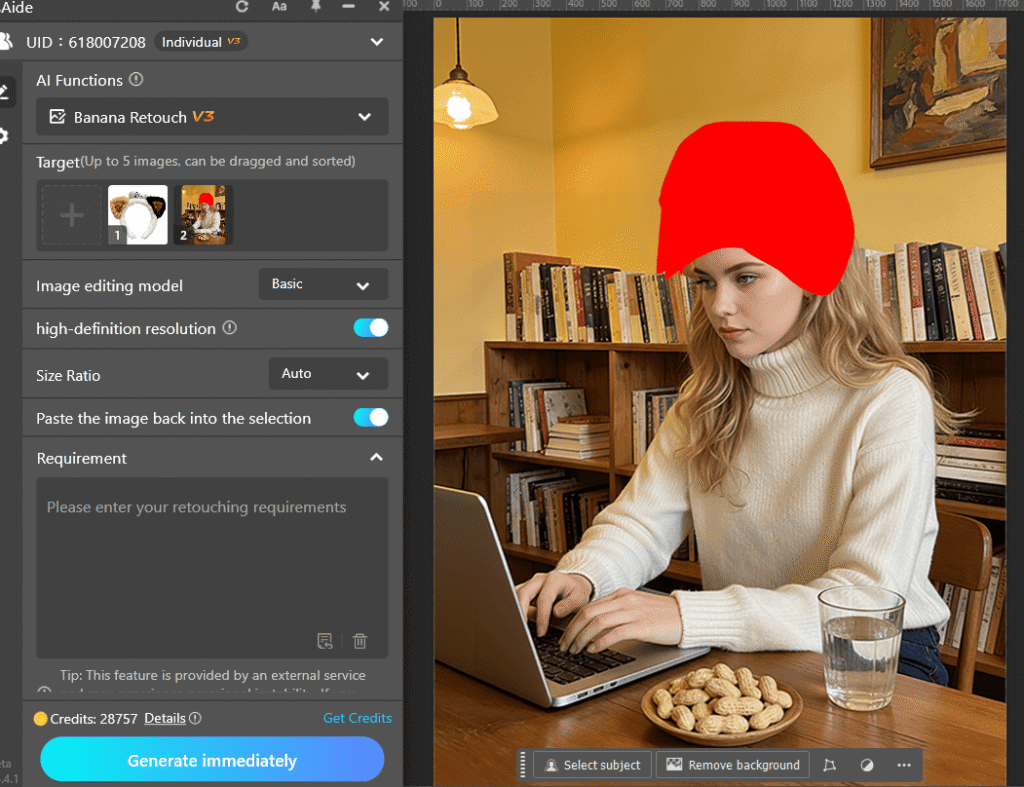
Open your scene image in Photoshop and use the brush tool to paint the original headband red. This ensures nano banana can easily identify the area that needs replacement, minimizing the impact of the existing headband’s color and texture.
You don’t need to be exact—just cover the visible headband area, as nano banana will automatically recognize this for replacement.
(2)Step 2 — Upload Scene and Product Images
Once the original headband is painted red, upload:
①The edited scene image (with red-painted headband)
②The product image of the new headband you want to add
nano banana in PsAide will analyze the scene for lighting, pose, and body structure, while it uses the product image to integrate the new headband into the model seamlessly.
(3)Step 3 — Enter a Clear Prompt
Provide a detailed prompt, such as:
The model in Figure 2 is wearing the headband from Figure 1.
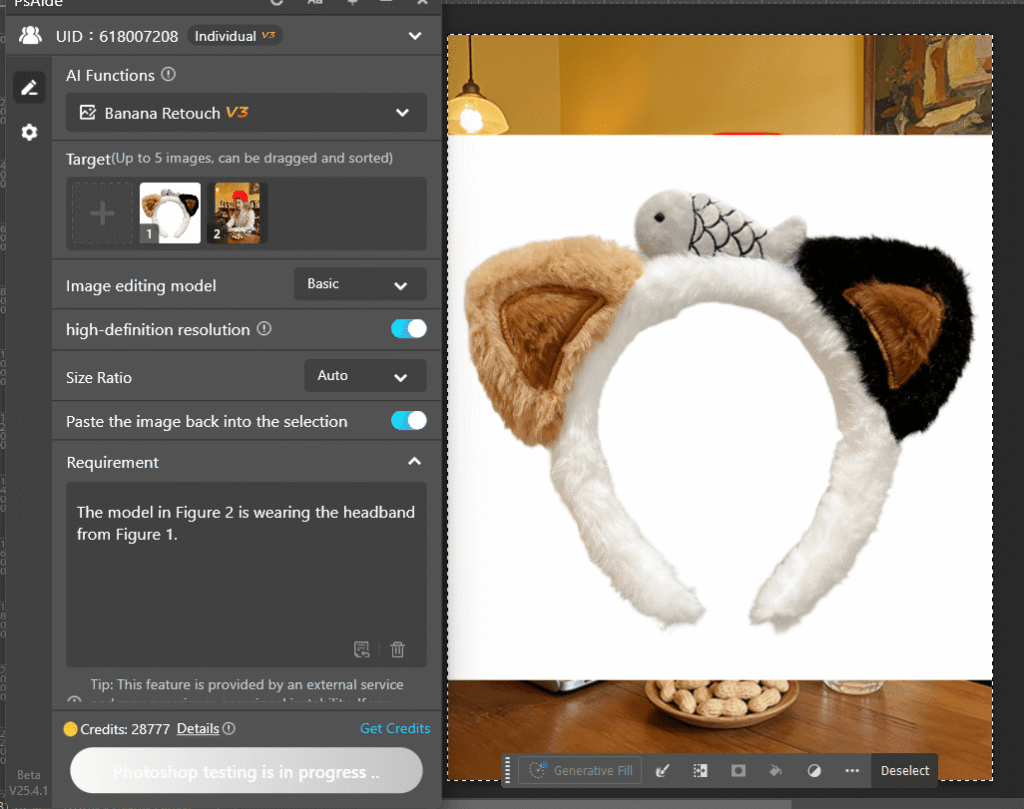
The more specific your prompt, the more accurate the output.
(4)Step 4 — Generate and Refine
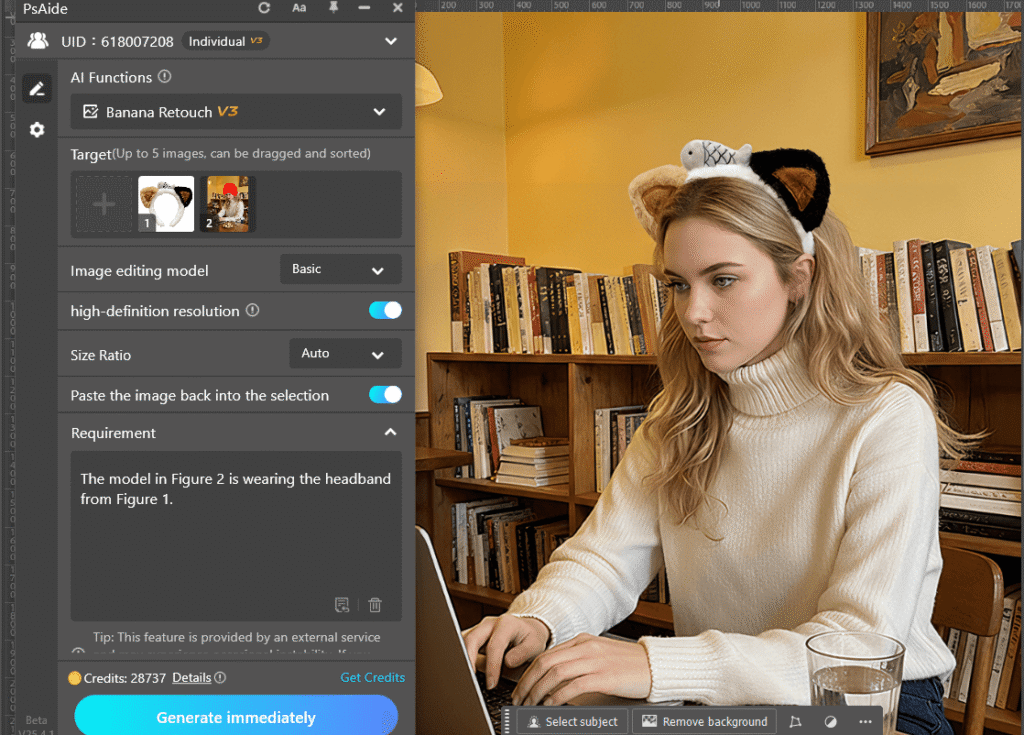
Click Generate, and nano banana in PsAide will replace the headband in the image automatically. If needed, adjust the prompt for better alignment or re-generate to achieve your desired result.
2. Why nano banana Is Perfect for E-Commerce Accessory Replacements
With nano banana in PsAide, users can:
①Quickly swap out accessories like headbands without needing a new photoshoot
②Create multiple product variations from a single scene
③Maintain consistent lighting and visual integrity across all images
④Save time, reduce costs, and streamline content creation
This process is perfect for e-commerce businesses that want to display different accessory designs or color variations without reshooting the entire image.
3. Conclusion
nano banana in PsAide transforms the way e-commerce brands approach accessory replacement. Whether it’s a headband or any other small product, this simple four-step process—upload, prompt, generate, and refine—gives you a professional and efficient way to produce stunning, high-quality product images.

Download Link: https://psaide.com/?sfrom=ZfhxUK
Invitation Code: ZfhxUK