
Table of Contents
Product image editing for e-commerce can be a daunting task, especially when it comes to swapping out small items like cat bowls. Traditional methods often require tedious masking and compositing, but with nano banana in PsAide, you can make changes in seconds. In this article, we’ll show you how to quickly replace a cat bowl in a lifestyle scene while preserving the natural lighting and model positioning—all in just a few easy steps.
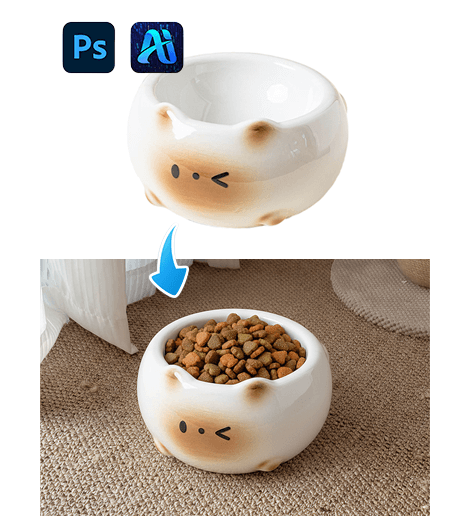
1. Why nano banana Makes Cat Bowl Replacement Easy for E-Commerce
Replacing objects in product photography, such as a cat bowl, can be a time-consuming process. For e-commerce sellers looking to showcase different versions or models, manually editing each image can be overwhelming. Fortunately, nano banana in PsAide removes the hassle, allowing users to swap out items like cat bowls effortlessly.
1.1 Key Benefits of Using nano banana for Cat Bowl Replacement:
①No need for complex manual editing
②Quick and intuitive workflow
③Consistent product presentation across various images
④Ideal for multiple product versions without reshoots
2. Step-by-Step Guide for Cat Bowl Replacement with nano banana
To replace the cat bowl in your image, follow these simple steps:
2.1 Step 1 — Paint the Original Cat Bowl Red
Open your scene image in Photoshop and use the brush tool to paint the original cat bowl red. This simple step helps nano banana clearly identify the object to be replaced, minimizing interference from the original design and texture.
You don’t need to be exact—just cover the visible area of the cat bowl, and nano banana will take care of the rest.
2.2 Step 2 — Upload the Scene and Product Images
Once the cat bowl is painted red, upload both images into nano banana in PsAide:
①The edited scene image (with the red-painted cat bowl)
②The product image of the new cat bowl
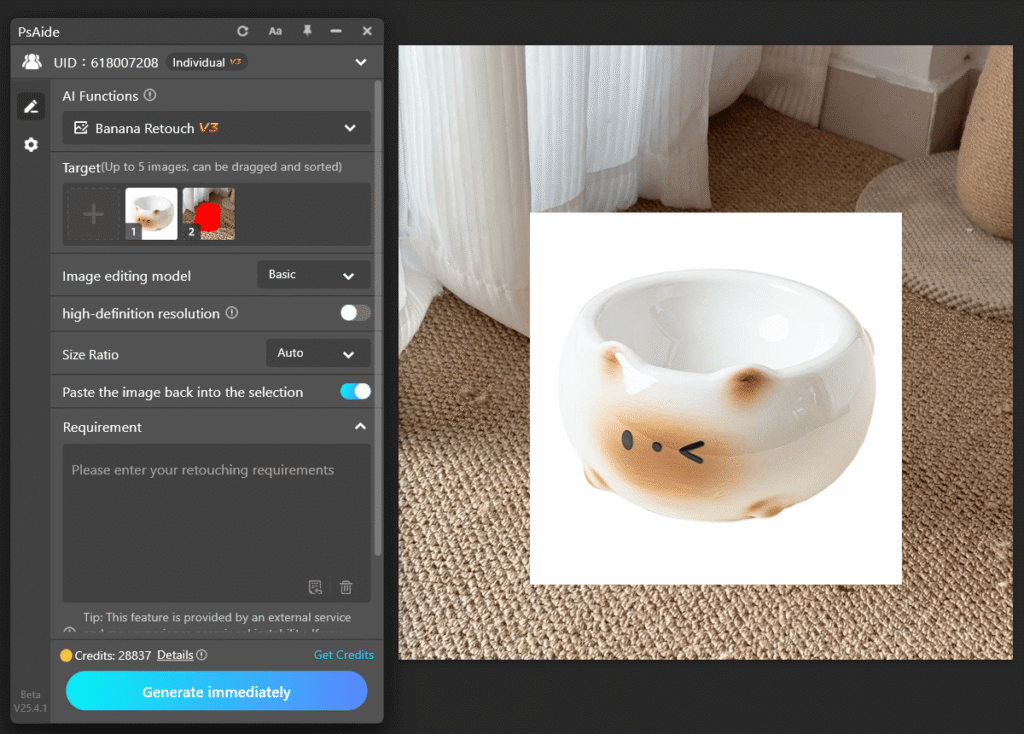
nano banana will analyze both images for lighting, model pose, and proportions to make the replacement seamless.
2.3 Step 3 — Enter a Descriptive Prompt and Generate
After uploading the images, provide a clear prompt, such as:
The bowl in Figure 1 is placed in the scene ofFigure 2,keeping the details and structure ofthe bowl intact, with cat food inside the bowl.
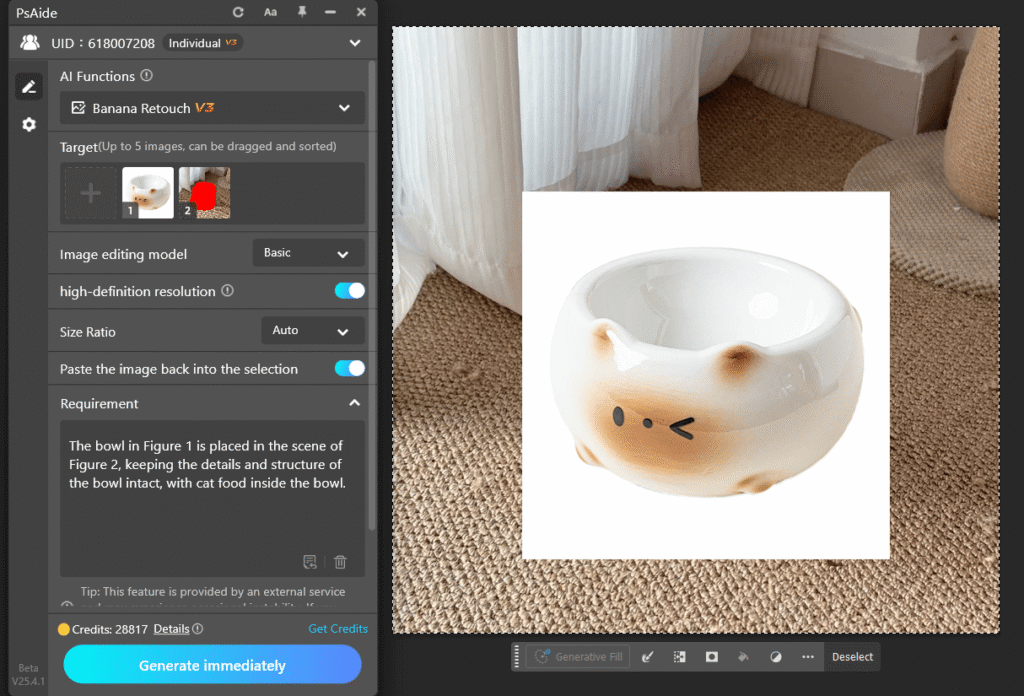
Click Generate, and nano banana in PsAide will automatically replace the cat bowl in the scene. If necessary, adjust the prompt for fine-tuning or different variations.
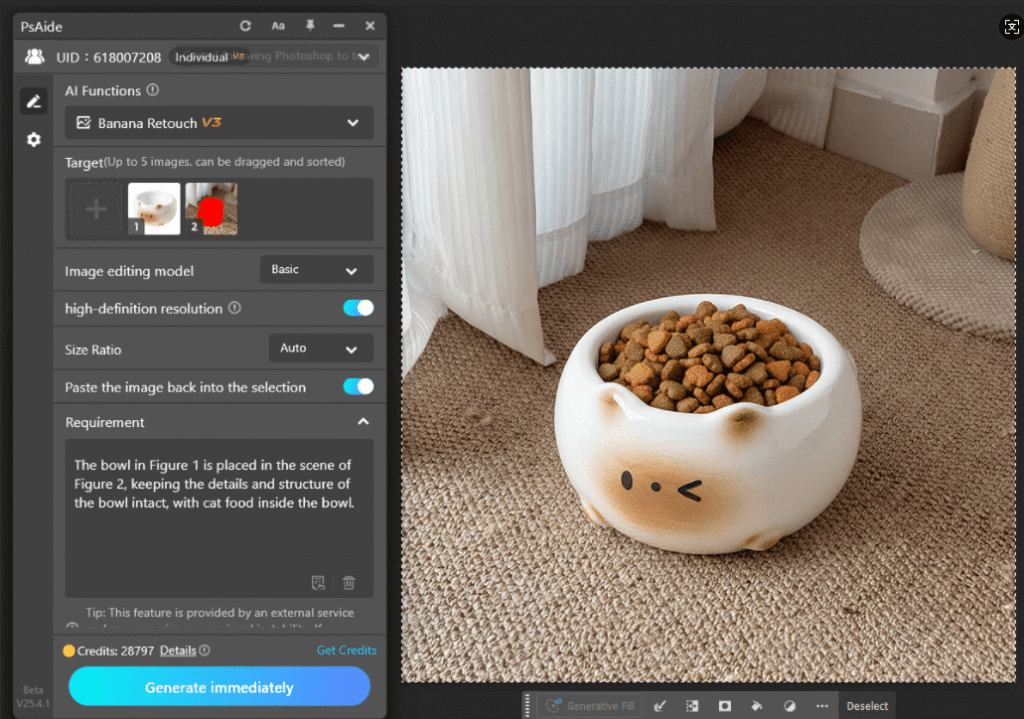
3. How nano banana Improves E-Commerce Content Creation
For e-commerce businesses, nano banana in PsAide is a game-changer for quickly editing product images while maintaining high-quality results. Rather than manually masking or using complicated Photoshop techniques, nano banana offers a simple, efficient solution to produce consistent, professional product images.
3.1 Real-World Applications:
①Creating multiple product variations
②Updating product visuals without reshoots
③Generating unique lifestyle shots for marketing campaigns
4. Conclusion: Faster, Smarter Cat Bowl Swapping with nano banana
With nano banana in PsAide, replacing a cat bowl—or any other product—becomes a quick, efficient, and seamless process. Simply upload the scene and product images, enter a clear prompt, and let nano banana handle the rest. It’s the perfect tool for e-commerce sellers who need to update product images fast without sacrificing quality or consistency.

Download Link: https://psaide.com/?sfrom=ZfhxUK
Invitation Code: ZfhxUK

