
Table of Contents
In e-commerce operations, white background product images are essential. For textured items like scarves on models, precise cutout (removing background while preserving texture) is required to meet platform display standards. Traditional methods often face issues like long processing time, residual background in hair/yarn, and blurry edges. Below are 3 practical methods covering different difficulty levels and scenarios.
1. Traditional PS Cutout + Fill: For Simple Products, Poor for Complex Ones
Suitable for products without complex textures; inefficient for scarves due to tedious tweaks.
- Steps: Open the image in PS and press Ctrl+J to duplicate the layer. Use the Pen Tool (shortcut P) to outline the scarf, zoom to 200% to adjust anchor points and avoid yarn gaps. Press Ctrl+Enter to convert to selection, invert, and delete the background. Create a white layer (#FFFFFF) at the bottom, then fine-tune edges with a low-hardness brush to remove residues.
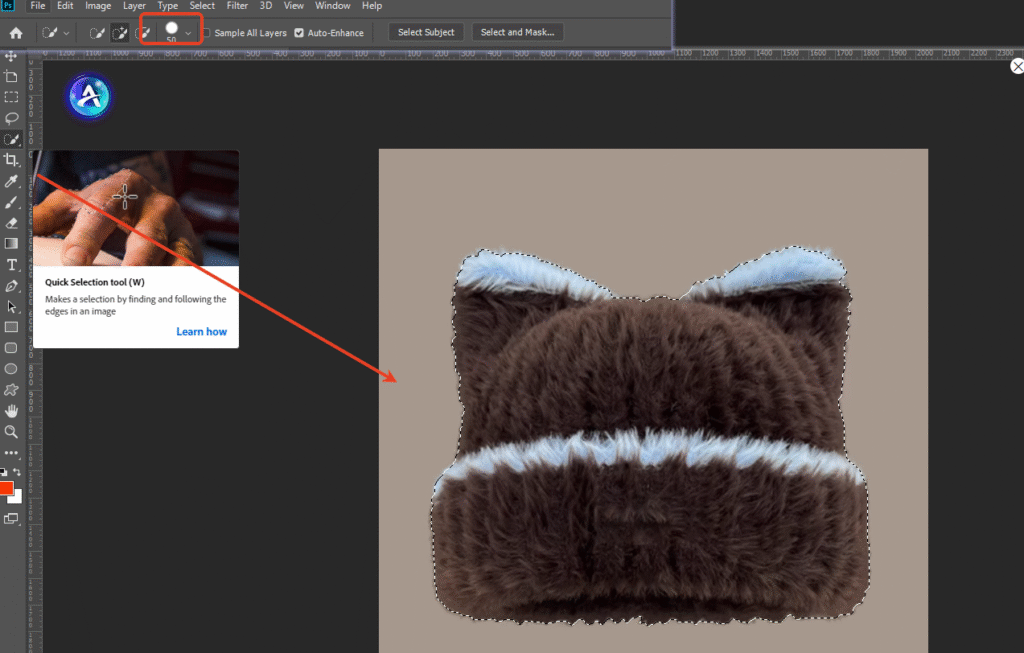
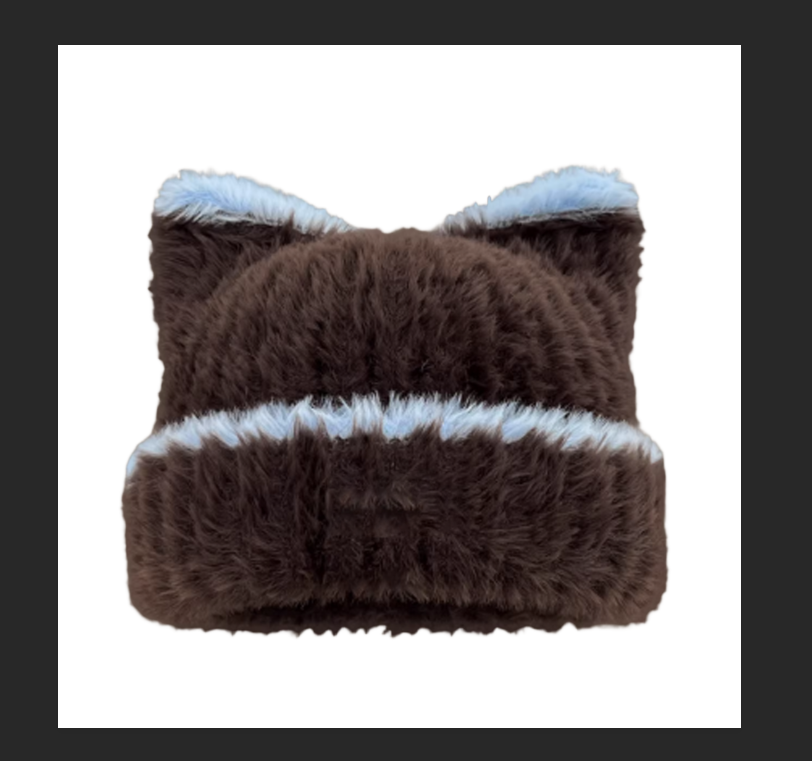
- Pain Points: Easily breaks yarn lines and loses details; takes 25–30 minutes; hard for beginners.
2. Psaide Cutout + PS Fill: Efficient & Precise for Most Products
Avoids traditional cutout troubles with AI fast cutout, paired with PS for optimized white background.
- Steps: Open the image in PS, launch Psaide plugin, and use the “Background Remover” function to generate a transparent-background scarf cutout (AI accurately recognizes yarn texture, no residue) in under 1 minute. Return to PS, create a white layer below the cutout, and press Ctrl+T to adjust the scarf’s position. Use PS Healing Brush to fix minor edge noise for a pure background.
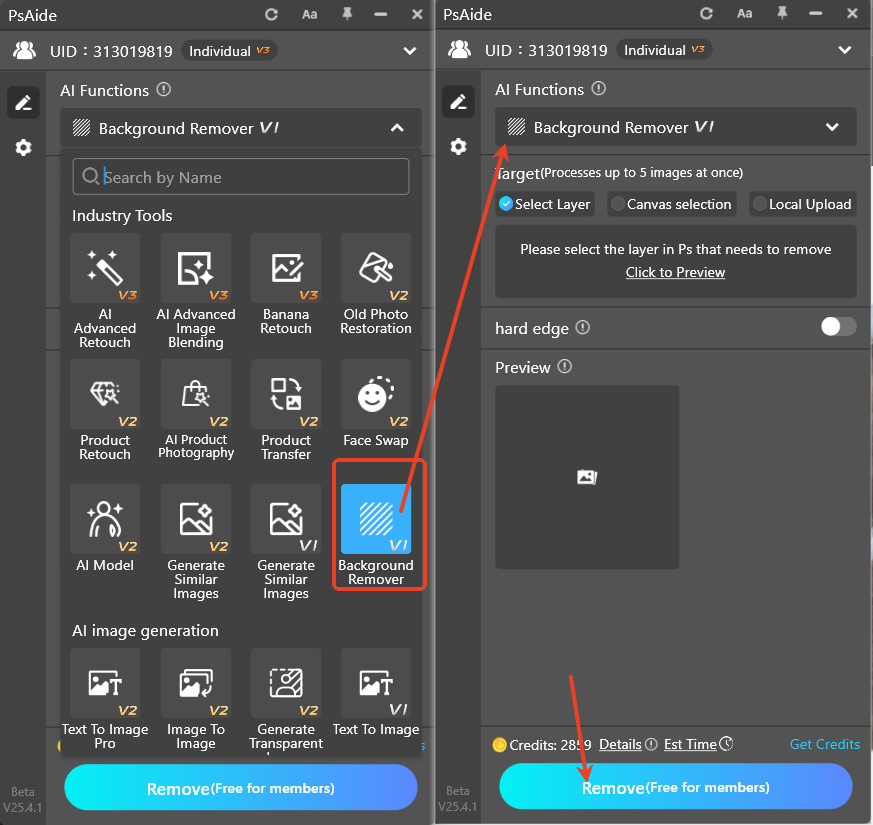
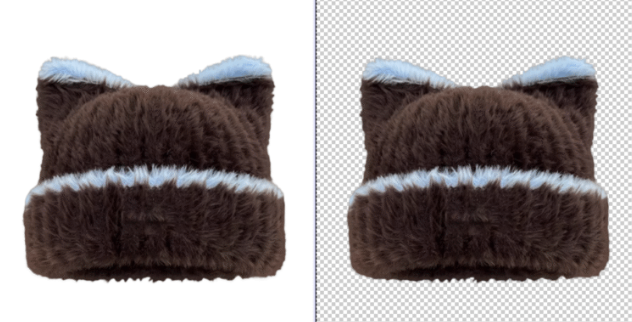
- Advantages: Balances efficiency and texture integrity; ideal for batch processing.
3. Nano Banana Pro One-Click Generation: Top Choice for Complex Scarves
Psaide’s built-in Nano Banana Pro extracts scarves and generates white backgrounds via prompts—no manual cutout, perfect for textured items.
Step-by-Step Process
- Import Image to PS & Backup Layer: Launch PS, click “File > Open” to import the model + scarf image. Press Ctrl+J to duplicate the layer and hide the original to avoid irreversible mistakes while preserving texture.
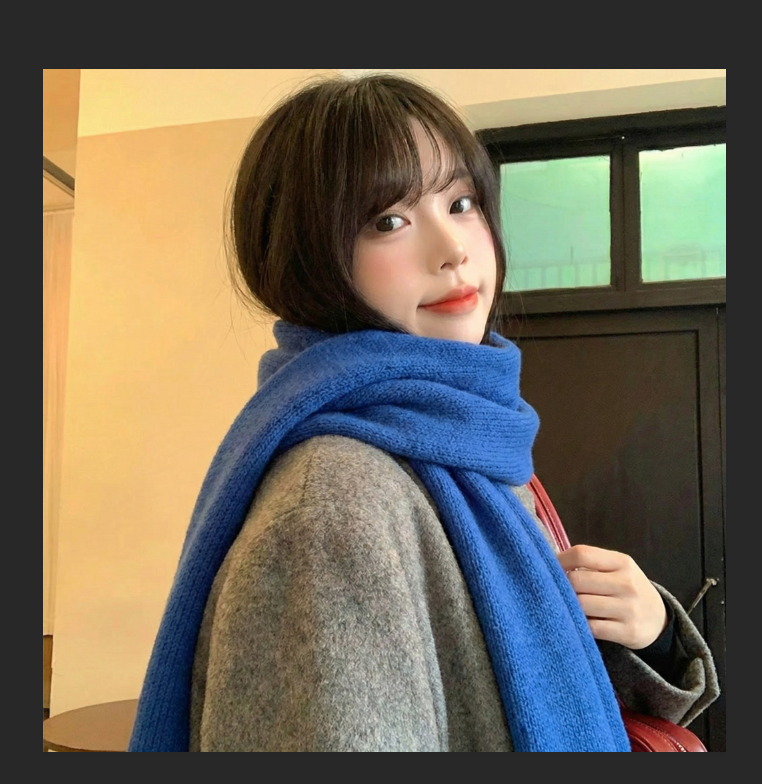
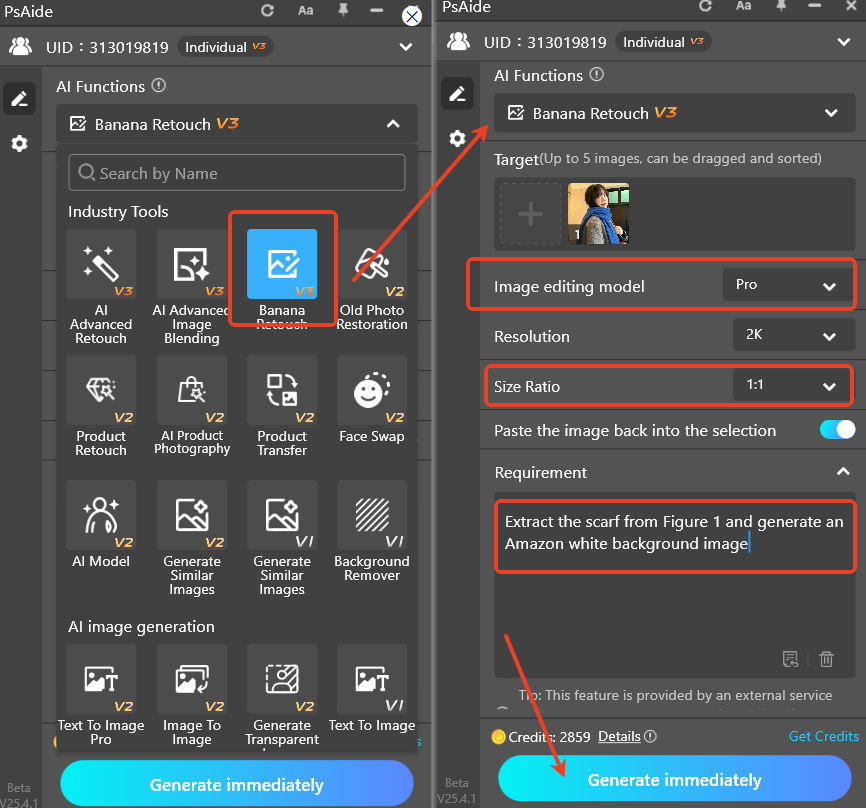
- Launch Nano Banana Pro & Set Parameters: Locate the Psaide panel in PS, expand the list, and click “Nano Banana”. Select “Pro Version” for higher accuracy; choose Amazon-compatible size (recommended 1:1) to meet platform requirements. Enter the prompt: “Extract the scarf from Figure 1 and generate an Amazon white background image” to clarify targets.
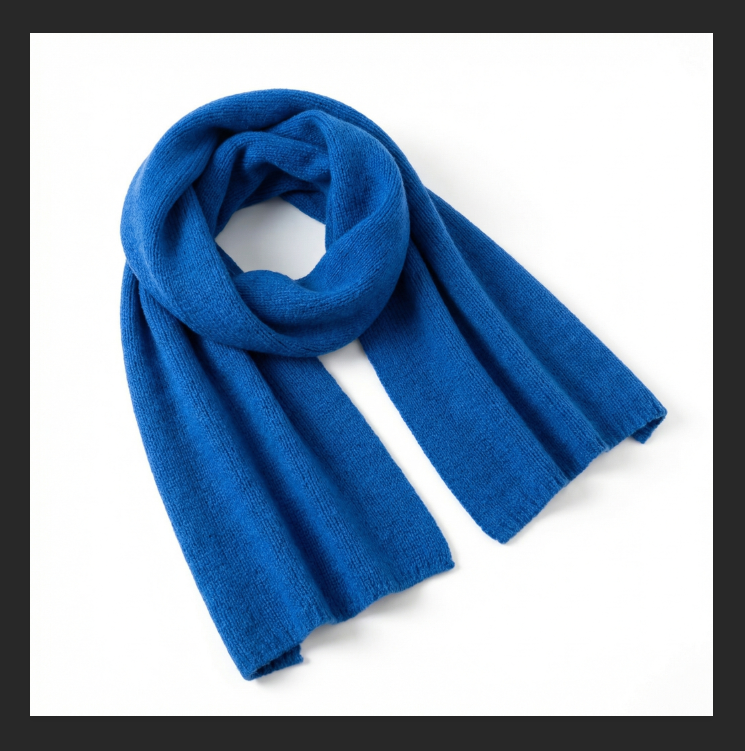
- One-Click Generate & Preview: Click “Generate”. The AI processes in 15–20 seconds, automatically extracting the scarf, removing the background, and generating a pure white background. A new layer is created—check the result: intact scarf texture, clean edges, and uniform white background. Ready for Amazon upload without further PS tweaks.
4.Core Comparison of 3 Methods
| Method | Key Traits |
|---|---|
| Traditional PS Cutout | Controllable precision but time-consuming, high threshold |
| Psaide Cutout + PS Fill | Efficient, precise, suitable for most products |
| Nano Banana Pro | One-click, no cutout needed, best for complex textures |
Prioritize the latter two for batch processing or complex items to save time significantly.
5.Pro Tips
- Check background purity with PS after generation to avoid noise.
- Add “center display” to the prompt for Amazon compliance (products must be centered).
- High-definition original images improve AI recognition and texture clarity.
Master these methods to easily create white background images in PS. For complex items like scarves, Psaide’s Nano Banana Pro enables one-click precise extraction and white background generation, paired with PS for auxiliary optimization—balancing efficiency and professionalism to boost e-commerce material production.n—boosting retouching efficiency and professionalism.
Download link
https://psaide.com/?sfrom=A86R4u
Invitation Code: A86R4u

