
Table of Contents
Cutout is a high-frequency operation in PS design. As the latest version, PS 2026 comes with built-in cutout tools including the Magic Wand, Quick Selection, Pen, and Lasso Tool, plus Select and Mask for edge refinement. However, practical use has obvious pain points: the Magic Wand fails with complex backgrounds, and improper tolerance leads to missing or over-selection; the Pen Tool requires time-consuming point-by-point path tracing, hard for beginners; even Select and Mask needs repeated edge tweaks, and cutouts of complex textures (e.g., hair, fluff) often turn stiff and distorted. Pairing PS 2026 with Psaide’s Background Remover plugin easily solves these problems, enabling precise one-click cutout.
1. PS 2026 Native Cutout Tools
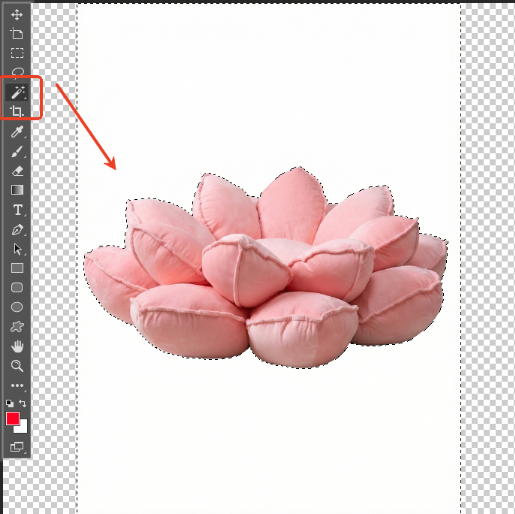
- Magic Wand Tool
Suitable for images with a uniform background. Select the tool (shortcut W), click the area to cut out, adjust the tolerance to cover the target part, and press “Delete” to remove the background.
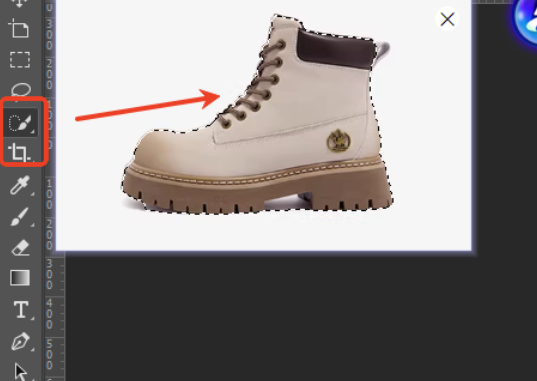
- Quick Selection Tool
Ideal for fast selection of simple subjects. Brush over the subject, and the tool automatically selects areas with similar colors. Press “Ctrl + J” to copy the selected area when finished.
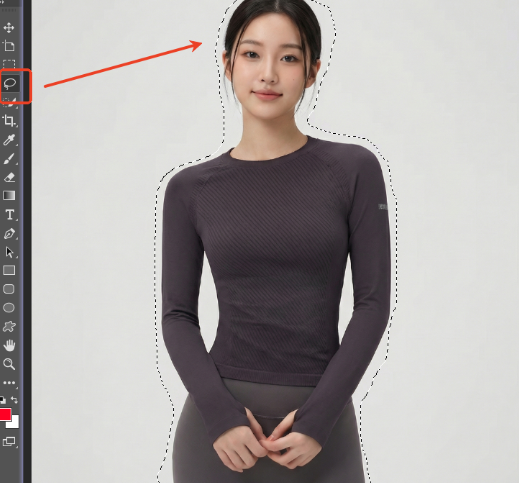
- Lasso Tool
For manual selection of irregularly shaped subjects. Select the tool (shortcut L), drag the mouse to outline the target area, and press “Delete” to erase the background.
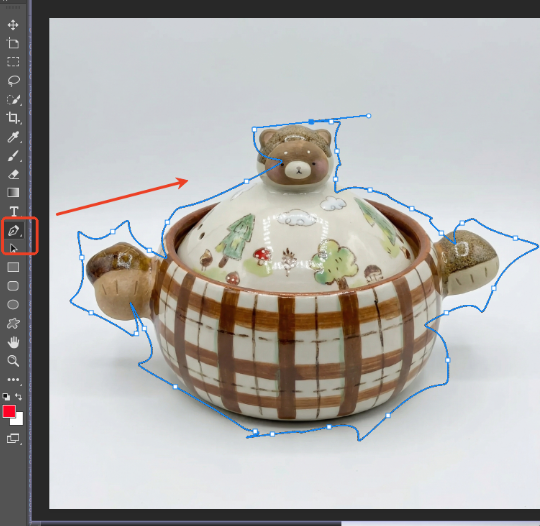
- Pen Tool
The most precise option for high-accuracy cutout. Use the tool (shortcut P) to click along the subject’s edge to create a path, right-click the path, and select “Make Selection” to convert it into a selectable area.
2.Basic Native Cutout Steps
- Open PS 2026, import a high-resolution image to ensure clear cutout details.
- Choose a suitable native tool based on the image’s complexity.
- Perform cutout and adjust the selection for accuracy.
- Save the cutout image in an appropriate format for later use.
3. Psaide Background Remover: 3-Step Cutout in PS 2026
Psaide’s built-in Background Remover relies on AI intelligent recognition algorithms to automatically and accurately identify the image subject—no manual selection or repeated parameter adjustments needed. Turning on the “Hard Edge” button better preserves the subject’s edge details, making it suitable for all complex cutout scenarios. Here are the specific steps:
Step 1: Import the Image to PS 2026
Launch PS 2026, click “File > Open” to import the image for cutout. Press “Ctrl + J” to duplicate the background layer and hide the original. This basic PS layer management tip avoids irreversible mistakes and maintains the original image resolution for clear cutout details.

Step 2: Launch Psaide and Set Up the Background Remover
In the PS 2026 interface, click “Window > Extensions” to find and open the Psaide plugin panel (download from the official website if not installed; compatible with PS CC2015+ and Windows/Mac systems). Locate the Background Remover feature in the plugin list, click the upload button to select the image on the current PS canvas, then turn on the “Hard Edge” button to ensure the cut subject has clear, non-blurred, non-bleeding edges.
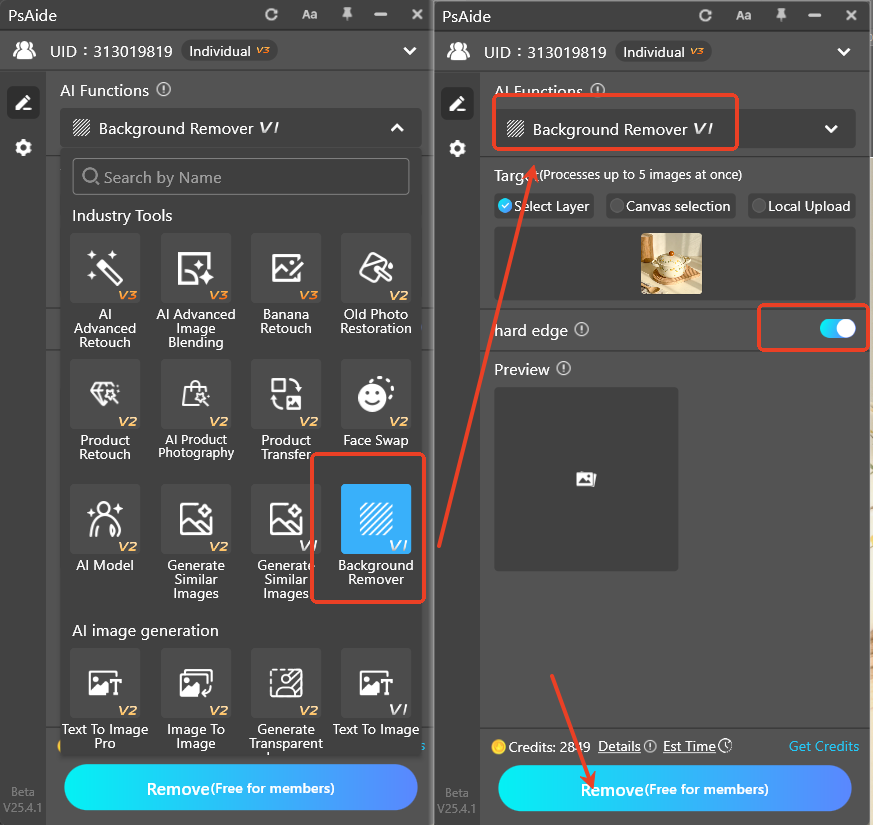
Step 3: One-Click Generate and Preview the Cutout
Confirm the uploaded image and settings, then click the “Generate” button on the plugin interface. The AI completes intelligent recognition and cutout in 10–15 seconds. PS 2026 will automatically add a new layer with a transparent background—hide the original background layer to view the effect: clean subject edges, fully preserved complex texture details, no background residue, and no need for secondary adjustments with PS 2026’s native tools, ready for direct use in subsequent designs.
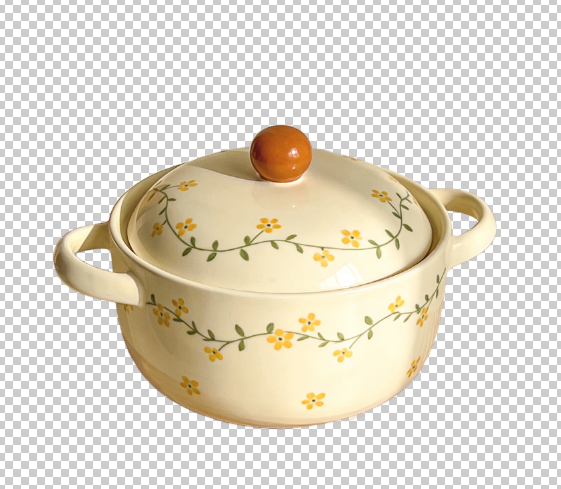
4.Core Advantages of Psaide Background Remover (for PS 2026)
Compared to PS 2026’s native cutout tools, Psaide’s Background Remover has significant advantages:
- Efficient: Finish cutout in 3 steps, taking less than 1 minute—much faster than manual cutout.
- High Precision: AI intelligently identifies the subject, and the Hard Edge mode preserves details, enabling perfect cutout of complex textures.
- Beginner-Friendly: No need to master the use of PS 2026’s native cutout tools, with zero learning curve for beginners.
- Strong Compatibility: Supports all PS versions from CC2015+, no need to upgrade software to enjoy the convenience of AI cutout.
Struggling with tedious manual cutout in PS 2026? Try Psaide’s Background Remover! It easily solves the pain points of native tools, helping you achieve precise, fast, one-click cutout and greatly improve your PS design efficiency.
Download link
https://psaide.com/?sfrom=A86R4u
Invitation Code: A86R4u

