
Table of Contents
Removing text and watermarks from images is a high-frequency daily image processing need—whether redundant copy on material images, copyright watermarks, or mistakenly added annotations, precise removal without damaging the original image quality is required. However, using PS native methods for text/watermark removal often faces issues like tedious operations, obvious traces, and stiff background connection. Especially with complex backgrounds, it’s hard for beginners to master. Below are 2 PS native text removal methods first, followed by the more efficient Nano Banana watermark removal solution.
1. PS Eraser Tool: For Simple Backgrounds
Suitable for scenes with single-color, non-complex textured backgrounds—simple but low precision.
- Steps: Open the image in PS and press Ctrl+J to duplicate the background layer. Select the Eraser Tool (shortcut E), adjust brush size and hardness (30%-50% hardness), then gently paint over the text area to cover the text gradually.
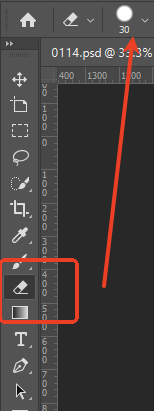
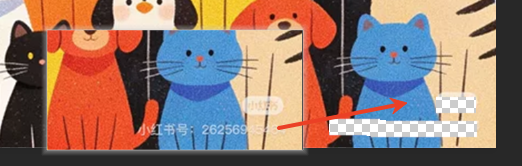
- Pain Points: Only for solid-color backgrounds. On complex backgrounds, painting causes color banding and texture loss with obvious traces; it’s easy to accidentally paint surrounding areas, failing to achieve seamless watermark removal.
2. PS Content-Aware Fill: For Medium-Complexity Backgrounds
More precise than the Eraser Tool but requires manual selection and tedious operation.
- Steps: Open the image in PS and duplicate the layer. Use the Lasso Tool or Quick Selection Tool to precisely select the text area to be removed, ensuring full coverage. Go to “Edit > Fill”, select “Content-Aware”, and click OK to wait for automatic filling.
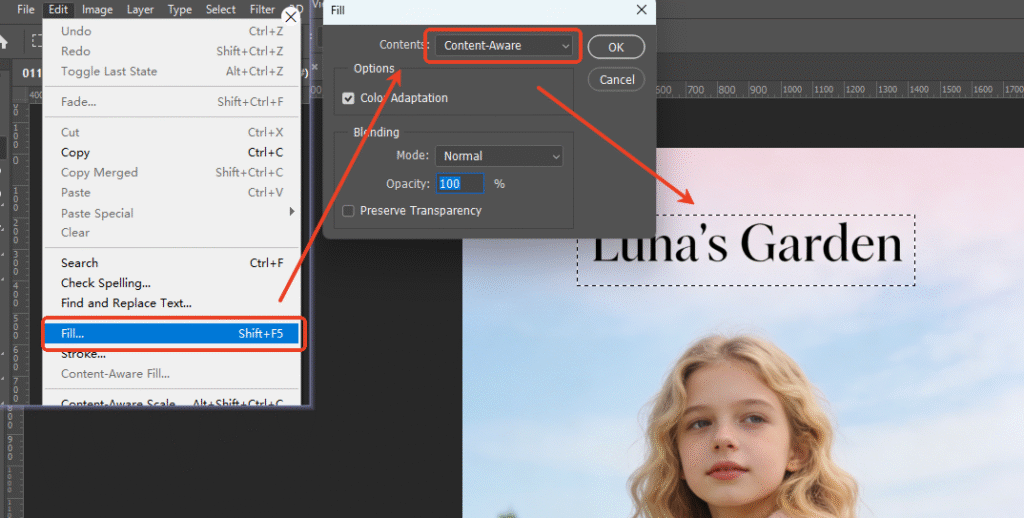
- Pain Points: On complex backgrounds (e.g., wood grain, landscapes), the filled area tends to have messy textures and color deviation, requiring repeated adjustments and taking time. It’s inefficient for batch removal of dense text/watermarks.

3. Nano Banana One-Click Text/Watermark Removal: Best Choice for All Scenarios
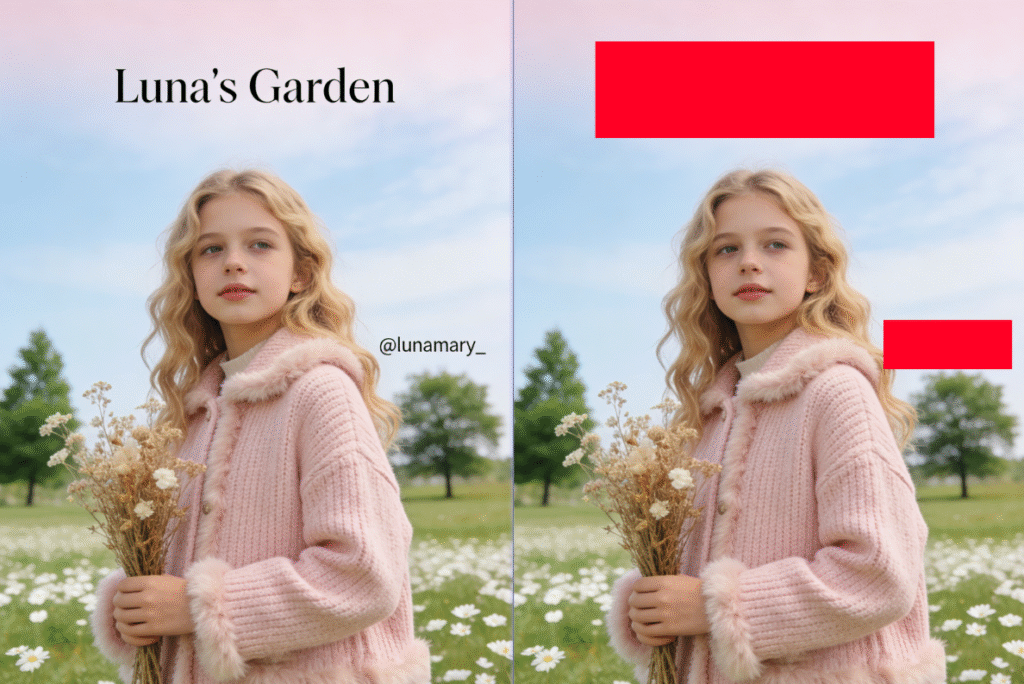
Psaide’s built-in Nano Banana perfectly avoids the pain points of PS native methods. Through AI intelligent recognition and background reconstruction, it precisely removes text areas marked in red without traces or image damage. It can also remove passers-by, debris, and other objects—extremely simple, finished in 3 steps:
Step 1: Mark the Text Area in PS
Launch PS, click “File > Open” to import the image. Press Ctrl+J to duplicate the background layer (protect the original). Use the Rectangular Marquee Tool or Lasso Tool on the left of PS to select all text areas to be removed, press ALT+DEL to fill the selection with red, clearly marking the area to be removed—no need for precise edge tracing.
Step 2: Launch Nano Banana and Set Parameters
Locate the installed Psaide plugin panel in PS (download from the official website if not installed; compatible with PS CC2015+, Windows/Mac). Expand the function list and click “Nano Banana”. Click the upload button to upload the marked image, then enter the prompt in the text box: “Remove the red areas in Figure 1”—no extra parameter adjustments needed.
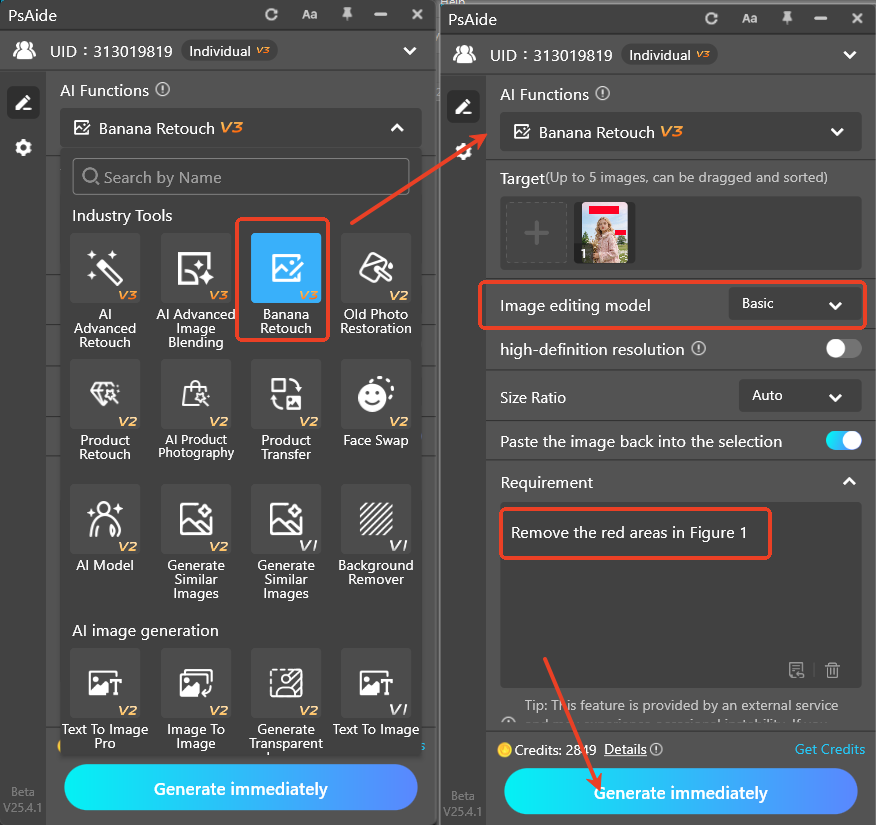
Step 3: One-Click Generate and Preview Seamless Effect
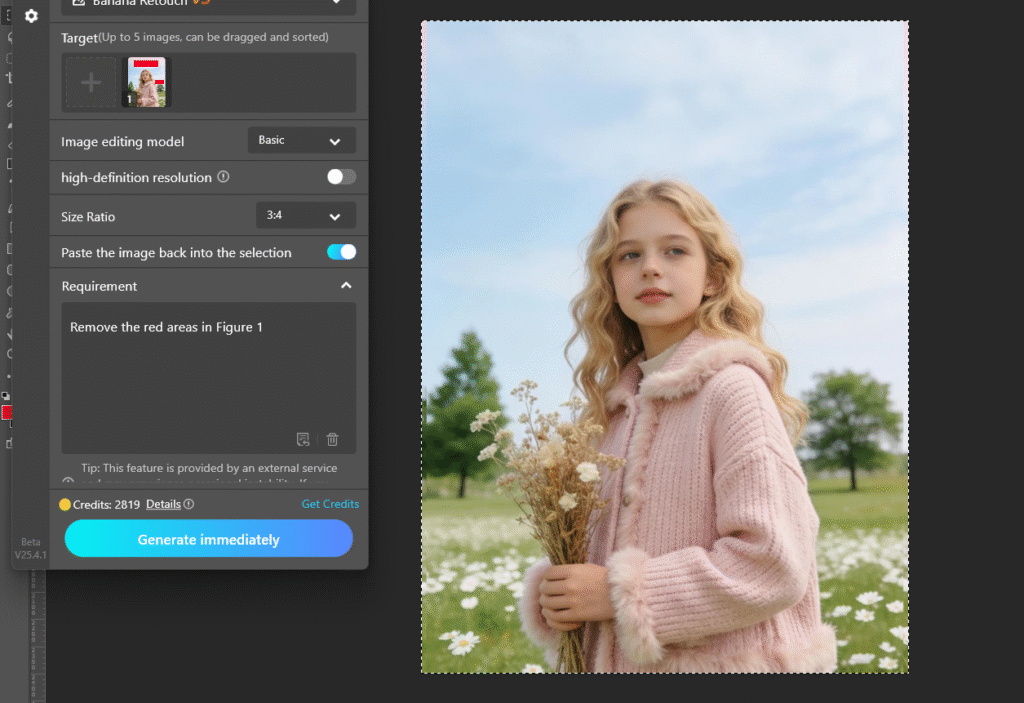
Confirm the uploaded image and prompt, then click “Generate” on the plugin. The AI processes in 10-15 seconds, automatically recognizing and removing the red-marked text areas while intelligently reconstructing background textures. PS automatically creates a new processed layer—check the effect: text is completely removed, background textures and colors blend perfectly with the original image without any traces. This method is not limited to text; it can also remove passers-by, debris, and other objects, with strong practicality.
4.Core Comparison of 3 Methods
| Method | Key Traits |
|---|---|
| PS Eraser Tool | Simple but obvious traces, poor adaptability |
| PS Content-Aware Fill | Moderate precision but tedious, easy distortion on complex backgrounds |
| Nano Banana | One-click, seamless without damage, suitable for all scenarios; can remove various redundant objects |
Struggling with “how to remove text/watermark in PS”? Try PS + Psaide’s Nano Banana! No professional retouching skills needed—one-click seamless watermark removal, balancing efficiency and quality, suitable for all image processing scenarios.t, one-click cutout and greatly improve your PS design efficiency.
Download link

https://psaide.com/?sfrom=A86R4u
Invitation Code: A86R4u

