
Table of Contents
Combining two photos seamlessly is widely used in retouching, jewelry display and portrait creation. For example, merging a necklace image (Figure 1) onto a model photo (Figure 2) requires smooth edges, complete details and unified lighting. However, beginners often struggle with obvious seams, stiff edges and misalignment. This article introduces one traditional PS method and a more efficient Nano Banana Pro solution.
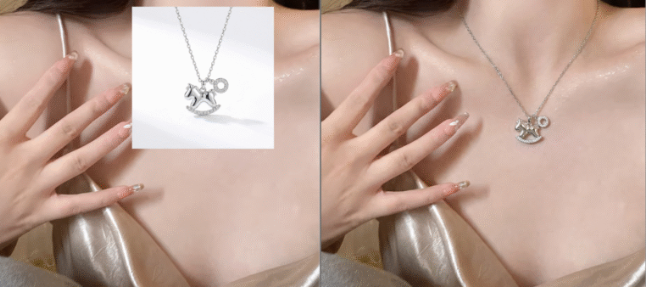
Method 1: PS Quick Selection + Layer Mask (Traditional)
Suitable for simple merging tasks, easier than the Pen Tool but needs careful adjustment.
Steps:
- Open PS, import the model photo (background) and necklace image (subject). Press Ctrl+J to duplicate both layers.
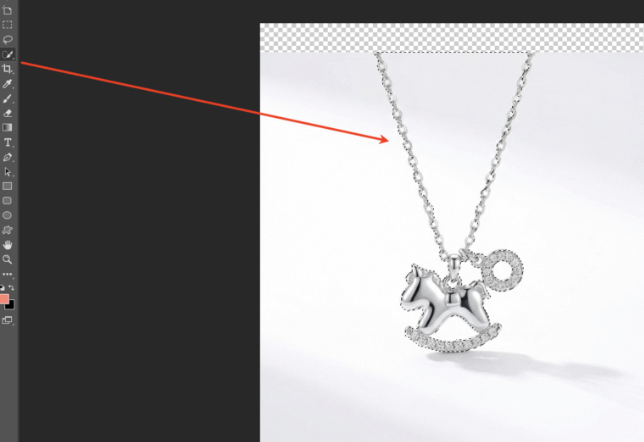
- Select the Quick Selection Tool (W), set brush size 10–15px, hardness 30%, and select the necklace.
- Hold Alt to subtract unwanted areas, Shift to add missing parts. Press Ctrl+J to copy the necklace.
- Use the Move Tool (V) to drag the necklace to the model image. Press Ctrl+T to adjust size and position.
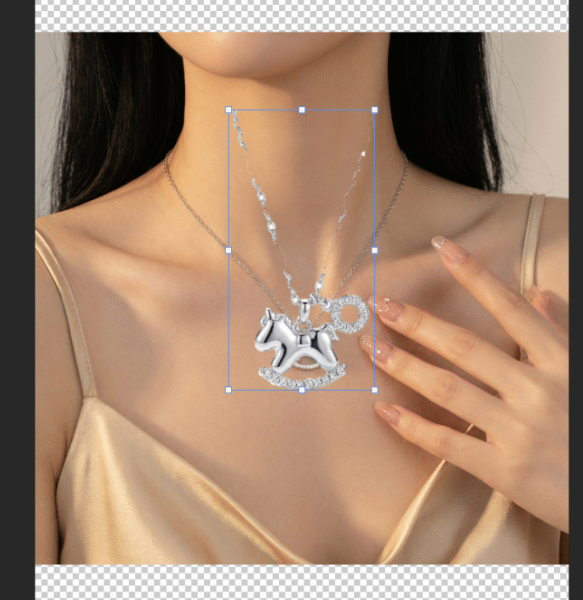
- Add a black layer mask to the necklace layer. Use a soft white brush (10–15% hardness) to blend edges.
- Adjust Curves and Color Balance to match lighting. Use the Blur Tool to soften seams.
Pain Points: Low precision for fine chains, easy to select incorrectly, time-consuming (10–15 minutes per image), stiff edges for beginners.
Method 2: Nano Banana Pro – Best for Seamless Photo Merging
Powered by AI recognition and lighting fusion, Psaide’s Nano Banana Pro avoids seams and stiff edges. No complex cutting or adjusting. Just 3 steps:
Step 1: Mark the merging area in PS
Open the model image in PS, duplicate the layer. Use the Lasso Tool (L) to select the neck area. Fill it with red to help AI locate.
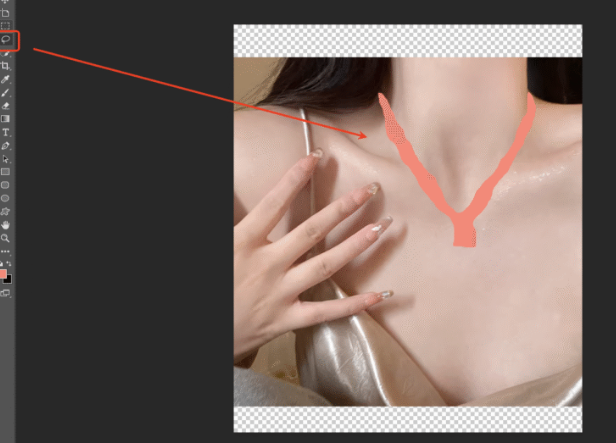
Step 2: Open Nano Banana Pro and set ratio
Launch the Psaide plugin in PS (supports PS CC2015+, Windows/Mac). Choose Nano Banana Pro mode. Set ratio to 1:1 to keep the original size.
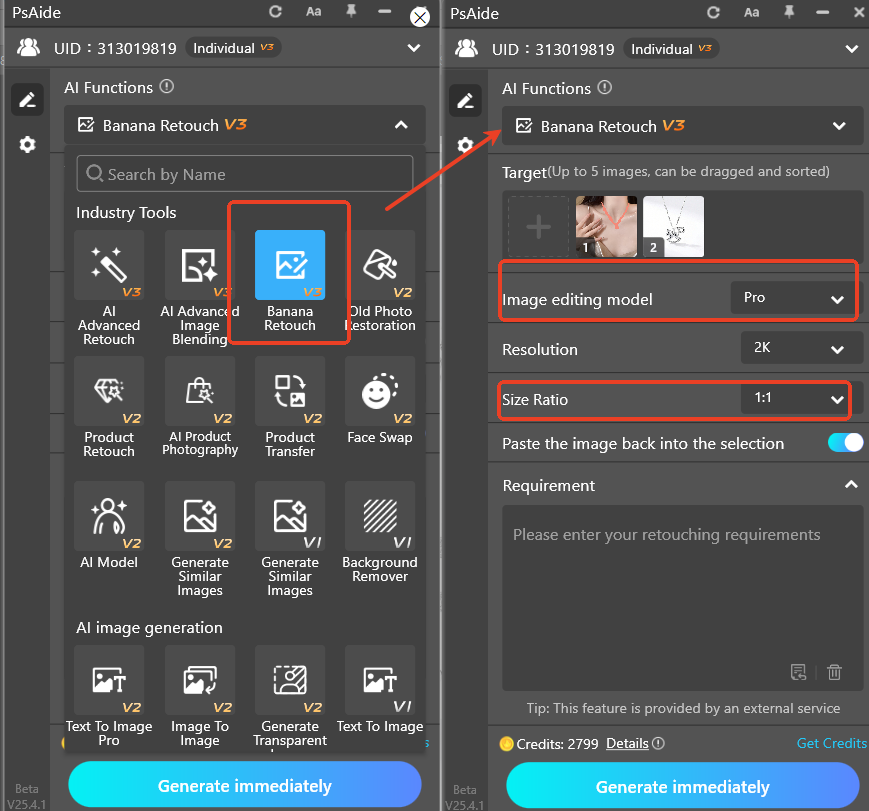
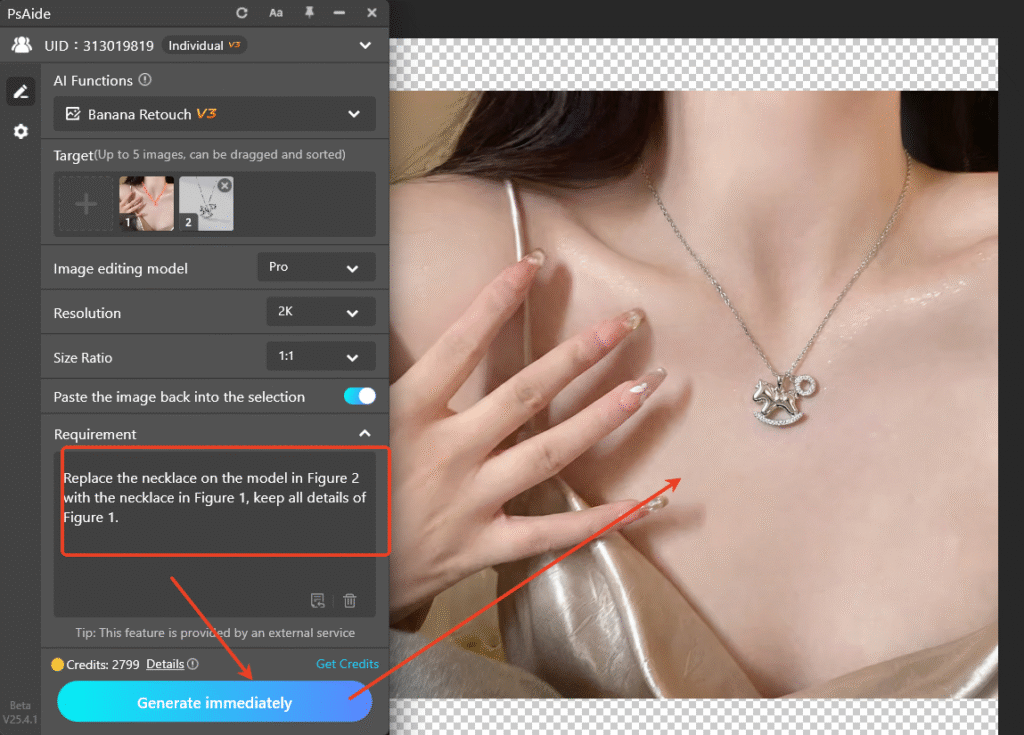
Step 3: Enter prompt and generate
Type the prompt:
“Replace the necklace on the model in Figure 2 with the necklace in Figure 1, keep all details of Figure 1.”
Click Generate. AI finishes in 15 seconds.
The necklace blends naturally on the model’s neck, with unified lighting and no seams.
Comparison
- PS Quick Selection + Mask: Classic but complex, time-consuming, hard for beginners.
- Nano Banana Pro: One‑click, fast, AI‑powered seamless merging, zero skills needed, perfect for jewelry and portrait compositing.
If you want to merge two photos seamlessly in PS without skills or effort, use PS + Psaide Nano Banana Pro. Create professional, traceless results in seconds.
Download link
https://psaide.com/?sfrom=A86R4u
Invitation Code: A86R4u

