Table of Contents
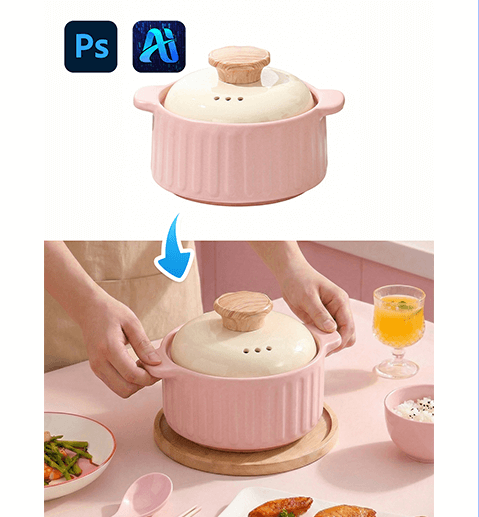
In kitchenware eCommerce and product marketing, clay pots and casseroles often need to appear in different lifestyle environments such as dining tables, modern kitchens, or restaurant scenes. With nano banana in the PsAide plugin, sellers and designers can seamlessly transfer a clay pot product into a designated scene image without complex compositing or expensive reshoots.
Through red mask guidance and AI scene understanding, nano banana automatically adjusts product scale, lighting direction, and surface reflections—ensuring the clay pot blends naturally into the target environment.
1. nano banana Advantages for Clay Pot Product Transfer
(1)Limitations of Manual Product Compositing
Traditional editing often leads to floating objects, mismatched shadows, or unrealistic scale when placing cookware into scenes.
(2)How nano banana Improves Scene Consistency
nano banana analyzes countertop perspective, lighting intensity, and surrounding objects to maintain realistic placement and depth.
2. nano banana Red Mask Clay Pot Workflow
(1)Paint the Original Product Area Red
① Open the designated scene image in Photoshop.
② Paint the area where the existing pot or placeholder object appears red.
③ Keep the mask within the product boundary to avoid background interference.
This step clearly signals the replacement region and reduces conflicts for nano banana.
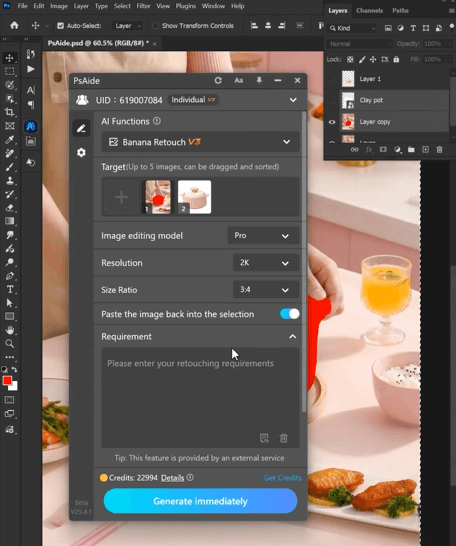
(2)Upload Scene Image and Clay Pot Product Image
① Upload the red-masked scene image.
② Upload the clay pot product image with a clean background.
③ Maintain sufficient resolution for texture clarity.
(3)Enter a Clear Prompt
① Specify clay pot color, lid style, and material texture.
② Mention natural shadows and realistic reflections.
③ Keep the prompt concise but descriptive.
Example prompt:
”Replace the clay pot in image 1 with the clay pot from image 2. ”
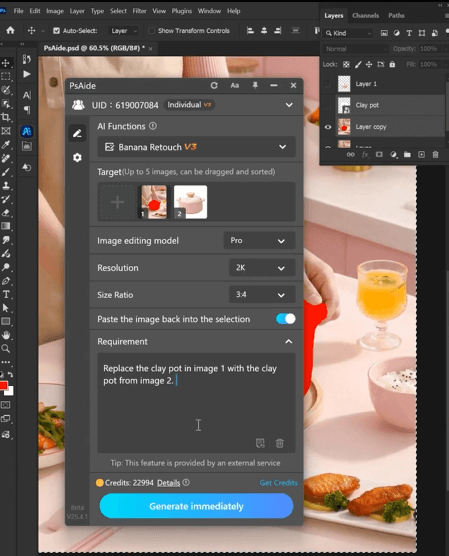
(4)Click Generate
① Click Generate in nano banana.
② Review shadow grounding and size proportion.
③ Regenerate if subtle refinements are needed.
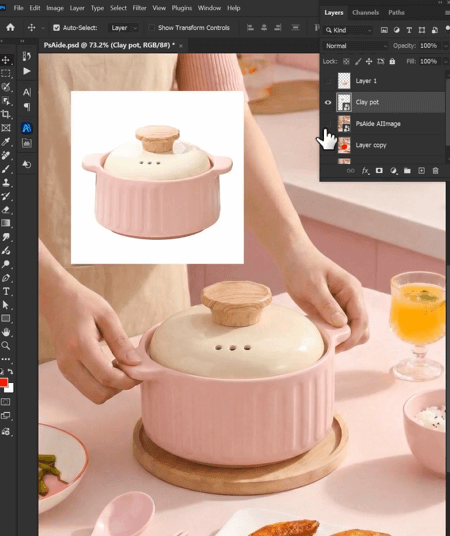
3. Visual Realism Control for Cookware Scenes
(1)Shadow Grounding and Depth
nano banana automatically creates contact shadows so the pot does not appear floating.
(2)Perspective and Scale Harmony
The clay pot aligns with table angles and nearby objects naturally.
4. Typical Use Scenarios
(1)Kitchen Appliance eCommerce Listings
Generate multiple lifestyle scenes from one product photo.
(2)Cookware Brand Marketing
Quickly adapt visuals for seasonal or regional campaigns.
5. Summary
By combining red mask precision with AI scene adaptation, nano banana enables efficient and realistic clay pot product transfer—helping sellers produce professional eCommerce visuals without reshooting or manual compositing.

Download Link: https://psaide.com/?sfrom=ZfhxUK
Invitation Code: ZfhxUK