
Table of Contents
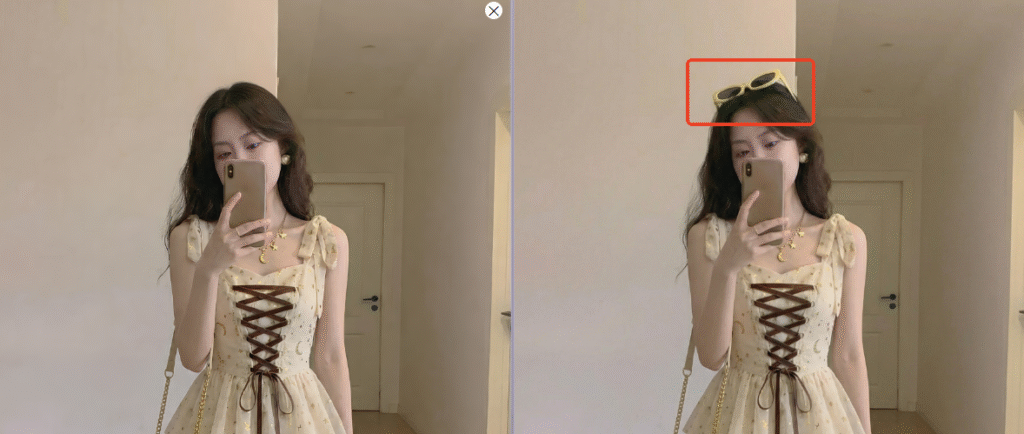
In photo retouching, e-commerce editing, and content creation, we often need to remove clutter, unwanted accessories, people, or watermarks. Traditional PS methods are slow and hard to get clean results.
Psaide’s AI Photo Editing tool uses smart AI to recognize and remove objects automatically, with no complex skills needed. It removes items seamlessly while keeping the original background texture natural.
1.Pain Points of Traditional PS Object Removal
- Slow and tedious: Requires Clone Stamp, Patch Tool, and Content-Aware Fill.
- Easy to blur or damage: Skin, hair, and complex textures are easy to mess up.
- Poor detail recovery: Hard to restore original background and lighting.
- High learning curve: Difficult for beginners without professional skills.
2.How to Remove Unwanted Objects with PS + Psaide (Step-by-Step)
Take removing sunglasses as an example:
- Open your image in PS and unlock the layer.
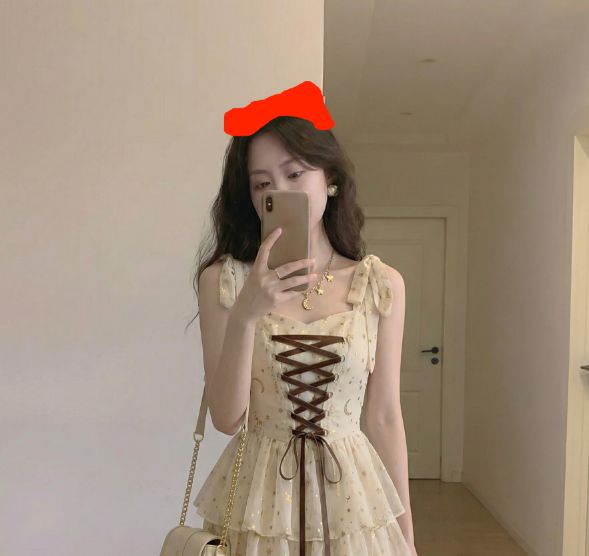
- Use the Marquee or Lasso Tool to select the unwanted object. Fill the selection with red to mark the area for removal.
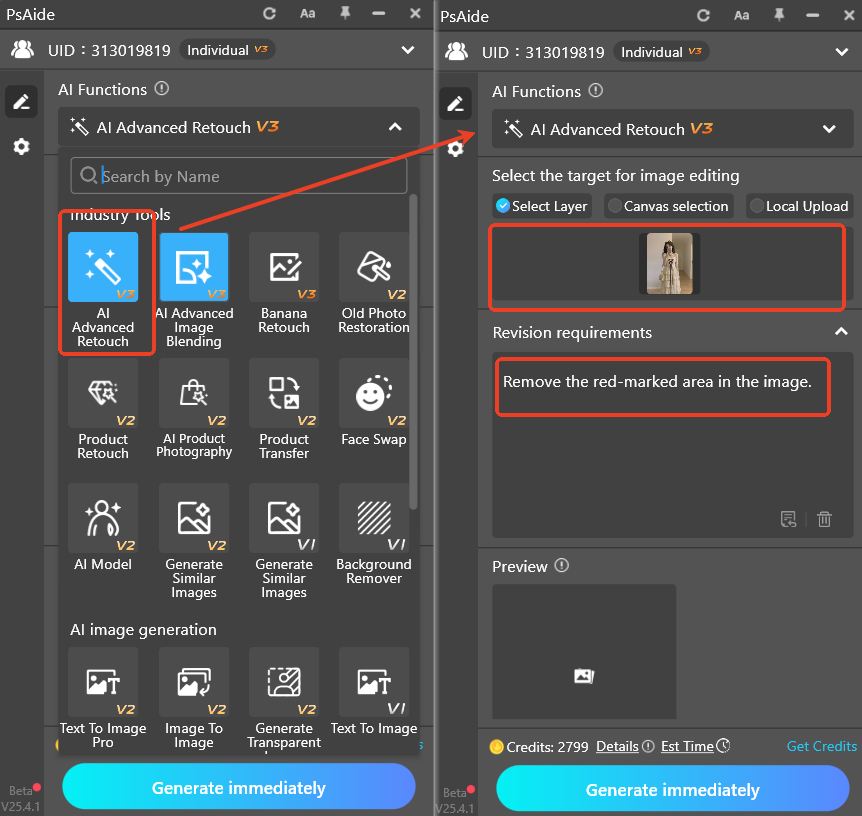
- Open Psaide in PS → go to AI Advanced Photo Editing.
- Enter the prompt:Remove the red-marked area in the image.
- Click Generate.
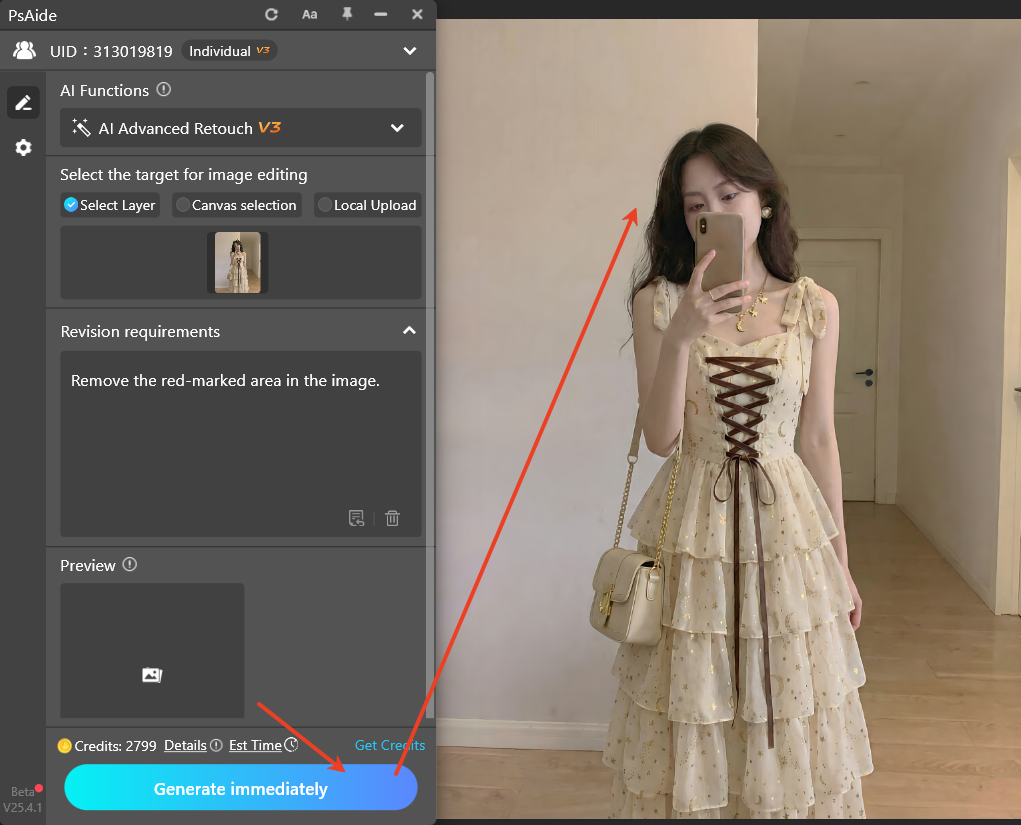
The AI will:
- Recognize the red-marked area
- Automatically repair skin, hair, and background
- Remove objects seamlessly with no visible traces
The result is added directly to a new PS layer.
3.Common Issues & Solutions
- Not fully removed or visible traces
- Select the object completely
- Add to prompt: seamless removal, natural repair, keep original texture
- Generation failed or no response
- Restart PS and reopen Psaide
- Make sure the correct layer is selected
- Use JPG/PNG format
Want to remove clutter fast and naturally? Use PS + Psaide AI Photo Editing for clean, professional results in 30 seconds.
Download link

https://psaide.com/?sfrom=A86R4u
Invitation Code: A86R4u

