
Table of Contents
Snow boots are a key item in winter fashion photography and cold-weather eCommerce campaigns. Instead of organizing new photoshoots for each product variation, creators can use nano banana in the PsAide plugin to replace the model’s footwear directly inside an existing scene image.
With the help of red mask guidance and AI scene analysis, nano banana preserves leg posture, boot volume, and natural ground shadows, ensuring the snow boots blend seamlessly with the original environment.
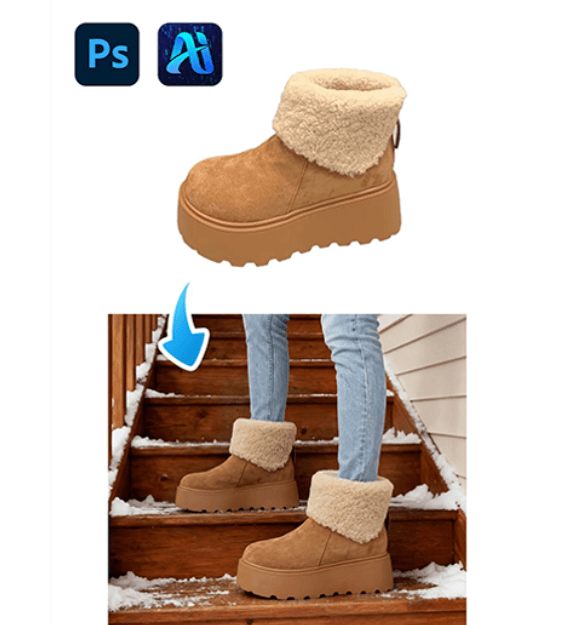
1. nano banana Advantages for Snow Boots Replacement
(1)Challenges in Traditional Footwear Editing
Manual editing often leads to mismatched boot proportions, unrealistic shadows, or incorrect foot angles.
(2)How nano banana Improves Winter Footwear Editing
nano banana analyzes the model’s posture, foot position, and lighting direction to generate snow boots that naturally match the scene.
2. nano banana Red Mask Workflow for Snow Boots
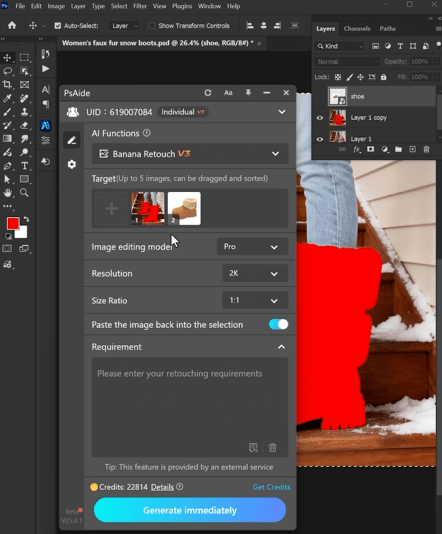
(1)Paint the Original Boots Area Red
① Open the scene image in Photoshop.
② Paint the model’s original boots or shoes red.
③ Keep the mask within the footwear area.
This helps nano banana clearly identify the region that needs replacement and reduces interference from the original shoes.
(2)
① Upload the red-masked scene image.
② Upload the snow boots product image.
③ Ensure the product image clearly shows the boot structure.
(3)Enter a Prompt
① Describe the snow boots style and color.
② Mention realistic winter lighting and shadows.
③ Keep the prompt concise.
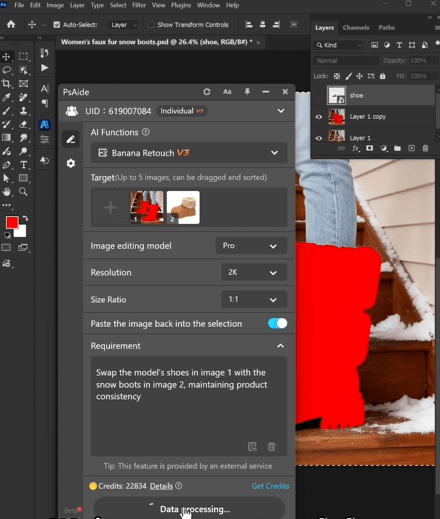
Example prompt:
“Swap the model’s shoes in image 1 with thesnow boots in image 2, maintaining product consistency”
(4)Click Generate
① Click Generate in nano banana.
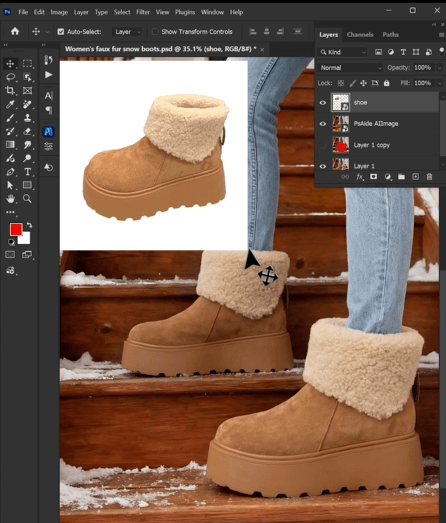
② Review the boot placement and perspective.
③ Regenerate if adjustments are needed.
3. Natural Scene Integration
(1)Accurate Boot Volume
nano banana maintains the thick structure typical of winter boots.
(2)Lighting and Shadow Matching
The generated boots adapt to the scene’s lighting direction and ground shadows.
4. Application Scenarios
(1)Winter Fashion Campaigns
Generate multiple snow boot visuals from one base photo.
(2)Footwear eCommerce Listings
Create realistic product images quickly.
5. Summary
With red mask targeting and intelligent scene analysis, nano banana enables fast and realistic snow boots replacement for winter fashion and eCommerce imagery.

Download Link: https://psaide.com/?sfrom=ZfhxUK
Invitation Code: ZfhxUK

