
Table of Contents
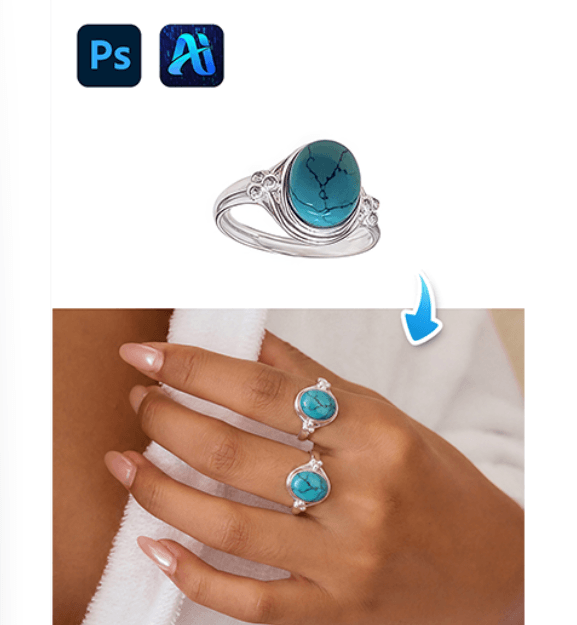
Rings are one of the most important accessories in jewelry photography and eCommerce product marketing. However, photographing every ring design on a model’s hand can be costly and time-consuming. With nano banana in the PsAide plugin, creators can quickly replace rings in an existing scene image while preserving natural finger posture, lighting, and reflections.
Using a red mask workflow, nano banana accurately identifies the ring area and integrates the new jewelry design into the model’s hand, creating realistic and professional results suitable for commercial use.
1. nano banana Advantages for Ring Replacement
(1)Challenges in Manual Jewelry Editing
Traditional editing often requires complex masking and precise compositing, which can lead to incorrect finger proportions or unrealistic reflections.
(2)How nano banana Improves Jewelry Integration
nano banana analyzes hand posture, finger proportions, and lighting direction to generate rings that naturally match the scene image.
2. nano banana Red Mask Workflow for Ring Replacement
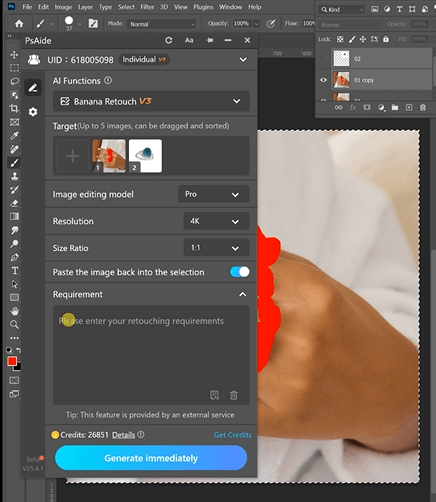
(1)Paint the Original Ring Area Red
① Open the scene image in Photoshop.
② Paint the model’s existing ring red.
③ Keep the mask limited to the jewelry area on the finger.
This step helps nano banana clearly identify the replacement region and prevents interference from the original ring.
(2)Upload Scene Image and Product Image
① Upload the red-masked scene image.
② Upload the ring product image.
③ Ensure the product photo clearly shows the ring design and details.
(3)Enter a Prompt
① Describe the ring material and style (gold, silver, diamond, etc.).
② Mention realistic reflections and natural lighting.
③ Keep the prompt concise and descriptive.
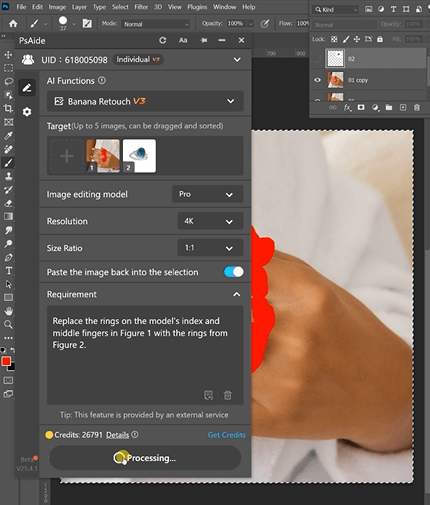
Example prompt:
Replace the rings on the model’s index andmiddle fingers in Figure 1 with the rings from Figure 2.
(4)Click Generate
① Click Generate in nano banana.
② Review the ring placement and finger alignment.
③ Regenerate if adjustments are needed.
3. Natural Jewelry Rendering
(1)Accurate Finger Proportions
nano banana ensures the ring fits naturally on the finger without distortion.
(2)Realistic Reflections and Lighting
Jewelry highlights and reflections adapt to the scene lighting.
4. Application Scenarios
(1)Jewelry eCommerce Product Images
Quickly generate model-wearing visuals for multiple ring designs.
(2)Jewelry Marketing Campaigns
Create diverse promotional visuals without additional photoshoots.
5. Summary
By combining red mask precision with AI scene analysis, nano banana enables fast and realistic ring replacement in model images, making jewelry product visualization more efficient and scalable.

Download Link: https://psaide.com/?sfrom=ZfhxUK
Invitation Code: ZfhxUK

