
Table of Contents
For e-commerce product design, applying chartlet patterns to cosmetic, drink and skincare bottles greatly improves visual appeal. However, manual wrapping in native PS is difficult for beginners: patterns stretch, fail to follow curves, and require long manual adjustments.
Below are 2 traditional PS methods with clear limitations, plus a powerful AI solution using Psaide Nano Banana.
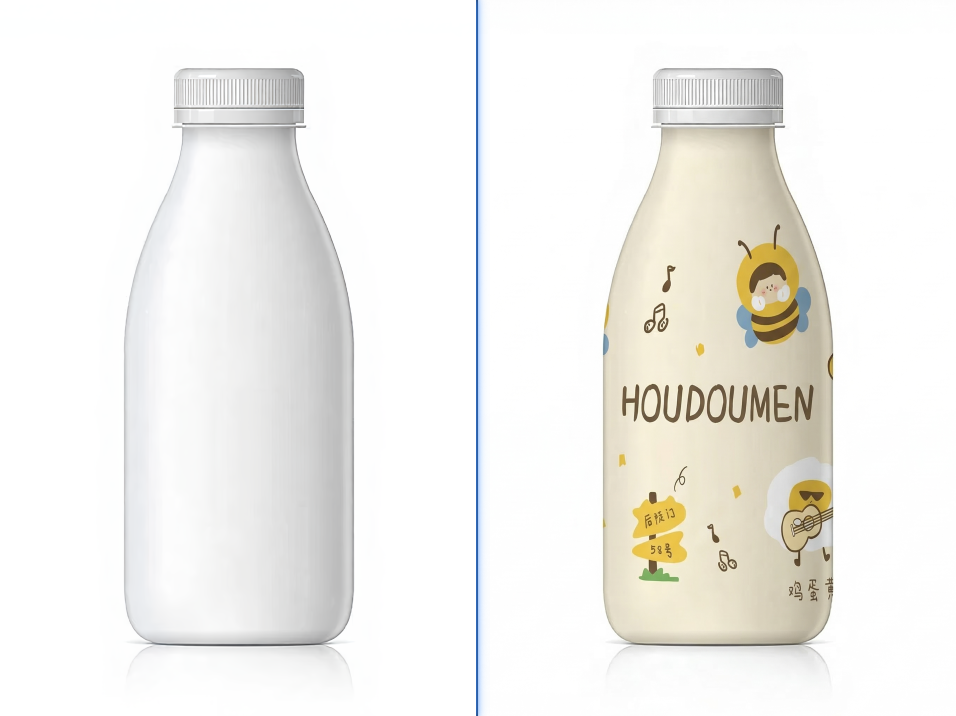
Method 1: PS Wrap Tool (Simple Bottles)
- Open bottle and pattern images, duplicate layers.
- Place the chartlet over the bottle.
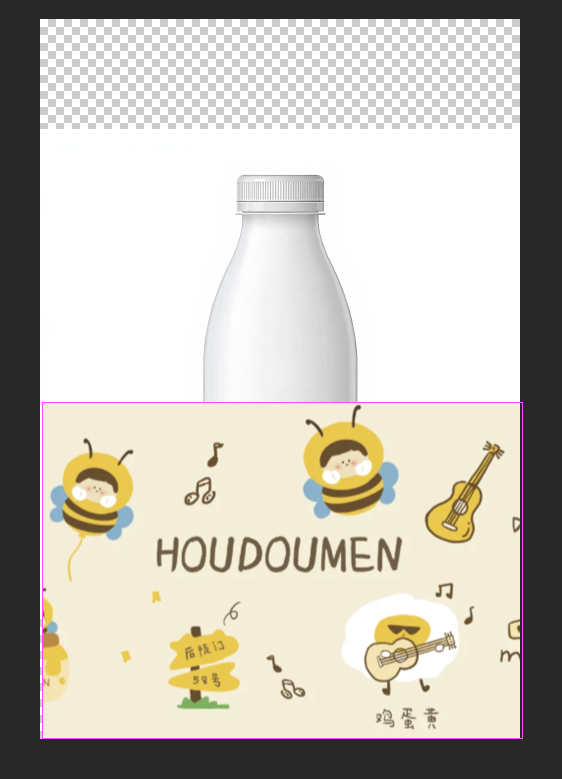
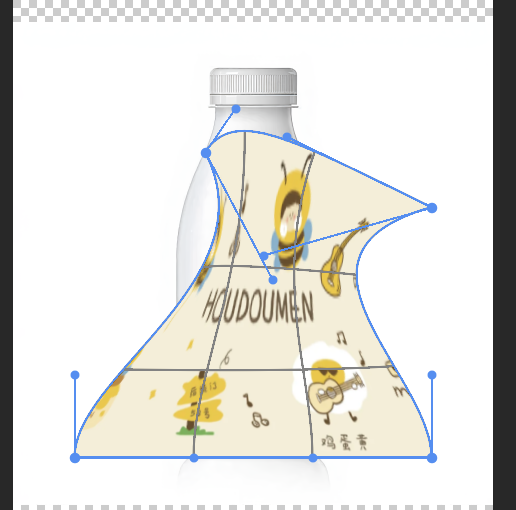
- Press Ctrl+T > right-click > Warp and adjust points manually.
- Set blend mode and refine edges.
Pain Points: Only for simple cylinders; hard to control curves.
Method 2: Pen Tool + Perspective (Complex Bottles)
- Trace the bottle area with the Pen Tool.
- Use Ctrl+T > Perspective to match angle.
- Add a layer mask and adjust lighting.
Pain Points: Steep learning curve, slow, not for batch work.
Method 3: One-Click AI Mapping with Psaide Nano Banana (Best)
Psaide Nano Banana Pro automatically fits chartlet to bottle contours, matches perspective and lighting in seconds.
- Open the bottle image and chartlet in PS.
- Launch Psaide > enter Nano Banana > select Pro.
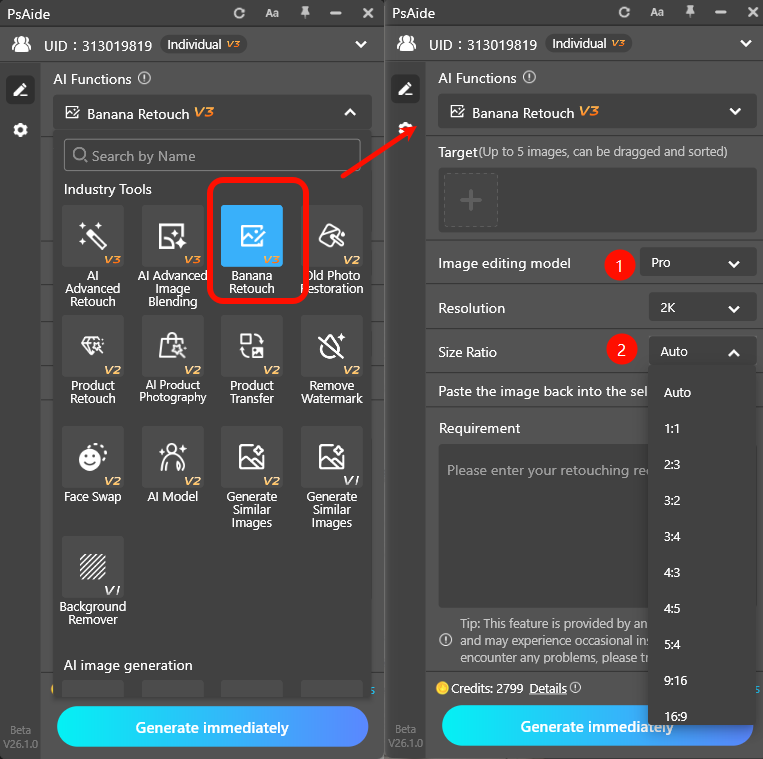
- Upload both images.
- Use prompt:
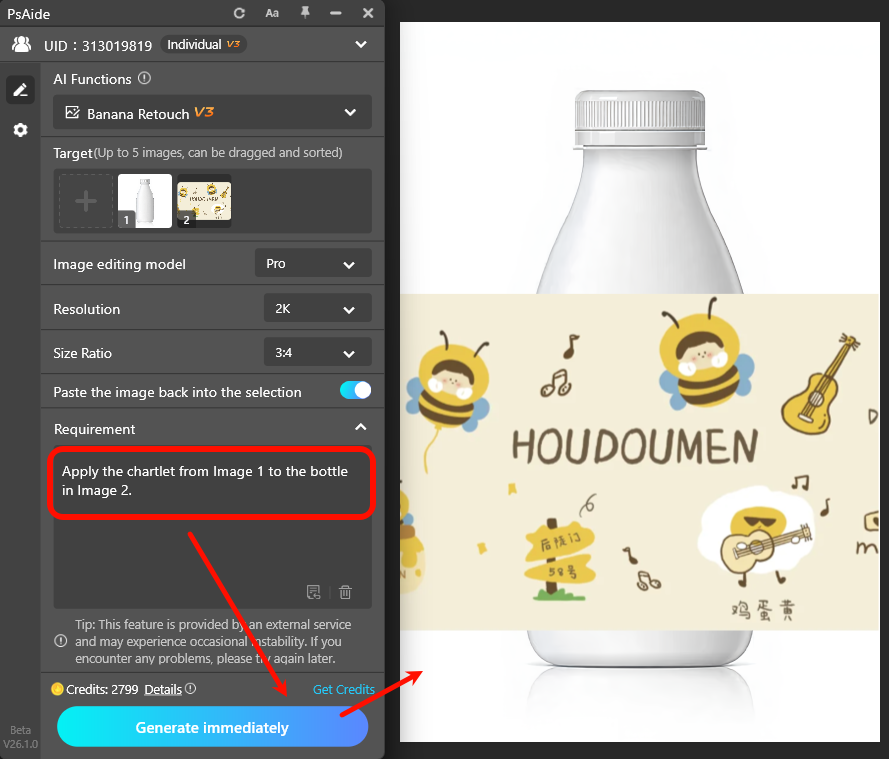
Apply the chartlet from Image 1 to the bottle in Image 2.- Click Generate.
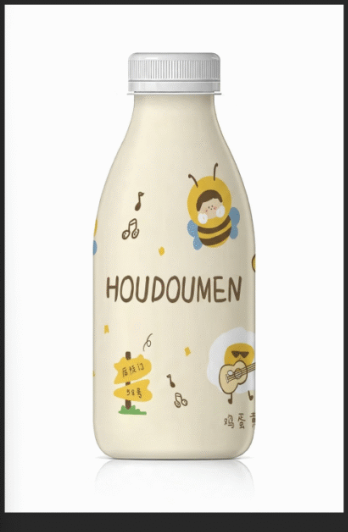
AI automatically wraps the pattern smoothly around curved surfaces with realistic lighting and no distortion.
Common Issues & Solutions
- Pattern distorted or poorly fittedUse clear front-facing bottle images; add fit curved shape to the prompt.
- Blurry chartlet detailsUse Pro version and high-resolution source files.
- Pattern placed outside the bottleClarify image order in the prompt; isolate the bottle first.
- Unmatched color toneAdd match bottle color and lighting to the prompt.
Create professional, high-definition bottle mockups quickly with PS and Psaide Nano Banana.yone can add realistic patterns to clothing quickly and professionally.
Download link

https://psaide.com/?sfrom=A86R4u
Invitation Code: A86R4u

