
Table of Contents
Scratches, rust or wear on hardware tools and metal parts in e-commerce images can seriously hurt product appearance and perceived value.
No need for expensive reshoots or complex manual retouching. With Psaide Nano Banana Pro, you can intelligently repair defects in one click, restore factory-perfect texture, and greatly improve the commercial value of your product images.
Step 1: Upload the Hardware Image to Be Retouched
Prepare a product photo with even lighting and a clear main subject. The structure should be complete even with surface scratches.
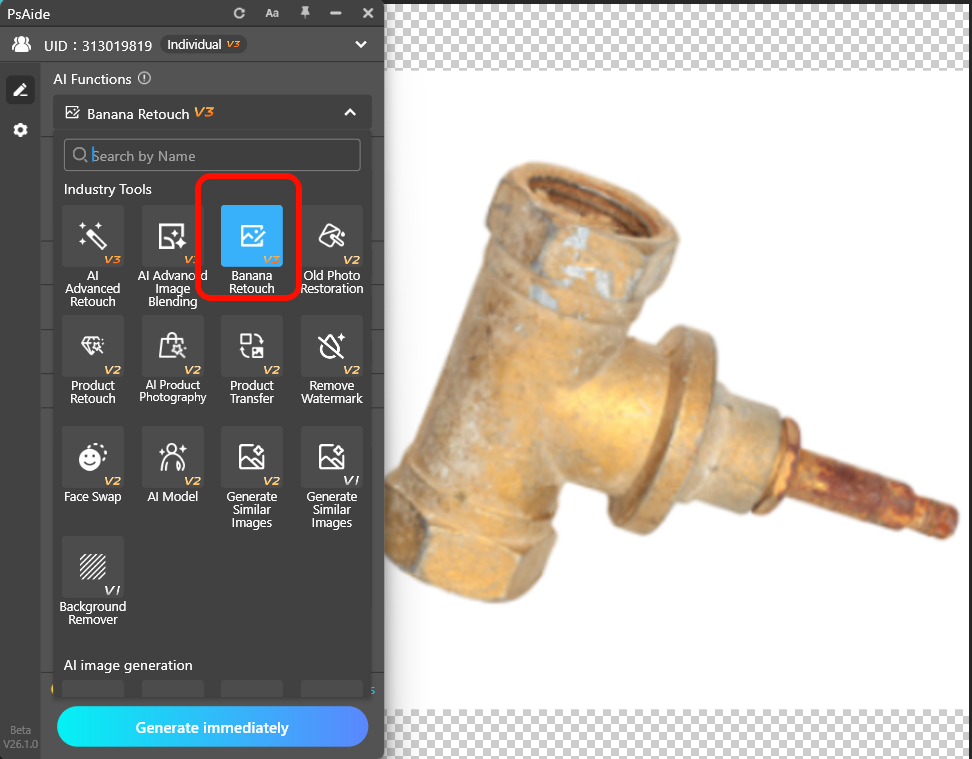
Open the image in Photoshop, then upload it to the Nano Banana retouching module via layer upload, selection upload or local upload.
Step 2: Configure Professional Retouching Model Parameters
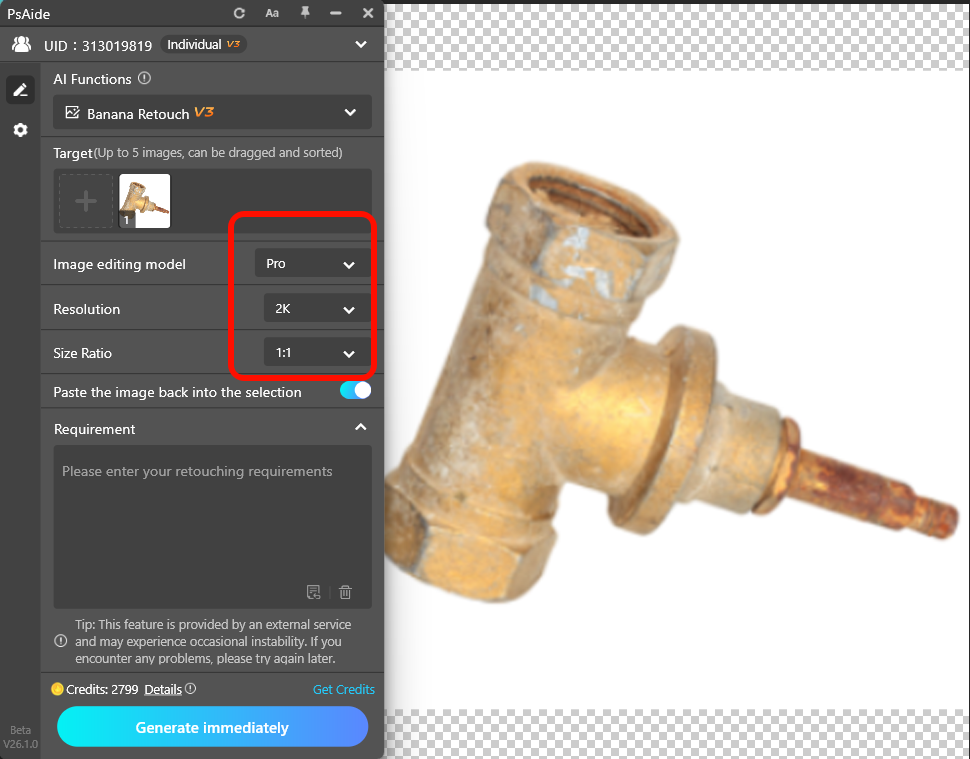
- Select Pro Version for deep understanding of metal gloss, texture and structural details. The AI can accurately distinguish product details from defects.
- Set resolution to 2K to show clear metal reflections while maintaining high processing speed.
- Use 1:1 square ratio for standardized e-commerce main images, or keep the original ratio if needed.
Step 3: Enter Retouching Prompt & Generate Perfect Product Image
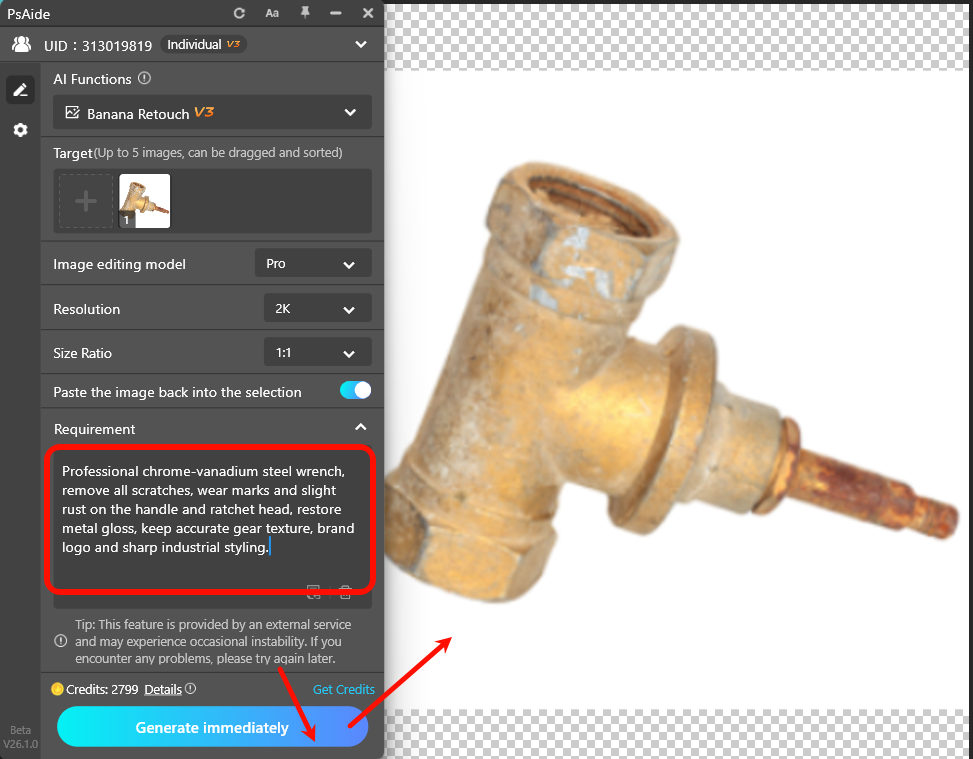
Prompt structure:
Product type + remove specific flaws + keep key details and texture
Sample prompt:
Professional chrome-vanadium steel wrench, remove all scratches, wear marks and slight rust on the handle and ratchet head, restore metal gloss, keep accurate gear texture, brand logo and sharp industrial styling.
Tip: More detailed descriptions lead to more precise results.
Click Generate.
The AI detects and repairs flaws while preserving and enhancing original details, metal highlights, edges and logos.
Result Comparison
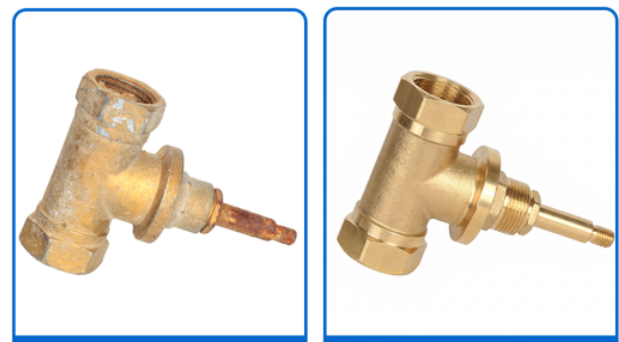
- Before: Wrench with obvious scratches and worn surfaces.
- After: Smooth, brand-new finish, restored metallic shine, fully preserved structural details, ready for product detail pages.
Core Value & Business Applications
- Cost & time saving: Replace hours of manual retouching or reshoots with minutes of AI processing.
- Quality improvement: Renew used, sampled or flawed product images to near-new condition, boosting click-through and conversion rates.
- Intelligent recognition: AI distinguishes scratches from functional textures such as anti-slip patterns and cooling fins for accurate repair.
Pro Operation Suggestions
- Complex damage: Repair in sections. Process the whole image first, then select imperfect areas for secondary retouching with more detailed prompts.
- Natural used look: If you want mild wear instead of full renewal, use prompts like: Reduce surface scratches, keep reasonable metal wear, enhance gloss.
- Batch processing: Use the same prompts and settings for multiple angles to achieve consistent high-quality product gallery images.
Achieve professional hardware retouching easily with PS and Psaide Nano Banana.
Download link

https://psaide.com/?sfrom=A86R4u
Invitation Code: A86R4u

