Table of Contents
1、A Quick Story
Last week, a fashion editor had a problem.
She had a beautiful outdoor shoot. Perfect lighting. Great model. Natural pose.
But the client saw the photos and said: “Can we try a different jacket? Something heavier. More winter.”
A reshoot would cost $5,000. The timeline was three days.
She opened Photoshop. She stared at the layers panel.
Then she tried something different.
2、The Old Way vs. The New Way
The Old Way (90 minutes):
- Mask the jacket edge by edge
- Separate collar from neck
- Isolate lapels from chest
- Match the new jacket’s perspective
- Warp it to fit the pose
- Paint shadows from scratch
- Blend skin tones at the collar
- Adjust overall color
The New Way (60 seconds):
- Draw a red blob over the jacket
- Type one sentence
- Click Generate
Same result. Completely different process.
3、Why Jackets Are Harder Than You Think
A jacket isn’t a flat object. It has:
| Element | Why It’s Tricky |
|---|---|
| Collar | Must wrap around the neck naturally |
| Lapels | Need to follow the chest contour |
| Shoulders | Have to match the model’s exact angle |
| Zippers/Buttons | Must align with the center line |
| Fabric weight | Heavy coats drape differently than blazers |
| Sleeves | Need to fall correctly from the shoulder |
Manual editing struggles with all of these. Nano Banana Pro handles them together.
4、What You Need
- Photoshop (any version with PsAide)
- Your model photo
- Your new jacket product image
- 60 seconds
5、The 3-Step Process
Step 1: Mark in Red (15 seconds)
Open your model photo in Photoshop.
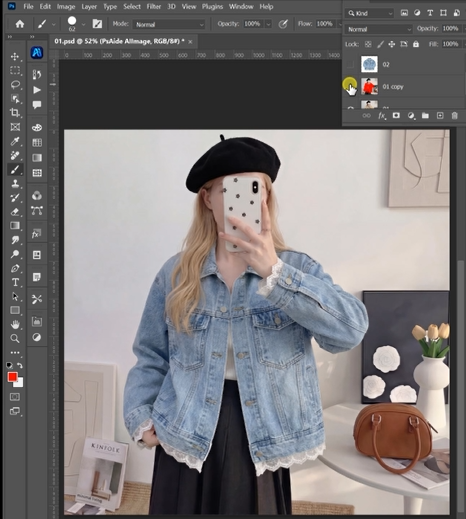
Take the Lasso Tool. Draw a rough shape around the current jacket. Don’t worry about edges. Just cover the main area.
Fill it with red. RGB: 255, 0, 0.
That’s it. No precision needed.
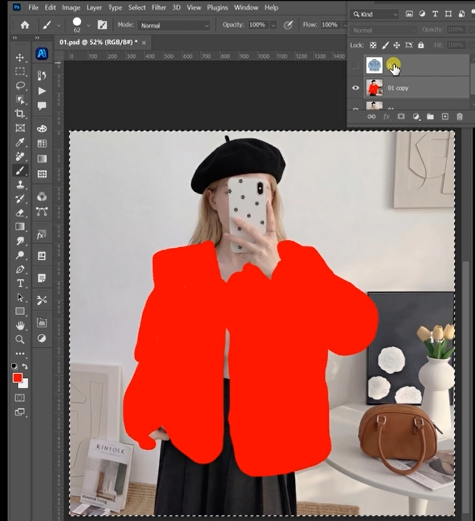
Why red works: Red is almost never found naturally in jackets or skin tones. The AI sees it as a clear command: “Replace exactly this area.”
Step 2: Write Your Prompt (15 seconds)
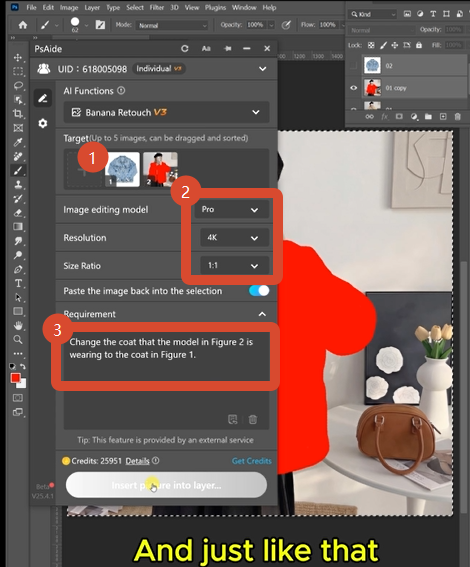
Open the PsAide panel. Launch Nano Banana. Select the Pro version.
Set resolution to 2K (sharp enough for fabric details, small enough for quick processing).
Upload your two images:
- Figure 1: Your new jacket product photo
- Figure 2: Your model photo with the red-marked jacket
Type this:
“Change the coat that the model in Figure 2 is wearing to the coat in Figure 1.”
Click Generate.
Step 3: Get Your Result (30 seconds)
Wait.
The AI works. You don’t see what it’s doing. But here’s what happens:
- It reads the red marker as the target zone
- It analyzes the new jacket’s shape and fabric
- It maps how that jacket would fit the model’s pose
- It adjusts perspective to match the camera angle
- It generates shadows based on the original lighting
- It blends the collar edge with the model’s neck
- It outputs a finished photo
The model is now wearing your new jacket.
6、What That Fashion Editor Got
She uploaded her outdoor shoot.
She marked the lightweight jacket in red.
She typed the prompt.
Sixty seconds later, her model was wearing a heavy winter coat. Same pose. Same lighting. Same background.
The client approved the image.
7、Download link
https://psaide.com/?sfrom=A86R4u
Invitation Code: A86R4u