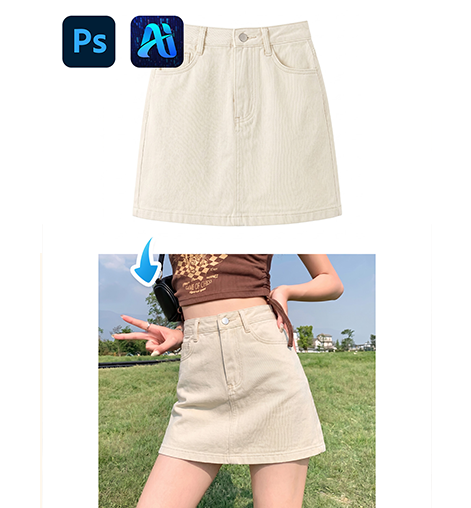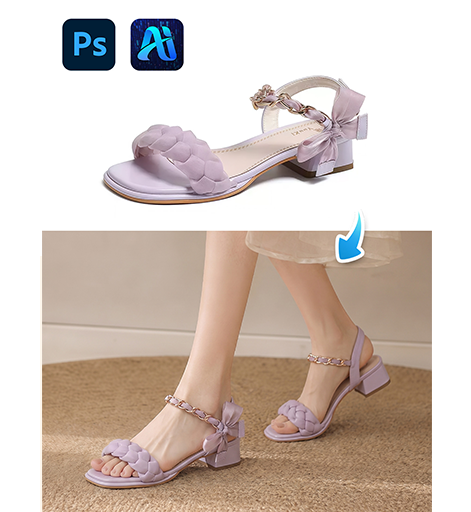
Table of Contents
1、The Problem Nobody Talks About
Pajama photography is expensive.
You need a model. A bedroom set. Good lighting. Maybe multiple looks if you’re shooting a collection.
Each outfit change means the model steps off set, changes clothes, and comes back. The lighting might shift. The hair might move. The vibe changes.
By the end of the day, you have 50 photos but only 3 usable ones.
There’s a better way.
2、Why Pajamas Are Different From Other Clothes
You’ve swapped jackets before. You’ve changed tops.
Pajamas are their own challenge.
| Element | Why Pajamas Are Tricky |
|---|---|
| Soft fabric | Cotton and silk drape differently than structured clothing |
| Relaxed fit | Pajamas shouldn’t look tight or tailored |
| Matching sets | Top and bottom need to coordinate visually |
| Wrinkles | Soft sleepwear shows natural creases from sitting or lying |
| Comfort vibe | The whole image needs to feel cozy, not stiff |
Manual editing struggles with soft fabrics. Nano Banana Pro understands them.
3、Real Scenario
A loungewear brand shot a model in a cream cotton pajama set.
Beautiful images. Great lighting. Perfect smile.
Then the creative director said: “Can we see the same pose in the blue striped set? And the red floral one? And the green plaid?”
Three different pajama sets. One photo shoot budget.
4、What You Need
- Photoshop with PsAide plugin
- One model photo (wearing any pajamas)
- Product images of your target pajama sets
- 60 seconds per swap
5、The 3-Step Pajama Swap
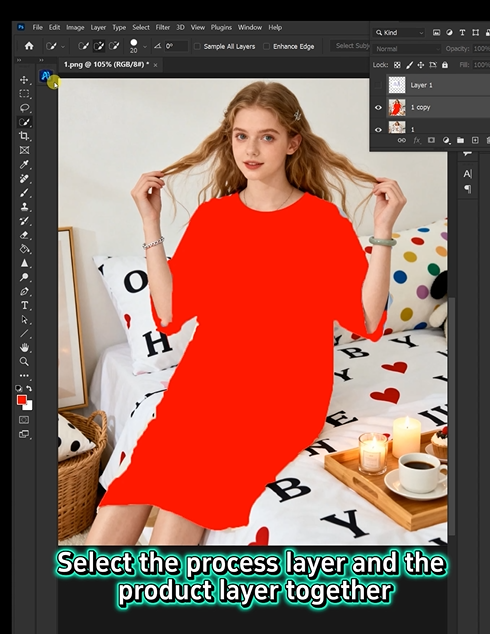
Step 1: Mark the Original Set in Red
Open your model photo in Photoshop.
Grab the Lasso Tool. Draw a rough shape around the top. Fill it with red.
Now draw around the bottom. Fill it with red.
Don’t worry about perfect edges. Just cover the main fabric areas.
Why red? It’s the universal “replace this” signal for AI. Works every time.
Step 2: Write Your Prompt
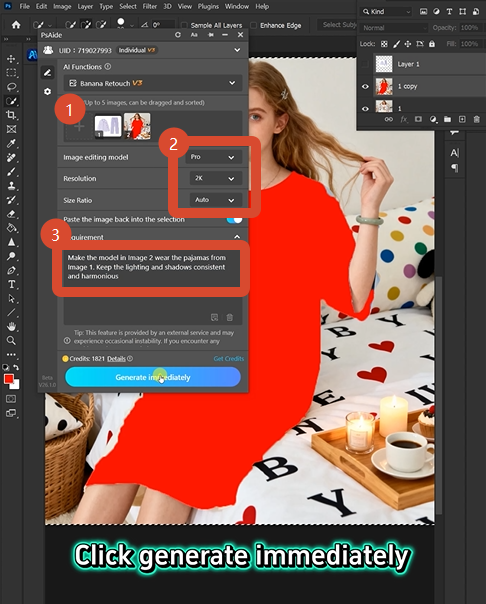
Open PsAide. Launch Nano Banana. Select the Pro version.
Set resolution to 2K (soft fabrics need good detail, but you don’t need 4K for web use).
Upload your images:
- Image 1: Your target pajama set product photo
- Image 2: Your model photo with red markings
Type this:
“Make the model in image 2 wear the pajamas from image 1. Keep the lighting and shadows consistent and harmonious.”
Click Generate.
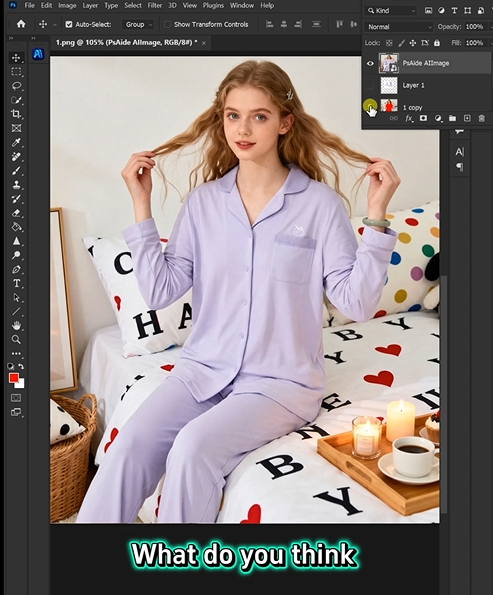
Step 3: Get Your Result
Wait 45-60 seconds.
The AI removes the red areas. It places the new pajamas. It adjusts the fabric to drape naturally. It matches the lighting.
The model is now wearing a different pajama set. Same pose. Same expression. Same shoot.
6、What The AI Understands About Pajamas
| Element | AI Processing |
|---|---|
| Fabric softness | Creates gentle folds, not sharp creases |
| Relaxed fit | Keeps the silhouette loose and comfortable |
| Matching set | Coordinates top and bottom as one outfit |
| Natural wrinkles | Adds realistic sleepwear texture |
| Cozy vibe | Maintains the soft, comfortable feeling of the original |
This is what makes the Pro version different. Basic AI just pastes. Pro version understands fabric behavior.
7、When To Use This
- Sleepwear brands: Show multiple styles from a single shoot
- Loungewear catalogs: Create consistent imagery across collections
- E-commerce sites: Update product photos without reshoots
- Content creators: Generate cozy content for multiple platforms
- Design testing: Visualize new patterns before production
8、Download link
https://psaide.com/?sfrom=A86R4u
Invitation Code: A86R4u