
Table of Contents
1、Why Metal Retouching Is So Difficult
Metal surfaces reflect everything. Every scratch shows. Every speck of dust catches the light.
| Problem | Why It’s Hard |
|---|---|
| Rust removal | Rust changes the metal’s color and texture at a microscopic level |
| Scratch repair | Scratches catch light from every angle |
| Oxidation | Dull spots need to be restored to a uniform shine |
| Surface smoothing | Metal needs to look polished, not blurred |
| Reflection consistency | Highlights must stay sharp and natural |
| Background isolation | Clean white backgrounds require perfect edges |
Manual retouching of metal can take 1-2 hours per image. Most designers avoid it entirely.
Nano Banana Pro handles all of this in 60 seconds.
2、Real Scenario
A hardware brand needed 50 product photos for their new catalog.
The tools were fine. The photos were not. Warehouse lighting. Dusty surfaces. Visible wear.
A professional retoucher quoted $2,500 and two weeks.
They tried Nano Banana Pro instead.
3、What You Need
- Photoshop with PsAide plugin
- One photo of your worn tool
- 60 seconds
No special lighting. No clean room. No professional photography setup.
4、The 3-Step Tool Restoration
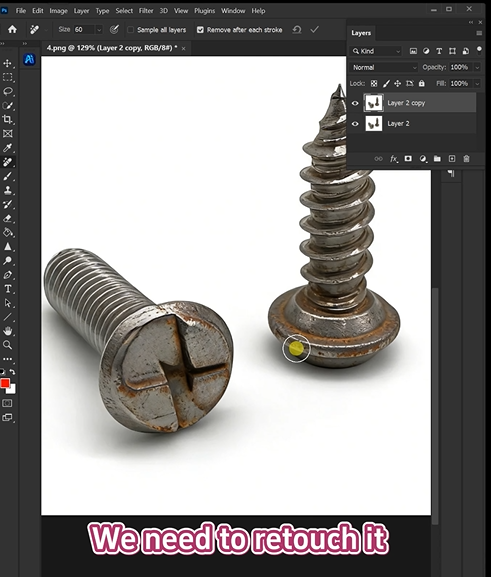
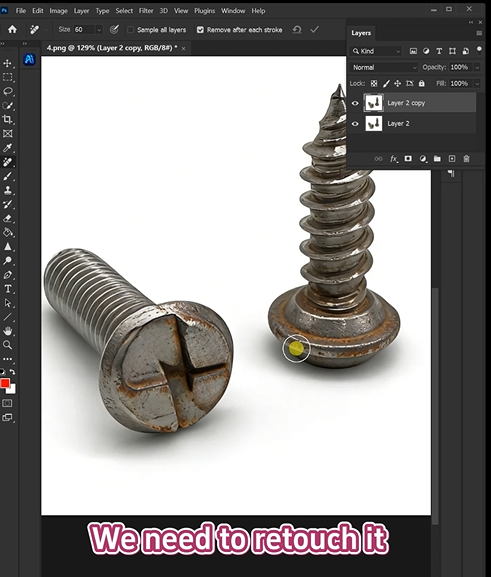
Step 1: Open Your Photo
Launch Photoshop. Open your tool product photo.
Don’t try to clean it first. Don’t adjust the lighting. Don’t crop out the dirty spots.
The AI needs to see the damage to remove it.
Step 2: Write Your Prompt
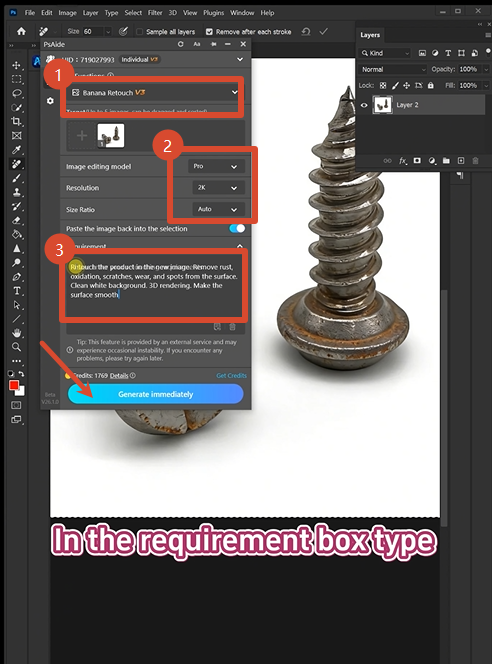
Open PsAide. Launch Nano Banana. Select the Pro version.
Set resolution to 2K (perfect for metal textures and sharp edges).
Upload your image.
Type this prompt:
“Retouch the product in the image. Remove rust, oxidation, scratches, wear, and spots from the surface. Clean white background, 3D rendering. Make the surface smooth.”
Click Generate.
Step 3: Get Your Result
Wait 60 seconds.
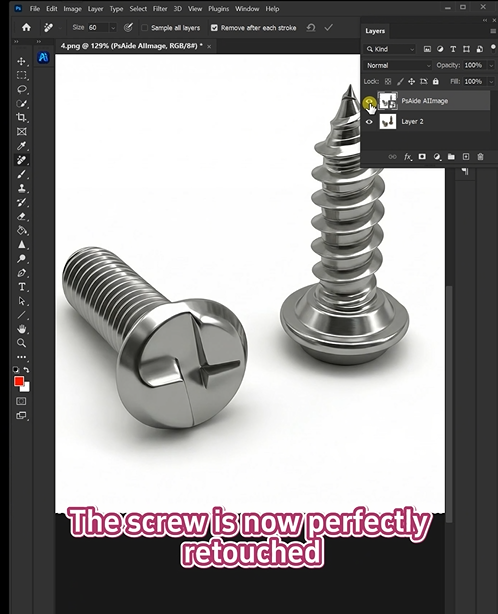
The AI processes your image. It removes every flaw. It rebuilds smooth metal surfaces. It creates a clean white background. It renders the tool like a 3D model.
Your rusty, scratched tool now looks factory-fresh.
5、What The AI Removes
| Flaw | How AI Handles It |
|---|---|
| Rust | Detects orange/brown discoloration, replaces with clean metal tone |
| Oxidation | Removes dull gray spots, restores original metallic shine |
| Scratches | Fills each scratch line with surrounding metal texture |
| Wear marks | Smooths worn areas to match the original surface |
| Dust and spots | Eliminates every speck and particle |
| Background clutter | Creates pure white background automatically |
6、What That Hardware Brand Got
They shot 50 tools in one afternoon. Basic photos. No retouching.
They processed each one through Nano Banana Pro.
- Rust removed from every metal surface
- Scratches eliminated from handles
- Oxidation gone from chrome parts
- Clean white backgrounds on every image
- Consistent 3D-rendered look across the entire catalog
Total cost: A fraction of the retoucher’s quote.
Total time: One afternoon for photos, one hour for AI processing.
7、What Types of Tools Work Best
| Tool Type | AI Performance |
|---|---|
| Wrenches and sockets | Excellent (simple shapes, clear metal surfaces) |
| Pliers and cutters | Excellent (defined edges, visible wear) |
| Power tools | Very good (handles plastic and metal together) |
| Saws and blades | Very good (sharp edges preserved) |
| Measuring tools | Excellent (scales and markings remain clear) |
8、Pro Tips For Perfect Results
Shoot with even lighting. Natural daylight or soft studio light works best. Avoid harsh shadows.
Use a plain background. A simple surface helps the AI isolate the tool cleanly.
2K resolution is ideal. High enough for sharp metal edges, efficient for batch processing.
Don’t pre-edit. Let the AI see all the rust and scratches. It needs to identify them to remove them.
Save the original. Keep your unedited photo as a reference. The AI result becomes your new master.
9、Download link

https://psaide.com/?sfrom=A86R4u
Invitation Code: A86R4u

