Table of Contents
1、Common Pain Points of Manual Camping Chair Replacement in PS
E-commerce outdoor product editors often need to update camping chair styles on existing scene main images to save reshooting costs. However, replacing furniture in native Ps is extremely tricky and time-consuming. Traditional workflows rely on manual cutout, free transformation, perspective correction and shadow painting. Camping chairs have complex metal frames, fabric tension and three-dimensional structural details, which are easy to deform, stretch or lose texture after manual adjustment. Most edited results look unnatural, with mismatched lighting, floating chair edges and inconsistent scene atmosphere. Fixing one single main image usually takes 15 to 30 minutes, and batch updates are almost impossible for busy store operations. Fortunately, the built-in Nano Banana AI retouching module of the Psaide plugin completely solves these drawbacks, allowing users to replace camping chairs intelligently while maintaining scene consistency and commercial-level image quality.
2、3 Step-by-Step Workflow to Replace Camping Chairs via PS Nano Banana
Step 1: Open scene main image and new camping chair image in PS
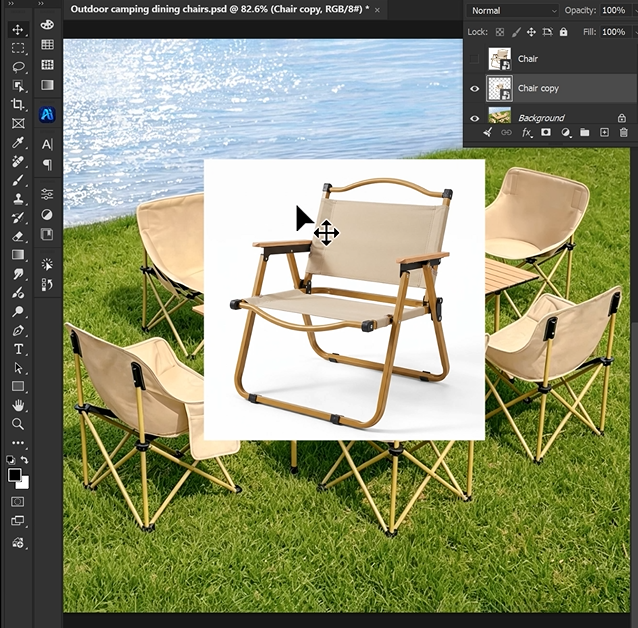
Launch Photoshop and import two images for editing: the original outdoor scene main image that contains the old camping chair, and the new camping chair reference image you want to replace. Duplicate the main image layer to protect the original file. No manual selection or complicated pre-modification is required, making the whole process friendly for PS beginners.
Step 2: Enable Nano Banana Pro and configure high-quality parameters
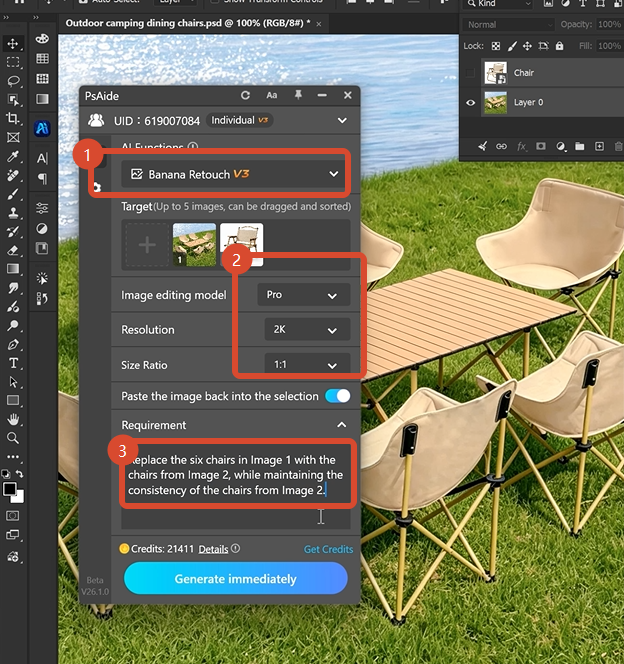
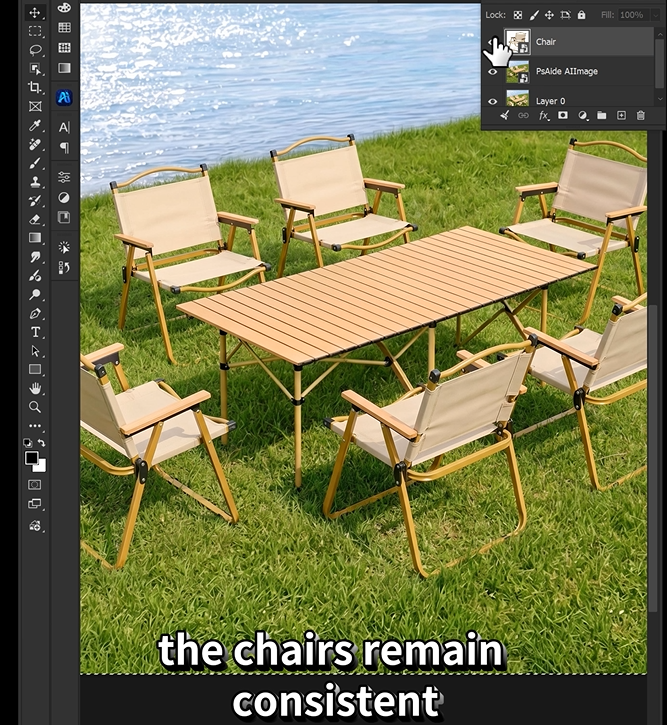
Launch the Psaide plugin panel and enter the Nano Banana retouching function. Select the Pro version for stronger structural recognition, perspective matching and texture restoration. Set the output resolution to 2K for sharp and detailed outdoor product display, and choose a standard 1:1 aspect ratio suitable for e-commerce square main images. Upload your scene image and new chair reference image, then enter the accurate AI prompt: Replace the six chair in image with the consistency of the chairs from Image2.
Step 3: Generate and preview the final commercial main image
Click the Generate button and wait for AI intelligent rendering. Nano Banana automatically identifies the original chair position, fits the new camping chair into the outdoor scene, unifies environmental lighting, shadow direction and material texture, and ensures perfect scene integration. The finished high-quality image will be generated directly inside your Ps project, ready for online store display without further manual polishing.
3、Practical Nano Banana Editing Tips for Best Results
Always use Nano Banana Pro mode for outdoor equipment replacement, as it better recognizes metal brackets, fabric folds and three-dimensional structures. Keep 2K resolution and 1:1 ratio to ensure standardized e-commerce main image size and clarity. Use complete and clear reference images to avoid structural distortion. Stick to the fixed prompt to maintain scene consistency and natural integration. Compared with traditional Ps manual editing, Nano Banana greatly improves efficiency while delivering more realistic, flawless camping chair replacement effects for commercial use.
4、Download link

https://psaide.com/?sfrom=A86R4u
Invitation Code: A86R4u