Table of Contents
1、The Problem: Why Replacing a Vase in Product Photography Is Difficult
Product photography is crucial for e-commerce success . Hero images—the main photos that represent your product—need to be perfect. But what happens when you need to change the vase in your image?
Traditional manual replacement requires:
- Precise masking around the original vase
- Matching the perspective and angle of the new vase
- Recreating realistic shadows that fall naturally on the table
- Adjusting lighting to ensure the new vase looks like it was photographed in the same scene
- Blending edges so the replacement is undetectable
This process can take 30-45 minutes for an experienced retoucher. For product photographers and e-commerce teams, this creates a significant bottleneck when updating catalogs or testing different product options.
The creative product editing process involves complex compositing that requires both technical skill and artistic vision . Manual object replacement is especially challenging because products often have unique shapes, reflective surfaces, and require perfect shadow integration.
Nano Banana Pro automates this entire process through AI-powered scene understanding. It analyzes the original image’s lighting, perspective, and shadows, then seamlessly integrates the new vase while preserving the scene’s natural look.
2、The Solution: Nano Banana Pro in 3 Steps
PsAide is a Photoshop AI plugin designed to integrate powerful AI capabilities directly into your Photoshop workflow . Nano Banana Pro, built on advanced image models, delivers professional-grade editing with strong scene understanding and consistency .
Here’s how to replace a vase in your hero image:
What You Need
- Adobe Photoshop with PsAide plugin
- Your hero image with the original vase
- Your new vase product photo
- 60 seconds
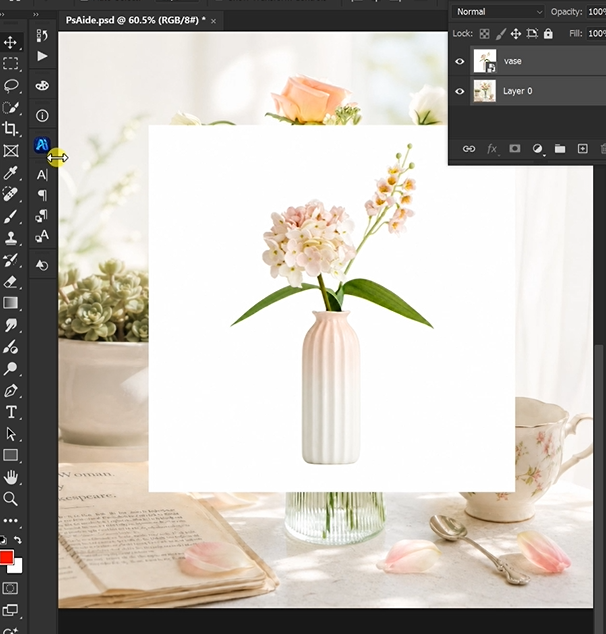
Step 1: Mark the Original Vase in Red
Open your hero image in Photoshop. Use the Lasso Tool to draw a selection around the vase you want to replace. Include the entire vase—body, neck, and any visible rim or handles.
Don’t worry about perfect edges. Just cover the main shape.
Fill the selection with bright red (RGB: 255, 0, 0). This red marker tells the AI exactly what to replace, preserving everything else in the scene.
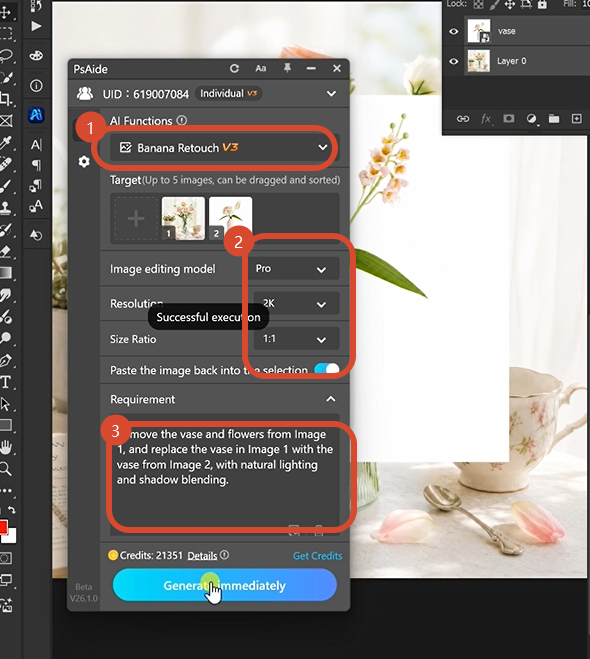
Step 2: Configure and Write Your Prompt
Open the PsAide panel. Launch Nano Banana and select the Pro version. Set output resolution to 2K—this provides excellent detail for product images while maintaining fast processing.
Upload your two images in the correct order:
- Image 1: Your hero image with the red-marked vase
- Image 2: Your new vase product photo
Type this comprehensive prompt:
“Remove the vase and flowers from image 1, and replace the vase in Image 1 with the vase in Image 2, with natural lighting and shadow blending.”
Click Generate. Wait 45-60 seconds.
Step 3: Get Your Professional Result
The AI processes your images. It identifies the red-marked area and removes the original vase. It analyzes the scene’s lighting direction and table surface. It places the new vase at the correct perspective. It generates realistic shadows that match the original lighting. It blends all edges seamlessly.
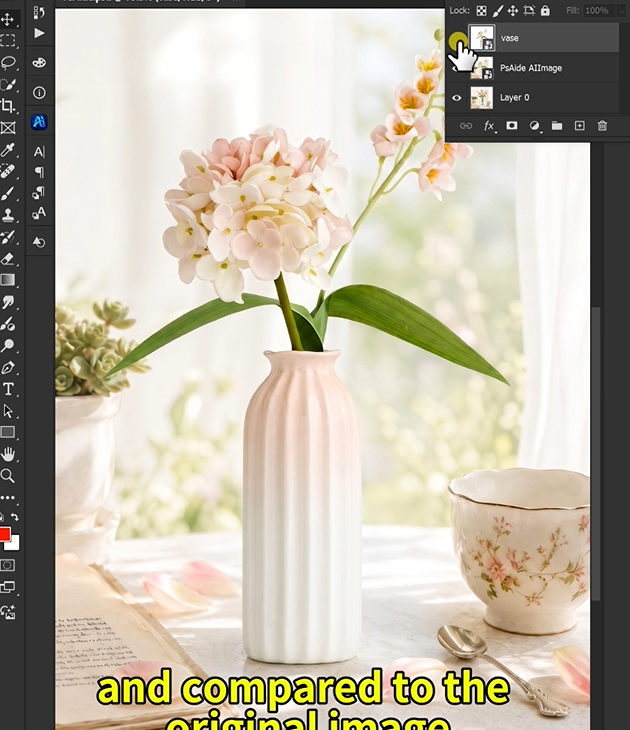
Your hero image now shows the new vase. Same scene. Same lighting. Same composition. Different product.
3、Pro Tips for Perfect Vase Replacement
1. Mark the entire vase. Include the body, neck, and any handles. The AI needs to see the complete object to replace it correctly.
2. Use 2K resolution for product images. 2K preserves fine details like table textures, flowers, and vase reflections while keeping file sizes manageable. 4K is useful for large prints but takes longer to process.
3. Match the general style. A tall vase swaps better with another tall vase. The AI handles different shapes, but similar silhouettes yield faster, cleaner results. If you need a dramatic style change, add “fully replace the style” to your prompt.
4. Trust the shadow generation. One of the most difficult aspects of manual replacement is recreating shadows. The AI analyzes your scene’s existing shadows and generates new ones automatically .
5. For floral arrangements: If your scene includes flowers, add “including the flowers” to your prompt. The AI can replace the vase while preserving or adjusting the floral arrangement.
6. Keep your original layers. Save the PSD with your red marking. You can reuse the same scene photo to swap multiple vase styles in seconds.
7. Batch similar products. Once you have a prompt that works, apply the same logic to your entire product catalog. Nano Banana Pro processes each image consistently.
8. Check the shadow direction. After generation, ensure the new vase’s shadow matches the original scene’s lighting. The AI generally handles this well, but if needed, regenerate with “match shadow angle” added to your prompt.
4、Download link

https://psaide.com/?sfrom=A86R4u
Invitation Code: A86R4u