
Table of Contents
Adding patterns or logos to clothing is widely needed in e-commerce retouching and design. However, doing this with native PS is difficult and time‑consuming for beginners.
Native PS often causes stretched patterns, stiff edges and unnatural fitting. It requires cutout, perspective adjustment, blend modes and edge retouching, taking 30+ minutes per image.
Psaide Nano Banana simplifies the whole process. No complex skills are needed. AI automatically fits patterns to clothing wrinkles and curves for realistic results.
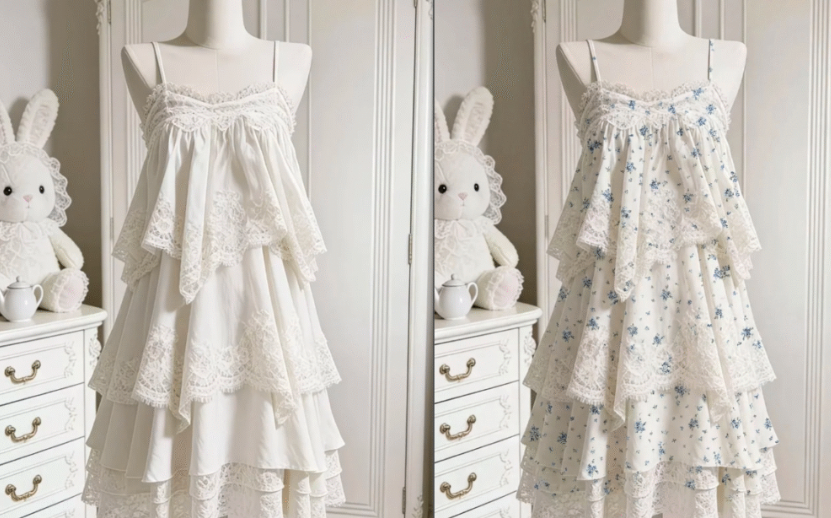
1.How to Add Chartlet to Clothes with PS + Nano Banana
- Prepare materials
- Image 1: Clear clothing photo
- Image 2: High-definition chartlet or pattern
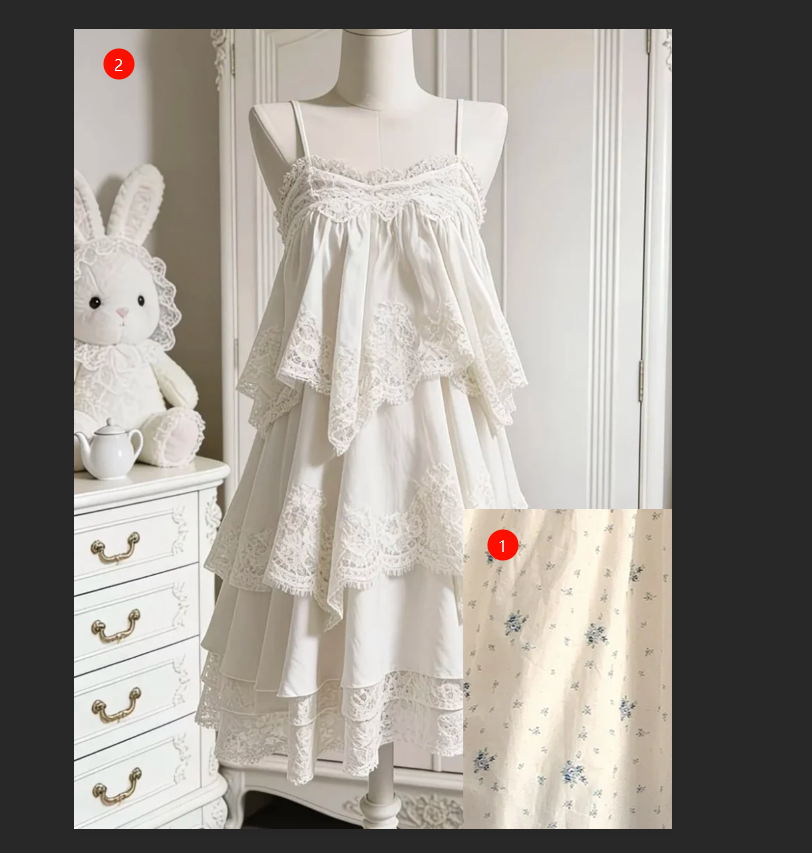
- Open images in PS Import both images and duplicate layers to protect originals.
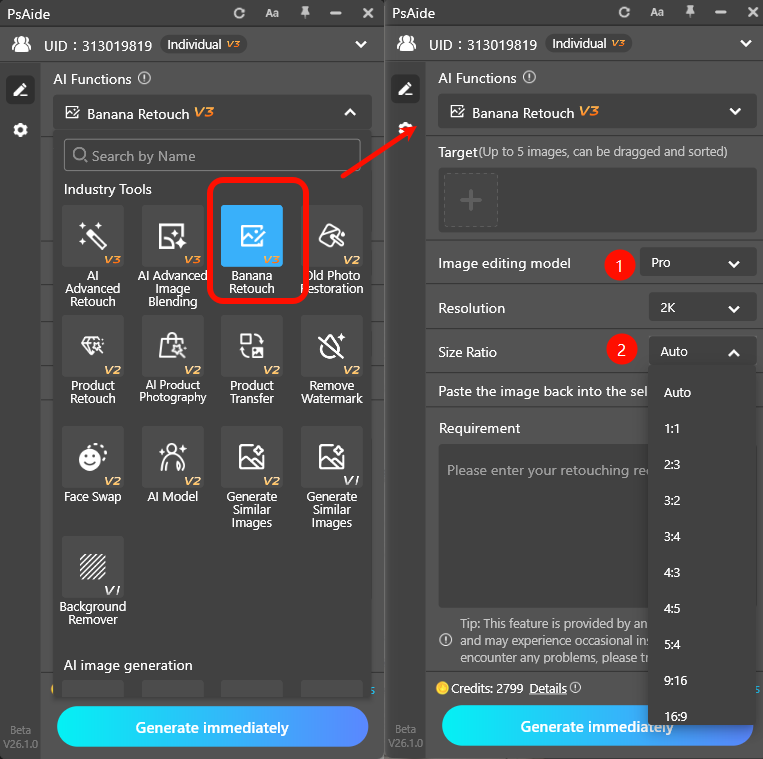
- Launch Psaide plugin Open Psaide and enter Nano Banana retouch function.
- Upload & enter prompt Upload the clothing image and pattern.Use prompt:
Add the chartlet pattern from Image 2 to the clothing in Image 1.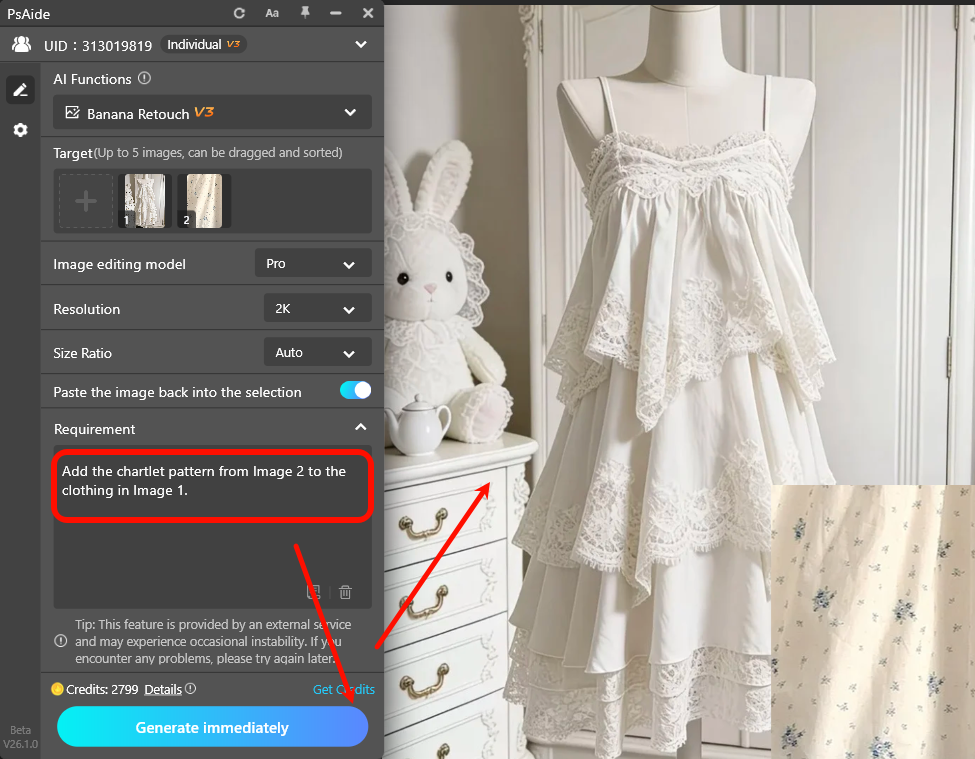
- Click Generate AI automatically:
- Places the pattern accurately
- Fits to fabric wrinkles and curves
- Blends lighting naturallyResult is added as a new layer in PS, ready to save.
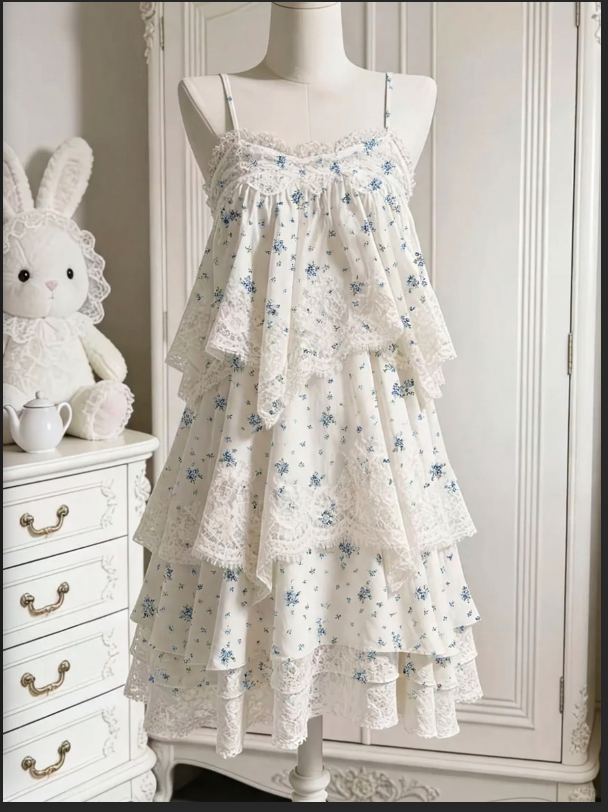
2.Common Issues & Solutions
- Stiff pattern, not matching wrinkles
- Use high-resolution clothing images
- Add to prompt: fit clothing wrinkles, natural blending
- Blurry or low-detail pattern
- Use high-definition chartlet source files
- Keep output ratio consistent with original image
With PS and Psaide Nano Banana, anyone can add realistic patterns to clothing quickly and professionally.
Download link

https://psaide.com/?sfrom=A86R4u
Invitation Code: A86R4u

