
Table of Contents
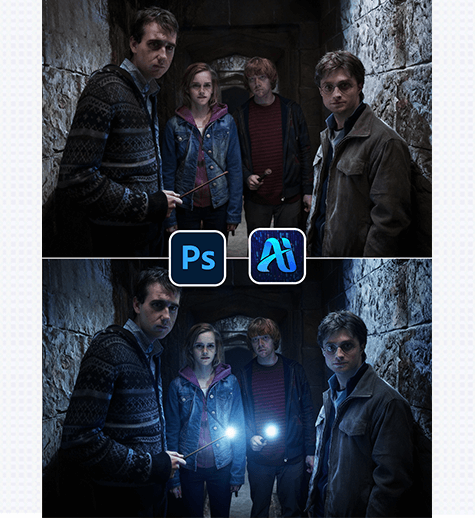
Nano Banana transforms dim, flat photos into atmospheric scenes by adding natural light effects—like the “wand glow” in the Harry Potter-themed demo below. Here’s how to elevate your dark images:
1. Pro Tip for Natural Light Integration
Before editing: Duplicate your original dark image layer (Ctrl+J) to preserve the source. Identify key light sources and mark their positions with a small brush—this helps Nano Banana anchor the light effect to the right area, avoiding unnatural glows.
2. Why Nano Banana Shines for Light Effect Edits
① Matches Scene Tone Perfectly:
Unlike basic “glow filters,” Nano Banana analyzes the original image’s dark, moody ambiance to generate light that fits—warm wand glows that cast soft, realistic shadows on the characters’ clothes.
② Preserves Detail While Adding Glow:
Generic light tools often wash out image details, but Nano Banana keeps the characters’ clothing textures intact while layering natural-looking light.
3. 3-Step Workflow: Nano Banana + Photoshop
① Import the Dark Image: Open your dim photo in Photoshop, then launch the Nano Banana plugin via the Plugins menu.

② Define the Light Source & Prompt: Use the plugin’s selection tool to mark the wand tips (or target light area), then enter a prompt:
Theblue area in theimageserves as a strong light source, generating light and shadow effects based on the light source’sposition.Theilluminated surfaces and shadows exhibit strongcontrast.
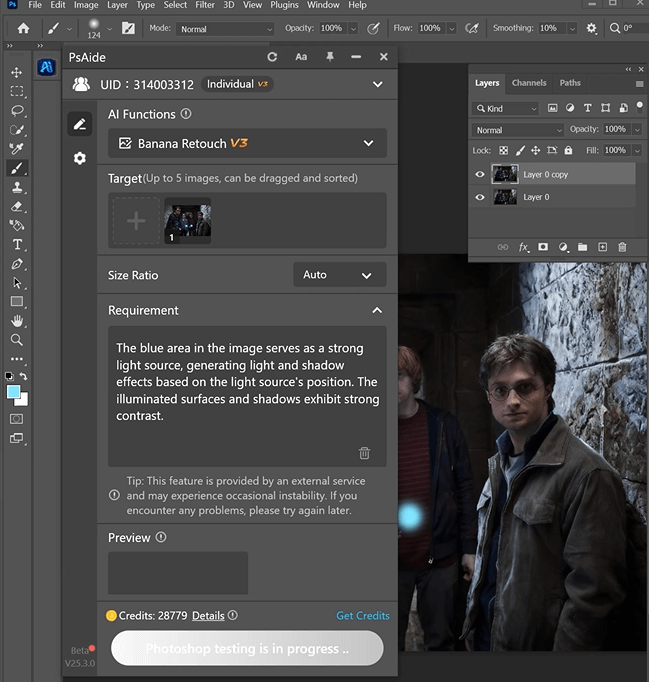
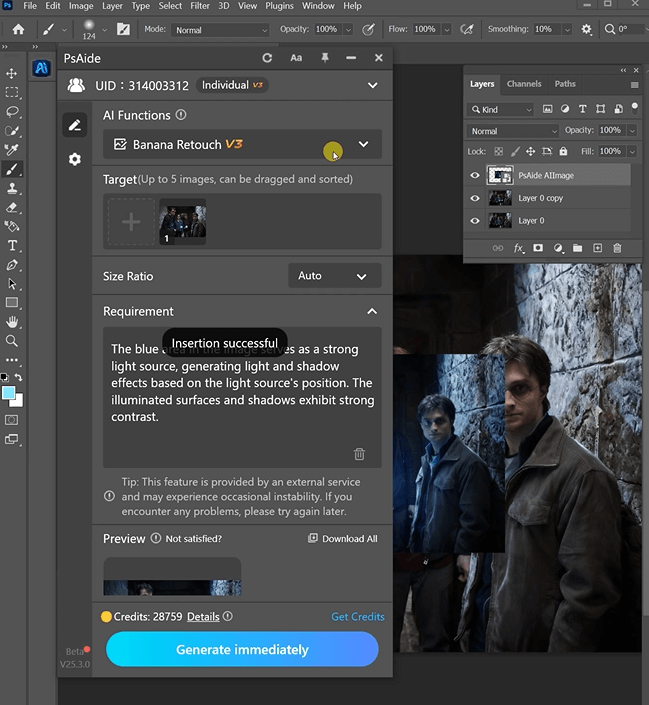
③ Generate & Refine: Click “Generate” in Nano Banana.
4. Tool Access & Download
Nano Banana is a game-changer for adding atmospheric light to dark photos, ideal for fan art, film edits, or moody visuals.

Download Link: https://psaide.com/?sfrom=ZfhxUK
Invitation Code: ZfhxUK

