
Table of Contents
The rapid development of AI Advanced Retouch technology, paired with a professional PS plugin, offers an efficient and high-quality way to address the challenges of line art coloring.
For illustrators, designers, and cultural product developers, line art coloring directly affects visual quality and commercial value. Traditional workflows rely on time-consuming manual color adjustment or basic tools that often cause color overflow, stiff fills, and inconsistent styles. With advances in AI Advanced Retouch, combined with a professional PS plugin, line art coloring can now be completed more efficiently and with higher quality.
1. PsAide Plugin Easily Enables Precise Line Art Coloring
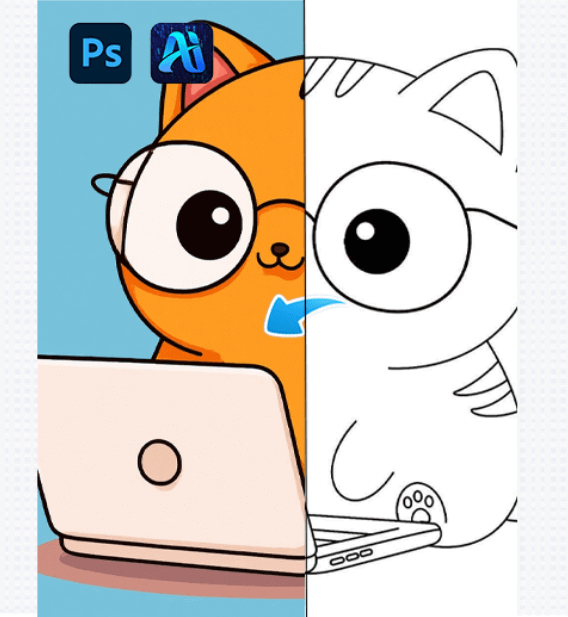
(1)AI Advanced Retouch Feature: Line Art Coloring Example Display
The actual application effects far exceed expectations. As shown in the example, it can accurately apply rich and harmonious colors to simple line sketches — not only fully preserving structural details such as contour boundaries and line thickness changes but also perfectly restoring the color texture, saturation, and highlight transitions of different materials. The color filling adheres closely to the line art boundaries with no overflow, and the lighting transitions are natural and transparent, as if the coloring were painstakingly done by a designer. There are no visible traces of AI retouching.
(2)Advantages of the Line Art Coloring Function
The core advantages of the line art coloring function precisely match the creative needs of the design industry and fully leverage the technical strengths of AI Advanced Retouch:
①Greatly reduces time and effort costs
Line art coloring no longer requires designers to color region by region manually. Using AI Advanced Retouch alone can complete precise coloring, eliminating time-consuming steps such as color mixing, repeated corrections, and detail fixes, shortening work that originally took hours to just minutes and significantly improving creative efficiency.
②Extremely high detail restoration
AI Advanced Retouch can accurately recognize the contour boundaries and structural layers of line art. Whether it is complex patterned line art, detailed character hair line art, or irregular scene line art, the coloring process can precisely fill colors, avoiding color overflow and block disconnections, and intelligently distributing highlights and shadows according to line art structure to make the colors more three-dimensional.
(3)Operation Steps
This PS plugin that supports line art coloring, based on AI Advanced Retouch, simplifies the operation flow. The threshold is very low; only three steps are needed to complete the task:
①Import the line art image to be colored into Photoshop and use the selection tool to select the line art area to be colored.

②Enter the prompt, clearly stating the specific requirements for coloring the line art, such as “color the cute kitten in 2D cartoon illustration style”
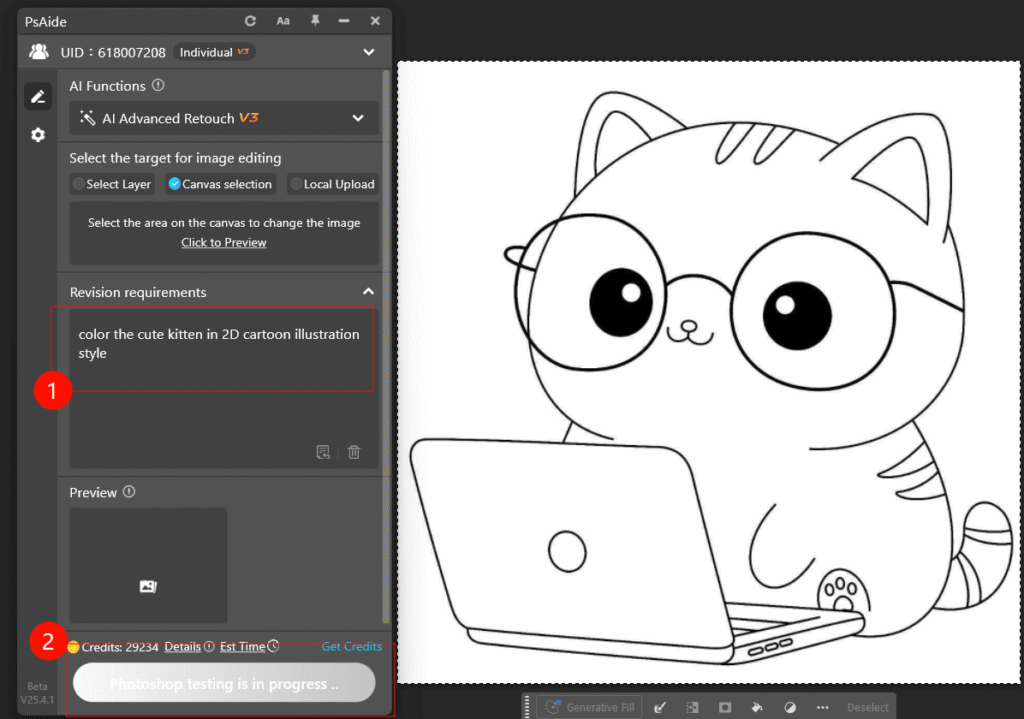
③Click the generate button and wait a few seconds to get a color-accurate, style-coordinated line art coloring result.
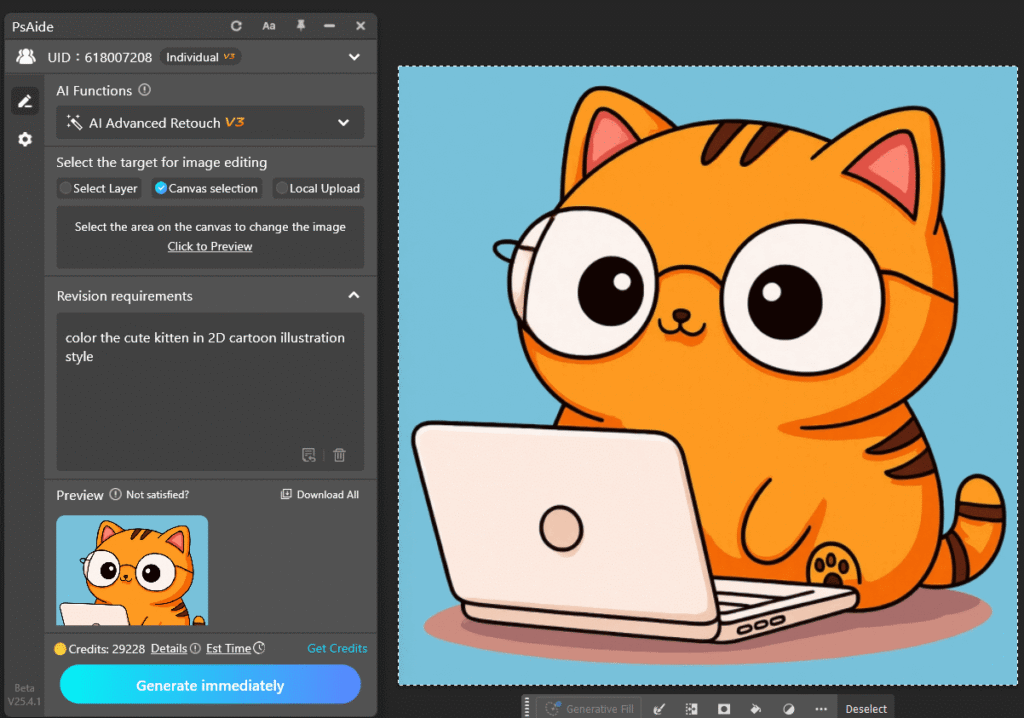
With this tool, illustrators and design professionals no longer need to worry about the tedious process of coloring line art. By relying on the efficiency and precision of AI Advanced Retouch, they can complete design creation and commercial project delivery faster and better, helping individuals and brands enhance design competitiveness.
2. Example Prompt for Line Art Coloring
Prompt:
color the cute kitten in 2D cartoon illustration style

Download Link: https://psaide.com/?sfrom=ZfhxUK
Invitation Code: ZfhxUK

