
Table of Contents
With the rapid development of AI Advanced Retouch, removing unwanted passers-by from photos is no longer a time-consuming or technically demanding task.
For travel bloggers, photographers, e-commerce sellers, and visual content creators, a clean and distraction-free image is essential for delivering strong visual impact. However, real-world shooting conditions often make it difficult to avoid crowds. Waiting for the perfect moment or manually retouching photos in Photoshop can be inefficient and frustrating.
Thanks to PsAide, powered by advanced AI retouching technology, you can now remove passers-by quickly and seamlessly—without compromising image quality.
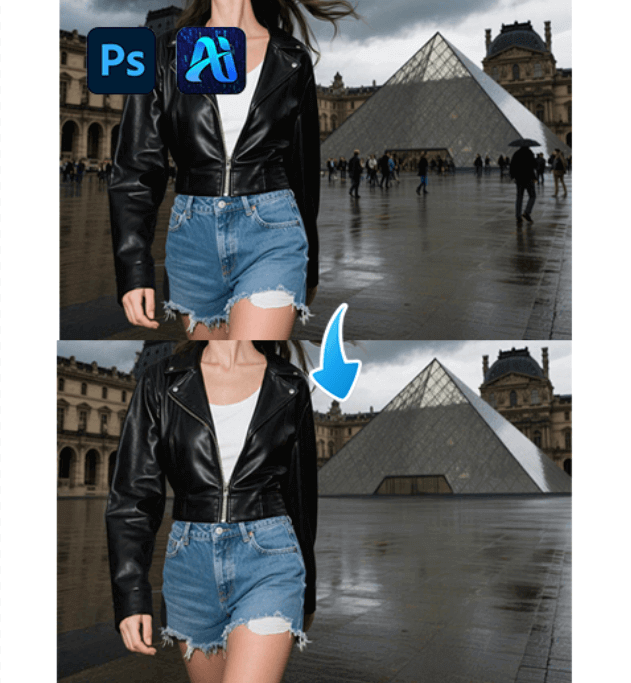
1.Why Choose PsAide for AI Advanced Retouch?
Traditional manual retouching methods require precise selection, cloning, and blending, especially when dealing with complex backgrounds such as pavements, architecture, or natural scenery. Even experienced designers may struggle to achieve natural results.
PsAide’s AI Advanced Retouch technology intelligently analyzes the image structure, lighting, and texture to deliver professional-grade results with minimal effort.
2.Key Advantages of PsAide AI Advanced Retouch
(1)Time-Saving Workflow
No need to wait for empty scenes or spend hours retouching. PsAide removes passers-by in seconds, dramatically improving productivity.
(2)Accurate Background Reconstruction
The AI precisely restores hidden details such as floor textures, walls, foliage, and shadows, ensuring visual continuity.
(3)Natural Lighting & Color Matching
PsAide automatically adjusts brightness, contrast, and color tones to maintain a cohesive and realistic look after retouching.
(4)Versatile Use Cases
Ideal for travel photography, product lifestyle shots, real estate images, promotional visuals, and everyday photo enhancement.
3.How to Remove Passers-By in Photoshop with PsAide (3 Easy Steps)
Even beginners can achieve professional results using PsAide’s AI Advanced Retouch. Just follow these three simple steps:
(1) Open Your Image in Photoshop
Import the photo containing unwanted passers-by into Photoshop as usual.
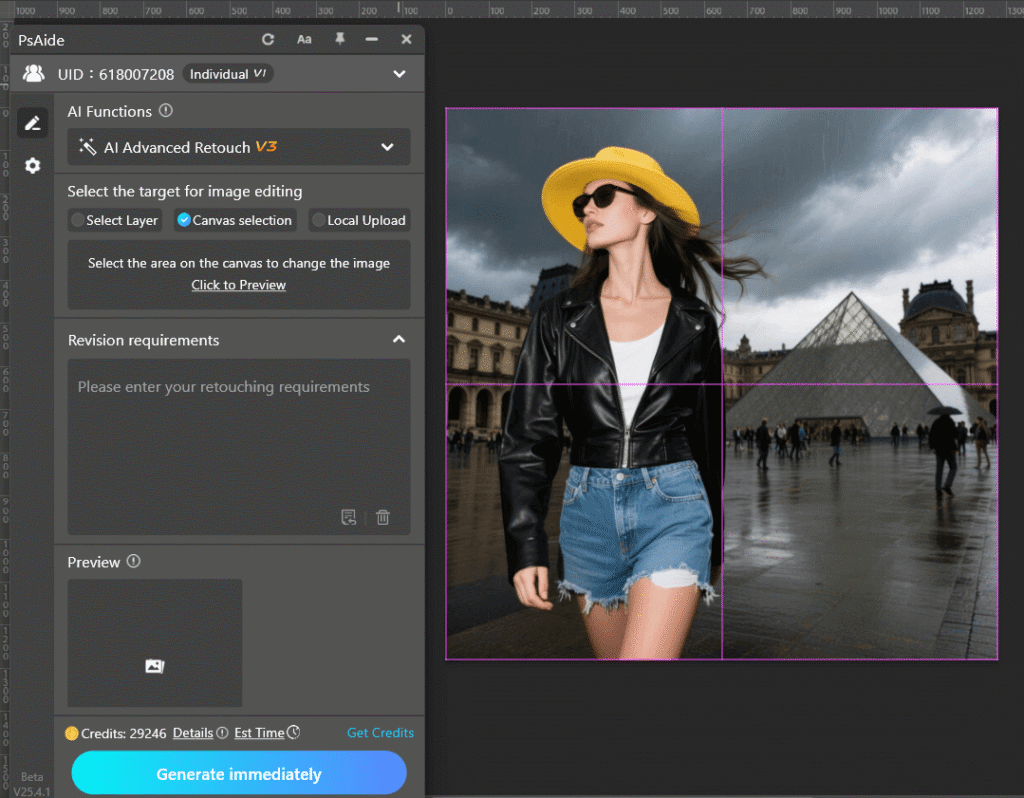
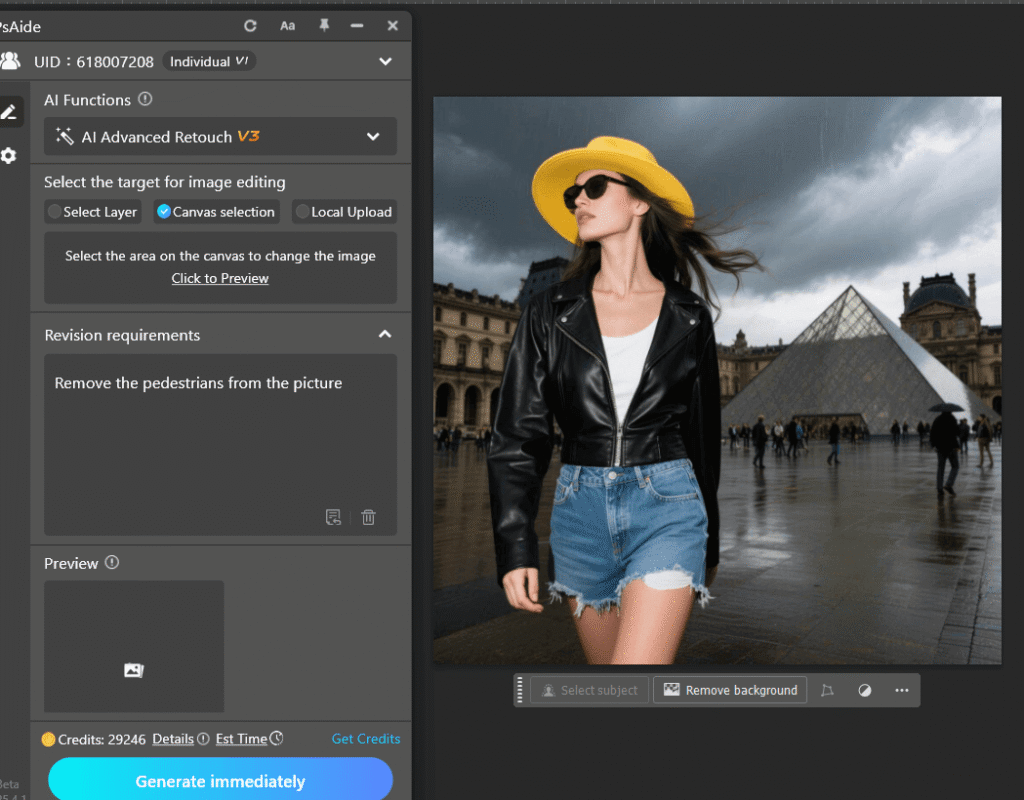
(2) Enter a Clear Prompt
Open the PsAide plugin and enter a simple instruction, such as:
Remove the pedestrians from the picture
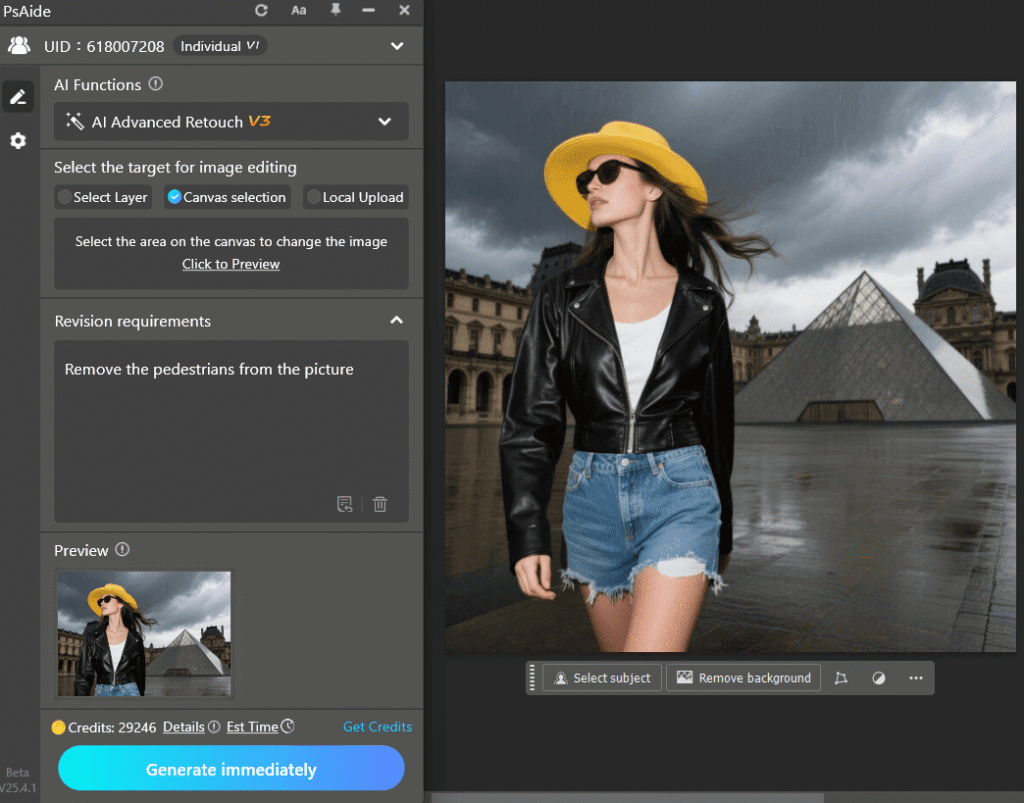
(3) Generate and Apply
Click Generate immediately, wait a few seconds, and PsAide will automatically produce a clean, retouched image with passers-by seamlessly removed.
4.Enhance Your Creative Workflow with PsAide
Whether you are a content creator, photographer, designer, or online seller, PsAide’s AI Advanced Retouch helps you focus on creativity instead of tedious manual edits. Clean visuals lead to stronger storytelling, better engagement, and higher conversion rates.
Start using PsAide today and experience how AI Advanced Retouch can transform your Photoshop workflow—faster, smarter, and more professional than ever.

Download Link: https://psaide.com/?sfrom=ZfhxUK
Invitation Code: ZfhxUK

