Table of Contents
For Amazon sellers and e-commerce designers, Amazon white background images are a mandatory platform requirement, and they are also key to affecting weight, click-through rate and listing approval rate. A standardized, clean, subject-focused pure white background image can directly improve product exposure, but creating white background images with native PS is really slow and tiring.
Today, we share a high-efficiency PS retouching plugin — Psaide. With its built-in Nano Banana retouching function, you can generate Amazon-compliant white background image with one click. It automatically cuts out images, centers subjects, and generates pure white backgrounds. No manual edge refinement or mask adjustment is needed; beginners can quickly create professional images and greatly improve listing efficiency.
1.Pain Points of Creating Amazon White Background Images with Native PS
- Slow and time-consuming cutout: For products with complex shapes, reflective surfaces and small structures, cutout with Pen Tool or Quick Selection Tool is very slow, and the efficiency of batch image creation is extremely low.
- Unclean and non-standard edges: It is easy to have white edges, black edges, jagged edges and defects, which do not meet Amazon’s strict requirements for white background images.
- Inconsistent background color: Manual background replacement often results in grayish white, dark white and color difference, which is not the pure white background required by the platform (RGB:255,255,255).
- High threshold for beginners: It requires knowledge of cutout, mask, channel and edge adjustment. It is difficult for zero-based users to create qualified commercial white background images.
Psaide plugin truly achieves:
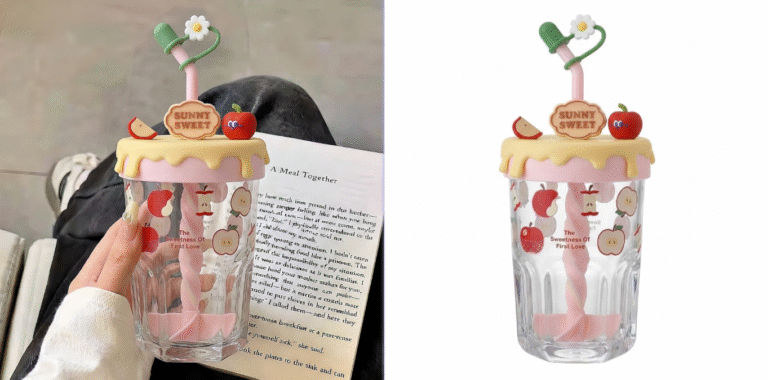
Upload product image → Enter prompt → One-click generate standard Amazon white background image. It automatically and accurately cuts out images, centers subjects, and generates pure white background with RGB:FFFFFF, fully meeting Amazon’s platform specifications.
2.Steps to Generate Amazon White Background Images with PS + Psaide (One-Click)
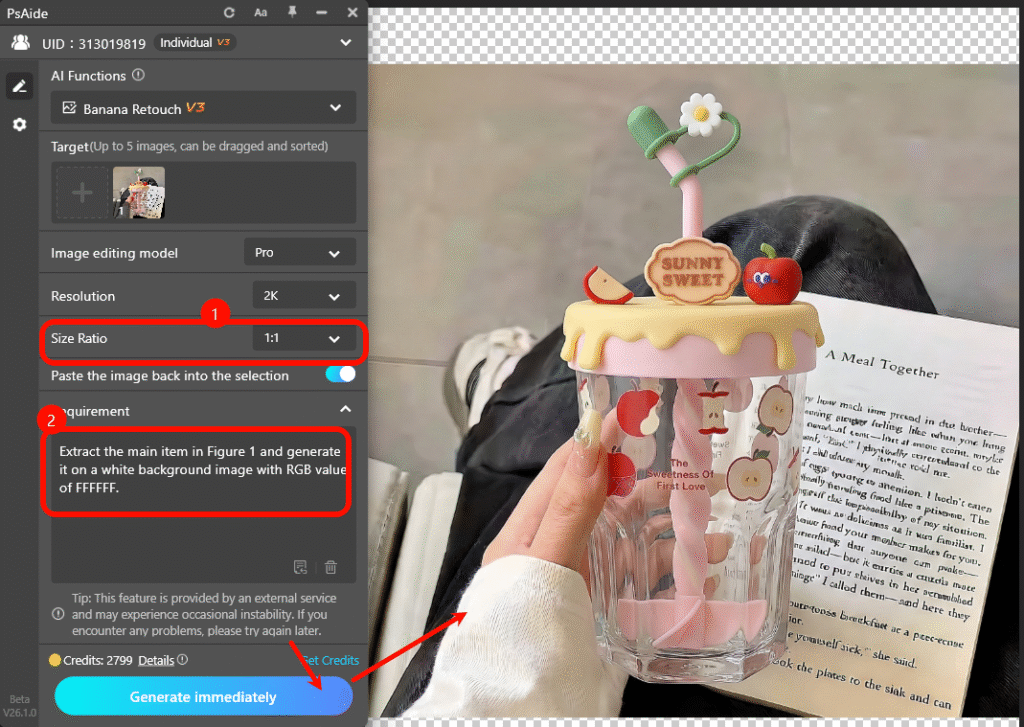
- Open and upload the product image: Open the product image that needs to be made into a white background image in PS. Open the Psaide plugin and find the Nano Banana retouching function. If the product structure is simple, you can use the normal mode directly; if the product has many occlusions, complex structure and strong reflection, it is recommended to select the Pro version for more accurate cutout.

- Set the generation ratio: The common ratio for Amazon white background images is 1:1.
- Enter the prompt (copy and use directly): Replace “xx item” in the prompt with your product: Extract the xx item in Figure 1 and generate it on a white background image. If you need to strictly specify the standard pure white background for Amazon, you can write: Extract the main item in Figure 1 and generate it on a white background image with RGB value of FFFFFF.
- Click generate to get the image with one click: AI will automatically: Accurately identify and cut out the product subject; Remove redundant background; Generate standard pure white background with RGB:FFFFFF; Automatically center and arrange the composition regularly. After generation, save it directly, and it will be a regular white background image that meets Amazon’s requirements.

3.Common Issues & Solutions for Psaide White Background Image Generation
Issue 3: The product is not centered or partially cut off; Cause: The composition of the original image is too biased, or the prompt does not emphasize completeness. Solution: Add a sentence to the prompt: The product is fully displayed with centered composition; Try to use the original image with the subject centered and blank around.ional.
Issue 1: The white background is not pure white, slightly gray or discolored; Cause: The prompt does not specify a pure white background. Solution: Clearly write in the prompt: Generate on a white background image with RGB value of FFFFFF.
Issue 2: The product edges are incomplete, rough and unclean; Cause: The product is too complex, and the normal mode has insufficient recognition. Solution: Switch to Pro version for generation; Ensure the original image is clear and the light is uniform, not overly blurred.
Download link

https://psaide.com/?sfrom=A86R4u
Invitation Code: A86R4u