
Table of Contents
Low image quality is a common issue in image editing.
Old photos, compressed images, and low-resolution assets often lack the clarity required for design, e-commerce, or content creation.
HD image restoration is not simply about sharpening an image. Instead, it focuses on:
Improving overall clarity while maintaining a natural and usable appearance.
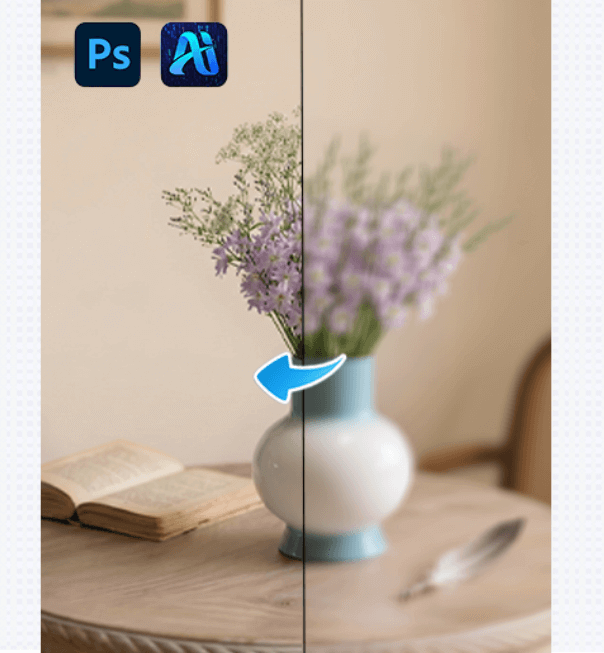
This tutorial introduces practical HD restoration methods in Photoshop and explains when it makes sense to use additional tools to improve efficiency.
1.Native Photoshop Methods for HD Image Restoration
(1) Enhancing Clarity with Camera Raw Filter
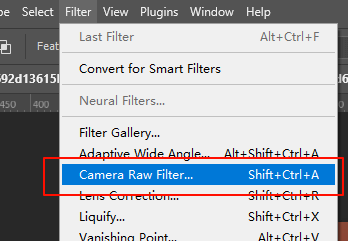
In Photoshop, the Camera Raw Filter allows you to adjust:
①Clarity
②Texture
③Sharpening
This method works best for:
👉 Slightly blurry images with decent original quality
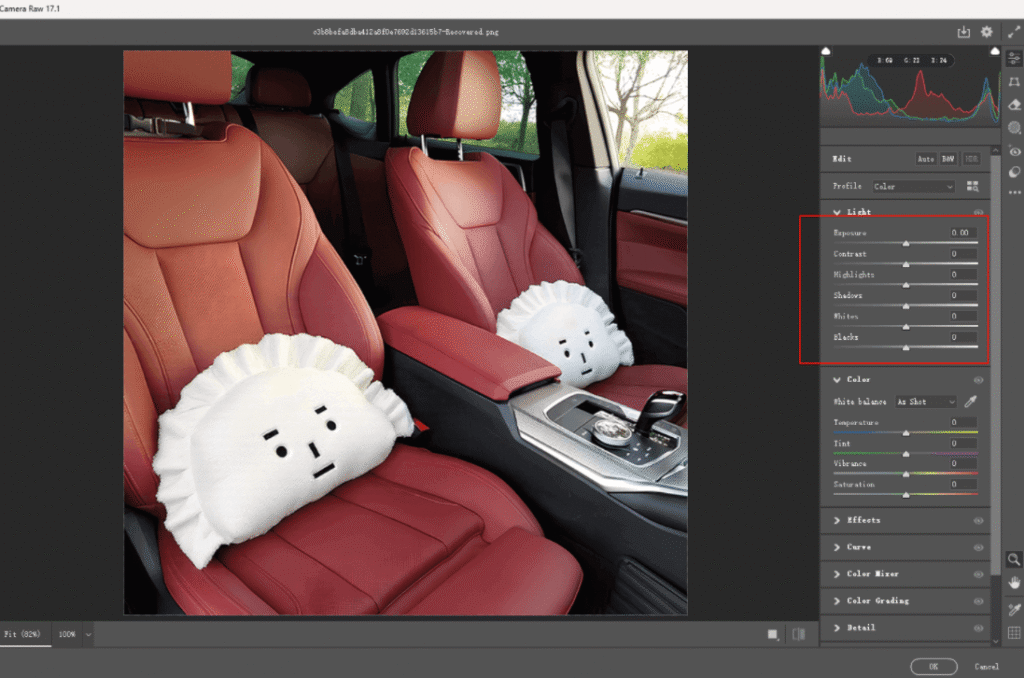
Pros: High level of control
Cons: Limited effectiveness on severely blurry images
(2) High Pass Sharpening Technique
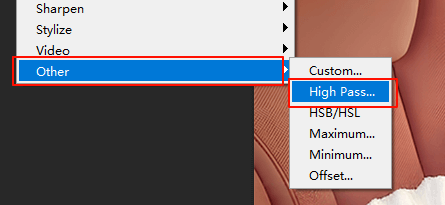
By duplicating the layer, applying High Pass, and changing the blending mode, you can enhance edge detail.
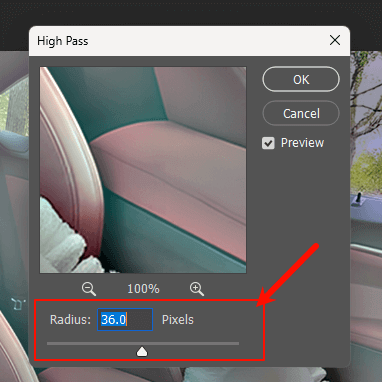
①Best for:
Images with clear edges and structure
②Note:
Overuse can lead to unnatural results
2.Why Traditional HD Restoration Can Be Inefficient
When dealing with multiple images, traditional methods often face challenges:
①Repetitive parameter adjustments
②Inconsistent results across images
③Time-consuming workflows
As a result, many users look for ways to speed up HD restoration without sacrificing quality.
3.Improving Efficiency with banana retouch
For situations where HD restoration needs to be done quickly, the banana retouch feature in the psaide plugin can help streamline the process.
Powered by Nano Banana Pro, banana retouch is not designed to replace Photoshop techniques. Instead, its role is to:
Reduce repetitive steps and improve efficiency in everyday HD restoration tasks.
4.Basic Steps to Restore Images with banana retouch
(1)Open the psaide Plugin
Launch the psaide plugin inside Photoshop.
(2)Import the Image
You can use:
①Canvas selection
②Layer input
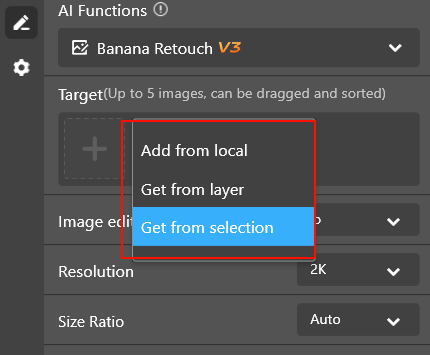
- Enter the Prompt and Generate
Enter the prompt:
HD restoration
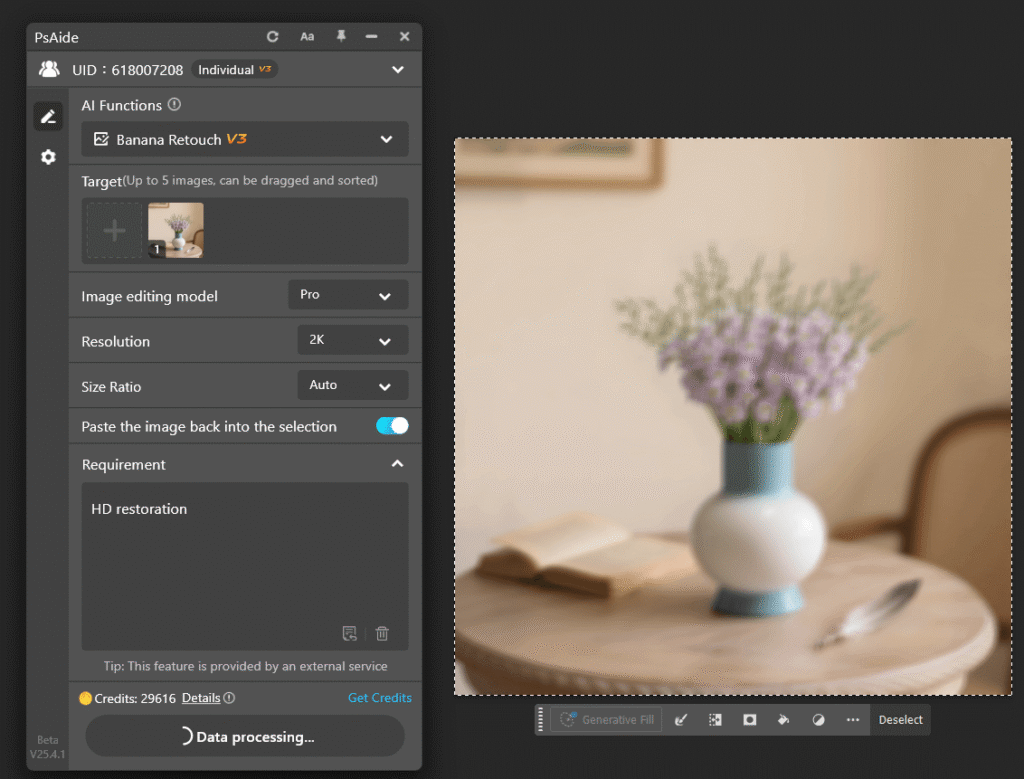
Then click “Generate Immediately” to generate the restored image.
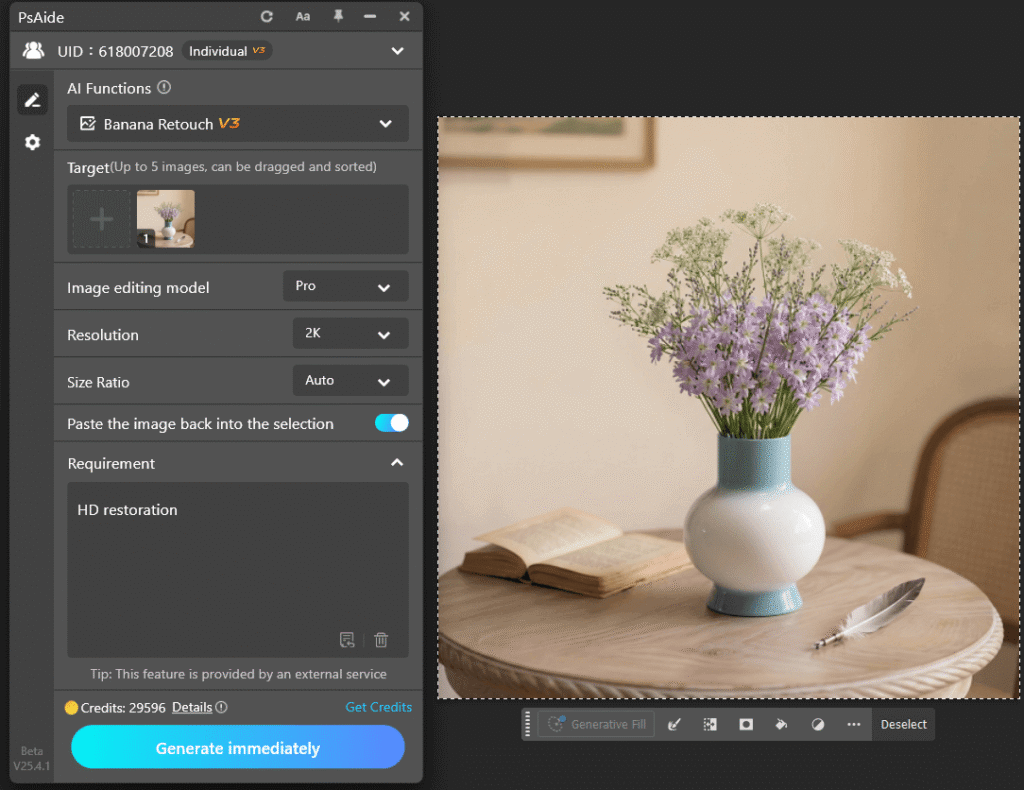
5.Choosing the Right HD Restoration Method
· Light blur / small number of images 👉 Native Photoshop methods are sufficient
· Moderate blur / large batches / limited time 👉 banana retouch is more efficient
Combining both approaches often produces the best results.
6.Conclusion
The key to successful HD image restoration is not relying on a single tool, but choosing the right method for each situation.
Photoshop’s native tools remain essential, while banana retouch serves as an efficiency-focused option for high-frequency restoration tasks.

For users looking to restore image clarity more efficiently within Photoshop, this combined workflow offers a practical and balanced solution.
Download Link: https://psaide.com/?sfrom=ZfhxUK
Invitation Code: ZfhxUK

