
Table of Contents
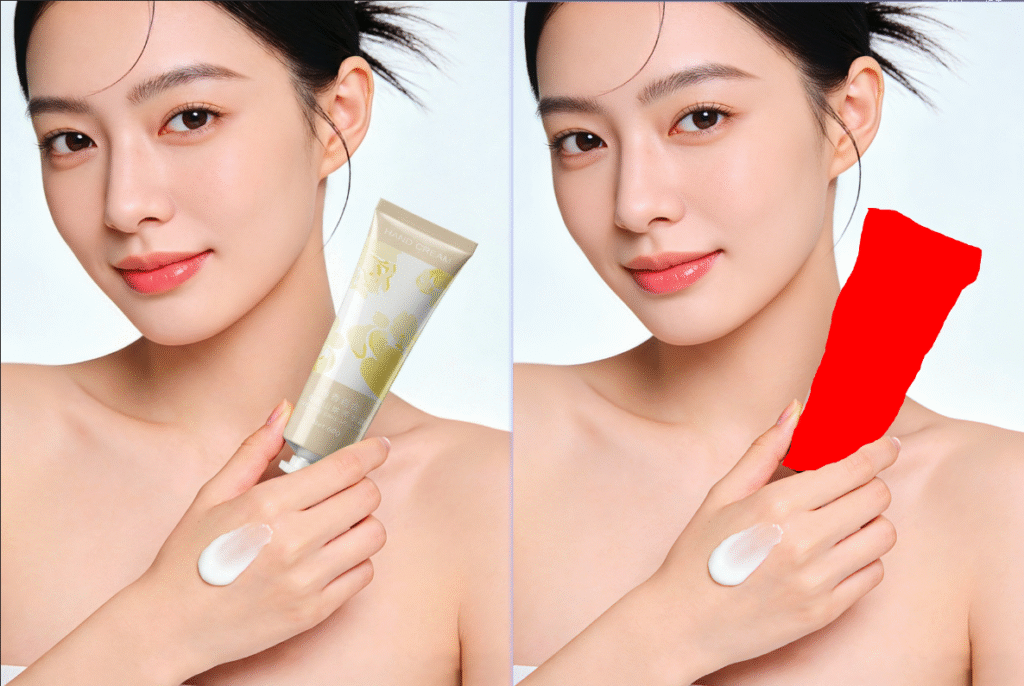
Overlaying and blending two images is a high-frequency demand in daily photo retouching and e-commerce design—such as overlaying a hand cream image (Figure 1) onto a model holding scene (Figure 2) to make the hand cream appear naturally in the model’s hand. The core is to achieve precise positioning, complete details and unified light and shadow. However, traditional PS methods for overlay blending involve tedious steps and a low fault tolerance rate; beginners are prone to stiff blending, misalignment and detail loss. Below are 2 traditional PS overlay blending methods, followed by the more efficient Psaide Nano Banana Pro solution to easily solve the problem of overlaying and blending two images.
Method 1: PS Move Tool + Layer Mask – For Simple Scenes
Ideal for scenes with simple backgrounds and low blending requirements for two images. The operation is basic but requires repeated fine-tuning and is time-consuming.
Steps:
- Open PS, import the two images separately—use Figure 2 (model holding scene) as the background and Figure 1 (hand cream) as the image to blend. Press Ctrl+J to duplicate both background layers to protect the original images from accidental edits.
- Select the Move Tool (shortcut V), drag the hand cream from Figure 1 into the Figure 2 canvas, and press Ctrl+T to adjust its size and angle to fit the model’s holding position, fine-tuning repeatedly for precise placement.
- Select the hand cream layer of Figure 1, add a black layer mask, and gently brush along the hand cream’s edges with a soft white brush (10%-20% hardness) to hide excess parts, making the hand cream initially “embed” in the model’s hand.
- Go to Image > Adjustments > Curves and Color Balance to fine-tune the light, shadow and hue of the hand cream in Figure 1 to match the scene light of Figure 2.
- Lightly brush the hand cream’s edges with the Blur Tool to soften stiff traces, and use the Dodge/Burn Tool to fine-tune the contact area between the hand cream and the hand to finish the overlay blending.Pain Points: Difficult to control positioning accuracy, uneven edge blending, time-consuming light and shadow matching, and an unnatural look for beginners.
Method 2: PS Pen Tool Cutout + Color Matching – For High-Precision Scenes
Suitable for scenes with high blending requirements and complex edges. The operation is tedious but offers controllable blending quality, only for users with basic PS skills.
Steps:
- Open PS, import the two material images and duplicate their layers.
- Select the Pen Tool (shortcut P), zoom in on the hand cream in Figure 1 to 200%, click along its edge to draw a closed path, and adjust anchor points with the Alt key for a precise, error-free outline.
- Right-click the path, select Make Selection, set the feather radius to 0.5 pixels, copy the selection and drag it into Figure 2, then press Ctrl+T to adjust its size and angle to fit the model’s holding position precisely.
- Select the hand cream layer, go to Image > Adjustments > Match Color, select Figure 2 as the reference image in the dialog box, and adjust brightness and color intensity to unify the hand cream’s hue completely with the Figure 2 scene.
- Add a layer mask to refine the connection between the hand cream and the hand, simulate the hand occlusion effect, and use the Clone Stamp Tool to supplement surrounding details to complete the overlay blending.Pain Points: Tedious steps that take 20-25 minutes for a single blend; high threshold for Pen Tool cutout, making precise outlining difficult for beginners; easy to make mistakes in position fine-tuning.
Method 3: Psaide Nano Banana Pro – Top Choice for Image Overlay and Blending
Compared with traditional PS overlay blending methods, Psaide’s built-in Nano Banana Pro leverages AI intelligent recognition and light-shadow fusion algorithms, perfectly avoiding pain points like misalignment and stiff edges. No complex cutout or color grading is needed—follow the 3 strict steps to achieve precise overlay and natural blending of two images.
Step 1: Mark the Blending Area in Figure 2 in PS for AI Positioning
Launch PS, click File > Open to import the two images separately—Figure 2 (model holding scene, as background) and Figure 1 (hand cream, to blend). Press Ctrl+J to duplicate both background layers. Select the Lasso Tool (shortcut L) on the left of PS, precisely outline the hand cream blending position (the model’s holding area) on Figure 2, following the holding contour closely. After selection, press ALT+DEL to fill the area with red to assist AI in precise positioning of the blending area.
Step 2: Launch Nano Banana Pro and Set Parameters & Selection
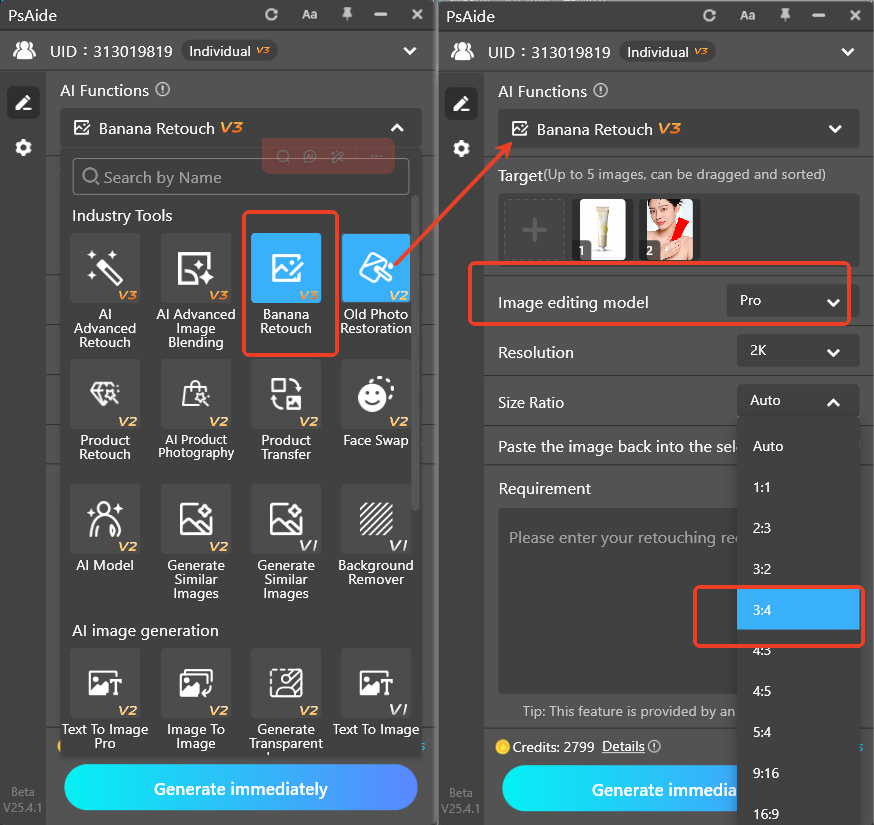
Locate the installed Psaide plugin panel in PS (compatible with PS CC2015+, Windows & Mac), expand the function list, click Nano Banana, and select the Pro Version (improves blending precision, retains hand cream details, optimizes light and shadow connection). In the generation ratio, select the 3:4 ratio consistent with Figure 2 to ensure the image ratio remains unchanged after blending. Then select the entire Figure 2 (background image) and do not cancel the selection during generation, so the blended hand cream will be pasted back to the original position in Figure 2 to avoid misalignment.
Step 3: Set the Prompt, One-Click Generate and Preview the Blending Effect
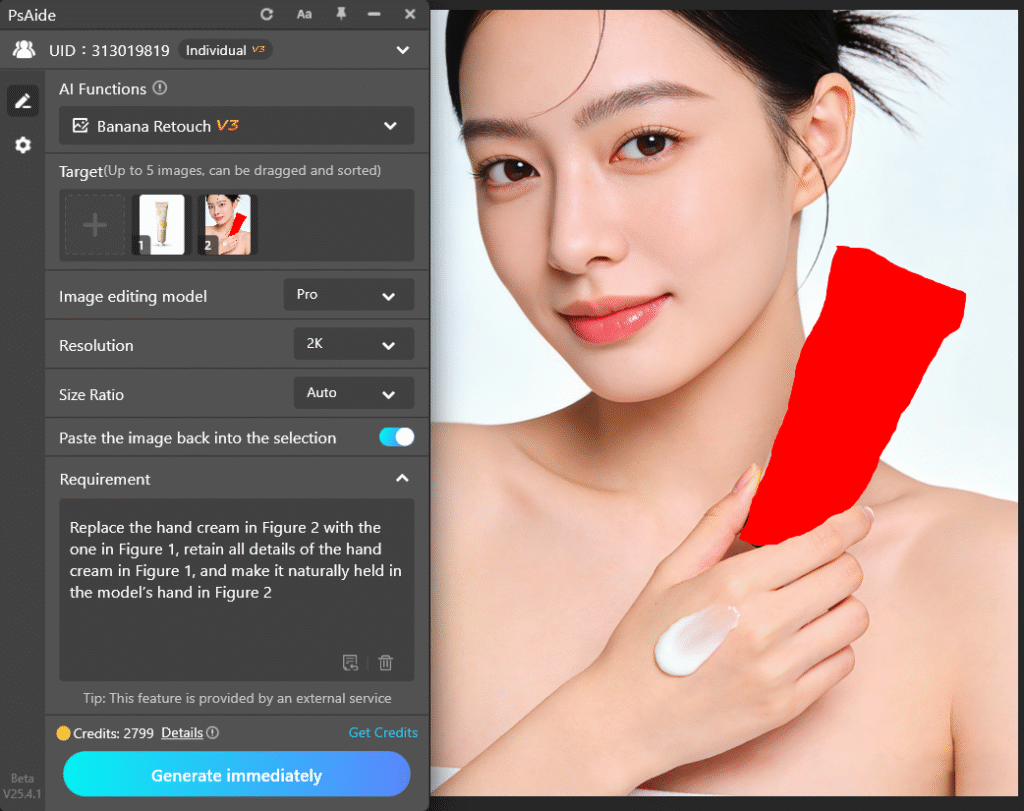
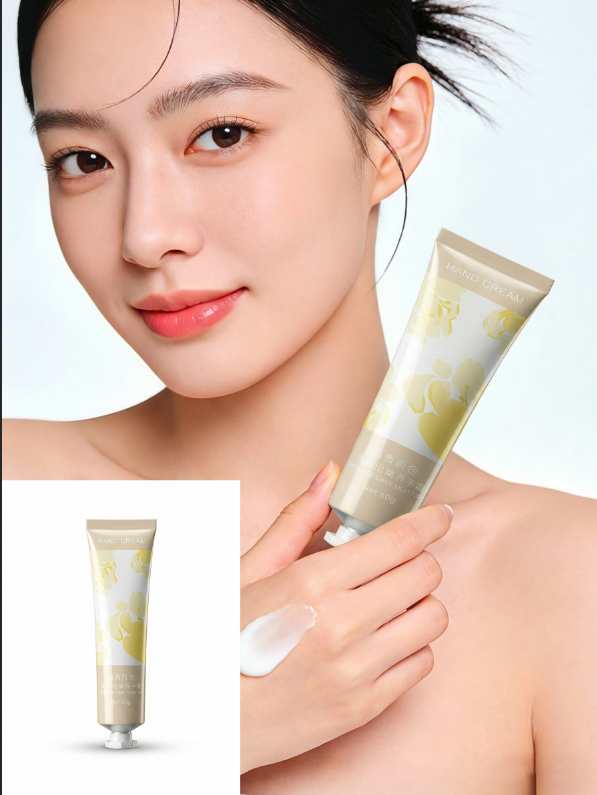
Enter the precise prompt in the plugin’s text box: “Replace the hand cream in Figure 2 with the one in Figure 1, retain all details of the hand cream in Figure 1, and make it naturally held in the model’s hand in Figure 2”. Clarify the overlay blending requirements to ensure the AI retains Figure 1’s hand cream details and fits the model’s holding position precisely. Confirm the parameters, selection and prompt are correct, then click the Generate button. The AI completes processing in 15-20 seconds, and PS automatically creates a new processed layer after generation. Preview the effect: the hand cream is precisely overlaid in the model’s hand with complete details, the light and shadow match the Figure 2 scene perfectly, the edges connect naturally with no compositing traces, and it is ready for direct use with no further PS fine-tuning.
Core Comparison of the 3 Methods
- PS Move Tool + Layer Mask: Basic operation but poor positioning accuracy and stiff blending
- PS Pen Tool Cutout + Color Matching: High precision but high threshold and tedious steps, not suitable for beginners
- Nano Banana Pro: One-click operation, ultra-efficient, AI automatic positioning and precise blending, detail retention and zero learning curve. It solves all core pain points of traditional PS overlay blending and is suitable for all image compositing scenarios.
Struggling with “how to overlay and blend two images in PS” and tired of the tedious operations and unnatural results of traditional PS methods? Try PS paired with Psaide’s Nano Banana Pro! No professional retouching skills are needed—follow the 3 strict steps to achieve seamless overlay and blending of two images, balancing efficiency and professionalism. Beginners can master it quickly and easily handle all blending needs such as e-commerce design and daily photo retouching.
Download link
https://psaide.com/?sfrom=A86R4u
Invitation Code: A86R4u

