
Table of Contents
Blending two images smoothly is essential for designers and e-commerce retouchers. Native Ps often produces hard edges, mismatched lighting and inconsistent colors, which is time-consuming and difficult for beginners.
Psaide Nano Banana uses AI migration to automatically match lighting, color and edges, enabling truly seamless blending with one click.
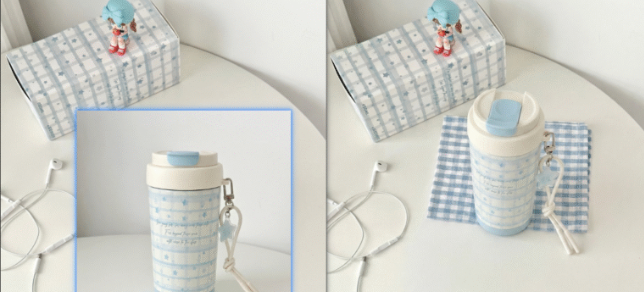
1、Pain Points of Native PS Blending
- Hard edges and obvious stitching
- Unmatched lighting and color tones
- Complex, low-efficiency workflow
- High skill barrier for natural results
2、2 Traditional PS Blending Methods
Method 1: Layer Mask + Soft Brush (Basic)
- Place the foreground image over the background.
- Add a layer mask.
- Use a low-opacity soft black brush to blend edges.
- Fix over‑erasing with a white brush.
Method 2: Feather + Match Color (Advanced)
- Select and feather the edge (2–5px).
- Use Image > Adjustments > Match Color.
- Add a mask and refine transitions.
3、AI Blending with PS + Nano Banana (Fastest)
- Red Marking Open the image in Ps, select the object area and fill it with red.
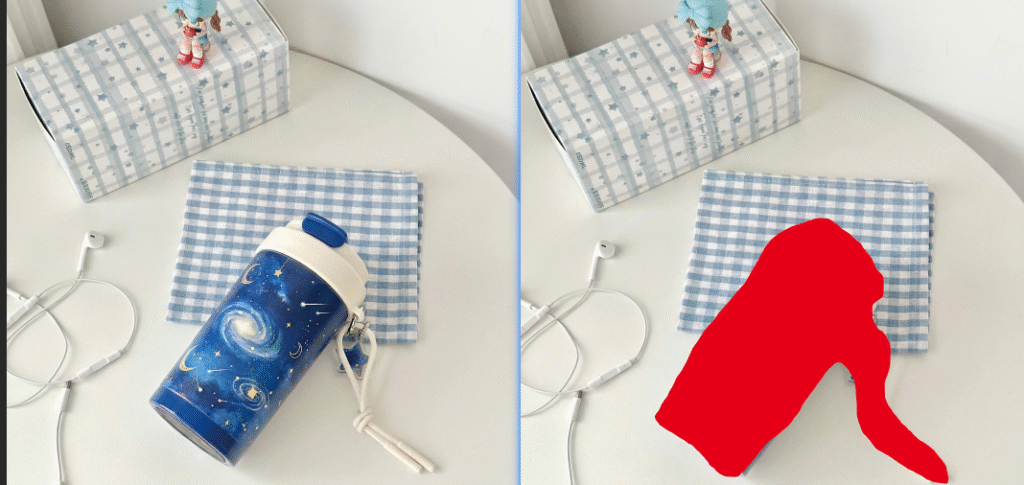
- Plugin Setup Launch Psaide, open Nano Banana Pro, and use the original image ratio.
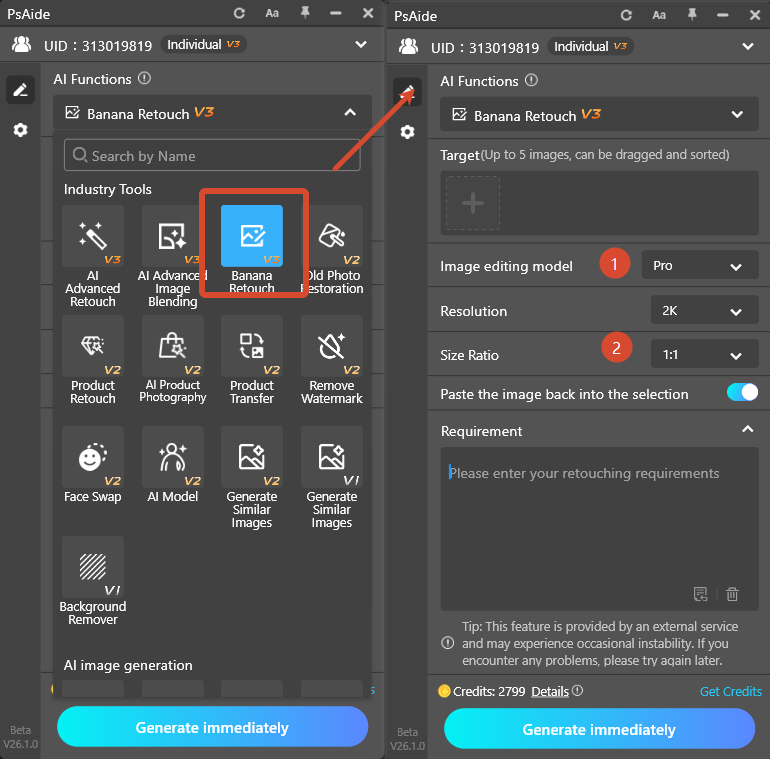
- Upload & Generate Upload the new object (Image 1) and marked image (Image 2).
- Prompt: Replace the cup in Image 2 with the cup in Image 1, keep details of Image 1.
- Click Generate.
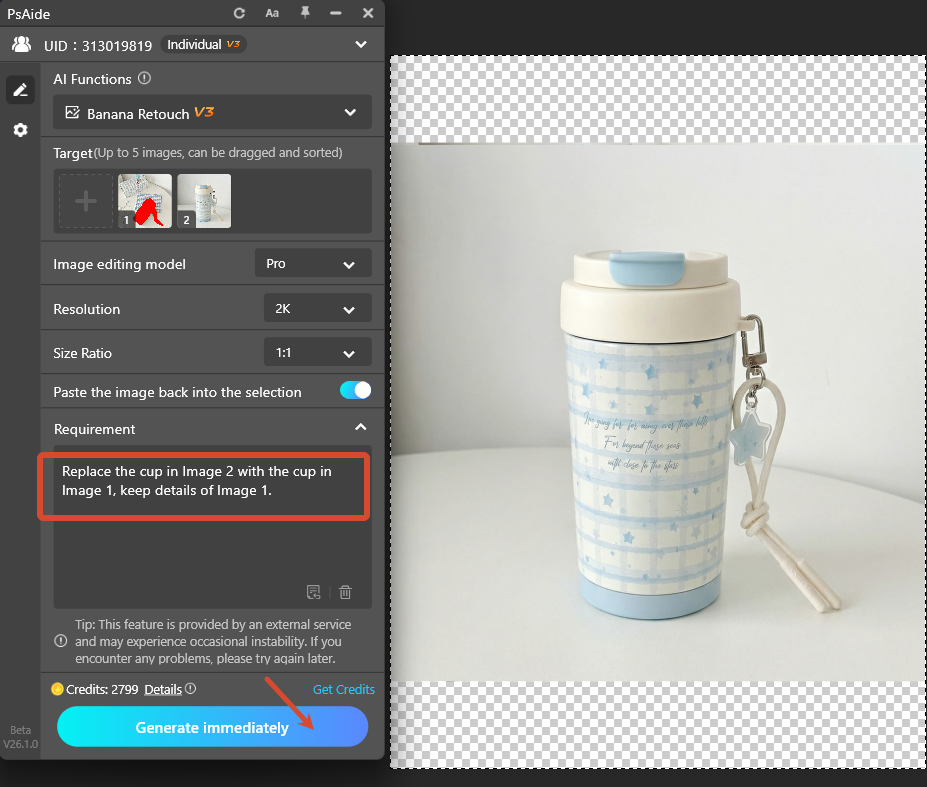
AI blends seamlessly, matches lighting and color automatically, with no stitching or distortion.
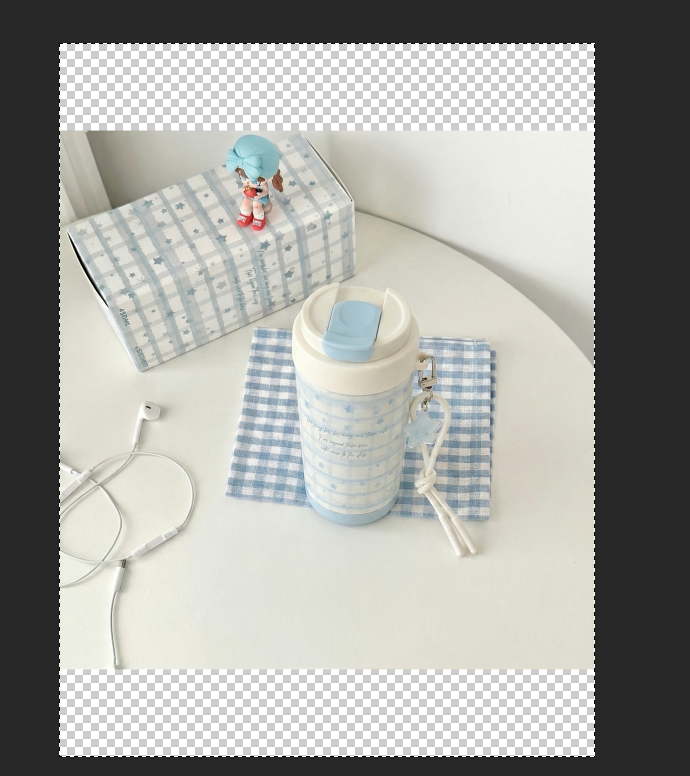
Create professional, invisible image blends easily with Ps and Psaide Nano Banana.lacement effects quickly with Ps and Psaide Nano Banana.
4.Download link

https://psaide.com/?sfrom=A86R4u
Invitation Code: A86R4u

